

Objectives
This chapter will provide a concise overview of the Serial Monitor on how it will be useful later on in subsequent chapters.
Prerequisites
Setup
Arduino Uno board
About Serial Monitor
Serial Monitor is a tool for communicating with an Arduino board, such as sending and receiving text data. It is essential for debugging, testing, and interacting with Arduino projects.
We start with the Serial Monitor before advancing to more complex subjects because upcoming chapters will address Arduino modules (such as Liquid Crystal Displays, Light Sensors, Motors, Keypads, etc.) on an individual basis. This approach ensures that demonstrations remain straightforward and discussions are concentrated on a single module at a time. For instance, in a later chapter, we will explore the Keypad module. Since we are examining modules separately, we will not use a Liquid Crystal Display to show numbers entered on the Keypad. Instead, we will utilize the Serial Monitor to display the pressed keys. Another example is utilizing a motor module and dynamically adjusting the rotation speed based on user input. Rather than employing button modules for user input, the Serial Monitor can be used for this purpose.
Opening the Serial Monitor
Within the Arduino IDE, we can open the Serial Monitor from the menu by navigating to "Tools > Serial Monitor".
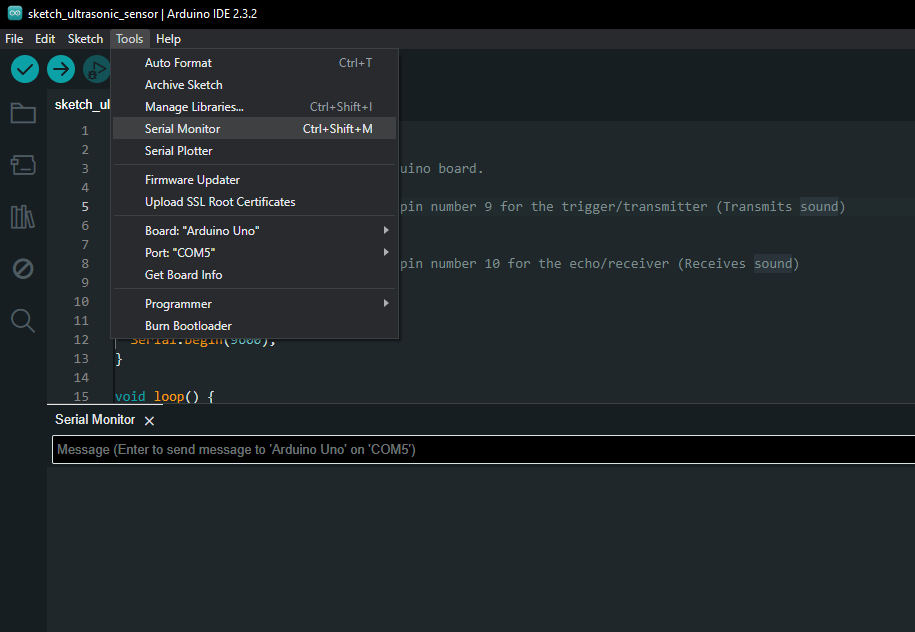
A "Serial Monitor" tab will open up, serving as the interface for sending text and outputting data to and from the Arduino board.
How it works
Let us write a simple program to display text on the Serial Monitor panel. An Arduino board must be connected even though the code we are writing will not utilize the board's functionality.
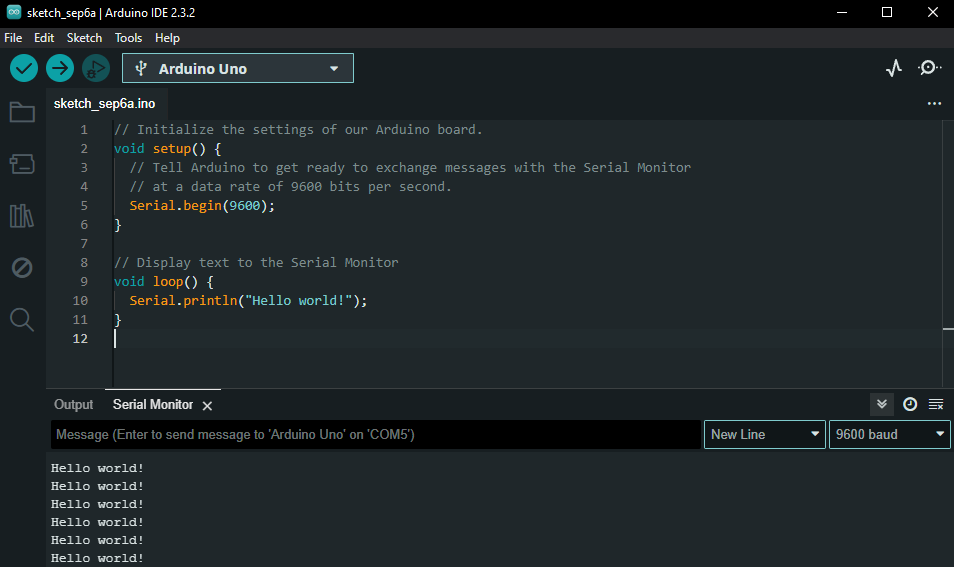
Executing the above code will display the message "Hello world!" repeatedly due to its placement within a loop.
This time, we will read user input from the Serial Monitor and display the entered data.
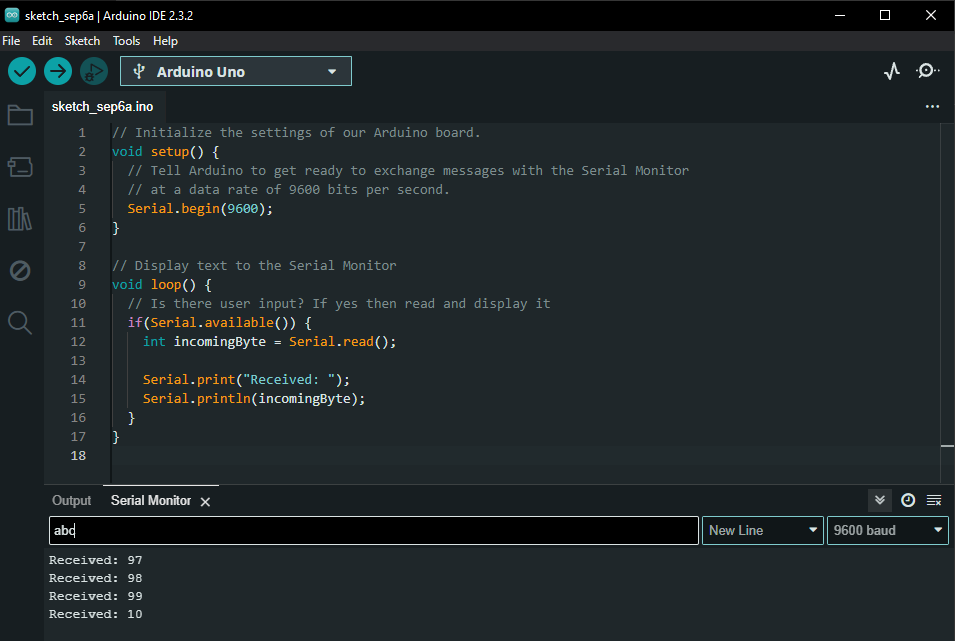
Note that when we input the value "abc" followed by the enter key, the received values are in decimal form. The Serial's read function processes data byte by byte. The letter "a" is represented by byte value 97, "b" by 98, "c" by 99, and the enter key by byte value 10. For a refresher on how this mapping works, there are numerous online resources available.
This is an alternative version of the code that displays letters in place of byte values.
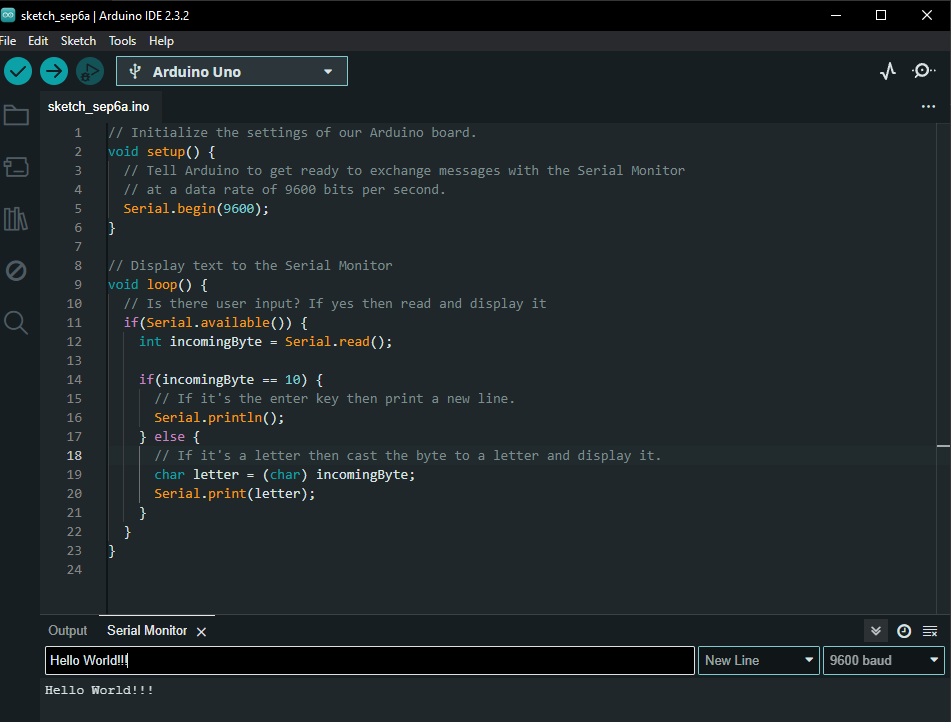
While there is much more to discuss regarding the functionality of the Serial Monitor, the information provided thus far suffices for this chapter.