

Today, Balkeni Studio is bringing you a beginner level tutorial to extend the function, look and feel of your blogger blog.
If your Blogger.com posts or pages feel too text heavy or visually flat, there is a simple design trick that can instantly improve them. Hover boxes with titles allow you to show a a visually engaging image and reveal more information (a title) when a visitor moves their cursor over the box.
This small interaction can make your blog posts look more modern while also helping you organize information better. Hover boxes are useful for highlighting tips, linking related posts, showcasing resources, or simply breaking up long sections of text.
In this tutorial you will learn how to add hover boxes with titles to a Blogger post or page using a ready to use snippet from the Balkeni Snippets Library. You will also learn how to customize the boxes so they match your blog and content.

What Are Hover Boxes
Hover boxes are small visual content blocks that reveal additional information when someone moves their mouse over them.
The visitor first sees an image and then the title of the box. When they hover over it, the box displays more content such as a description, link, or extra information.
This technique keeps the page clean while still allowing you to include more helpful details.
For Blogger blogs this is especially useful because it lets you add interactive design elements without editing your theme.
Why Hover Boxes Work Well on Blogger
Many Blogger themes rely heavily on text and images. Adding hover boxes introduces structure and interaction without requiring plugins or complicated code.
Hover boxes can help you:
Break up long blog posts
Highlight tips or important notes
Add related articles inside a post
Create interactive resource sections
Improve overall blog design
These small improvements can make your content easier to scan and more engaging for readers.
How to Add Hover Boxes With Titles in Blogger
The easiest way to add this feature is by using the Balkeni snippet.
https://snippets.balkeni.com/snippet/hover-boxes-with-title
Step 1: Copy the Snippet Code
--> Open the snippet page and copy the HTML code provided.
--> The snippet includes both the styling and the hover effect, so you do not need to add anything else.
Step 2: Open Your Blogger Post or Page
--> Go to your Blogger dashboard.
--> Open the post or page where you want to add the hover boxes.
--> Switch from Compose view to HTML view.
--> This allows you to paste custom HTML code into your article.
Step 3: Paste the Hover Box Code
-->Paste the snippet into the place where you want the boxes to appear.
For example you might place them:
inside the article
between sections
in a recommended posts section
at the end of a tutorial
--> After inserting the code you can switch back to Compose view and continue editing your post normally.
Step 4: Customize the Hover Boxes
The snippet is designed so you can easily customize each box. Here are the parts you can edit.
Changing the Box Title
Inside the code you will see the title text that appears in grey color with : /* random text here */
These section help guide you on what things you can customize where.
Replace that text with the title you want readers to see.
Creative Ways to Use Hover Boxes in Blogger Posts
Once you start using hover boxes you will find many ways to include them throughout your blog.
Related Posts Sections
Add hover boxes at the end of your article to promote other posts. This encourages readers to explore more of your content.
Tip Boxes Inside Tutorials
Instead of writing long callout sections, place hover boxes labeled Tip or Quick Idea.
Readers can hover to reveal the advice.
Resource Lists
Hover boxes work well for lists of tools or resources. The title shows the resource name and the hover text explains what it does.
Breaking Up Long Articles
If your article is very long, adding hover boxes between sections can make the page easier to scan.
SEO Benefits of Hover Boxes
Hover boxes can indirectly help your SEO by improving how readers interact with your content.
They encourage readers to spend more time on your page and explore additional posts.
Using hover boxes for related articles also strengthens internal linking, which helps search engines understand your site structure. Hover boxes with titles are one of the easiest ways to upgrade the design of your Blogger posts.
They help organize information, highlight important ideas, and create a more interactive reading experience.
With just a small snippet of code you can add visual structure to your content and make your blog feel more polished.
You can even add them in the Layout tab your theme for an added design style.
You can get the hover box snippet here:

Once you try them in a few posts, you will quickly see how useful they are for improving both the look and usability of your blog.
☞ Join my blogging memberships to go from $0 a month to $100/month for just $2/month.
☞ Join my blogging memberships to go from $100 a month to $500/month for just $15/month.
Feel free to ask questions and engage the comments section.
INFO: However, please do not attach your blog links in the comment, If I'll need a link to your blog I'll reply with further instructions to get in touch with me. Comments with links will not be published and will end up in the spam. You can use any social platform to log-in and leave a comment.
If you've enjoyed this post, please support our work by donating using the support button below. Writing blog post takes a lot of time and effort as many of you may already know, and we want to be able to keep the blog alive and free for the majority all of you.
We also don't use ads from Google or other ad companies so we rely on community support to cover the costs of blogging. A small donation really helps me and the team stay motivated and be compensated for the time, energy and effort we put into our work. As always, thank you so much for your support!
You can even help us spread the word by sharing this blog post with your followers if you think they will enjoy reading this, or a friend who will benefit from this.
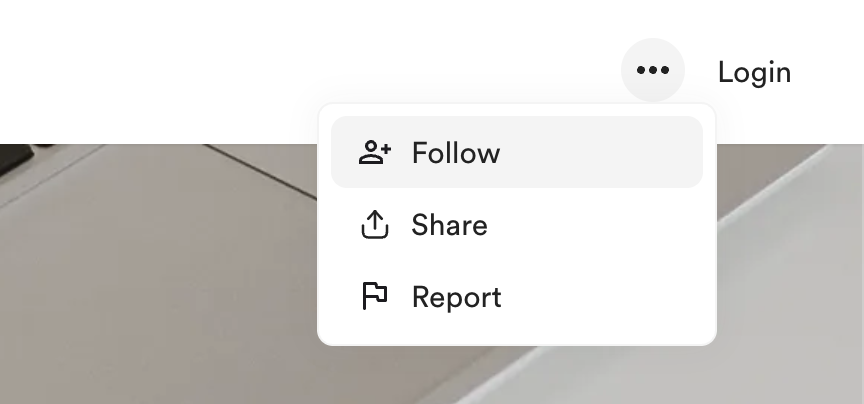
To keep receiving blogging education like this please consider following us by clicking the three dots and choosing the follow button.
 Alternatively, you can even sign-up for our newsletter as well: