

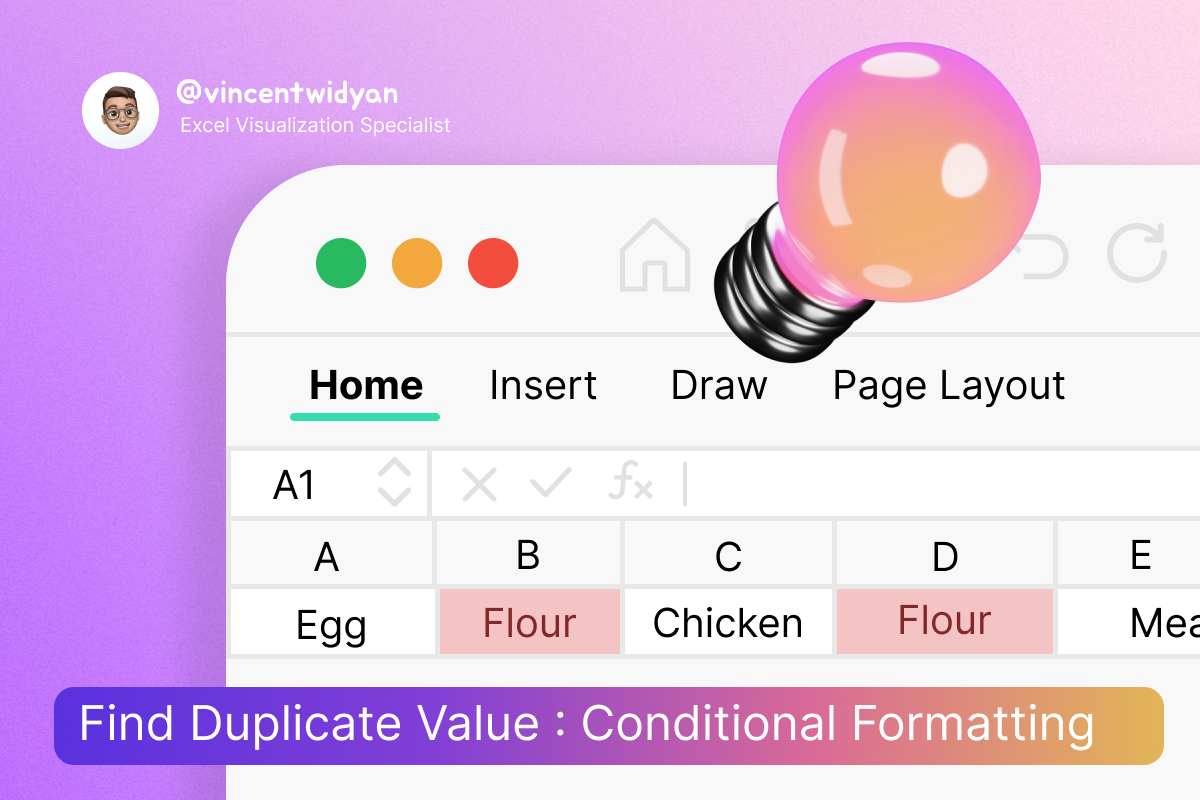
Finding duplicate value in Microsoft Excel can be frustrating. Even though there are many ways to do that, here in this tutorial, I will explain how you can find duplicate value in Microsoft Excel using Highlight in Conditional Formatting.
1. What we need to do before start the tutorial?
Use Microsoft Excel, either you can purchase licensed one or using free Microsoft 365 Online
2. Find Duplicate Value using Highlight on Conditional Formatting
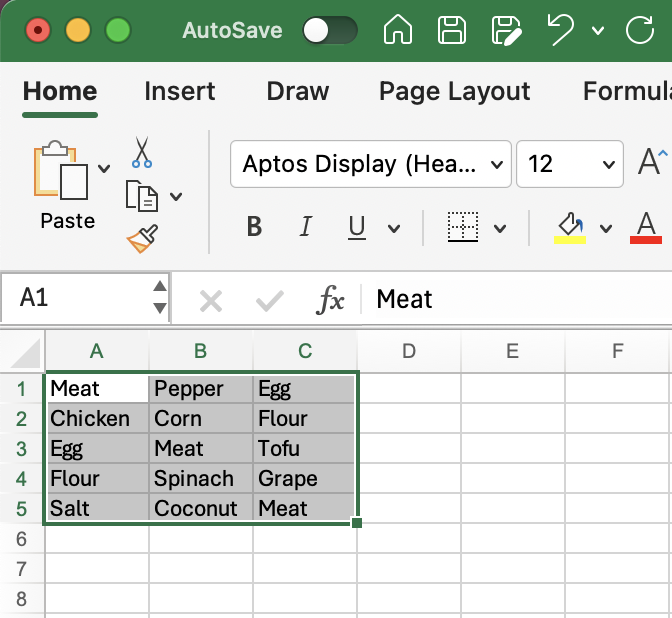
Select the range all of the data you want to find.
💡Tips
If all the range are in one column, you can select the range by clicking the Column Name. Can also applied if range in one row, you can select range by clicking Row Number. It is faster than dragging using pointer
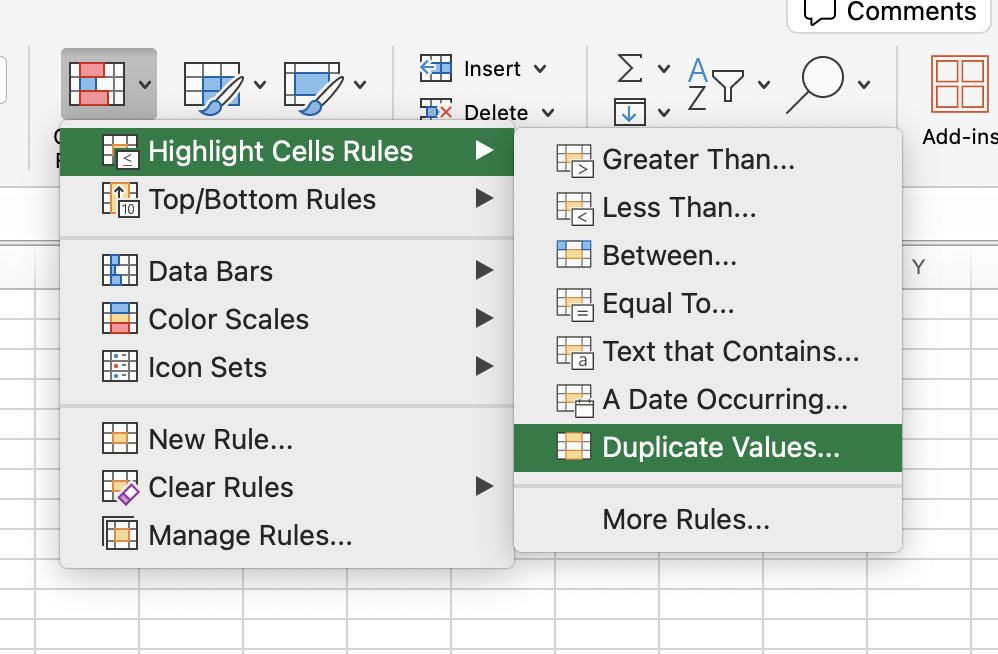
Go to Home > Conditional Formatting
Dropdown will appear, then select Highlight Cell Rules
Then select Duplicate Value
💡Insight
In other cases, you can select other rules that also will highlight certain cell on the range such as cells with equal to certain text/number, cells value that greater than/lower than certain number, etc.
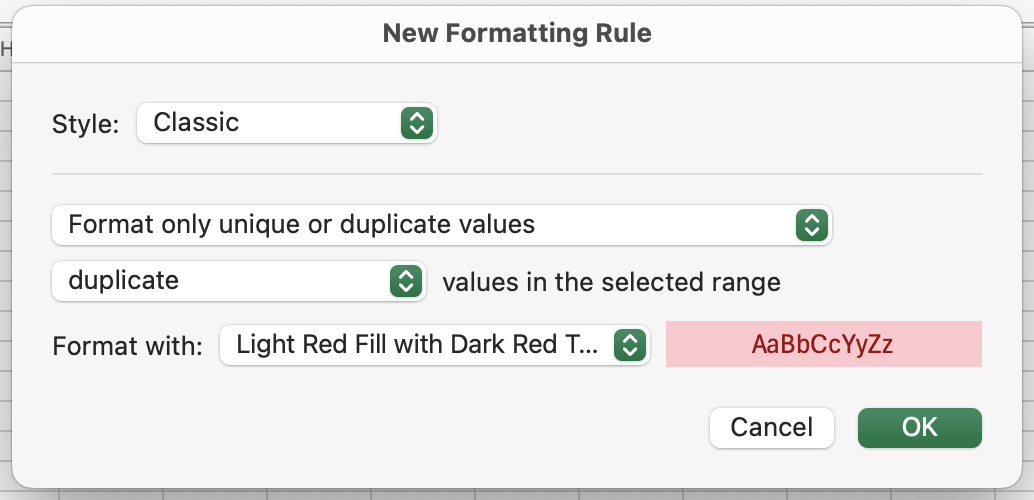
Pop Up New Formatting Rules will appear, then select OK.
💡Insight
On this pop up, you can set the fill color and font color that will appear when the rules is match. By default, the fill color is light red and font color is dark red.
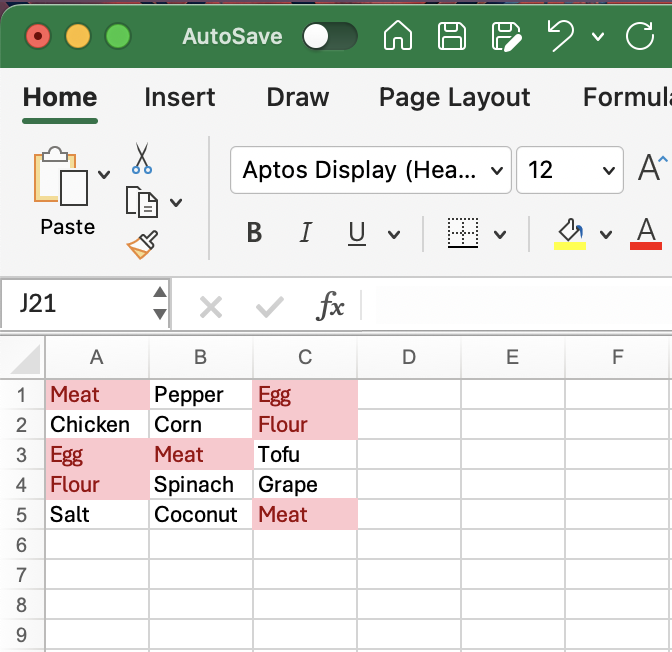
After doing these steps, you will see which cell has duplicate values with all the range you previously selected. That is how you can find duplicate value using Highlight on Conditional Formatting in Microsoft Excel.