

Data Validation feature in Microsoft Excel can be useful when you want to make sure other person that using your Excel won't messed up. Using Data Validation, we can define the options that allowed to input. In this tutorial, I will explain tutorial on how to create Dropdown using Data Validation in Microsoft Excel.
1. What we need to do before start the tutorial?
Use Microsoft Excel, either you can purchase it with license or using free Microsoft 365 Online
2. Create Dropdown in Excel using Data Validation
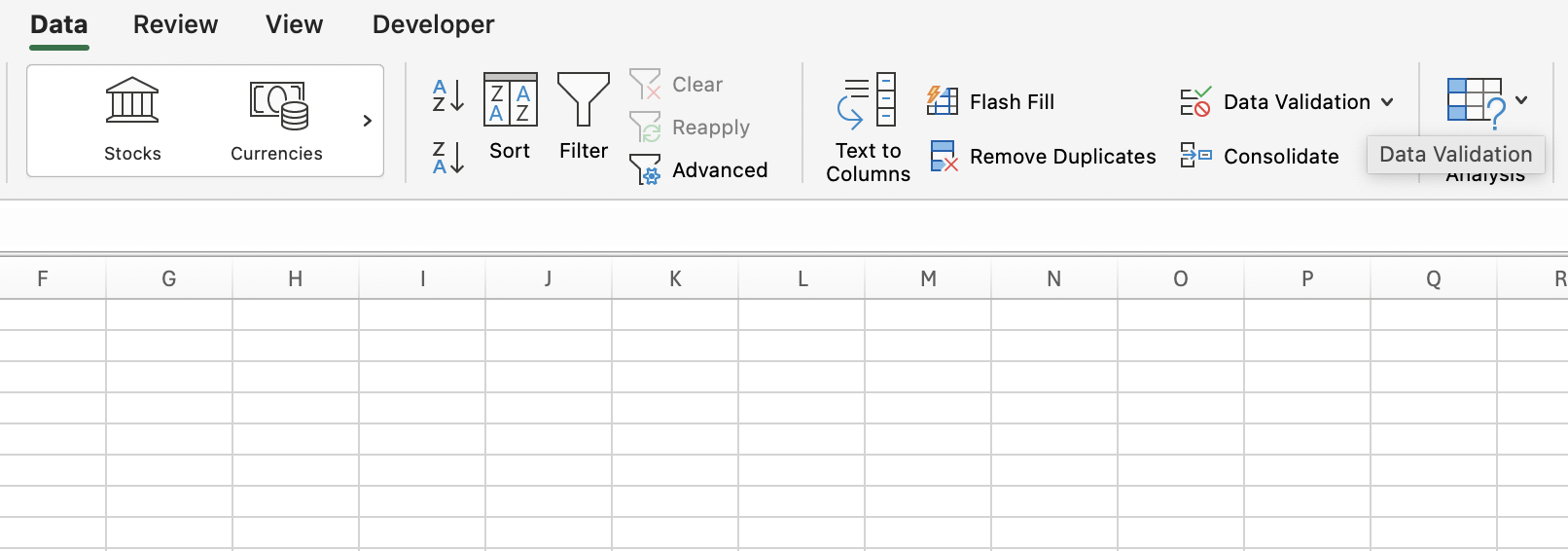
Go to Data menu > Data Validation
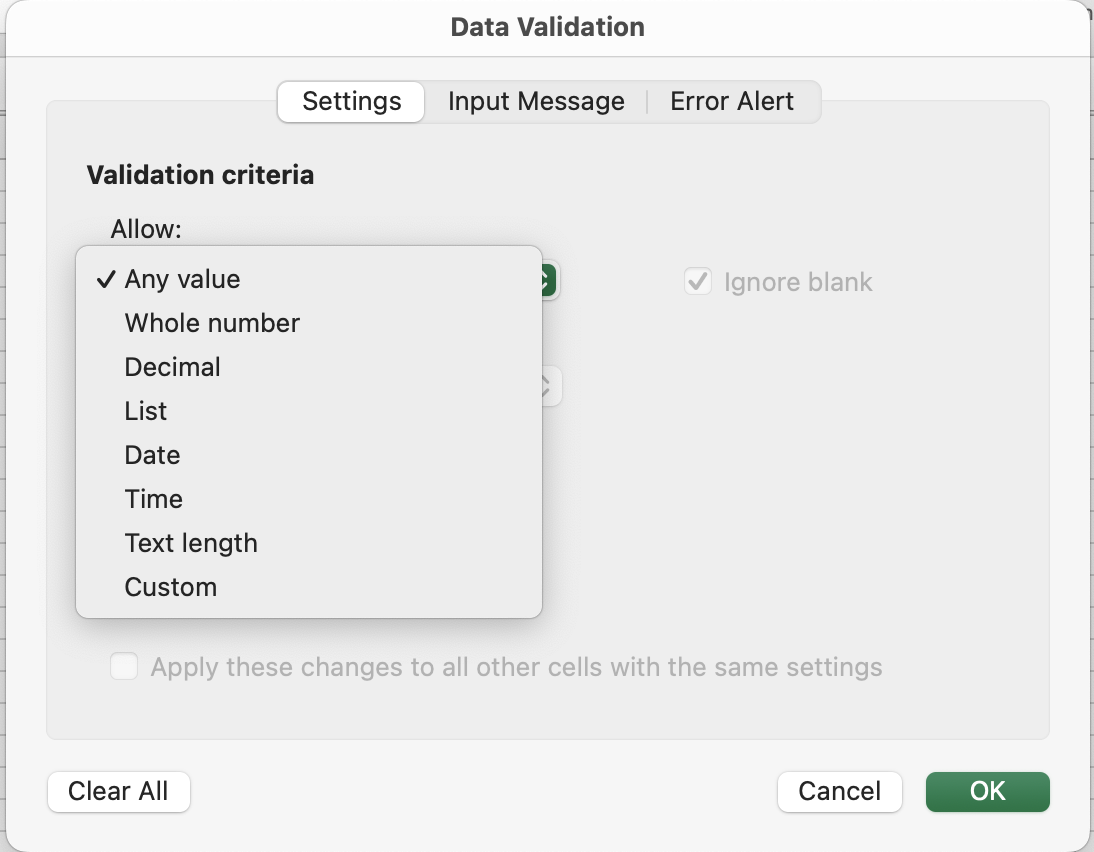
A Pop up will appear > Select options List from Allow dropdown
There are 2 way you can input the options as below :
Directly on the pop up
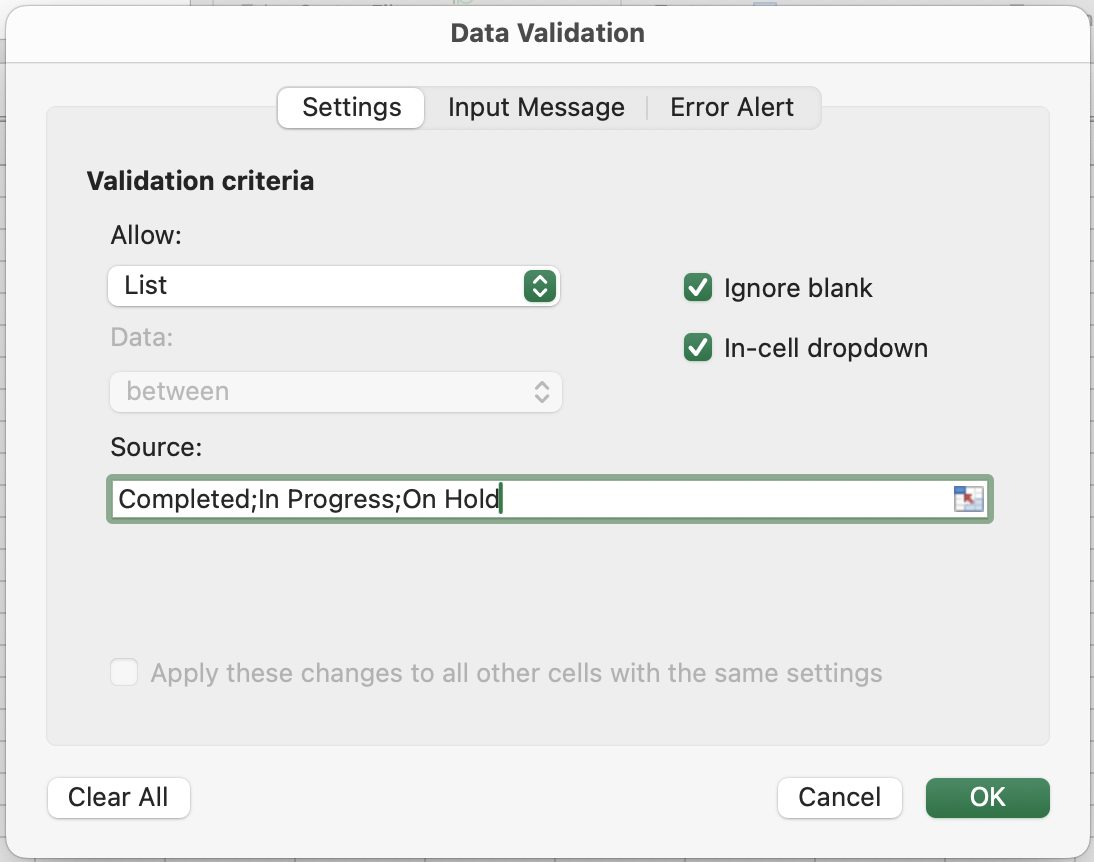
Fill the Source with the options you want to fill. Here for example, I use 3 options (Completed, In Progress, and On Hold). You can separate the options by using comma (,) or semicolon (;).
Click OK
The final result is as below. You'll have three (3) options as you fill on the pop up Data Validation.
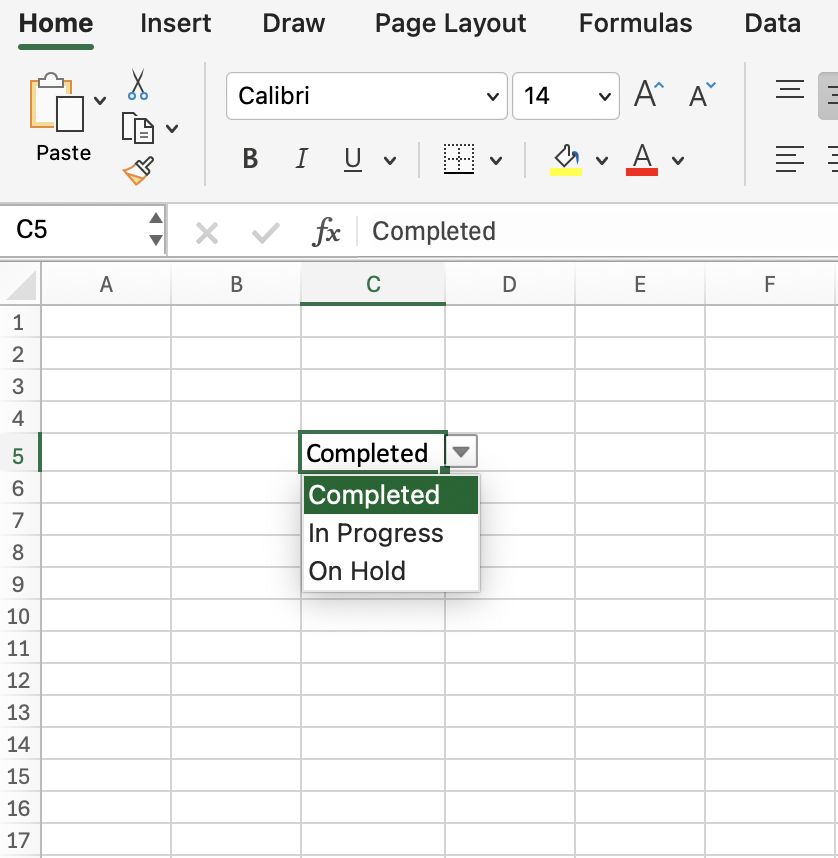
Using cell reference
Click the Formula Bar below the Source
Drag the cursor to the Options that already filled on the cells
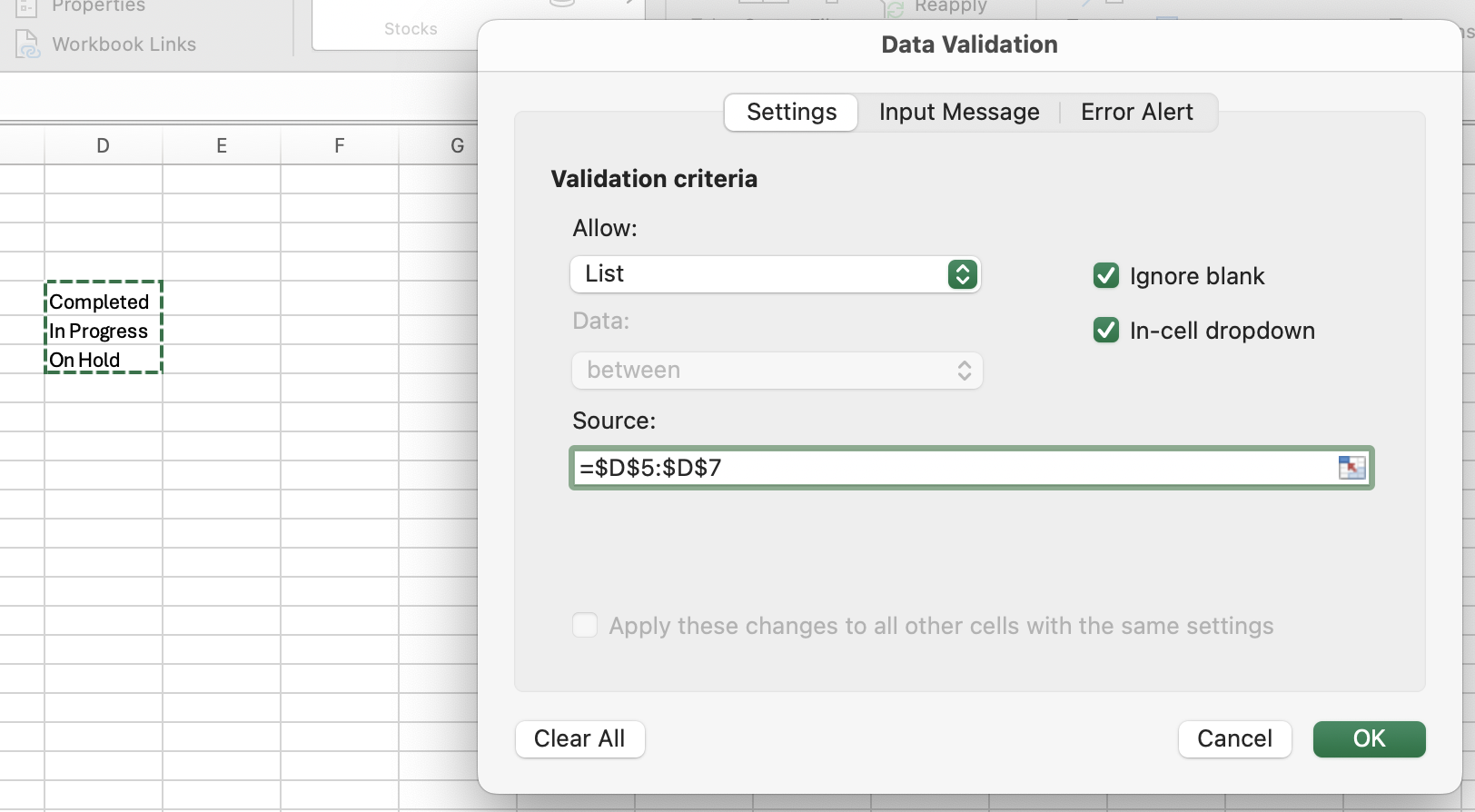
Click OK
By doing these steps, you should be successfully create dropdown using Data Validation in Microsoft Excel.