

Videos can make a website more engaging, but getting them to work exactly the way you want in Divi can be surprisingly difficult. Autoplay, looping, popups and custom play buttons often require extra plugins or custom code.
That’s why I created Divi Video Pro, a new WordPress plugin that adds two powerful video modules to Divi 5: Video Pro and Video Slider Pro.
Whether you want an autoplaying background video, a video that opens in a popup, or a silent preview that starts playing as visitors scroll down the page, Divi Video Pro gives you the tools to build it directly in the Divi Visual Builder.
Watch the video below to see the plugin in action.
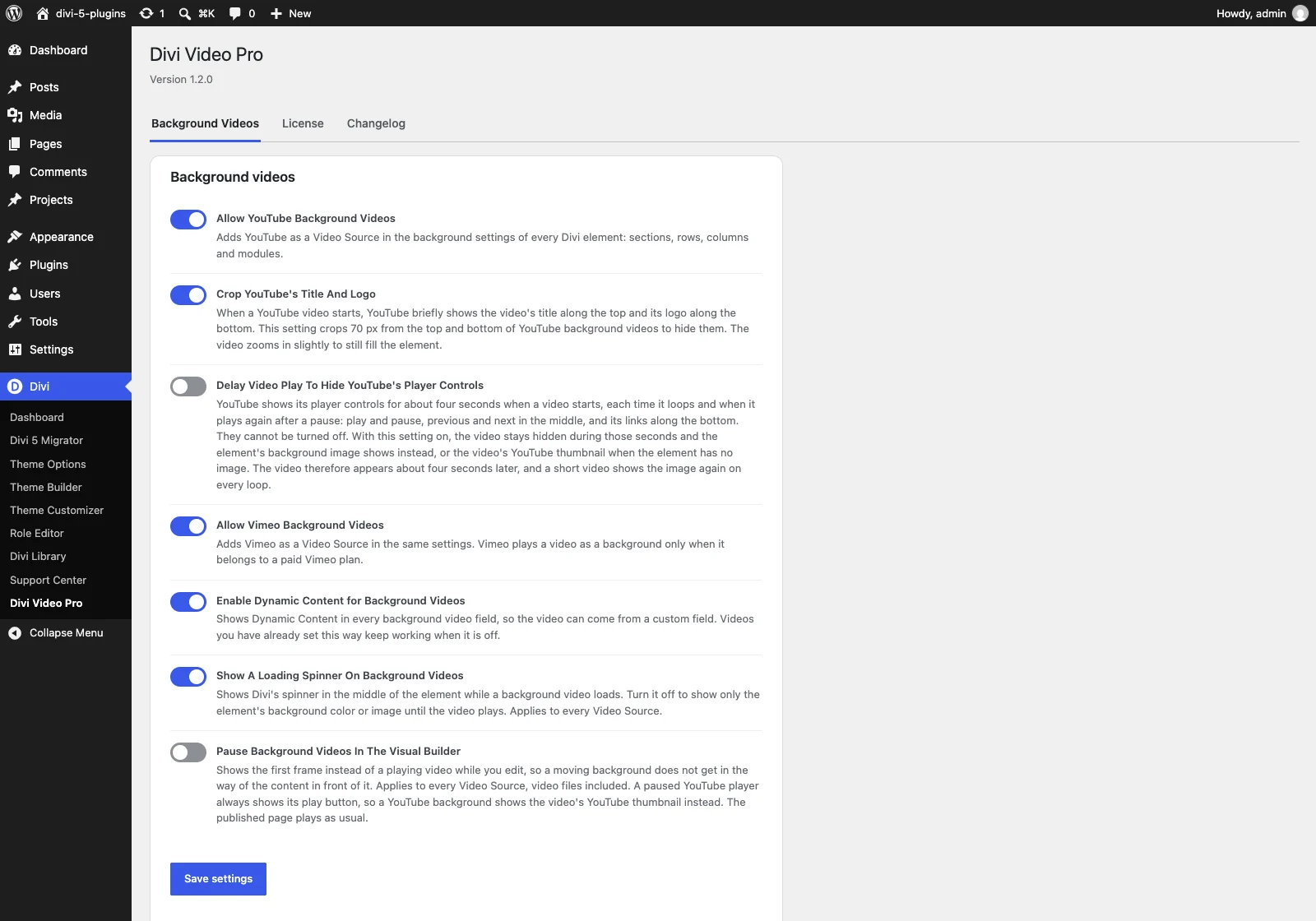
1. Use YouTube and Vimeo Videos as Backgrounds
Want to create a hero section with a video background without uploading large video files to your WordPress media library?
With Divi Video Pro, you can use videos hosted on YouTube or Vimeo. You can also use dynamic content to load different videos depending on the page or post being displayed.
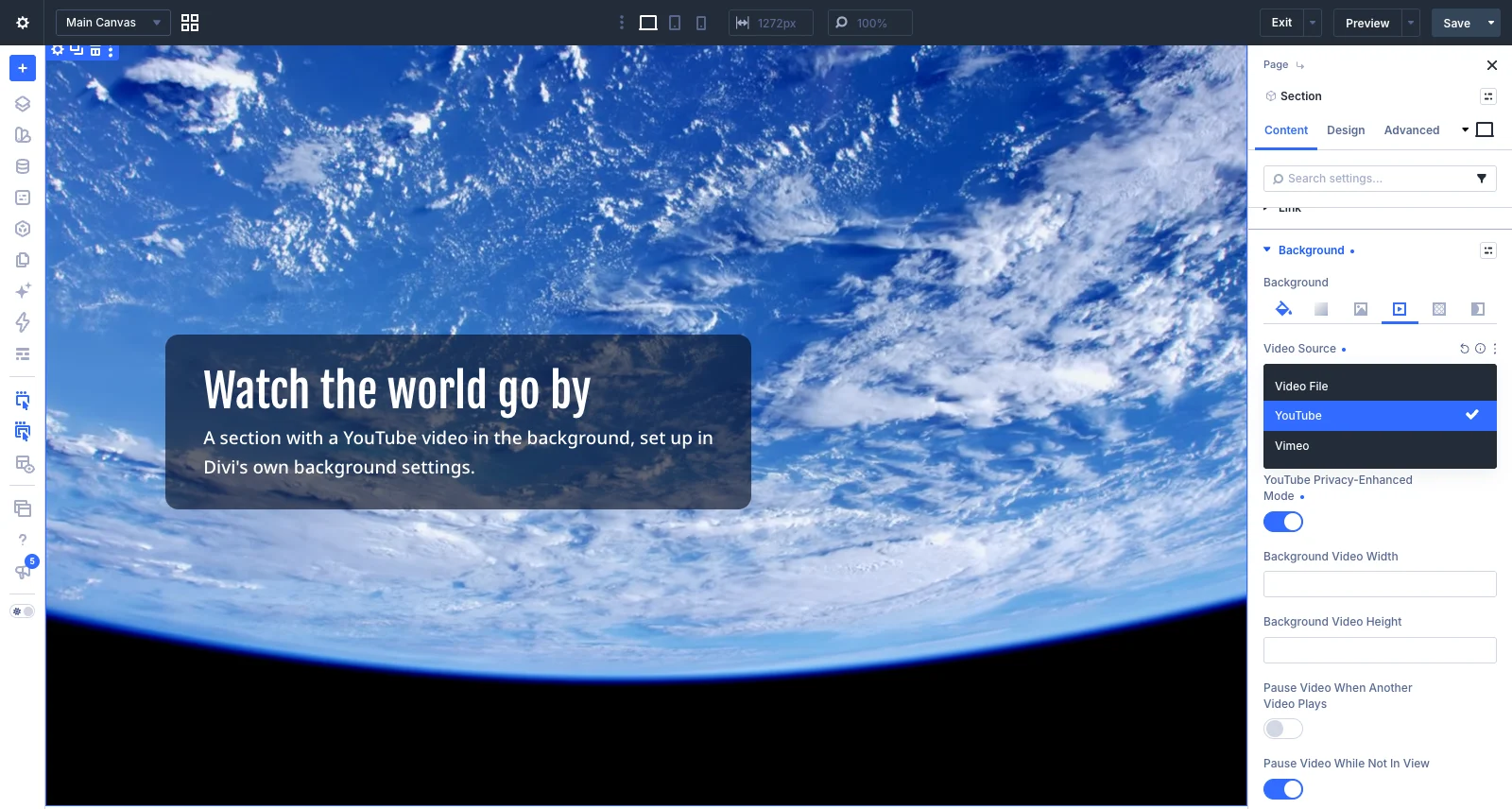 This is particularly useful when working with Divi’s Theme Builder. For example, you can create a single template for all your blog posts or custom post types and display a different video on each page using a custom field.
Instead of manually editing every page, you can manage your video sources through dynamic content and let Divi display the appropriate video automatically.
Some possible use cases include:
Hero sections with full-width background videos.
Product pages with individual product videos.
Portfolio pages featuring different projects.
Custom post types with videos stored in custom fields.
The result is a more flexible way to incorporate video into your Divi 5 designs.
2. Loop Videos Automatically
Sometimes, you want a video to keep playing without requiring visitors to press play again.
Divi Video Pro makes looping easy. Enable the Loop option and choose whether your video should repeat indefinitely or play a specific number of times.
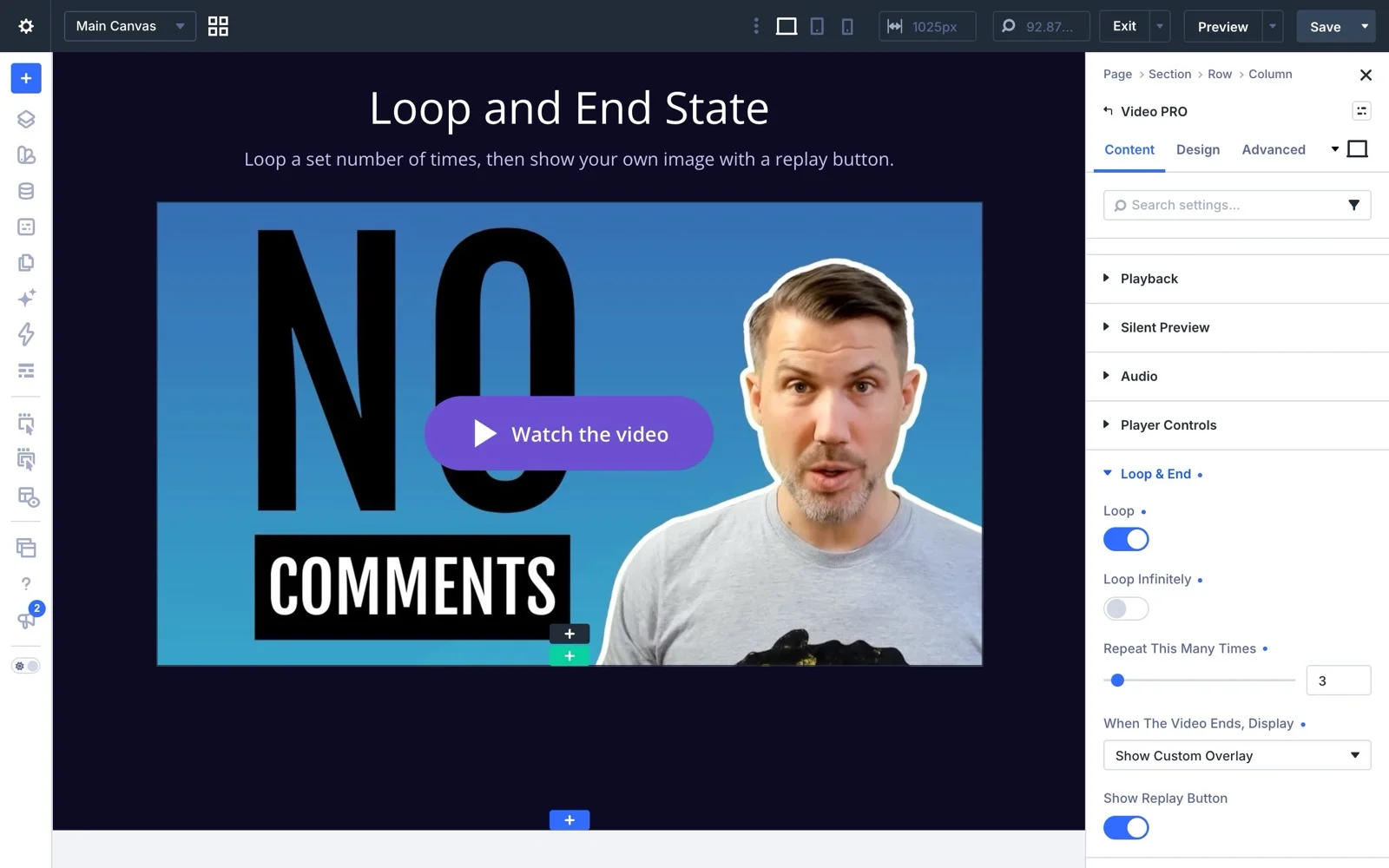 You can also control what happens when playback finishes. Depending on your design, you can display the last frame, return to the first frame, show a thumbnail, use a custom overlay image or display a replay button.
This gives you more control over the experience than simply restarting a video every time it reaches the end.
Looping is particularly useful for:
Short product demonstrations.
Animated website headers.
Background videos.
Portfolio previews.
Repeating video clips that illustrate a specific feature.
Set it up once in the Visual Builder, and the video behaves exactly as configured.
3. Smart Autoplay: Play When Visible, Pause When Out of View
Automatically playing videos can be useful, but you don’t necessarily want every video on a page to start playing as soon as the page loads.
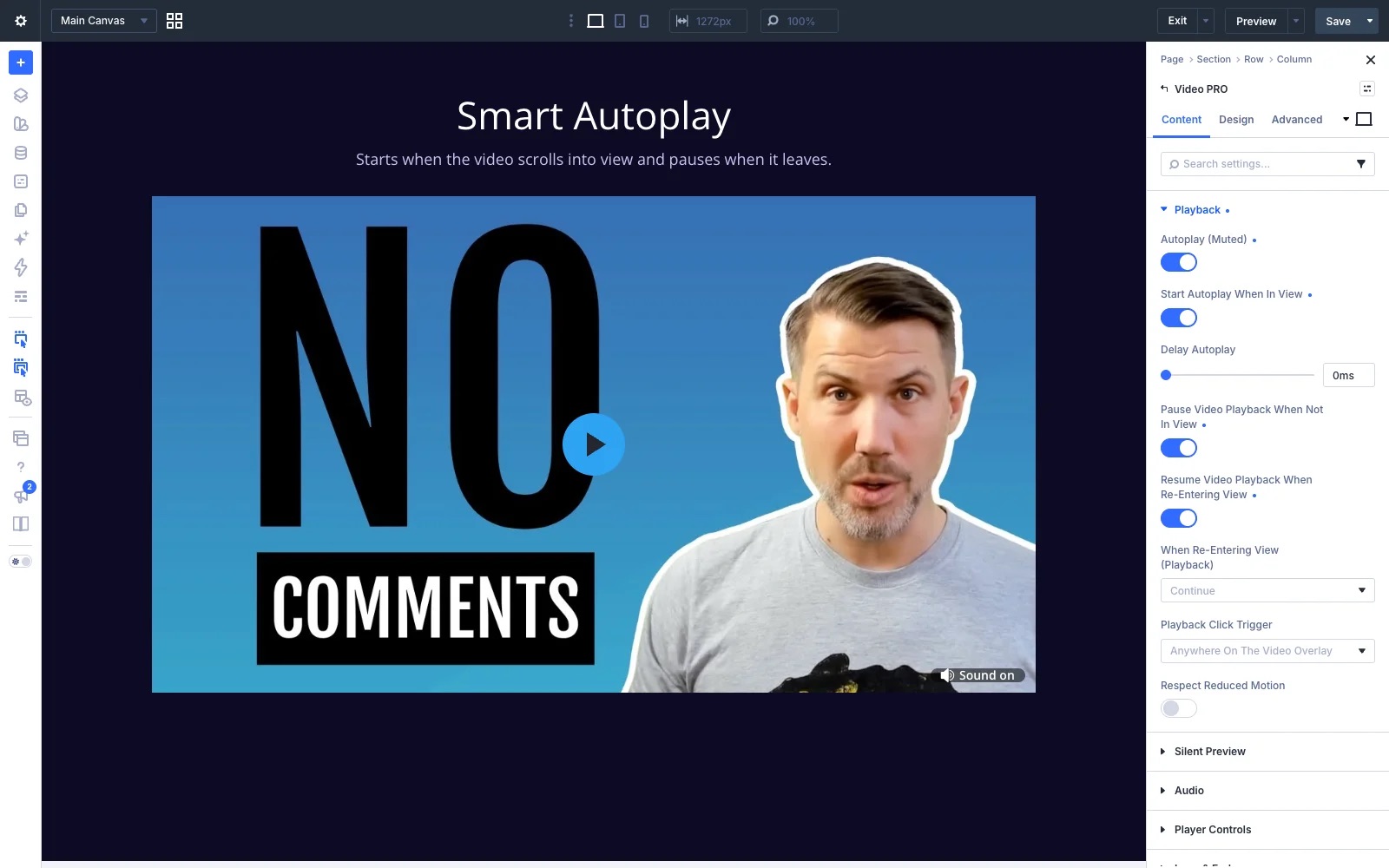
With Divi Video Pro, you can control when videos start and what happens as visitors scroll through your content.
Play videos when they enter the viewport
Enable autoplay when the video becomes visible on the screen. The video starts playing when visitors scroll to it instead of starting immediately when the page loads.
You can also add a delay before playback begins, giving you more control over the timing.
This works well for product demonstrations, video previews and other content that should become active when visitors reach it.
Pause videos when they leave the viewport
You can also configure videos to pause when they are no longer visible.
When visitors scroll away, playback pauses. Depending on your settings, the video can resume or restart when it becomes visible again.
This is useful on pages containing multiple videos. Rather than allowing videos further up the page to continue playing while visitors are reading something else, you can make playback respond to what is actually on screen.
As with other autoplay features, videos must start muted because browsers generally restrict autoplay with sound.
4. Create Video Popups Without Custom Code
Sometimes, you don’t want to display an entire video player directly on the page. You might prefer a clean image, a play button or a regular Divi button that opens the video when clicked.
Divi Video Pro lets you create video popups directly in the module settings.
You can choose between different approaches:
Display a video preview with a play button.
Replace the video preview with a custom Divi button.
Open the video in a popup with a dimmed or blurred background.
Customize the popup’s appearance to match your website.
Because the trigger can be a regular Divi button, you can use Divi’s familiar design settings to control its appearance.
Video popups are particularly useful for landing pages, product demonstrations, testimonials and tutorials where you want to keep the initial layout clean.
The Video Slider Pro module also supports video popups, making it possible to browse a collection of videos and watch them in a larger popup.
5. Design Beautiful Play Buttons With Animations
A video player’s play button might seem like a small detail, but it can make a significant difference to the overall design.
Divi Video Pro gives you control over the appearance and placement of your play button, so it doesn’t have to look like a standard embedded video player.
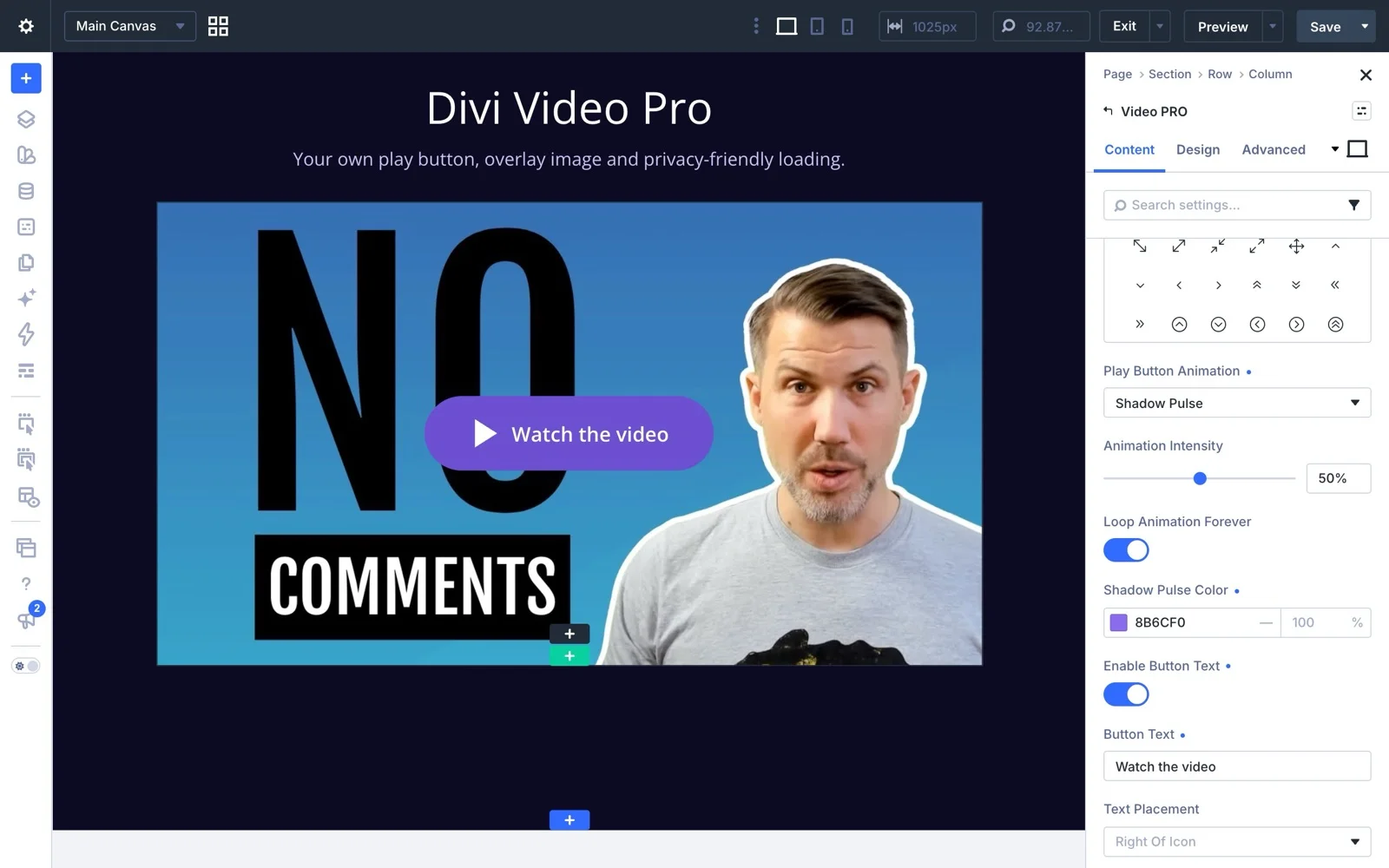
You can customize the icon, size, color and position. You can also use Divi icons or your own SVG graphics to create a play button that matches your brand.
Want something more dynamic?
You can add a subtle pulse animation that draws attention to the button without overwhelming the rest of the design.
You can also customize the overlay and other player elements to create a consistent look across your website.
These options are useful when building branded video experiences for clients or creating landing pages where every design detail matters.
6. Silent Preview: Turn Videos Into Animated Thumbnails
Silent Preview is one of my favorite features in Divi Video Pro.
It lets you display a video that plays automatically without sound, creating an animated preview instead of a static thumbnail.
When visitors click the video, playback starts again from the beginning with sound.
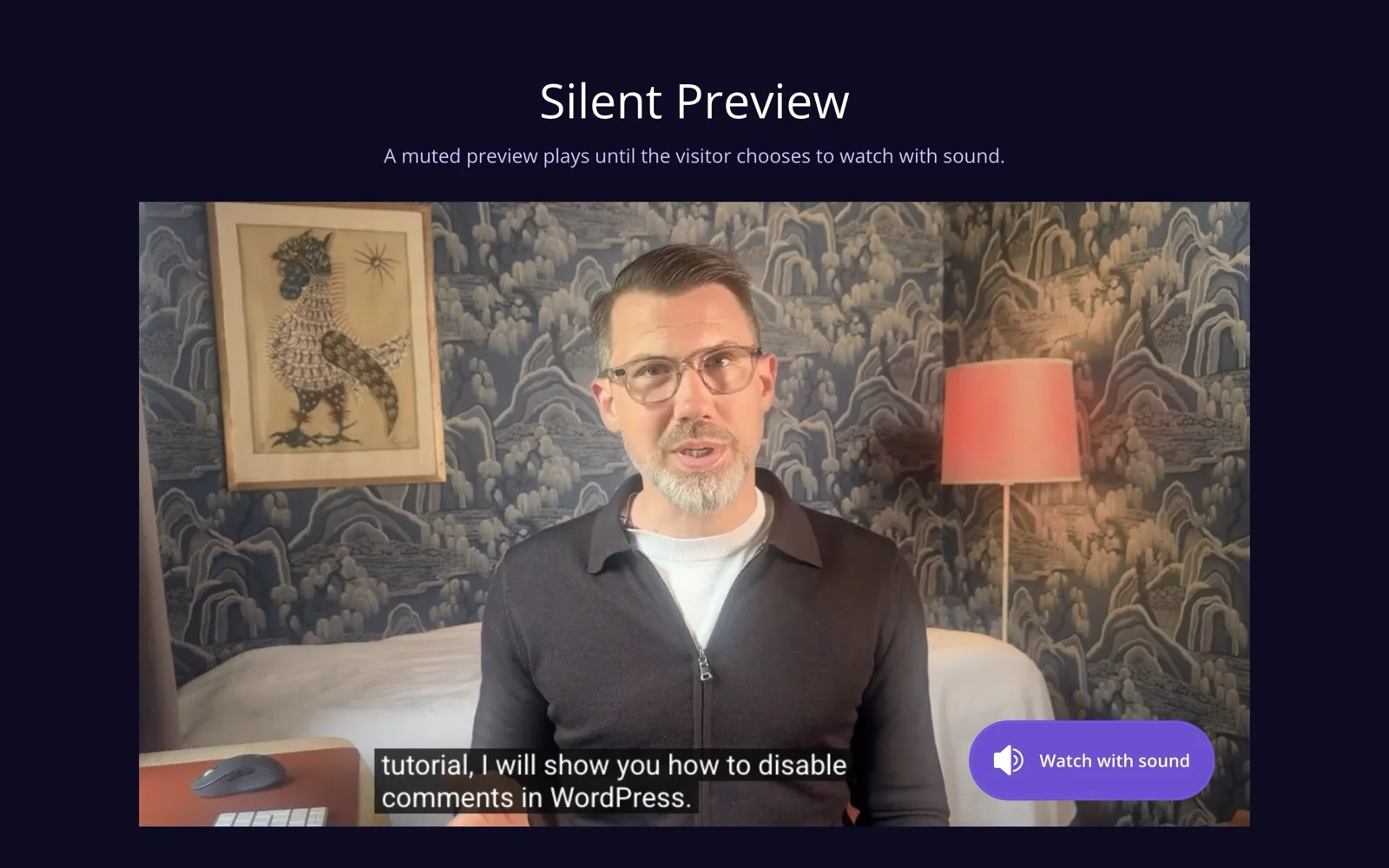
This makes Silent Preview particularly useful for hero sections, product previews and portfolio items.
For example, imagine a landing page featuring a product video. Instead of showing a static image, you can let the video play silently to give visitors a quick preview of the product in action.
Visitors can then click to watch the complete video with sound.
Because the preview is muted, it provides a more natural experience for visitors who haven’t explicitly chosen to play a video with audio.
You can also customize the Silent Preview button to match your design and control how the feature behaves.
One Plugin, Two Powerful Video Modules
Divi Video Pro includes two modules designed for different situations.
Video Pro
Use Video Pro when you want to display a single video with features such as autoplay, looping, popups and Silent Preview.
It’s suitable for hero sections, product demonstrations, tutorials, testimonials and other individual videos.
Video Slider Pro
Need to display several videos in one place?
Video Slider Pro lets you create a video slider with thumbnails, navigation arrows and other navigation options. Visitors can browse between videos, while you control how the slider behaves.
It also supports autoplay, looping and video popups, making it useful for video portfolios, course content and collections of customer testimonials.
Both modules work with YouTube, Vimeo and supported video files from your WordPress media library.
Get Divi Video Pro
Divi Video Pro brings together video features that would otherwise require custom code or multiple separate solutions.
You can control autoplay, looping, popups, play button animations and silent previews directly in the Divi 5 Visual Builder.
Whether you’re building websites for clients or working on your own projects, the plugin gives you more flexibility when incorporating video into your designs.
Ready to try it on your own website?
Get Divi Video Pro and start building more engaging video experiences with Divi 5.