

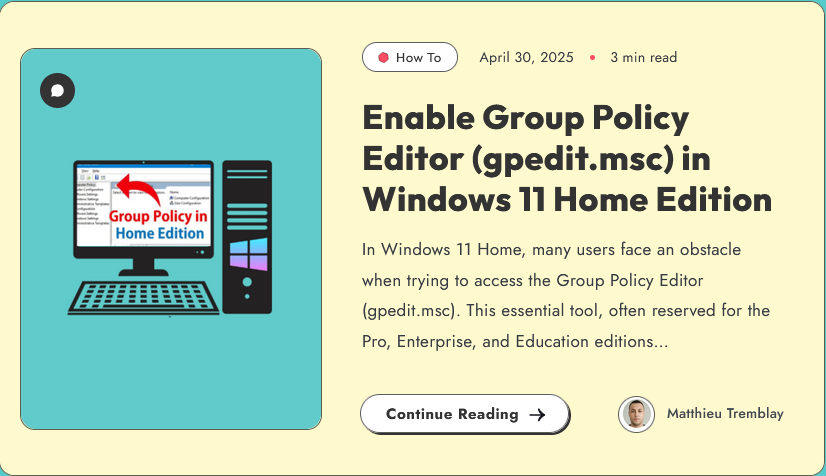
Windows 11 Home Edition does not include the Group Policy Editor (gpedit.msc) by default, but you can enable it using a workaround. Here's how you can do it safely:
⚠️ Important Note Before Proceeding
This method enables the GUI for
gpedit.msc, but some policies may still not work due to underlying service limitations in Windows Home.Create a System Restore Point before making changes.
✅ Steps to Enable Group Policy Editor in Windows 11 Home
Open Notepad and paste the following script:
batCopierModifier@echo off
pushd "%~dp0"
dir /b %SystemRoot%\servicing\Packages\Microsoft-Windows-GroupPolicy-ClientExtensions-Package~3*.mum >gp.txt
dir /b %SystemRoot%\servicing\Packages\Microsoft-Windows-GroupPolicy-ClientTools-Package~3*.mum >>gp.txt
for /f %%i in ('findstr /i . gp.txt 2^>nul') do dism /online /norestart /add-package:"%SystemRoot%\servicing\Packages\%%i"
pause
Save the file as:
Enable-Gpedit.bat
(Make sure the Save as type is set to All Files, not.txt)Run the script as Administrator:
Right-click the
.batfile.Click "Run as administrator".
Wait for it to complete. It may take several minutes.
After it finishes, press
Windows + R, typegpedit.msc, and hit Enter.
✅ Alternative Method: Use Policy via Registry
For certain settings, you can also configure policies directly via the Windows Registry (regedit). This is sometimes more reliable on Home editions.
Would you like help with a specific Group Policy setting via the Registry?
more Guide with images
Getting the Best out of Tech2Geek
Make a habit of visiting the site daily.
Follow us on Facebook to stay updated on the latest happenings.
Follow us on Twitter to stay updated on the latest tweets and offers.
You can also find us on Linkedin.