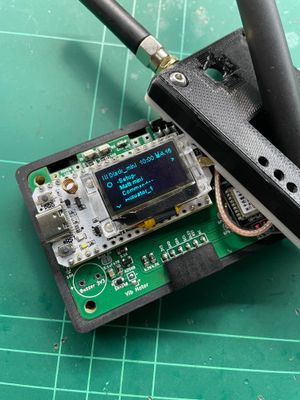

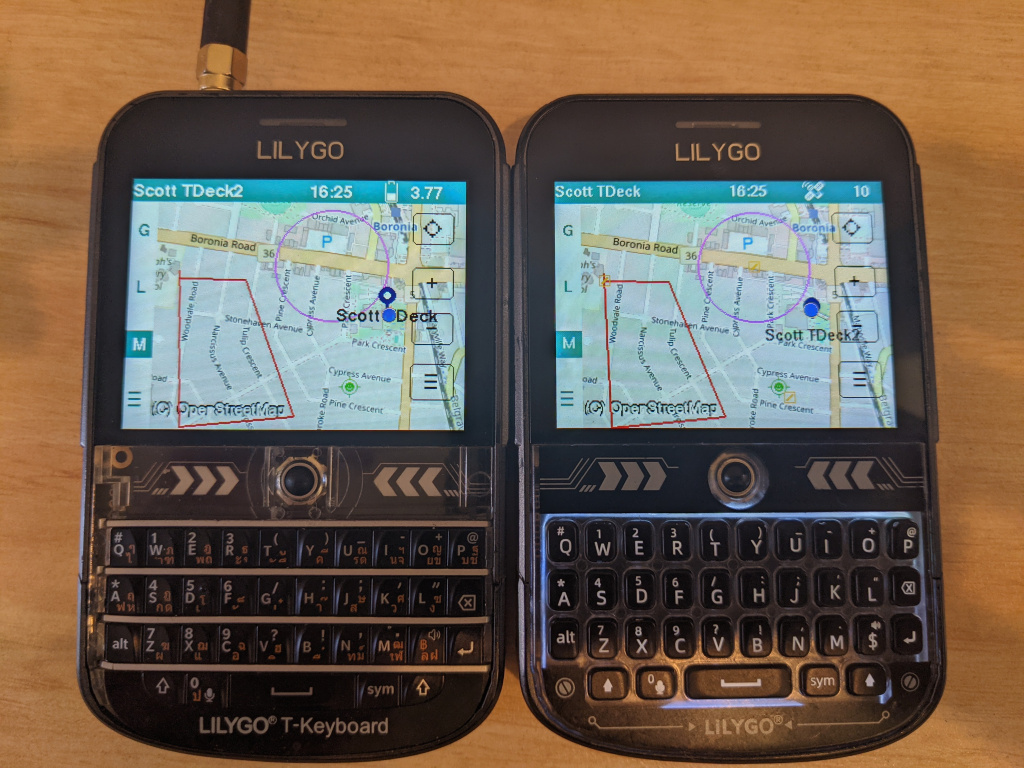
Teams for MeshCore, is a new platform which I have been designing which is a team awareness platform native to MeshCore. I've been wanting to do this for quite a long time, and have only had irregular gaps in my ongoing MeshCore/Ripple workload to actually work on it.
(those of you who've followed my before MeshCore, back in the Ripple days might see that this harks back to my Ripple Tactical app)
What Does It Do?
It is a protocol on top of MeshCore for coordinating team activity that is very map-centric. Essentially, a native attempt at what things like ATAK do, but vastly simplified, and hopefully much better suited to MeshCore networks.
You can:
Easily form a team with minimal setup (mostly just a shared channel key)
Nominate leader(s)
Whole team can see moving map pins of other team member locations
Leaders can create map objects which can be viewed by the entire team in realtime.
Send reports to leader with map references.
Usual team group chat, and DM's, etc
Who Is It For?
Hopefully it will be appealing to emergency services, like search and rescue, or any teams which have to assemble quickly without fuss, and be able to coordinate geo-spatial operations in real-time.
Note that this is still in beta and the protocol is still being finalised, but also that it will be commercially licensed. One of the goals is to make sure that all certified devices work reliably together. This will require a lot of work and testing, and will be in the licensing structure.
If potentially human lives are at stake, the bar will have to be much higher, and the process of inclusion (for manufacturers and partner providers) will have to be more stringent.
Introduction
At present is just a proof-of-concept fork of the Ripple UI firmware, which has the Teams protocol extensions added. The first thing to do is to establish the team channel:
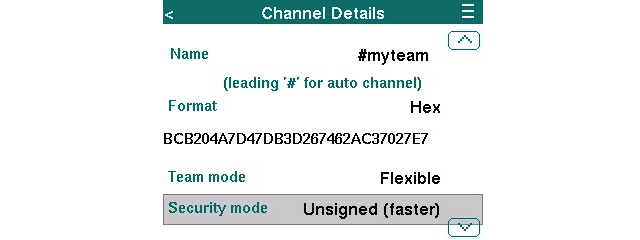 This is like normal MeshCore group channels, but has some extra attributes.
One of the goals with Teams is to have support for quick setup, and this is what the Flexible team mode is for. In this mode, you don't need to use Adverts and have everyone exchange contacts with everyone else. (It's still being developed, but the only exception might be securely establishing a leader node). Extra team members can arrive later and join without interruption, eg in an ongoing search.
For teams which need to be more locked down, the Contacts team mode is where the team nodes also need to do key exchange (at a minimum, with leader node(s)), usually via MeshCore adverts.
The Security mode has three options: Unsigned, Late Verify, and Signed. For high-trust teams where it's assumed there are no bad actors and the verifiability of the information being exchanged is not super critical, then Unsigned is fast and simple. For teams which need much higher confidence in sender verifiability, is the Signed option. (data packets are much bigger). The Late Verify option is a middle option, where for some time (perhaps minutes), teams may see unverified data, but which will have eventual signed verifications.
Map Menu
The map menu now has these options:
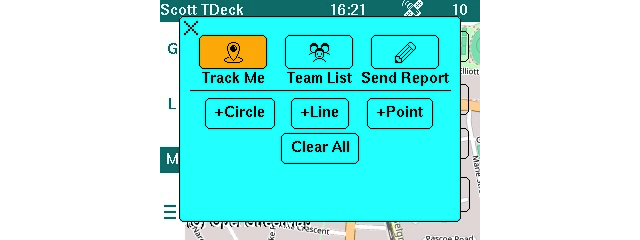 Team members can toggle the sharing of their location with the Track Me toggle/button. Team List shows a list of discovered team members. Send Report is for sending a message with a map reference to configured leader node, which will be retried in the background until delivery is confirmed.
The options underneath are for creating shared map objects. In the current proof-of-concept, all devices can create map objects, but other nodes can choose which team member's they will observe. Typically, just a leader would create the map objects, and various field devices would opt-in to observing, but you can potentially have everyone create map objects, with everyone observing.
To observe another team member's map objects, you just toggle the eye icon in the Team List:
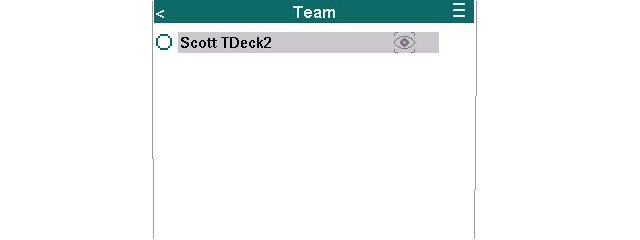 You also see an orange sync icon come up when that member's map objects are being synchronised to your device.
Create Circle
After tapping on the +Circle button, a circle is placed in the centre of the current map, and will be flashing. An edit toolbox is shown at the left:
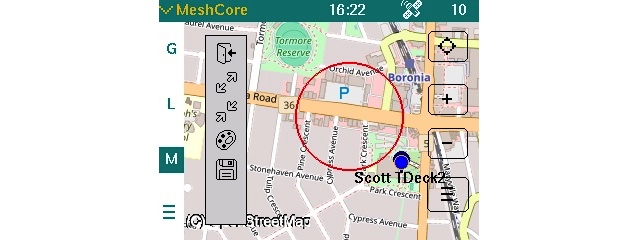 You can change the centre by just tapping on the map. Can make the circle bigger or smaller, or change its color with the toolbox options. Tap on the Save toolbox icon to finalise. After a very short delay, all the devices which have opted-in to observing your map objects will see this on their devices.
Create Polyline
Similar to the circle option above, but you tap on the map to add vertexes:
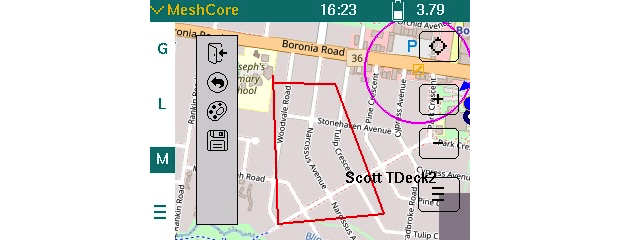 Create Point
This is a single point on the map, with a custom color like the others, but these also can have an associated UTF-8 text/label.
Editing Map Objects
The map can contain a mixture of objects from various team members, but the ones you created will have little orange pencil icons:
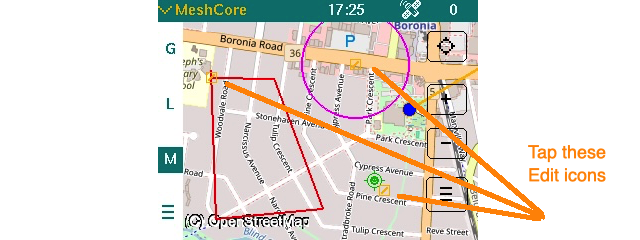 Tap on these to change properties of the object, or to actually delete them. Again, once you hit the save (or delete) toolbox icon, the whole team sees the change.
Send Report
This is a mechanism for a field team member to easily and quickly send a short message with a map reference to a leader. The transmission will be re-tried in the background until a delivery confirmation is received, so the field member is freed to continue on with their job.
They just tap on the Send Report map menu, then either select 'Paste Curr Location' or a map location they tap on, and a short message.
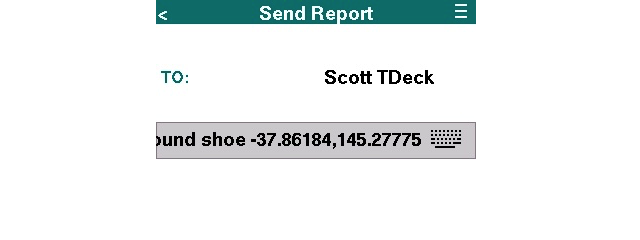 The leader device then sees new message bubbles appear on their map like this:
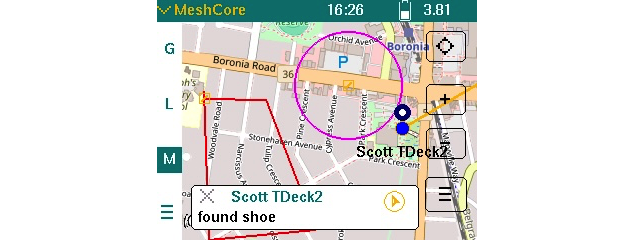 If they tap on the orange location icon (in the circle), the location is shown flashing on the map, and the leader can then optionally create a point map object of this and share with the team. (or can tap cancel, if just the location is to be viewed)
Other Features Still In Development
Each team member will be able to select a status color, initially one of: Green, Blue, Orange or Red. The Red status color will probably also be hooked into an SOS mechanism so team member can quickly initiate an SOS condition to broadcast to the team. Their map pin will appear in the status color.
The different colors can mean different things--whatever is useful to the team's mission.