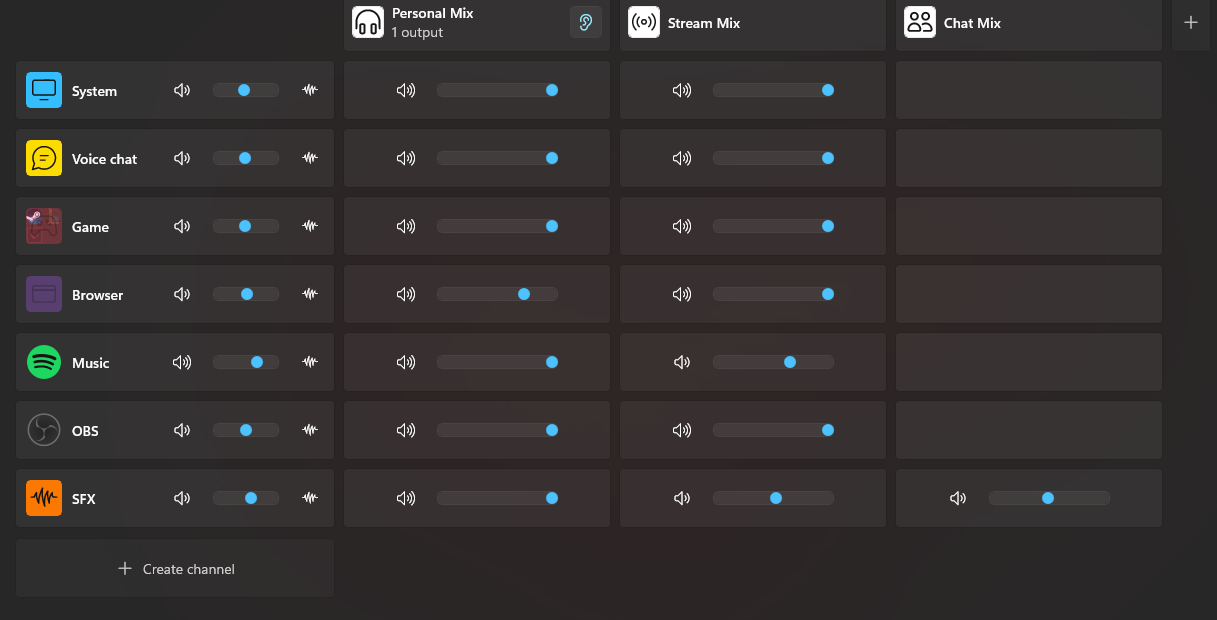

Have you ever experience a problem where Elgato Wave Link 3 is unable to detect your device?
And you are frustrated because then you will have to redo your settings? Especially when you have an already specific VST settings?
That was me for months, until I figured out how to work around with it.
TL;DR - Your PC had assigned a new device ID for your inputs and Elgato Wave Link 3 was unable to detect it since it did not get updated in Elgato Wave Link 3 settings. You can update them manually in its settings.json file
IMPORTANT - Do open the json file using notepad unless your coding programs allows you to save files. Some free programs doesn't allow you to save.
**If you have issue of adding more channel despite not having the maximum 8, follow step 1-4, then skip to 7 - extra
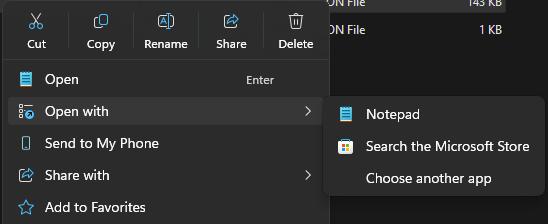
Step 1 - Win+R and paste this string: %userprofile%\AppData\Local\Packages
Step 2 - Look for Elgato Wave Link Folder
 Step 3 - Inside Elgato Wave Link folder, go into its LocalState folder
 Step 4 - Within the LocalState Folder, you will find [Settings.json]
This is where your settings are saved, including vst settings, etc etc. It will look like a huge chunk of codes but you can ignore most of them. All you need to do is look for your device. In this example, I will use my microphone audio interface. Easiest way is to CTRL+F and type in your device name.
To be safe, please do a back up of Settings.json. You wouldn't want to lose your vst settings if you accidentally do something wrong.
PS: If your issue is that you cannot add anymore channel, skip step 5 and go to step 7 Extra. If you just want to fix device unavailable, continue step by step.
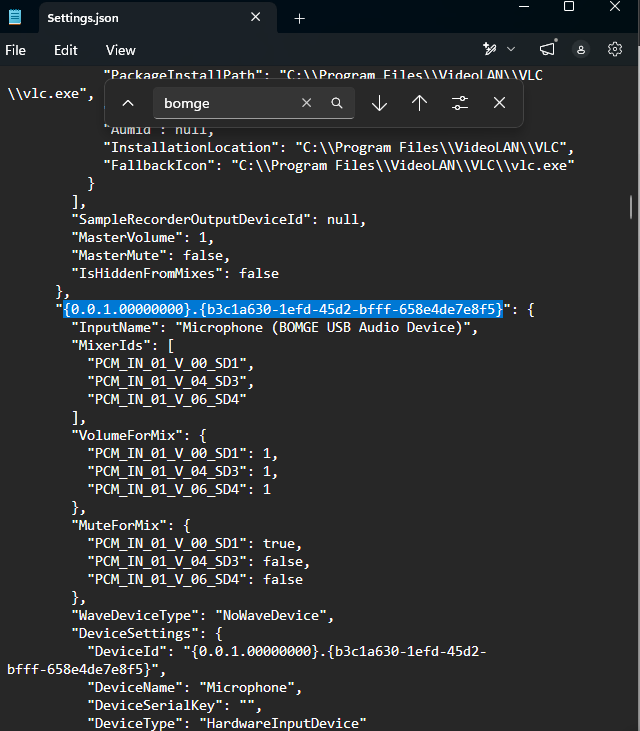
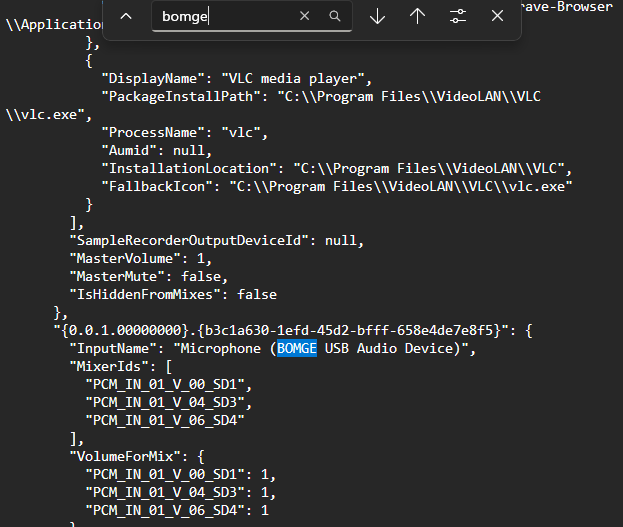 Above the InputName string, is your device ID assigned by your PC (highlighted below)
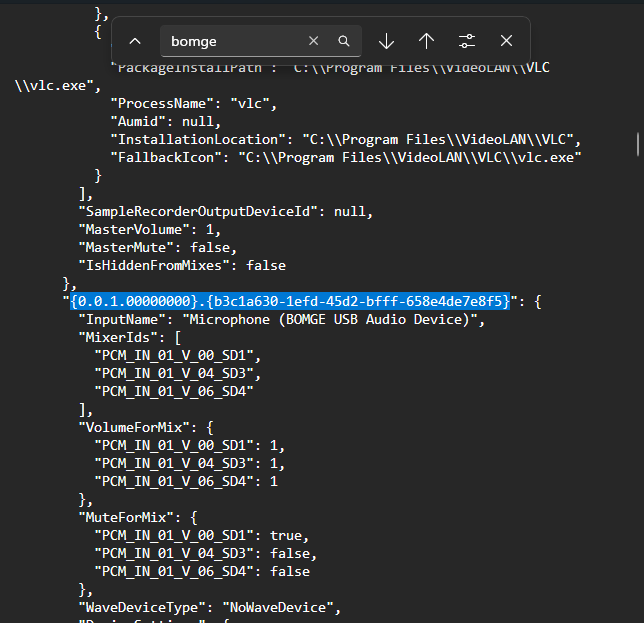 If this string is different in Wave Link 3 than what your PC assigned, that is the main reason why your Wave Link 3 shows that Device is not available. To find what your device ID is, you will need to go to Device Manager.
Step 5 - Finding your Device ID
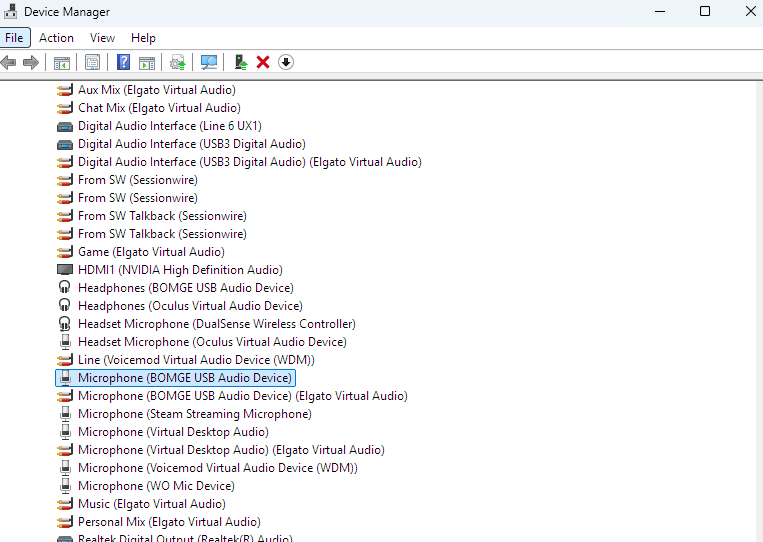
In Device Manager, find your Microphone and double click it. Then go to event tab.
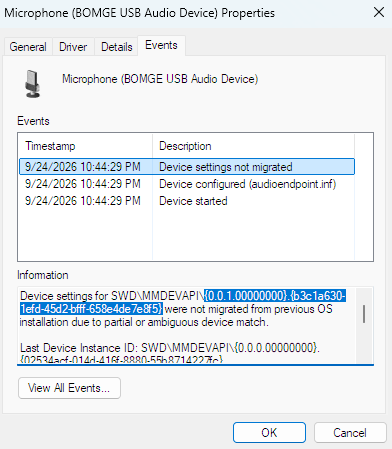 In the information section, you will find the assigned device ID for your microphone (highlighted above).
Copy that into Elgato Wave Link 3 settings.json file.
Step 6 - Copying Device ID to Elgato Wave Link 3 setttings.json
There are actually 2 locations that need to be replaced. One is the one above the InputName strings (reference below)
 And the other one is just slightly below it, in the DeviceID string (reference below)
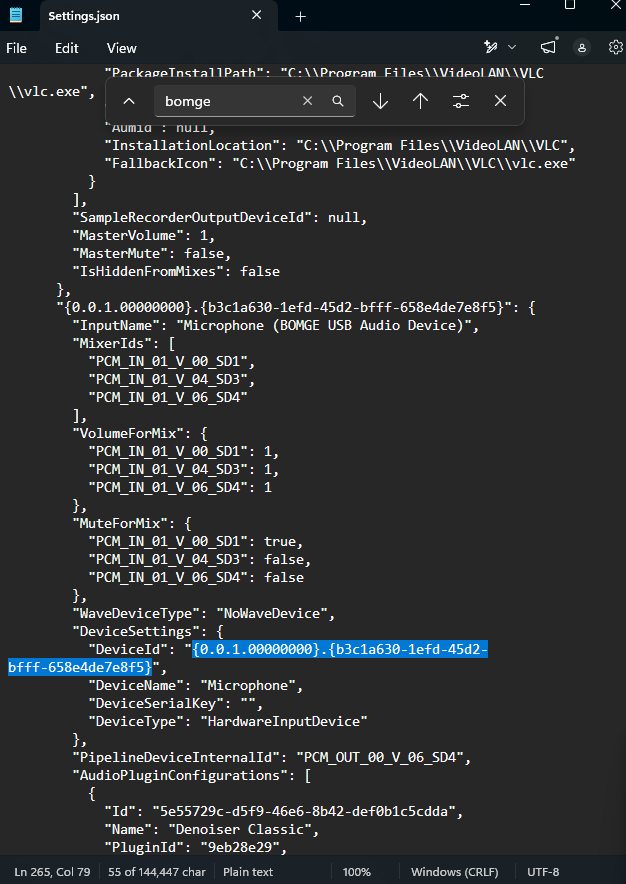 You can now save the file once you have replaced the Device ID in the setting.json file.
IMPORTANT: Please make sure that Elgato Wave Link 3 is not running when saving the settings.json file.
Step 7 - Relaunch Elgato Wave Link 3
Once everything is done, you can relaunch Elgato Wave Link 3 and it should now detect your devices.
Finally, I hope that this posts helps solve your issue. Hopefully, Elgato will fix this issue in the future but for now, this is the only work around that I can do.
Thank you for reading!
Extra: Cannot add new device after removing a device in Elgato Wave Link 3
From Step 4, search for InputName and see if there is any InputName that is not in your elgato wavelink 3 channel.
For example, let's say your wavelink 3 only have these channels:
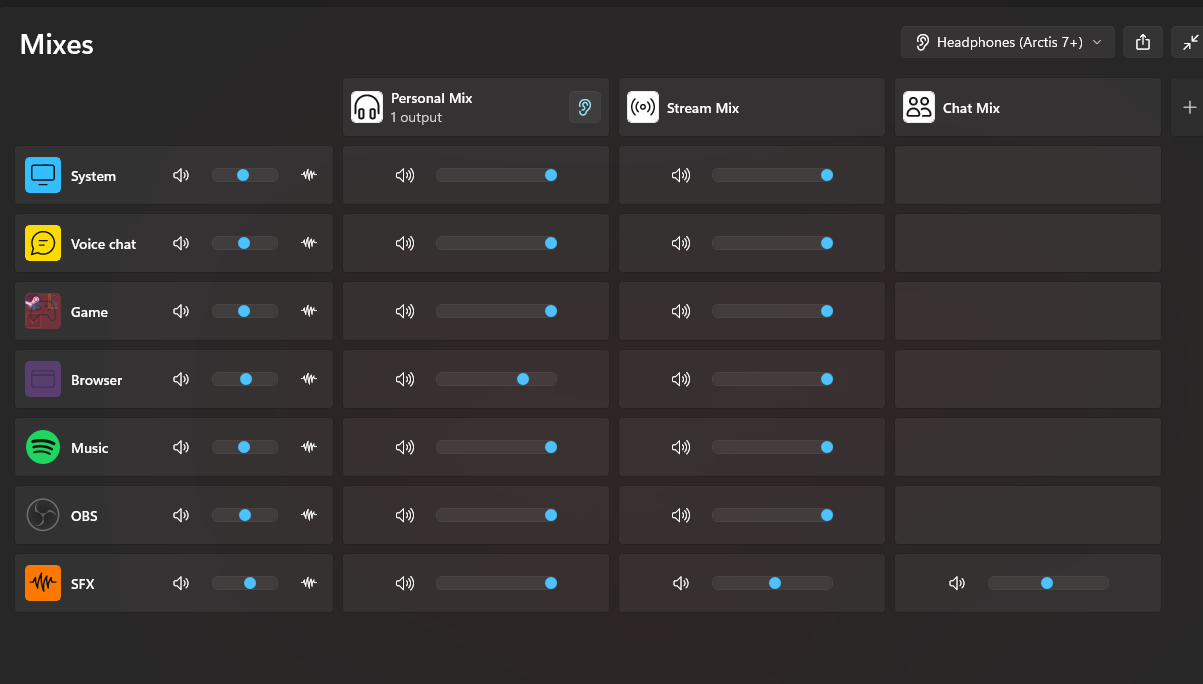 But when you search for input name, you found one that is not listed in that channel. In this case, the InputName "Mic" (reference below) is not in your elgato wave link (reference above). Which means, this was your deleted channel but in Elgato Wavelink 3 settings, it still reads that its there. This is why you cannot add anymore channel since Elgato thinks you still have it.
All you have to do is highlight the chunk from the Device ID string.
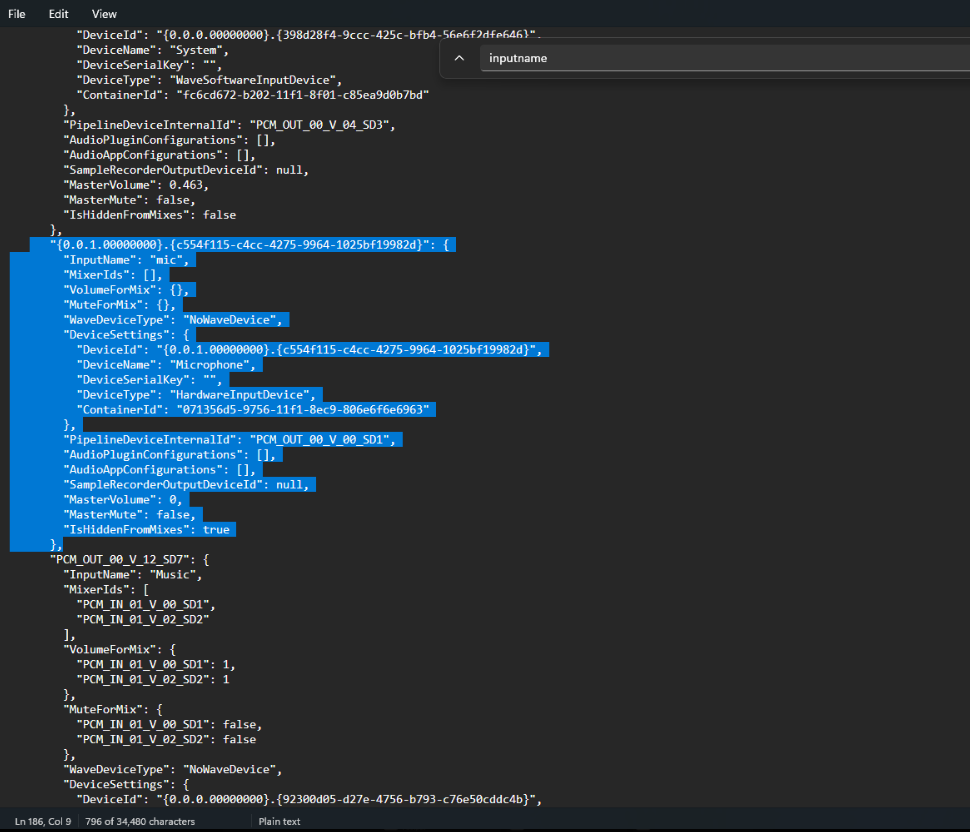 All the way until you reached the next string above the next InputName.
Once you delete that chunk, save the file and relaunch wave link 3. You should be able to re-add new device.