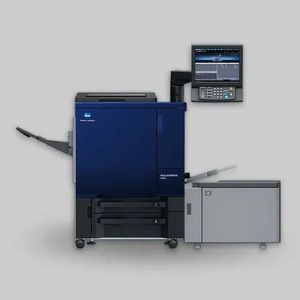

Based on the video transcript, here is a summary of how to edit jobs using the "Hold Job" function on the Konica Minolta control panel. This feature allows you to modify print settings directly at the machine without re-sending the file from a computer.
1. Accessing Held Jobs
Navigate to the Job List on the control panel.
Select the Hold Job tab. Jobs sent with the "Hold" command (instead of "Print") will appear here.
2. Editing Job Settings
Select a job from the list and choose the Edit or Job Ticket option. You can modify various parameters:
Copies: Change the number of copies (e.g., from 1 to 4).
Duplex/Simplex: Switch between single-sided (Simplex) and double-sided (Duplex) printing.
Paper Size & Type: Change the paper size (e.g., from 13x19 to A3) or paper weight/type. You can apply these changes to "All Sheets" or just the currently selected sheet.
Screens: Adjust the screen pattern (dot pattern) used for the job.
Page Editing: Add or delete specific pages within the job.
Front-to-Back Registration: Adjust the alignment of the image on the front and back of the sheet.
3. Saving Changes
After making adjustments, you have two options:
Overwrite: Saves the new settings to the existing job file.
New Store: Creates a duplicate copy of the job with the new settings, keeping the original file unchanged.
4. Printing
Once the edits are saved, simply select the job and press Print to output it with the updated settings.