

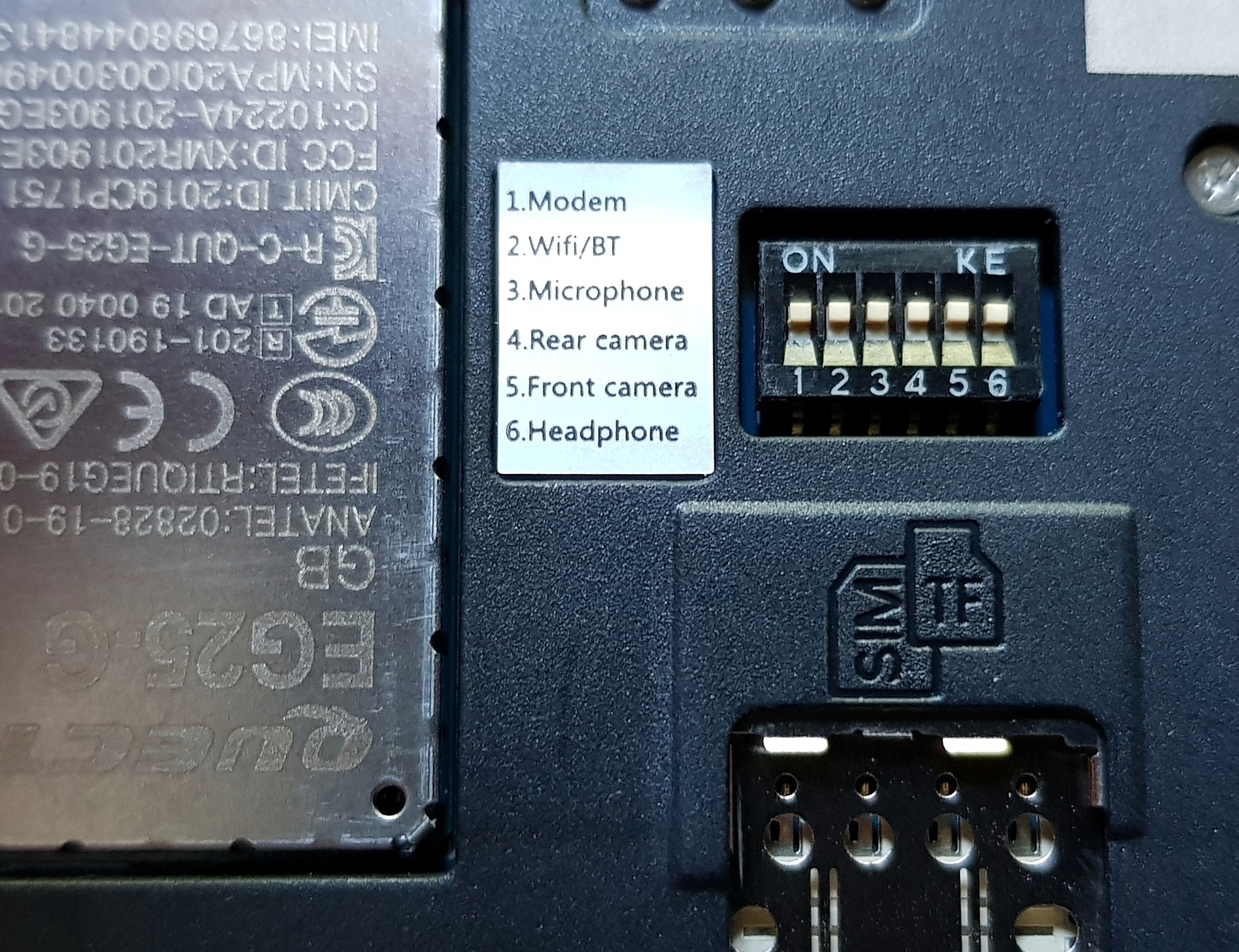
WHY CHANGE FIRMWARE?
The (original) stock firmware is more bulky, including unnecessary items like sendmail (??).
One key benefit to running Biktor's firmware: Pinephone owners have more control of the clockspeed, and thus, can tone down modem heat on the phone.
Read up on more reasons you may like to try this at Hackaday article.
MORE OPEN FIRMWARE
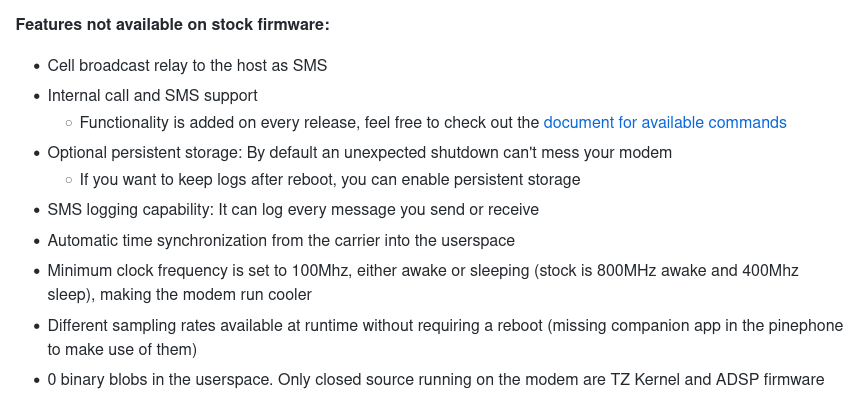
(above: Source)
It's never been easier to install Biktor's more open modem firmware.
There are a couple options for doing this.
If you choose the commandline (what I cover here), the 'flashall' script inside pinephone_modem_sdk, automates things nicely.
NEXT UP: fastest routes to having Biktor's Pinephone modem firmware up and running.
FIRST MAKE SURE TO HAVE THIS ON PINEPHONE:
Mobian:
apt install android-tools-fastbootOR
apt install fastbootpostmarketOS / Alpine:
apk add android-toolsArch/Manjaro:
pacman -S android-tools
(above prerequisite bullet list copied from HERE)
DISCLAIMER: Below I created a tutorial on 'flashall' method to get up and running with this firmware. I include 2 outside videos at the bottom for those who prefer GUI applications for upgrading firmware.
Modem recovery firmware available here, in case you mess up.
FLASHING MODEM FIRMWARE
Before following below, make sure to first install adb / android-tools. Required for 'flashall' script.
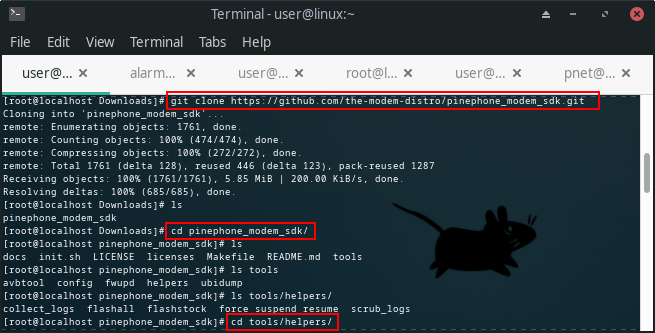
STEP 1: DOWNLOAD PINEPHONE_MODEM_SDK TO PINEPHONE
(ensure you have prerequisites mentioned above before beginning)
STEP 2: ENTER TO 'HELPERS' DIRECTORY (Commands Below)
COMMANDS (STEP 1 / STEP 2):
git clone https://github.com/the-modem-distro/pinephone_modem_sdk.git
cd pinephone_modem_sdk/
cd tools/helpers/
STEP 3: DOWNLOAD FIRMWARE PACKAGE INTO 'HELPERS' DIRECTORY

COMMANDS (STEP 3):
wget https://github.com/the-modem-distro/pinephone_modem_sdk/releases/download/0.6.8/package.tar.gz
(you can open above link in browser to save: another download to Pinephone option)
STEP 4: EXTRACT FIRMWARE PACKAGE INSIDE 'helpers' DIRECTORY:
COMMAND:
tar -vzxf package.tar.gz
chmod +x flashall
sudo ./flashall
(see below screenshot to see above commands in action. Make sure to download the package.tar.gz into the 'helpers' directory, to allow 'flashall' to make use of it.)
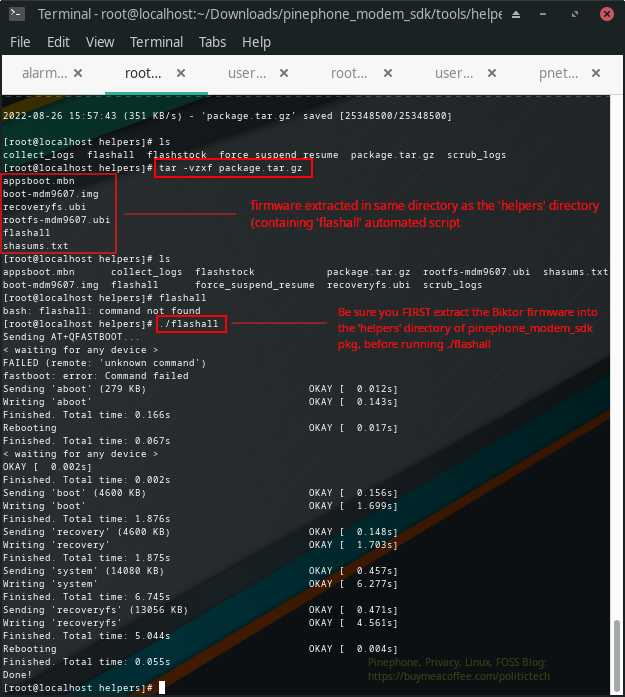
After this, you will notice the modem going 'down'. Then it will reappear / come back alive (reboots).
If you get an error, it can't hurt to try 'flashall' again.
Just be sure you have android-tools / fastboot, and extract Biktor's firmware into the same directory as tools/helpers (the location of the flashall script).
When all is successful, you should see a message from a dedicated number telling you about the success of your new modem firmware.
MODEM RELIABILITY ENHANCEMENT (UPDATE: ADDED OCT 2022))
Notice problems with modem disappearing?
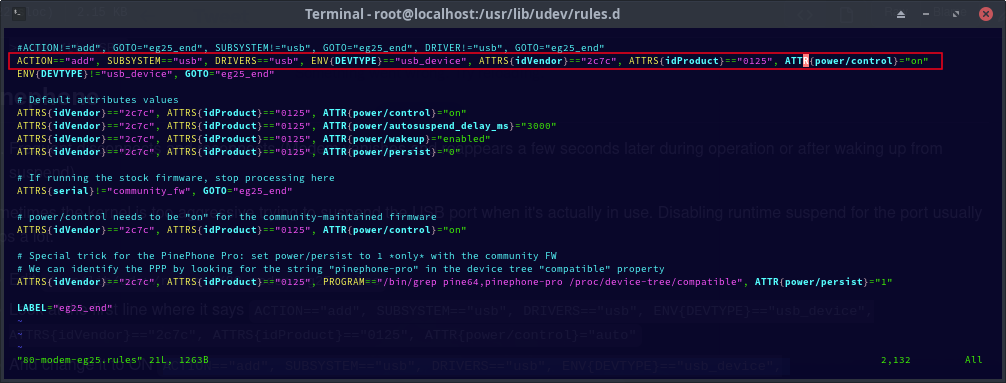
Replace the "ACTION" line inside file:
As shown in the screenshot below. The hashed out (# beginning) line is the older udev line we are replacing with (new line circled in red):
ACTION=="add", SUBSYSTEM=="usb", DRIVERS=="usb", ENV{DEVTYPE}=="usb_device", ATTRS{idVendor}=="2c7c", ATTRS{idProduct}=="0125", ATTR{power/control}="on"
SOURCE: here
UPDATE: OUTSIDE VIDEO GUI RESOURCES BELOW
In this article I opted to share a quick commandline route.
For those who prefer a GUI tool (to upgrade the firmware), below I embedded 2 videos on this.
Scroll down to take this route.
RELATED: FIRMWARE UPDATER ON POSTMARKETOS
(Below offers 2 separate videos on the same tool - watch whichever you prefer.)
VIDEO 1:
https://youtu.be/IsFbVZsQJX4 (Video Credit: Linmob)
VIDEO 2:
https://youtu.be/aokclNgnIbE (Video Credit: Martijn Braam of PostmarketOS)
SUPPORTING BIKTOR (FIRMWARE DEVELOPER):
[ Support Biktor ] [ Ko-Fi ]
Like this post?
Tired of downgrade attacks moving to 2G for malicious purposes?
You may find a simple persistent 4g-only service useful.
(open link / download in 🧅Tor browser)
Read more on the idea here.
🙂📱 Share Your Thoughts