

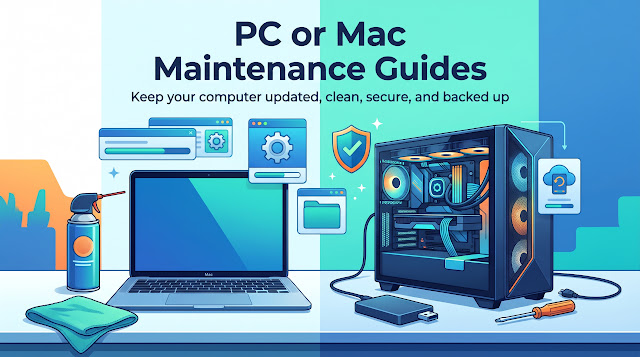
PC & Mac Maintenance Guides
Keep your computer updated, clean, secure, and backed up.
A little regular maintenance can help your computer run smoothly, reduce preventable problems, and protect your important files. Use this guide for everyday care of your Windows PC or Apple Mac.
Keep Your System Updated!
Updates help fix security vulnerabilities, resolve bugs, and improve compatibility. Enable automatic updates where practical, and restart when prompted so installations can finish.
Windows PCs: Open Start > Settings > Windows Update, then select Check for updates. Also open the Microsoft Store and check its app update section. Programs installed outside the Store may have their own update options.
Apple Macs: Open Apple menu > System Settings > General > Software Update. Check the App Store > Updates for apps downloaded through Apple. Other applications may update through their own menus. See Apple’s software update instructions.
Keep browsers, PDF readers, office software, and other frequently used applications updated, too. Back up your files before major operating system upgrades, and check compatibility with any essential software or accessories.
Still using Windows 10? Standard support ended on October 14, 2025. Check your upgrade or extended-support options rather than assuming Windows Update alone will keep the computer protected. See Microsoft’s Windows 10 support information.
Graphics Drivers and Other Hardware Updates
Download drivers directly from the computer or component manufacturer:
For laptops and systems with customized graphics hardware, check the computer manufacturer’s support page first. On Macs, graphics driver updates normally arrive with macOS updates.
A clean driver installation is generally a troubleshooting option. Use it when resolving driver problems or when the manufacturer recommends it. Clean-install or factory-reset options can remove existing settings; a standard update is usually appropriate for routine maintenance. See AMD’s installation options.
Avoid unfamiliar “driver updater” programs. For BIOS, firmware, and SSD updates, follow the manufacturer’s exact instructions and maintain reliable power throughout the process.
Keep It Clean!
Dust can clog filters, fans, and heatsinks, restricting airflow and causing higher temperatures, louder fans, reduced performance, or shutdowns.
Check vents and filters monthly. As a practical starting point, inspect for deeper cleaning every three to six months; homes with pets, smoke, or heavy dust may need more frequent attention.
Clean Hardware Carefully:
Shut down the computer, unplug its power connection, and disconnect accessories before cleaning.
Follow the manufacturer’s instructions before opening the case. Laptops, all-in-one computers, and many Macs are best handled by a technician for internal cleaning.
Where permitted, use canned air intended for electronics or an electronics-safe blower in short, controlled bursts. Follow the product’s directions and keep canned-air containers upright.
When cleaning an accessible fan, gently keep it from spinning freely. Do not force the blades or direct excessive air pressure at them.
Avoid household vacuums inside the computer, and never open a power supply.
Use a soft microfiber cloth for exterior surfaces. Apply any approved cleaner to the cloth, rather than spraying the device directly.
Let cleaned parts and removable filters dry completely before reconnecting power.
Screens and coatings require special care. Follow the display manufacturer’s instructions, particularly for Apple displays and specialty finishes. See Apple’s cleaning guidance.
Give Your Computer Room to Breathe:
Keep ventilation openings clear. Use laptops on firm surfaces, and avoid blankets, beds, or cushions that block airflow. Leave space around desktop cases and keep them away from heaters and enclosed cabinets without ventilation.
If the computer continues overheating after cleaning, have its cooling system checked.
Keep Storage Under Control!
A nearly full drive can interfere with updates, temporary files, and everyday performance.
As a general maintenance target, aim to keep around 15–20% of your main drive free. Additional headroom may help with large games, video editing, or other demanding work. SSD requirements vary by model and workload; keeping 25–30% free can provide extra breathing room, but it is not a universal minimum.
Remove What You No Longer Need:
Windows: Open Settings > Apps > Installed apps to uninstall unused programs. Review Settings > System > Storage for temporary files and cleanup recommendations.
Mac: Open System Settings > General > Storage to review storage use. Remove unwanted applications using their provided uninstaller when available, or follow the developer’s removal instructions.
Review Downloads, old installers, duplicate files, and the Recycle Bin or Trash before deleting anything. Use care with automatic cleanup settings, especially those affecting Downloads or cloud files. See Microsoft’s Storage Sense guidance.
Avoid deleting unfamiliar system folders or manually removing installed Windows program folders.
Use SSDs and HDDs Where They Make Sense:
Keep your operating system, frequently used applications, and performance-sensitive games on the SSD when space permits. A secondary HDD can hold archives, media, and less frequently accessed files.
You can store everyday documents and other data on an SSD, too. Choose based on available space, performance needs, and your backup plan.
A second drive inside the same computer is not a complete backup. Theft, malware, electrical damage, or accidental deletion can affect both drives.
For additional cleanup help, read our Windows PC Clean-up and Tune-up Guide and computer cleanup article with Mac tips. Menu names in older articles may differ from your current system.
Keep Startup Programs Under Control!
Too many applications opening at login can slow startup and consume resources.
Windows PCs:
Open Settings > Apps > Startup and turn off applications you do not need immediately after signing in.
You can also press Ctrl + Shift + Esc, open Startup apps in Task Manager, and review each application’s startup impact. To add an application, first check its own “Start with Windows” setting. Microsoft also provides instructions for adding startup shortcuts.
Apple Macs:
Open Apple menu > System Settings > General > Login Items & Extensions.
Under Open at Login, select an unnecessary item and click the minus button to remove it. Use the plus button to add an application you want to open automatically. See Apple’s login-item instructions.
Keep necessary security, backup, accessibility, and syncing tools enabled. Research unfamiliar items before changing them.
Keep It Safe!
Maintain Antivirus Protection:
For many home Windows users, Microsoft Defender Antivirus, built into Windows Security, is a reasonable everyday choice when kept enabled and updated.
Open Windows Security > Virus & threat protection to check protection status and run scans. Review alerts promptly and follow the recommended actions. See Microsoft’s Windows Security guidance.
We also recommend Malwarebytes Free for occasional additional scans. Its free scanner can detect and remove existing threats; ongoing real-time protection depends on the product and subscription.
Avoid running multiple full antivirus products with overlapping real-time protection unless their vendors explicitly support that setup.
Macs can also encounter malware, adware, and deceptive downloads. Keep macOS protections enabled, install software carefully, and investigate unexpected behavior. For additional protection and malware scanning, we use and recommend ClamXAV and Malwarebytes for Mac (MBAM).
Add Browser Protection:
We use and recommend Malwarebytes Browser Guard, which helps block malicious websites, scams, trackers, and unwanted advertising.
Download browser extensions through the developer’s official links or your browser’s official extension store. Periodically remove extensions you no longer use.
Browser protection adds a useful layer of defense, but you still need to evaluate downloads, links, and requests for personal information.
Install Software Carefully:
Download applications from official developers or trusted app stores. During installation:
Read each screen before selecting Next, Accept, or Install.
Review Custom or Advanced options when available.
Decline unrelated software, toolbars, browser extensions, and homepage or search-engine changes.
Avoid pirated software, cracks, and downloads that require disabling security protection.
Be cautious with advertisements that resemble download buttons and unsolicited requests to allow browser notifications.
Recognize Tech Support Scams:
If a webpage claims your computer is infected, displays a phone number, or demands immediate payment, do not call the number or grant remote access. Contact a support provider through contact information you already trust.
Read our Fake Security Pop-Up Alert guide for help responding.
Use unique passwords, a reputable password manager, and multifactor authentication wherever available. Protect your email account especially carefully because it can be used to reset other passwords.
Keep Your Files Backed Up!
Backups are one of the most valuable parts of computer maintenance. Even a healthy-looking drive can fail unexpectedly.
A useful goal is the 3-2-1 Rule Approach:
Keep three copies of important files (the original and two backups).
Across two storage types.
With one copy off-site.
Backup Options for Windows and Mac:
Windows ~ Windows Backup: Use Windows Backup to protect selected folders through OneDrive and save supported settings and application information to your Microsoft account. Check available OneDrive storage and which folders are included. This is not a complete system backup; arrange additional protection for files outside those folders and on secondary drives.
Mac ~ Time Machine: Use Apple’s built-in Time Machine with an external backup drive or another supported destination. Enable automatic backups, connect the backup drive regularly, and verify that backups complete.
Windows and Mac ~ Cloud Backup: Consider IDrive or Backblaze Computer Backup for an automatic off-site copy of your important files. Cloud backups provide additional protection against theft, fire, and damage affecting your computer and local backup drive.
For stronger protection, combine a local backup with a separate cloud backup. Review the folders and drives included, storage limits, exclusions, and how long deleted files and older versions are retained. Allow the initial backup to finish before relying on it.
Cloud Syncing and Backup:
Services such as OneDrive, iCloud Drive, and Dropbox help keep files available across devices, but syncing can also copy accidental deletions or unwanted changes. Check version history and recovery options, and maintain an independent backup of irreplaceable files.
Check That You Can Recover:
Check backup status regularly and occasionally restore a sample file. A backup is useful only if you can recover from it.
Keep your BitLocker or FileVault recovery information, backup passwords, and any private encryption keys somewhere secure and accessible if the computer stops working.
Keep an Eye on Drive Health!
Storage problems can cause freezing, file errors, slow loading, or failure to start.
On Windows, compatible tools such as the drive manufacturer’s diagnostic utility or CrystalDiskInfo can help identify drive-health warnings.
On Macs, Disk Utility’s First Aid checks file-system problems. Hardware health monitoring is a separate task and depends on the drive and available diagnostic tools. Our Favorite Mac Apps article includes storage and diagnostic utilities.
A “Good” health result does not guarantee that a drive will not fail. Keep backups current regardless of the reported status.
If a drive clicks, repeatedly disconnects, disappears, or develops read errors, stop routine maintenance and seek advice. When important files are not backed up, repeated scans or repair attempts may make recovery harder.
Need a Hand?
If your computer remains slow, runs unusually hot, displays drive warnings, or behaves unexpectedly, contact Pacific NW Computers for help with diagnosis, cleaning, upgrades, security, and backup planning.
Created & Maintained by Pacific NW Computers

Pacific NW Computers
📞 Pacific Northwest Computers offers Remote & Onsite Support Across SW Washington including Vancouver WA, Battle Ground WA, Camas WA, Washougal WA, Longview WA, Kelso WA, and Portland OR