

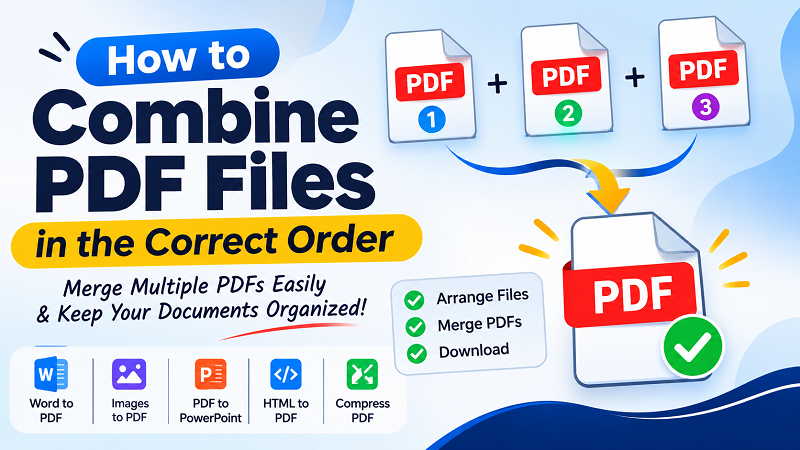
 Combining multiple PDF files into one document is an easy way to keep important information organized, make files easier to share, and save time when managing digital documents. However, simply merging files is not enough. If pages appear in the wrong sequence, the final PDF can become confusing and difficult to read.
Whether you are combining reports, scanned documents, invoices, assignments, contracts, or presentations, knowing how to combine PDF files in the correct order helps you create a clean and professional document.
With a PDF merger, you can merge multiple PDF files, arrange them in the order you need, and download a single document without manually copying pages between files.
In this guide, you will learn how to join PDF documents in the correct sequence, how to avoid common merging mistakes, and how to manage your files after combining them.
Why Is the Correct PDF Order Important?
The order of pages in a PDF can affect how readers understand the information. A document with misplaced pages may interrupt the flow of content, hide important details, or make it harder to follow instructions.
For example, when combining multiple documents, you may need to arrange them like this:
Cover page
Table of contents
Introduction
Main content or chapters
Supporting documents
Appendix or references
Keeping the correct sequence is especially important when preparing business reports, educational assignments, legal paperwork, project documentation, or client presentations.
A properly organized PDF makes the final document easier to navigate, review, print, and share.
How to Combine PDF Files in the Correct Order
The easiest way to combine PDF files is to use an online PDF merging tool that allows you to upload files and rearrange them before merging. Follow these steps to create a single PDF in your preferred order.
Step 1: Prepare Your PDF Files
Before uploading your documents, identify which files you want to combine and decide their final sequence.
For example, if you are merging three files, you might arrange them as:
Introduction.pdf
Main-Report.pdf
Conclusion.pdf
Renaming your files with numbers can make them easier to identify and organize, especially when working with many documents.
Step 2: Upload Your PDF Documents
Open an online PDF merging tool and upload all the files you want to combine. You can usually select multiple files from your computer at the same time.
Make sure all the required documents have been uploaded before proceeding. If you accidentally miss a file, you may need to repeat the merging process.
Step 3: Arrange Files in the Correct Sequence
Once your files are uploaded, review their order. Most PDF merging tools let you drag and drop files to rearrange them.
Move each document into the correct position based on your intended reading flow. If your first file should contain the introduction and your last file should contain the appendix, arrange them accordingly.
This is the most important step when you want to merge multiple PDF files without creating a confusing document.
Step 4: Merge Multiple PDFs into One Document
After arranging the files, click the Merge, Combine, or Join button to start processing.
The tool will combine your selected PDFs into a single document while maintaining the file sequence you selected. Depending on the tool, the original page layout, text, and formatting may be preserved.
Step 5: Download and Review the Combined PDF
Download your merged document and open it to verify the final result.
Check the following before sharing your PDF:
Are all files included?
Are pages arranged in the correct order?
Are any pages missing or duplicated?
Is text readable?
Are images, tables, and formatting displayed correctly?
Does the document open without errors?
A quick review can help prevent mistakes when sending documents to clients, colleagues, teachers, or other recipients.
Tips for Joining PDF Documents Without Mistakes
Combining files is simple, but a few preparation steps can make the process smoother and help you avoid unnecessary editing.
Organize Files Before Uploading
If you are working with several documents, organize them into a logical sequence before uploading. You can use numbered file names such as 01-Cover.pdf, 02-Introduction.pdf, and 03-Report.pdf to avoid confusion.
Check Page Orientation and Layout
Some PDFs may contain portrait pages while others use landscape orientation. Review the merged document to make sure the page layout remains suitable for reading or printing.
Use Clear and Consistent File Names
Avoid generic file names such as document1.pdf or final-new.pdf. Descriptive names help you identify files faster and reduce the risk of selecting the wrong document.
Reduce File Size if Needed
Combining multiple PDFs can increase the final file size, particularly if the documents contain high-resolution images or scanned pages.
If your merged PDF is too large to upload, email, or share, you can use a PDF compression tool to reduce its size. Choose a suitable compression level to maintain readable text and image quality.
Keep a Copy of the Original Files
Always retain your original PDF documents until you have checked and saved the final merged file. This makes it easier to correct the order or replace a document if needed.
Can You Rearrange Pages After Combining PDF Files?
Yes. If you notice that some pages are in the wrong order after merging, you can use a PDF page organizer or editor to rearrange them.
Page organization tools typically let you:
Move pages to a different position
Rotate incorrectly oriented pages
Delete unwanted pages
Duplicate pages when necessary
Insert additional pages.
For example, if your conclusion appears before the main report, you can move those pages to the end instead of merging all your files again.
When working with large documents, reviewing page thumbnails can make it easier to identify misplaced sections.
What If Your Files Are Not PDFs?
Sometimes, the documents you want to combine are saved in different file formats. You may need to convert them into PDFs before merging everything together.
Here are a few common situations.
Convert a Word Document to PDF
If your report, letter, or assignment is saved as a Word file, you can convert it into PDF format before combining it with other documents. A Word document to PDF conversion workflow can help preserve the document's layout and make it easier to share.
Convert Images to PDF
Scanned pages, screenshots, receipts, and photographs can also be included in a single PDF. Use an images to PDF tool to convert your images into a PDF document, then add that file to your other PDFs.
Convert HTML Pages to PDF
If you need to save a webpage, article, or online content for offline use, an HTML to PDF converter can turn the content into a PDF that is easier to store, print, and combine with other documents.
Convert PowerPoint Presentations to PDF
When you need to include slides in a report or project document, a PDF to PowerPoint converter or presentation conversion workflow may help you work with presentation files in the format you need. Make sure you select the appropriate conversion direction for your source file.
Make a PDF Editable in Word
If you need to edit the text of an existing PDF before combining it, you may want to convert it into an editable Word document. An editable PDF to Word workflow can make it easier to update text, correct mistakes, or revise content before exporting the document back to PDF.
How to Reduce the Size of a Merged PDF Without Losing Quality
When you merge multiple PDF files, the final document may become too large because each file contains high-resolution images, scanned pages, graphics, or embedded fonts.
If you need to share your PDF through email, upload it to a website, or send it through an online platform, reducing its size can make it easier to manage.
To compress PDF without losing quality, consider these tips:
Use balanced compression instead of maximum compression.
Avoid repeatedly compressing the same document.
Keep text and important graphics at a readable resolution.
Review scanned pages after compression to make sure details are still clear.
Keep a copy of the original file in case you need to restore its quality.
Compression results depend on the content of your PDF. Text-based files may already be small, while image-heavy or scanned documents may benefit more from compression.
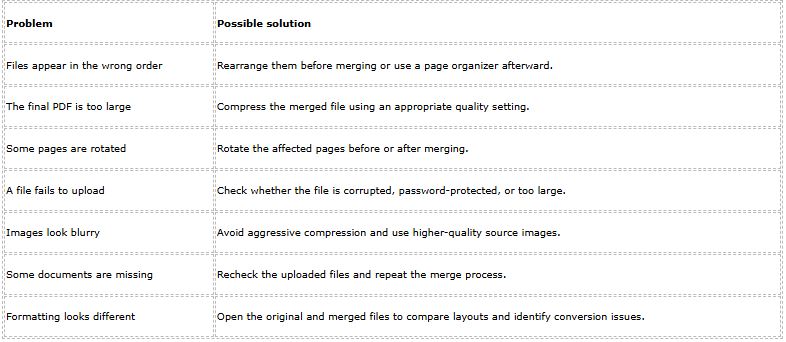
Common Problems When Merging PDF Files
Even when you follow the correct steps, you may encounter a few issues while combining documents.
 Frequently Asked Questions
1. How do I combine PDF files without changing their order?
Upload all the PDF files to a merging tool, then rearrange their thumbnails or file names in your preferred sequence before clicking Merge. Review the final document to make sure the pages appear as intended.
2. Can I merge multiple PDF files into one document for free?
Yes. Many online PDF merging tools allow you to combine multiple PDF files without paying. The available file limits, features, and usage restrictions depend on the tool you choose.
3. Does merging PDF files reduce their quality?
Merging PDFs generally does not reduce the quality of the original pages by itself. However, if the merging process includes image compression, conversion, or optimization, the quality may change depending on the settings.
4. Can I join PDF documents with different page sizes?
Yes. You can combine PDF files with different page sizes, such as A4, Letter, or landscape pages. The original dimensions are generally retained, although the appearance may depend on the tool and its processing settings.
5. Can I combine scanned PDF files?
Yes. Scanned PDFs can be merged just like regular PDFs. If the scanned documents contain images of text rather than selectable text, you may need OCR (Optical Character Recognition) to make the text searchable.
6. Can I merge PDF files on my phone?
Yes. You can combine PDF files using a browser-based PDF tool on many smartphones. Upload the documents, arrange them in the correct order, merge them, and download the finished file to your device.
7. How can I combine PDF files and keep the final file small?
First, merge your PDFs in the correct order. Then, if needed, compress the finished document using a balanced setting. Review the text and images afterward to make sure the file is still clear and readable.
8. Can I rearrange pages without merging the files again?
Yes. A PDF page organizer can let you move, rotate, delete, or reorder individual pages within an existing PDF, so you don't always need to repeat the entire merging process.
Conclusion
Combining PDF files in the correct order helps you create organized, professional, and easy-to-read documents. By preparing your files in advance, arranging them carefully, merging them, and reviewing the final result, you can avoid missing pages and confusing document sequences.
Whether you're preparing a report, collecting invoices, organizing study material, or combining scanned documents, following the right process makes PDF management much easier.
Always check the final PDF before sharing it, and use compression only when necessary to keep your document manageable without sacrificing readability.