

Have you ever spent frustrating minutes (or even hours!) debugging your R code, only to find the issue was a broken file path? Sharing code with colleagues or moving projects between computers can quickly turn into a file path nightmare. Luckily, there are strategies to make your R projects more portable and reliable.
In this article, you'll learn how to manage file paths effectively in R, ensuring your code runs smoothly regardless of where it's executed. We'll explore different approaches to handling file paths and highlight the benefits of a modern solution that simplifies project management.
Understanding Fixed File Paths
A fixed file path, also known as an absolute file path, specifies the exact location of a file on your computer. For example, on a Windows machine, this might look like C:/Users/YourName/Documents/Project/data/sales.csv.
Example:
data <- read.csv("C:/Users/YourName/Documents/Project/data/sales.csv")While this approach seems straightforward, it's highly inflexible. If you move the project folder, rename a directory, or share the code with someone who has a different directory structure, the code will break. Fixed file paths are generally discouraged for collaborative or portable projects.
Real-world Application: Imagine you're working on a project at work and then want to continue working on it from your personal laptop. Unless your username and folder structure are identical on both machines, the fixed file paths will cause errors.
Expert Tip: Avoid fixed file paths whenever possible. They create brittle code that is difficult to maintain and share.
Navigating with Relative File Paths
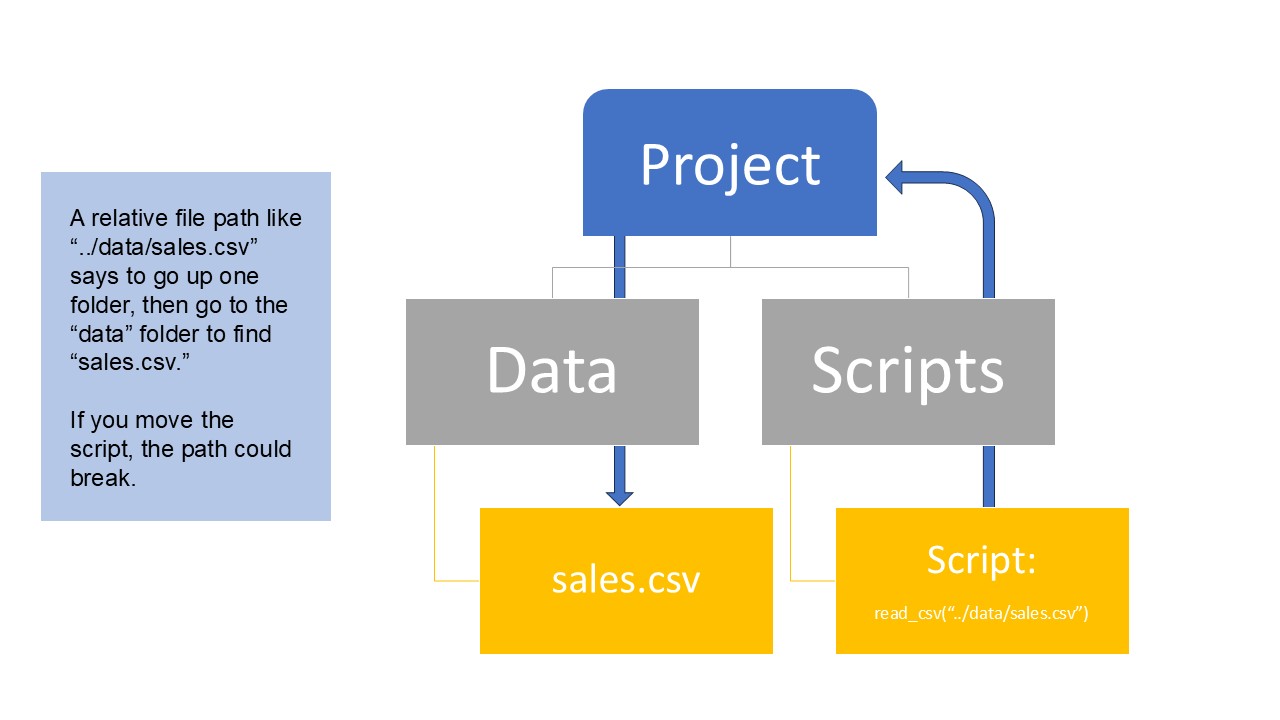
Relative file paths define the location of a file relative to the current working directory. Instead of specifying the entire path, you indicate how to navigate from the current location to the file. For instance, if your R script is in the "scripts" folder and your data is in a "data" folder one level up, the relative path might be ../data/sales.csv. The .. means go up one directory.
Example:
data <- read.csv("../data/sales.csv")Relative file paths offer more flexibility than fixed paths. If you move the entire project folder, the code will still work as long as the relative positions of the files remain the same.
Real-world Application: Suppose you have a project with a specific folder structure (e.g., "project/scripts/analysis.R" and "project/data/data.csv"). Using relative paths allows you to move the entire "project" folder without breaking the links between your script and data.
Expert Tip: Relative paths can become confusing in complex projects with nested directories. When rendering documents, the starting point for relative paths can change, leading to unexpected errors.
The Power of the here Package
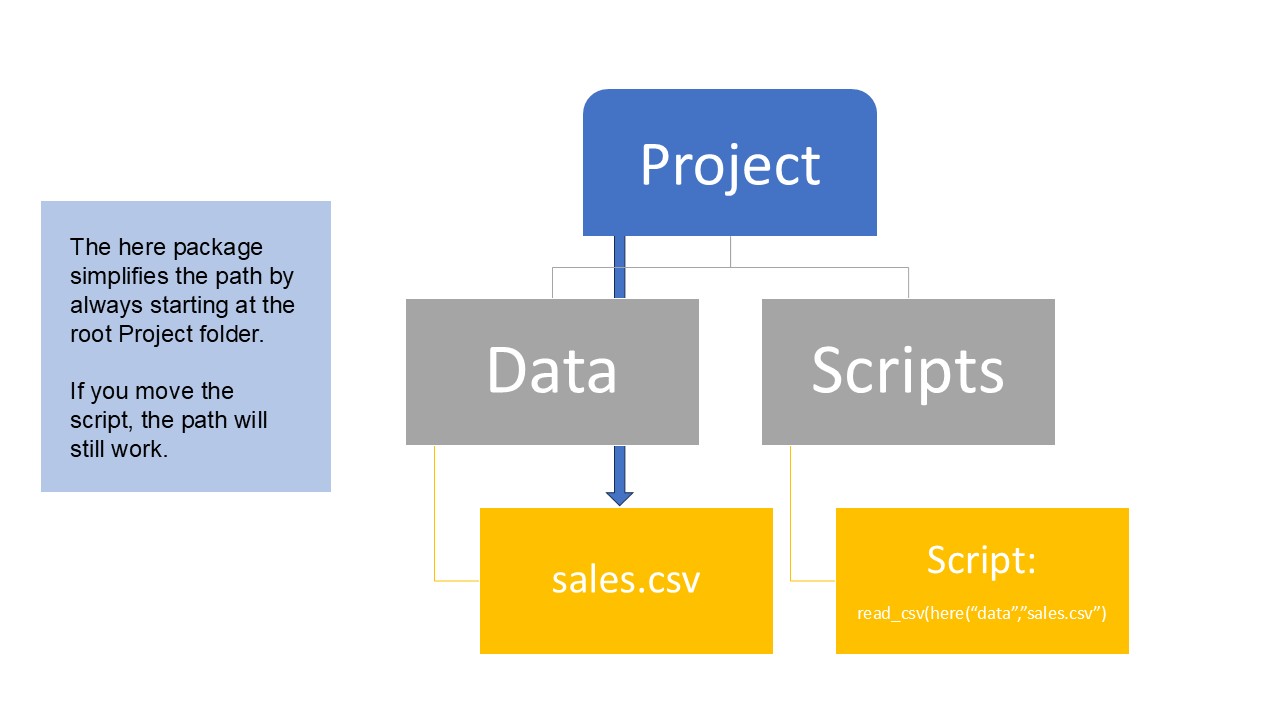
The here package provides a robust and elegant solution to file path management in R. It automatically detects the project's root directory and allows you to specify file paths relative to that root, regardless of where your script is located or how you are running the code.
To use the here package, first install it:
install.packages("here")Then, load the package in your script:
library(here)Now, you can use the here() function to construct file paths relative to the project root. For example:
data <- read.csv(here("data", "sales.csv"))Real-world Application: Imagine you have a parent R Markdown or Quarto document that calls a child document located in a subdirectory. The here package ensures that both documents can access data files using consistent paths, whether you're running the code interactively or rendering the entire project.
Expert Tip: The here package simplifies collaboration and project organization. It eliminates the need to adjust file paths when moving files or sharing code, making your projects more maintainable and reproducible.
Practical Application: Migrating to the here Package
Here's how to transition from relative file paths to the here package:
Install and load the
herepackage:R install.packages("here") library(here)Identify your project's root directory: This is the top-level folder containing your R project. The
herepackage automatically detects this based on the presence of a.Rprojfile or other project markers.Replace relative file paths with
here():Instead of
../data/sales.csv, usehere("data", "sales.csv").Instead of
"scripts/utils.R", usehere("scripts", "utils.R").
Test your code: Ensure that your scripts and R Markdown documents run correctly after the migration.
Conclusion
Effective file path management is crucial for creating robust, reproducible, and collaborative R projects. While fixed file paths are inflexible and relative file paths can be confusing, the
herepackage offers a modern and reliable solution. By adopting theherepackage, you can streamline your workflow, avoid file path headaches, and focus on what matters most: analyzing your data and extracting valuable insights. Embrace theherepackage and experience the benefits of stress-free file path management in your R projects.Extra Value: Checklist for File Path Management
Avoid fixed file paths.
Use relative file paths when appropriate, but be mindful of their limitations.
Install and load the
herepackage.Use the
here()function to specify file paths relative to the project root.Test your code thoroughly after migrating to the
herepackage.
Looking for more help on this? Be sure to check out our video: File Paths Simplified