

 Picking the right professional themes for your WordPress site is one of the most important decisions you'll make as a website owner. Get it right, and your site loads fast, looks polished, and converts visitors into customers. Get it wrong, and you're stuck with a bloated theme that slows everything down and eventually needs replacing anyway.
This guide covers everything you need to know about professional themes — from what to look for, to specific recommendations for different site types, to a practical step-by-step setup process. Whether you're building a business site, a blog, or an online store, you'll find something useful here.
By the end, you'll know exactly how to pick a theme that fits your goals, performs well in Google, and doesn't require a developer every time you want to make a change.
What Are Professional Themes?
Quick Definition: A professional WordPress theme is a pre-built design framework that controls your site's appearance, layout, and frontend behavior — built with clean code, strong performance standards, and the features real-world websites actually need.
The word "professional" gets thrown around loosely in the WordPress ecosystem. Every theme description claims to be professional. But functionally, a truly professional theme does several things consistently well:
It loads fast, even without aggressive caching
It follows WordPress coding standards
It's maintained and updated regularly
It doesn't force you into a particular visual style
It plays nicely with popular plugins — especially page builders and WooCommerce
Professional themes stand apart from hobby or template-style themes because they're built with the full lifecycle of a website in mind, not just the launch day.
Who Should Use Professional Themes?
Honestly, everyone. But the users who benefit most are:
Small business owners building their first real website
Freelancers creating portfolio or services sites
Bloggers who want a clean, readable design that performs well in SEO
eCommerce store owners who need WooCommerce compatibility out of the box
Agencies building sites for clients who need to maintain things independently
If you're paying for hosting, your own domain, and investing real time into content, use a theme that matches that investment.
Why Professional Themes Matter More Than You Think
A theme isn't just a skin for your website. It determines how fast your pages load, how Google indexes your content, how accessible your site is, and how well it converts visitors.
1. Speed
A poorly coded theme can add hundreds of kilobytes of unused CSS and JavaScript to every page load. That directly impacts your Google PageSpeed score and your ranking in Core Web Vitals. A lightweight professional theme keeps your code lean so your pages render quickly on mobile and desktop alike.
2. SEO
Professional themes are structured with proper HTML hierarchy: H1 for page titles, H2 for sections, logical use of semantic elements. Search engines follow document structure. A theme that creates messy HTML outputs messy signals to Googlebot.
Schema markup support, Open Graph meta tags, and clean heading structures come standard in quality professional themes. Pair that with an SEO plugin like Yoast or Rank Math or BBH SEO ToolKit, and you've built a solid foundation.
3. Responsiveness
In 2025, mobile traffic makes up the majority of web visits for most niches. A professional theme renders consistently across screen sizes- small phones, tablets, wide monitors. Not just stretched layouts, but genuinely adapted designs with proper font scaling and touch-friendly navigation.
4. Accessibility
Accessibility is increasingly a legal consideration in many markets and a practical SEO factor. Professional themes follow WCAG guidelines: keyboard navigability, sufficient color contrast, proper ARIA labels, skip links. This is often overlooked in free template sites.
5. Security
Themes are a surface area for vulnerabilities. A professionally maintained theme receives security updates, avoids deprecated WordPress functions, and doesn't include unnecessary third-party scripts that could introduce risks.
6. Conversions
Design affects behavior. Clean typography, well-placed CTAs, logical visual hierarchy — professional themes are built with conversion-oriented layouts in mind, not just aesthetics.
Features of High-Quality Professional Themes
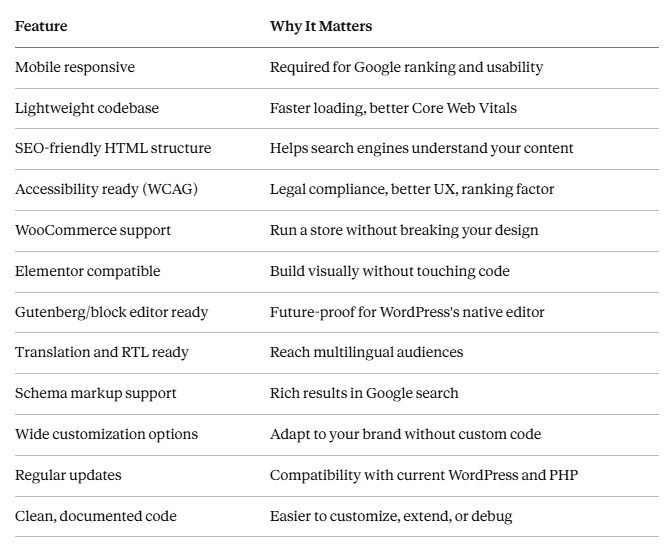
Before you install anything, run through this checklist. A quality professional theme should tick most or all of these boxes.
Best Professional Themes for Different Website Types
Not every theme fits every use case. Here's how to match theme type to site purpose.
1. Business and Corporate Websites
Business sites need professional themes that balance visual credibility with speed. Look for:
Hero sections with a clear CTA
Services or features blocks
Testimonial layouts
Easy contact integration
Clean, trust-building design
What to avoid: Themes that look like they were designed for a single industry. A law firm theme used for a landscaping company looks off. Better to pick a flexible general business theme and customize it.
2. Agency Websites
Agencies benefit from themes that let the portfolio speak. Minimize the chrome — navigation, headers, footers — and maximize white space. Case studies, project grids, and team sections are key layouts.
3. Portfolio and Freelancer Sites
Portfolio-focused professional themes prioritize full-width project showcases, smooth transitions, and minimal distraction from the work itself. If you're a designer or photographer, image rendering quality matters a lot.
4. Blog-Focused Websites
The best WordPress blog themes focus on readability above everything else. Long line lengths, generous leading, consistent typography across devices, and fast category/tag browsing. Featured image handling and related posts layouts matter for keeping readers engaged.
5. News and Magazine Sites
High-traffic publication sites need professional themes built for content volume — multiple post formats, sidebar widgets, breaking news banners, and archive pages that don't feel like graveyards.
6. WooCommerce Stores
Store themes need to balance aesthetics with conversion. Product grid layouts, filter systems, cart visibility, checkout flow design — these all affect revenue directly. The best WooCommerce themes also optimize for mobile checkout, which is where most abandoned carts happen.
7. Educational and Course Sites
Course sites benefit from clean, structured professional themes with plenty of room for curriculum outlines, instructor profiles, and enrollment CTAs. LMS plugin compatibility (LearnDash, LifterLMS, Tutor LMS) is often a requirement.
8. Personal Websites
Personal sites have more latitude. A minimal, fast-loading WordPress free theme often works perfectly here. Focus on clean typography, an About page layout, and blog support.
Best Free WordPress Themes Worth Considering
Free themes have a bad reputation they only partially deserve. There are genuinely excellent free options that match what paid themes offer, especially if your needs are focused.
The key question: are free themes enough?
Yes, if you:
Are launching a new site and testing the market
Have a personal blog or small informational site
Want to use a page builder and don't need many built-in layout options
Are comfortable doing minor customization through the WordPress Customizer
No, if you:
Need dedicated ongoing support
Require advanced WooCommerce layouts
Need a very specific industry design out of the box
Are building a high-traffic news or eCommerce site
Among the best free WordPress themes on WordPressOrg, look for themes with:
A high number of active installs (100,000+ is a reasonable signal)
Recent update dates (anything more than 12 months without an update is risky)
A substantial number of 5-star reviews
A developer or company with a track record
The WordPressOrg theme repository is the safest place to find free themes — every theme there is reviewed against a set of coding standards before listing.
Pros and Cons of Free WordPress Themes
Pros Cons Zero upfront cost Often limited layout options Safe source (WordPressOrg reviewed) Support can be slow or community-only Lightweight (often minimal code) Premium features locked behind paid upgrade Easy to try multiple themes Some are abandoned after launch
Fastest WordPress Theme: What Speed Actually Means
Speed is relative until you measure it. When developers talk about the fastest WordPress theme, they're usually referring to:
Total page weight — how many KB the browser has to download
Time to First Byte (TTFB) — how quickly the server starts responding
Largest Contentful Paint (LCP) — how fast the main content appears
Cumulative Layout Shift (CLS) — how stable the layout is as it loads
First Input Delay (FID) / Interaction to Next Paint (INP) — how quickly the page responds to interaction
These are Google's Core Web Vitals metrics, and they directly influence your search ranking.
A fast WordPress theme is one that:
Loads minimal CSS and JavaScript
Defers non-critical scripts
Outputs clean, minimal HTML
Avoids external font requests where possible (or loads them efficiently)
Doesn't load full page builder CSS on pages that don't use it
How to Test Theme Speed
Before committing to any theme, test it on:
Google PageSpeed Insights — measure both mobile and desktop
GTmetrix — detailed waterfall breakdown
WebPageTest — real browser testing from different locations
Testing a theme on a clean WordPress install before adding your content gives you a performance baseline. If a theme scores below 70 on mobile PageSpeed before any content is added, that's a red flag.
Best WooCommerce Themes for Online Stores
eCommerce themes have unique requirements. The best WooCommerce themes aren't just the ones that look good on the front page — they're the ones that drive revenue throughout the entire shopping journey.
1. What WooCommerce Themes Must Get Right
Product Pages: Product images need to display clearly and load fast. Zoom features, gallery layouts, and variation selectors need to work without page reloads. Trust signals — reviews, security badges, stock levels — need prominent placement.
Category and Filter Pages: Shoppers browse by category. A strong WooCommerce theme handles large product grids without layout breaks, and provides filtering by price, attribute, and rating.
Cart and Checkout: The checkout is where stores lose money. A cluttered or slow checkout flow is your enemy. The best WooCommerce themes have distraction-free, mobile-optimized checkout templates.
Mobile Shopping: More than half of online shopping happens on mobile. Sticky add-to-cart buttons, easy quantity selection, and readable product descriptions on small screens are table stakes.
2. Free WooCommerce Themes
Free WooCommerce themes can absolutely work for small stores. The official Storefront theme by WooCommerce itself is a proven, stable option. It's intentionally minimal so you can build on top of it.
Other free WooCommerce themes worth considering are usually either general-purpose themes with strong WooCommerce compatibility or lightweight themes that load the WooCommerce stylesheet cleanly.
Best WordPress Blog Themes
Blogging is still the engine behind most content marketing strategies, and the best WordPress blog themes reflect that they're built around readability, content hierarchy, and audience retention.
A good blog theme does these things well:
Typography at scale — body text that's comfortable to read at 16px+ across devices
Featured image handling — consistent cropping and sizing across post archive pages
Category and tag navigation — readers who land on one post should find more content easily
Related posts sections — increases pages per session
Comment sections — if community is part of your strategy
Author bio sections — important for EEAT and building trust with readers
Reading time indicators — increasingly expected by regular blog readers
Speed matters for blogs too — image-heavy blogs especially need themes that lazy-load images and don't load unnecessary scripts on text-only pages.
Blog Layouts: What to Know
Most blog themes offer two main archive layouts:
Grid layout — card-style, image-forward, good for visual niches
List layout — text-forward, better for news and in-depth content blogs
Pick based on how image-dependent your content is. A recipe blog benefits from grid; a software engineering blog benefits from list.
Build a Professional Website Faster with BBH Lite
If you're looking for a lightweight WordPress theme that works for blogs, business sites, portfolios, WooCommerce stores, agency sites, and landing pages, BBH Lite is a solid option worth trying.
It's built around a few core priorities that matter for real-world websites:
Clean Code: BBH Lite is written with minimal, standards-compliant code. This keeps the base theme fast and makes customization more predictable.
Responsive Design: The theme adapts across mobile, tablet, and desktop without requiring additional plugins or CSS overrides.
SEO-Friendly Structure: Heading hierarchy, clean HTML output, and proper semantic structure are built in not bolted on afterward.
Lightweight Performance: The theme doesn't bundle unnecessary features. Pages load with a minimal footprint, which helps with Core Web Vitals performance scores.
Elementor Compatibility: BBH Lite works cleanly with Elementor, so you can use the drag-and-drop builder without conflict. The theme's default styles don't fight with builder output.
Gutenberg Compatibility: The block editor is the future of WordPress editing. BBH Lite is built to work smoothly with native blocks, not just page builders.
Easy Customization: The WordPress Customizer provides controls for key design options without requiring CSS knowledge.
Beginner-Friendly Setup: Installation and basic configuration take minutes. There's no steep learning curve.
Modern, Clean Design: The default design is intentionally neutral — clean typography, clear whitespace, professional look — so it works for a wide range of site types without modification.
BBH Lite is one of several quality lightweight WordPress themes worth considering. It doesn't claim to be the best choice for every use case, but for users who want a fast, flexible starting point without paying for a premium theme, it's a practical option.
Design Your Website Faster with BridgeHub Design Kit
Installing a theme is only the first step. Building out the actual pages, especially for beginners, is where most people get stuck.
That's where BridgeHub Design Kit comes in. It's a free WordPress plugin available at wordpress.org/plugins/bridgehub-design-kit, and it's designed to help you build website pages quickly without writing code.
What BridgeHub Design Kit Provides
The plugin gives you access to ready-to-use design resources that you can import into your site:
Starter layouts — complete page designs you can import and customize instead of building from scratch
Elementor design sections — individual blocks (hero sections, feature grids, testimonials, pricing tables) you can drag into any page
Reusable blocks — design elements you build once and use across multiple pages
Blog layouts — purpose-built templates for blog archives and single post pages
Landing page layouts — conversion-focused page designs for campaigns and lead gen
Homepage sections — modular sections you can combine to build full homepages
Responsive templates — everything adapts cleanly to mobile without extra work
Who BridgeHub Design Kit Is For
BridgeHub Design Kit is particularly useful for:
Beginners who understand WordPress but don't want to design from a blank canvas
Freelancers building client sites quickly
Small business owners handling their own website
Bloggers who want professional-looking pages without hiring a designer
The plugin works especially well alongside BBH Lite. The theme provides the structural foundation; the plugin provides the ready-made design elements. Together they let beginners build a complete, professional-looking website in hours rather than days.
The workflow is straightforward: install the plugin, browse the available layouts, import what fits your needs, and customize the copy and colors in Elementor. No CSS, no PHP, no developer required.
Step-by-Step Guide: Building Your Website with BBH Lite and BridgeHub Design Kit
Follow these steps to go from a blank hosting account to a live professional website.
Step 1: Choose Your Theme Strategy
Before installing anything, decide what kind of site you're building. Write down:
Your primary goal (sell products, attract clients, publish content)
Your target audience
Three websites you think look the way you want yours to look
This clarity saves you from changing themes three times after launch.
Step 2: Install WordPress
Most managed WordPress hosts (SiteGround, Kinsta, Namecheap, WP Engine) offer one-click WordPress installation. Use it. Make sure you're running at least PHP 8.1 and the latest stable WordPress version.
Step 3: Install BBH Lite
Go to your WordPress dashboard
Navigate to Appearance → Themes
Click Add New
Search for "BBH Lite"
Click Install, then Activate
Your site now has the BBH Lite theme active.
Step 4: Install Elementor (Free Version)
BridgeHub Design Kit uses Elementor as its page builder. Install it from Plugins → Add New, search for "Elementor", install, and activate.
Step 5: Install BridgeHub Design Kit
Go to Plugins → Add New
Search for "BridgeHub Design Kit"
Install and activate the plugin
You'll see a new menu item in your dashboard for the plugin
Step 6: Import a Starter Layout
Open the BridgeHub Design Kit panel
Browse available layouts by category (homepage, services, blog, portfolio, etc.)
Choose a layout that fits your site type
Click Import
The layout will be added to your pages
Step 7: Customize in Elementor
Open any imported page in Elementor by clicking Edit with Elementor. Replace the placeholder text with your own copy. Update images, colors, and fonts to match your brand. Most customizations take under 20 minutes per page.
Step 8: Configure Your Theme Settings
In Appearance → Customize, set up:
Site title and tagline
Logo
Primary navigation menu
Footer content
Typography and color options
Step 9: Set Up WooCommerce (if you need it)
If you're building a store, install WooCommerce from Plugins → Add New. Walk through the setup wizard. BBH Lite will detect WooCommerce and apply compatible styling.
Step 10: Run a Speed Test and Fix Issues
Before launch, run your site through Google PageSpeed Insights. Common things to fix at this stage:
Install a caching plugin (WP Super Cache or W3 Total Cache)
Optimize images (ShortPixel or Smush)
Install a CDN if your audience is geographically distributed
Step 11: Launch
Change your WordPress visibility settings (Settings → Reading) to make sure search engines are allowed to index your site. Submit your sitemap to Google Search Console. You're live.
Common Mistakes When Choosing and Using WordPress Themes
These mistakes come up constantly. Avoiding them saves you a significant amount of pain.
1. Choosing a Bloated Theme for the Demo
Theme demos look incredible because they're built with professional content, photography, and sometimes custom CSS. The actual theme might load 2MB+ of assets. Always test a theme on a clean install before committing.
2. Ignoring Speed Until It's a Problem
Speed is hard to fix retroactively because it's often baked into how a theme renders pages. Prioritize lightweight professional themes from the start. It's much easier to keep a fast site fast than to speed up a slow one.
3. Using an Outdated Theme
A theme that hasn't been updated in two years is a liability. WordPress updates, PHP updates, and WooCommerce updates all create compatibility issues. Always check the last updated date before installing.
4. Poor Hosting
A fast theme on slow hosting still produces a slow website. Shared hosting with hundreds of sites on one server will undermine any theme performance work. Invest in proper hosting before worrying about theme choice.
5. Installing Too Many Plugins
Every plugin adds code. Some plugins add significant overhead. Install only what you actually need, and periodically audit active plugins. A common pattern: a beautiful, fast theme weighed down by 30 active plugins, half of which are redundant.
6. Changing Themes Frequently
Switching themes wipes out customizations you've made to the previous theme unless they were done in the Customizer or a child theme. Pick a theme you're willing to commit to, or build in a proper child theme workflow from the start.
7. Skipping Child Themes
If you're customizing a theme's CSS or templates directly, those changes will be overwritten when the theme updates. Use a child theme to protect your customizations.
Internal Linking Suggestions
If you're building out a WordPress content hub, here are 10+ supporting articles that would pair well with this guide:
How to Speed Up Your WordPress Website — covers caching, CDN, image optimization
Elementor Beginner's Guide: Build Pages Without Code — complements the page builder sections
Complete WooCommerce Setup Guide for Beginners — natural next step for store builders
WordPress Security Checklist: 10 Things to Do Right Now — practical post-launch reading
Gutenberg Block Editor Tutorial — helps readers who want to avoid page builders
WordPress SEO Guide: How to Rank Your Site — SEO fundamentals beyond theme choice
Core Web Vitals: What They Are and How to Pass Them — deeper speed dive
How to Start a WordPress Blog — entry point for new bloggers
WordPress Theme Customization: Customizer vs CSS vs Child Themes — advanced customization
10 Must-Have WordPress Plugins for New Sites — practical plugin stack guide
How to Set Up Google Analytics in WordPress — essential for tracking performance
WordPress Backup Guide: Never Lose Your Site — often overlooked by beginners
Frequently Asked Questions
Q1: What makes a WordPress theme "professional"?
A professional theme is built with clean, standards-compliant code, maintained by active developers, and designed with real-world website performance in mind. Key markers: fast loading, mobile responsiveness, WooCommerce compatibility, accessibility compliance, and regular updates.
Q2: Are free WordPress themes safe to use?
Yes, if you download from WordPress.org. Every theme in the official repository passes a code review. Avoid downloading free themes from random third-party sites, as they sometimes contain malicious code.
Q3: What's the difference between a free theme and a premium theme?
Free themes typically offer basic features with limited layout options and community-based support. Premium themes usually include more design options, dedicated support, and features like mega menus, advanced WooCommerce layouts, or one-click demo imports. For many use cases, a well-chosen WordPress free theme is entirely sufficient.
Q4: How do I know if a theme is fast?
Install it on a clean WordPress site (no content, minimal plugins) and test it with Google PageSpeed Insights. A strong starting score is above 80 on mobile. Look for low total page weight — ideally under 200KB before adding your content.
Q5: Can I use Elementor with any WordPress theme?
Mostly yes, but results vary. Some themes conflict with Elementor's styling or inject their own CSS that fights with builder output. Themes explicitly marked as Elementor-compatible are a safer choice. BBH Lite falls into this category.
Q6: Are free Elementor templates actually free?
The core Elementor plugin is free, and it includes a basic template library. Free Elementor templates from the official library cover most basic needs. Elementor Pro expands this significantly with a much larger template library and advanced widgets. Third-party template packs (like those from BridgeHub Design Kit) can also provide free templates without requiring Elementor Pro.
Q7: What are the best free WooCommerce themes?
Storefront (official WooCommerce theme), Astra, OceanWP, and Kadence are the most commonly recommended free WooCommerce themes. All are actively maintained, fast, and compatible with the major WooCommerce extensions. BBH Lite also includes WooCommerce styling.
Q8: How many plugins is too many?
There's no magic number, but every plugin adds HTTP requests, database queries, and PHP execution. Audit your plugins regularly. If two plugins do the same thing, remove one. If a plugin hasn't been used in months, deactivate and delete it.
Q9: Do I need a child theme?
If you're customizing theme files directly (template files, CSS), yes. A child theme protects your changes from being overwritten during theme updates. If you're only using the WordPress Customizer and a page builder, a child theme is less critical but still good practice.
Q10: What is the fastest WordPress theme?
Speed depends on the full setup, not just the theme. But consistently high-performing lightweight themes include Astra, GeneratePress, Neve, Kadence, and Hello Elementor (for Elementor-first workflows). BBH Lite is also built with performance as a core design goal.
Q11: Which theme is best for WooCommerce?
The best WooCommerce themes for most stores are Astra, Flatsome, and Storefront for premium/free options, respectively. The "best" depends on your budget, technical skill, and store size. For beginners wanting a free starting point, Storefront or a lightweight general theme with good WooCommerce support works well.
Q12: How often should I update my theme?
Update your theme whenever a new version is released, especially if the update includes security fixes. Before updating a live site, test the update on a staging environment first to check for layout conflicts.
Q13: Can I switch WordPress themes without losing content?
Your posts and pages remain intact. However, customizations made within your old theme (Customizer settings, widget areas) may not transfer. Always back up before switching themes, and expect to spend time re-customizing after the switch.
Q14: What is BridgeHub Design Kit?
It's a free WordPress plugin (wordpress.org/plugins/bridgehub-design-kit) that provides ready-made starter layouts, Elementor sections, and page templates. It's designed to help beginners build complete websites faster without starting from scratch.
Q15: Is BBH Lite compatible with page builders other than Elementor?
BBH Lite's primary page builder compatibility is with Elementor. It also works with the native Gutenberg block editor. Compatibility with other builders like Beaver Builder or Divi depends on the specific features used.
Final Thoughts
Choosing the right WordPress theme isn't about finding the most visually impressive one in the directory. It's about finding the one that will support your site through its entire lifecycle — from launch to growth to redesign.
Prioritize speed and performance. A slower theme is a permanent tax on every visitor's experience and every marketing dollar you spend driving traffic. Prioritize SEO-friendly structure, so your content has the best possible chance of ranking. Prioritize maintainability, so you're not locked into a theme you can't update or customize.
Free professional themes, when chosen carefully, are entirely capable of supporting professional websites. The best free WordPress themes on WordPressOrg, including lightweight options like BBH Lite, give you a strong foundation without an upfront cost.
For beginners who want to move fast and build something polished without hiring a designer, the combination of BBH Lite and BridgeHub Design Kit is a practical, genuinely useful starting point. BBH Lite provides the lightweight, SEO-friendly foundation. BridgeHub Design Kit provides the ready-made layouts and Elementor sections to build with. Together, they cut the time from "blank WordPress install" to "live professional website" significantly.
Whatever direction you go, invest time upfront in the decision. A well-chosen theme is one of the highest-leverage decisions in a website's early life.
Quick Reference: Professional Theme Selection Checklist
Before you activate any theme, confirm:
The theme has been updated within the last 6 months
It has 100+ reviews and a 4+ star average on WordPress.org
It passes Google PageSpeed Insights above 80 on mobile (clean install test)
It explicitly supports your WordPress version
It's compatible with WooCommerce if you run a store
It works with Elementor or Gutenberg (whichever you use)
The developer has a support channel
A demo exists that loads cleanly
It has a license that covers how you'll use it
You've tested it on a staging site before going live
External Resources Referenced:
WordPress.org Theme Directory: wordpress.org/themes
Google PageSpeed Insights: pagespeed.web.dev
Core Web Vitals documentation: web.dev/vitals
Elementor: elementor.com
WooCommerce: woocommerce.com
BridgeHub Design Kit Plugin: wordpress.org/plugins/bridgehub-design-kit