

 Moving accounting records from one platform or QuickBooks version to another is more than a technical task. Your company file may contain years of financial activity, customer details, vendor information, payroll records, employee data, bank account details, invoices, bills and tax-related information. If those records are exposed, lost or converted incorrectly, the consequences can extend beyond a software problem.
That is why data security should be one of the first things a business evaluates before beginning a conversion.
QuickBooks Data Conversion Services help businesses transfer financial information into a new accounting environment. However, customers should understand what happens to their data at each stage: when the original file is submitted, while the conversion is being processed, when the converted file is delivered and after the business begins using it.
Security also involves more than encryption. It includes who can access the file, whether third-party providers participate, how temporary copies are handled, what happens if a conversion is interrupted, how the delivered file is protected and whether the customer can obtain confirmation about data retention or deletion.
This guide explains these issues from a U.S. business customer's perspective. It distinguishes between documented Intuit practices, terms that apply only to particular migration services and responsibilities that belong to the customer after receiving the converted file. That distinction matters because a security feature described for one conversion route should not automatically be assumed to apply to every QuickBooks conversion.
1. What Are QuickBooks Data Conversion Services?
QuickBooks Data Conversion Services are processes or assisted services used to transfer accounting information from an existing system into a QuickBooks company file or another supported QuickBooks environment. The source may be an older QuickBooks Desktop file, another accounting platform or exported financial records.
The exact process depends on the source software, destination product and conversion method. For example, moving a QuickBooks Desktop company file to QuickBooks Online is different from converting Sage 50 or Xero records through a migration partner. The available data, security arrangements, review steps and deletion terms may differ.
A conversion may involve some or all of the following information:
Company details and chart of accounts.
Customer and vendor lists.
Invoices, bills, payments and credit memos.
Journal entries and historical transactions.
Products, services and inventory information.
Employee records and certain payroll totals.
Banking and reconciliation-related information.
Attachments, custom fields and other supporting records, where supported.
Not every data type transfers in every conversion. Intuit's current Desktop-to-Online instructions, for example, ask customers to review a personalized preparation checklist and compare reports after the move. Payroll information also requires specific preparation and timing.
Why data security matters during conversion
Accounting records can reveal how a business operates. A company file may contain sensitive information about employees, customers, suppliers, revenue, expenses and cash flow. If the file is shared with an unauthorized person or stored without appropriate safeguards, the business may face financial, privacy and operational risks.
A secure conversion should address four basic questions:
Who can access the source file? The business should know whether the conversion is handled by Intuit, a named migration provider or another service company.
How is the file transferred? Customers should use the official upload or transfer method provided for their specific case.
What happens while conversion is underway? The customer should understand how the working file is processed and whether third parties are involved.
What happens after delivery? The business needs to secure the converted file, verify the accounting records and ask about temporary copies and retention.
A conversion should not be considered secure merely because the upload succeeded. Security must be considered across the full data lifecycle.
2. How Is Financial Data Protected During the Conversion Process?
Data protection can involve encryption, controlled access, employee confidentiality requirements, secure infrastructure and service-specific privacy terms. However, the safeguards that apply depend on the conversion route.
For example, Intuit's U.S. instructions for converting Sage 50 data through the designated Dataswitcher wizard state that the upload is protected using industry-standard SSL encryption. Intuit also says the data is governed by its Data Stewardship Principles. That is useful information, but it should not be treated as proof that every conversion service uses the same provider, workflow or retention arrangement.
Encryption during file transfer
Encryption helps protect information while it moves between the customer's computer and the service receiving the file. When a service specifically documents SSL encryption for its upload process, that provides a stated safeguard for the transfer.
Before uploading a company file:
Open the conversion instructions from the official QuickBooks or Intuit support channel.
Confirm that the upload page belongs to the service identified in your case.
Avoid uploading financial records through an unfamiliar link sent in an unsolicited email.
Do not send a company file to a personal email address unless the official service specifically instructs you to use an approved method.
Keep a record of the case number and the upload confirmation.
Encryption in transit does not answer every security question. It does not, by itself, explain who can access a file after upload, how long working copies are retained or how downloaded files are protected on the customer's computer.
Access restrictions and confidentiality
A conversion provider may need access to the company file to process its contents. Customers should ask which personnel or service providers can access the information and whether access is limited to people who need it for the conversion.
Intuit's published Data Stewardship Principles describe controls relating to authorized employee access, security and privacy training, and employee screening. These principles are relevant to understanding Intuit's approach, but customers should still confirm which specific service and systems are involved in their conversion.
Use only the designated conversion channel
A legitimate migration process should explain how to submit the file and how to receive the result. Do not assume that a third-party website, technician or software tool is officially authorized simply because it uses the QuickBooks name.
Before granting access, ask:
What is the legal name of the company handling the conversion?
Is the provider identified by Intuit for this specific migration route?
What information will the provider access?
Will subcontractors or other service companies process the file?
Is the data used only to complete the conversion?
What are the retention and deletion terms?
These questions help you distinguish an official conversion workflow from an unrelated service that happens to offer QuickBooks assistance.
3. What Happens to Your Company File After You Upload It?
After upload, the service may use a working copy of the company file to extract, map, convert and validate accounting information. The exact workflow varies.
For certain QuickBooks Data Services cases, Intuit's published FAQ has described an uploaded file being removed from upload servers promptly, a working copy being stored on Intuit local servers during conversion, and the converted data being moved to secure encrypted offline storage after processing. These statements describe a particular Data Services process; they should not be generalized to every migration tool or third-party provider.
The key point is that customers should ask what happens to each copy of their information, not simply whether the original upload was secure.
Understand the different file copies
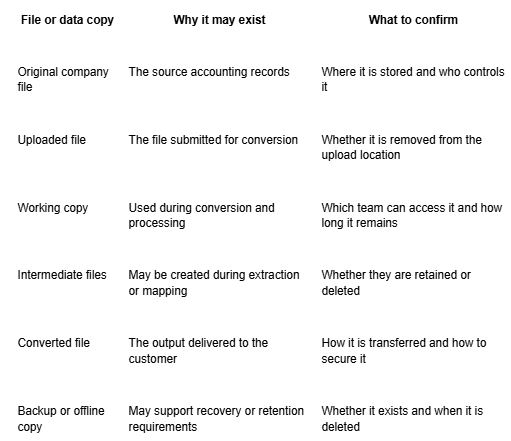 A customer should not assume that deleting the uploaded file also deletes every temporary or intermediate copy. Likewise, the removal of a file from a download portal does not necessarily mean that all internal service copies have been permanently erased.
Ask for a clear retention explanation
If the conversion is being handled by an Intuit Data Services specialist, use the existing case email to ask about file retention. Request details about the original upload, temporary working copies, intermediate files, offline storage and any third-party copies.
A useful written request should ask:
Which copies are created during processing?
Which copies are retained after conversion?
What is the retention period for each category?
Are any copies stored offline or in backups?
Are subcontractors involved in storage or processing?
Can Intuit confirm when eligible copies have been deleted?
The published description of a particular workflow may not provide a universal deletion deadline. Get confirmation for your own case rather than relying on a time period mentioned for a different migration service.
4. Can Third-Party Providers Access Your QuickBooks Data?
Yes, a third-party provider may be involved in some migration routes. The important issue is whether the provider is identified for the specific service and what contractual safeguards apply.
Intuit's U.S. Dataswitcher page identifies Dataswitcher as the provider for certain moves from Sage 50 (U.S. edition) and Xero into QuickBooks Online. The page also explains that some data types, including payroll records, attachments, templates and other items, may not be converted through that route.
That does not mean every company advertising QuickBooks conversion services is an Intuit partner. Nor does it mean that terms for one Dataswitcher migration automatically apply to an independent conversion provider.
How to verify a conversion provider
Before sharing financial records, complete these checks:
Confirm the service route. Start from the official QuickBooks website or the support case already opened with Intuit.
Identify the provider. Ask for the provider's full business name and its role in the conversion.
Confirm the scope. Find out whether the provider will access the entire company file or only selected data.
Ask about subcontractors. Confirm whether another company will store, process or review the file.
Review the terms. Read the applicable privacy statement, migration terms and data-processing provisions.
Get written clarification. Save the provider's response with your conversion case records.
What do migration terms mean for your data?
Intuit's published Dataswitcher migration terms describe the migration objective, responsibilities relating to personal data, confidentiality obligations and deletion after successful completion. The terms state that migration data covered by that agreement is to be deleted by Intuit and Dataswitcher no later than 72 hours after successful completion, without affecting information transferred into the customer's QuickBooks account.
This 72-hour provision is specific to the migration service and agreement it describes. It should not be presented as a universal deletion promise for QuickBooks Desktop Data Services, data recovery work, other conversion methods or independent service providers.
 5. How Does QuickBooks Handle Sensitive Information?
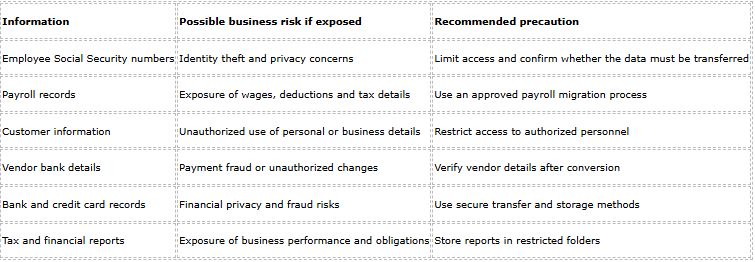
A company file may include information that deserves additional protection, such as employee Social Security numbers, payroll details, bank account information, customer contact details and supplier records.
The business should identify sensitive information before conversion and understand whether it is required for the migration. If a data category is not needed, ask whether it can be excluded without affecting the conversion.
Examples of sensitive information
 Review application permissions
If an application is connected to QuickBooks Desktop, review its access permissions. QuickBooks Desktop includes settings for managing integrated applications under Edit > Preferences > Integrated Applications > Company Preferences. Depending on the application and settings, permissions may allow access to company data or certain sensitive information.
Do not assume that these application permissions control every Intuit Data Services conversion. A file uploaded to a conversion service may be processed under a separate workflow and set of terms.
Before approving an integration or third-party tool:
Confirm the application's identity and purpose.
Review the information it requests.
Grant only the permissions needed.
Remove access when the application is no longer required.
Avoid sharing the company administrator's password.
6. How to Prevent Data Loss or Corruption Before Conversion
Security is not limited to stopping unauthorized access. A secure conversion should also protect the accuracy and availability of financial records.
A damaged source file, incomplete backup or unsupported transaction type can create problems even when the transfer itself is protected. Prepare the source company file before beginning.
Step 1: Create a separate backup
In QuickBooks Desktop, create a backup before making conversion changes.
Open the company file.
Select File.
Select Back Up Company.
Choose Create Local Backup.
Follow the prompts to save the backup.
Store a separate copy in a protected location.
Keep the original company file and backup separate from the file being submitted. Do not overwrite your only usable copy during preparation.
Step 2: Verify the company file
Use the built-in data utilities to check for file issues.
Open QuickBooks Desktop.
Select File > Utilities.
Select Verify Data.
Review the results.
If QuickBooks reports a data issue, follow the recommended repair process. This may include using Rebuild Data.
Run Verify Data again after repair.
Intuit's migration guidance also recommends checking for data damage and resolving file issues before moving a Desktop company file to QuickBooks Online.
Step 3: Save important financial reports
Run and save reports before conversion so you have a reliable comparison point.
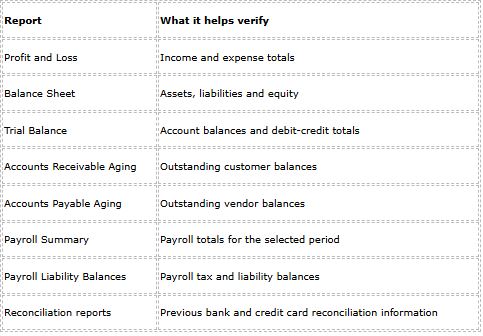 Use the same accounting method, date range and report settings when comparing source and destination results.
Step 4: Review unsupported data
Not every record or feature will necessarily transfer. The limitations depend on the source system and conversion method.
Potential exceptions can include:
Payroll history or employee tax setup.
Bank reconciliation history.
Attachments and supporting documents.
Custom invoice templates.
Memorized transactions.
Estimates or other non-posting transactions.
Certain inventory or multicurrency details.
For example, Intuit's Dataswitcher page identifies payroll records, attachments, budgets, memorized transactions, templates and estimates among data types that cannot be converted through the described service. The limitations for a Desktop-to-Online migration are not necessarily identical.
Export or preserve important records separately when the conversion guide says they will not transfer.
Step 5: Plan payroll timing
Payroll deserves special attention because missing or incomplete employee information can affect pay runs and tax reporting.
If you are moving from QuickBooks Desktop to QuickBooks Online, Intuit recommends preparing payroll before migration. Its current guidance says to run payroll, allow two to three business days for synchronization where applicable, and plan to complete the move at least seven business days before the next scheduled payroll. Follow the instructions for your exact migration path and payroll setup.
If you encounter a payroll issue during preparation, it may help to review related troubleshooting guidance such as QuickBooks Direct Deposit Not Working. That topic is separate from data conversion, but resolving a payroll issue before migration can help prevent confusion about pending payments and payroll records.
7. What Happens if a Conversion Is Interrupted?
A conversion can be interrupted by a network problem, an upload failure, a damaged source file, a processing error or an issue with the destination company. The correct recovery procedure depends on which stage failed.
Do not immediately upload the same company file repeatedly. First determine whether the original upload was received and whether the conversion is still being processed.
Identify the stage of the interruption
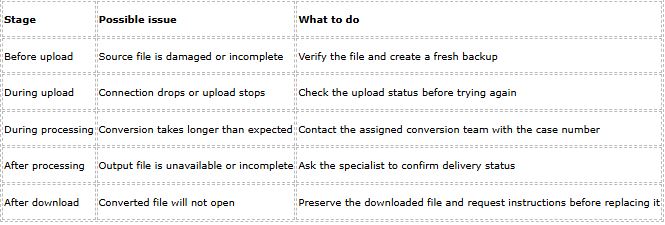 Can the conversion restart without uploading again?
Do not assume that every conversion automatically resumes from the point where it stopped. Public instructions for a particular conversion route may explain how to start or monitor a migration, but they may not promise automatic recovery of every interrupted working session.
Ask the specialist:
Was the original upload received successfully?
Is the conversion still active?
Can the existing upload be used to restart processing?
Is a new upload required?
Should the customer submit a fresh backup?
Will restarting create a duplicate destination company or overwrite existing information?
Keep the original source file unchanged until the conversion has been completed and verified.
Protect the destination company
Before retrying a migration, confirm whether the destination company already contains information. Intuit warns that replacing existing QuickBooks Online data during a Desktop migration cannot be undone through the migration process. If the destination company has records you need to retain, do not approve a replacement until you have a separate backup or a clear recovery plan.
8. How Is the Converted Company File Delivered Securely?
The delivery method matters because the converted file may contain the same sensitive financial information as the original.
For certain support cases, Intuit uses Intuit Customer File Exchange to transfer files. Its published instructions require a case number, email address and a personal identification number (PIN). Intuit says the PIN expires after 48 hours and files are removed from the portal and server after 29 days. Customers are instructed to download their files before they are removed.
These instructions apply to Customer File Exchange. They do not establish that every migration or conversion service uses the same delivery method.
Steps for downloading a file through Customer File Exchange
Open the Customer File Exchange link provided through your Intuit case.
Enter the case number and email address associated with the case.
Enter the PIN provided by Intuit.
Accept the terms of service.
Sign in and locate the file provided for download.
Download the file to a secure folder on your computer.
Save any accompanying instructions or Readme file.
Confirm that the downloaded file is present and can be opened as instructed.
If the PIN has expired or does not work, contact the support team through the case rather than trying unrelated links.
Verify the downloaded file
A successful download confirms that the file was transferred to your computer. It does not prove that every account, transaction or attachment converted correctly.
After downloading:
Scan the file using your organization's approved security software.
Keep the original backup separate.
Open the file using the instructions provided for the conversion.
Check the company name and accounting period.
Compare key reports against the source records.
Ask the conversion specialist about missing or unexpected information.
If you need a formal integrity check, ask whether the provider can supply a checksum, such as a SHA-256 hash, or another method to confirm that the delivered file has not changed during transfer. Do not assume that a checksum or digital signature is available unless the provider confirms it.
9. How to Secure Your Converted QuickBooks Company File
Once the converted file has been delivered, the business becomes responsible for protecting the copy it stores and uses. A secure transfer does not automatically secure the file on a local computer, shared network, external drive or cloud storage account.
Use strong access controls
Set a strong password for the QuickBooks company file where supported. Use individual user accounts instead of sharing one administrator login. Give employees only the access needed for their jobs.
For example:
A bookkeeper may need to enter bills and record payments.
A payroll administrator may need access to payroll tasks.
A business owner may need access to financial reports and company settings.
An outside accountant may need controlled access for review and tax preparation.
Avoid giving every user full administrative access. Review permissions when an employee changes roles or leaves the business.
Protect the computer and storage location
A QuickBooks company-file password should not be treated as a replacement for device or drive encryption. It controls access through the QuickBooks application, but customers should not assume it encrypts every copy of the file against someone who obtains the underlying file.
Use additional safeguards:
Enable full-disk encryption where available, such as BitLocker on supported Windows editions.
Require a password or other approved sign-in method to access the computer.
Set automatic screen locking.
Restrict the folder containing the company file.
Limit access to shared network folders.
Encrypt external drives used for backups.
Protect cloud storage with strong authentication and restricted sharing.
Do not store company files in public or shared folders.
Create and test backups
A backup is useful only if it can be restored. Create a backup schedule that fits your transaction volume and business continuity requirements.
A practical approach may include:
Create a backup after major accounting changes.
Schedule regular backups based on the company's workload.
Store a separate copy away from the primary computer.
Encrypt backup storage.
Restrict access to backup files.
Test restoration periodically.
Keep a documented process for recovering the company file.
Do not rely on one backup stored on the same computer as the live company file. A hardware failure, malware incident or accidental deletion could affect both.
Be careful when sharing files with an accountant
If an accountant needs a copy of your company file, use a supported sharing method and agree on how the file will be protected. Do not send sensitive company data through an unapproved file-sharing service simply because it is convenient.
Before sharing, confirm:
The recipient's identity.
Which file version is being shared.
Whether the file is password-protected.
Whether the transfer method is approved.
How long the recipient needs the file.
How the recipient will securely dispose of the copy afterward.
10. How to Monitor Changes After Conversion
After conversion, review user access and accounting activity. This is important because a migration may create a new environment with different user permissions, security settings and audit tools.
The monitoring features differ between QuickBooks Desktop and QuickBooks Online.
QuickBooks Desktop: Audit Trail
QuickBooks Desktop includes an Audit Trail report that helps users review changes to transactions. It can help identify edits and other changes that may affect accounting records.
After conversion or file restoration:
Review the company file's user list.
Confirm that each user is authorized.
Review access levels.
Open the Audit Trail report.
Investigate unfamiliar or unexpected transaction changes.
Restrict or remove access that is no longer required.
The Desktop Audit Trail should not be confused with the QuickBooks Online Audit Log. They are different tools and do not necessarily record the same types of events.
QuickBooks Online: Audit Log
QuickBooks Online has an Audit Log that tracks account activities, including user sign-ins and changes to settings, customers, vendors, employees and payroll submissions. Intuit's current support article says events in the Audit Log are available for two years.
The Audit Log can help a company investigate activity inside its QuickBooks Online account. However, it should not be treated as a record of every internal action taken on a separate company-file copy during conversion. For example, an event in the QBO Audit Log does not necessarily show who accessed an uploaded working file on a conversion server.
What to do if you notice an unexpected change
If a transaction, user or company setting appears unfamiliar:
Record the date and details.
Check the relevant audit report or log.
Confirm whether an authorized user made the change.
Review connected applications and user permissions.
Change credentials if you suspect unauthorized account access.
Enable available multifactor authentication.
Contact QuickBooks support if the activity cannot be explained.
If you suspect that sensitive banking or payment information has been exposed, follow your organization's incident-response procedure and contact the relevant financial institution where appropriate.
 11. Does Intuit Provide Independent Security and Compliance Information?
Businesses evaluating a financial software provider may want evidence beyond a general statement that data is secure. They may ask about independent audits, security certifications, penetration testing and vendor management.
Intuit's Trust Center lists compliance information including SOC 2 Type II, ISO 27001:2022, SOC 1 Type I and PCI DSS. It also identifies annual third-party audits and annual third-party penetration testing.
Powered by Conveyor
These disclosures are useful when evaluating Intuit's broader security and compliance program. However, a company-level certification should not be interpreted as proof that every conversion workflow, temporary file, third-party provider or subcontractor is covered in exactly the same way.
Questions to ask about audit coverage
If your business has formal vendor-risk or compliance requirements, ask Intuit or the provider:
Which security certifications apply to the service?
Does the relevant audit scope include the conversion environment?
Are temporary working files covered?
Does the scope include third-party providers and subcontractors?
Can customers review a relevant SOC report or other assurance document?
Are there restrictions on sharing the report?
The Trust Center is a useful starting point for reviewing Intuit's published compliance information. For a particular conversion, request confirmation of the relevant service scope rather than assuming that a general certification answers every question.
12. Who Is Responsible for Protecting the Data After Conversion?
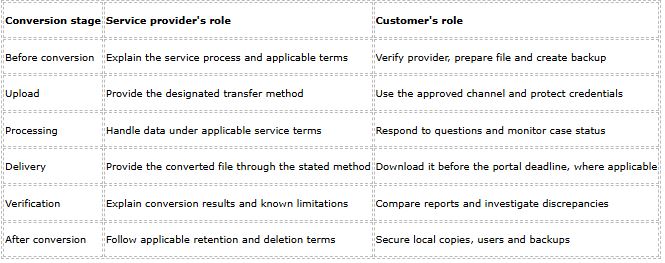
Data protection is a shared responsibility, but the responsibilities change as the conversion progresses.
The service provider is responsible for the activities and safeguards described in the applicable service terms. The customer remains responsible for choosing the correct source file, authorizing the transfer, protecting credentials, reviewing the converted information and securing the delivered copy.
Responsibilities during each stage
 Keep a conversion handover record
A written handover record makes it easier to understand what happened and who is responsible for follow-up.
Keep the following:
Conversion case number.
Source file name and version.
Backup location.
Destination QuickBooks product and company name.
Conversion completion notification.
List of known unsupported data.
Download date and delivery method.
Reports used to verify the conversion.
User and permission review.
Backup and restoration test details.
Written retention or deletion responses.
There may not be one universal handover checklist for every Data Services conversion. Creating your own record helps close the gap between the provider's processing work and your business's ongoing responsibilities.
13. How to Request Confirmation That Temporary Data Has Been Deleted
A common question after conversion is whether the service still holds the original upload, temporary working files, intermediate copies or offline backups.
The answer depends on the service and agreement. A customer should not assume that every copy is deleted immediately after receiving the converted file.
For example, the Dataswitcher migration terms described earlier contain a 72-hour deletion provision after successful completion for data covered by that agreement. That provision is not a universal rule for all QuickBooks Data Services conversions.
Send a specific deletion request
If you want confirmation about remaining conversion data, contact the assigned specialist through the existing case email. Identify the conversion case and ask for a written response.
Your request should cover:
The original company file uploaded for conversion.
Temporary working copies created during processing.
Intermediate or extracted files.
Copies held by third-party providers or subcontractors.
Offline storage or backup copies, if applicable.
The retention period for any data that cannot yet be deleted.
The expected date for permanent deletion, where deletion is permitted.
Ask the provider to distinguish between data transferred into your QuickBooks account and temporary copies retained for processing, support, legal or other permitted purposes.
What should a deletion confirmation include?
A useful written response should explain:
Which categories of conversion data were deleted.
Whether any copies remain.
Why any remaining information is retained.
The applicable retention period.
Whether third-party providers or subcontractors hold copies.
Whether a further deletion step is scheduled.
Whether the provider can issue a formal deletion confirmation.
A request for deletion is not the same as proof that deletion has taken place. Keep the request and the provider's response with your conversion records.
 14. What Should You Do if You Suspect a Data Security Incident?
If you believe that someone accessed your company file without permission, received a copy of your financial data or changed information unexpectedly, respond promptly.
Do not delete emails, case messages or other evidence that may help explain what happened. Record the details and use the official support or security reporting channel for the service involved.
Immediate steps for a suspected incident
Secure your account: Change the affected password using the official sign-in page.
Review access: Check company users, administrator accounts and connected applications.
Restrict suspicious access: Remove or suspend access that is not recognized, where you are authorized to do so.
Check financial activity: Review bank accounts, payment records and vendor details for unexpected changes.
Preserve evidence: Save relevant emails, alerts, dates, screenshots and support case numbers.
Contact the provider: Report the suspected incident through the official Intuit or service-provider channel.
Protect affected information: If bank details or payment credentials may have been exposed, contact the relevant financial institution.
Ask for incident details
When contacting the service provider, ask whether the issue involves the original uploaded file, a temporary conversion copy, the delivered file or the destination QuickBooks account. These are different environments and may require different investigations.
You can also ask whether the provider has identified the affected data, contained the issue and determined whether customer notification is required under the applicable agreement or law.
Do not assume that every security incident follows the same notification timeline. The obligations depend on the service terms, the nature of the incident and applicable legal requirements.
15. Practical Security Checklist for QuickBooks Data Conversion
Use this checklist before, during and after your conversion. It brings together the main precautions discussed in this guide.
Before conversion
Confirm the conversion provider and the exact service.
Read the relevant privacy and migration terms.
Create a separate backup of the source company file.
Run Verify Data and resolve reported file problems.
Save important financial and payroll reports.
Identify unsupported data and export it separately.
Confirm whether a third-party provider or subcontractor is involved.
During conversion
Use the designated upload or transfer channel.
Protect your sign-in details and any PIN.
Keep the conversion case number.
Ask who can access the file during processing.
Confirm how interruptions and failed uploads are handled.
Ask about temporary copies and retention.
After conversion
Download the converted file using the stated delivery method.
Save any accompanying instructions.
Compare the Profit and Loss and Balance Sheet reports.
Review Trial Balance, A/R, A/P and payroll records.
Check user permissions and connected applications.
Secure the company file and backup storage.
Test that a backup can be restored.
Request written clarification about remaining conversion copies.
16. Getting Help With QuickBooks Data Conversion and Related Issues
A conversion can raise questions that are not limited to uploading a file. You may need help understanding a migration checklist, investigating missing transactions, confirming payroll information or reviewing access permissions.
The best support route depends on the problem. Use the official QuickBooks support channel for product-specific assistance, and ask for a specialist when the issue involves conversion processing, company-file integrity or payroll migration.
For customers who need help reaching a support representative, the guide Speak To a Live Person In QuickBooks Customer Support can be useful when the main concern is finding an appropriate contact route. If the issue involves a Desktop Payroll setup or payroll records, see Contact a QuickBooks Desktop Payroll Specialist for more focused guidance.
Other accounting problems may need separate investigation:
QuickBooks Missing Transactions: Useful when transactions appear to be absent after a migration or when reports do not match the original company file. First check the reporting date range, filters, accounting method and conversion limitations.
QuickBooks Direct Deposit Not Working: Relevant when a payroll transfer or direct deposit issue needs attention before or after a migration. Confirm payroll status and employee banking details through the appropriate payroll workflow.
Get Expert QuickBooks Assistance: A broader support resource for customers who need help identifying the right troubleshooting path.
These topics are related support resources, not substitutes for reviewing the conversion-specific instructions. A missing transaction, for example, may be caused by a date filter, unsupported transaction type, account mapping or incomplete conversion. It should not automatically be treated as a security incident.
Need help understanding your conversion options?
If you need additional assistance with a QuickBooks data conversion question, call +1-888-408-4371 or 800-INTUIT-446-8848. Before sharing financial records, confirm the identity of the person assisting you and use an approved file-transfer method.
Conclusion: Protect Your Financial Data at Every Stage of Conversion
QuickBooks Data Conversion Services can help businesses move accounting information into a new system, but a successful transfer is only one part of a safe migration. Customers should understand how their file is uploaded, who can access it, how the conversion is processed, what data may not transfer and how the final file is delivered.
The most important step is to verify the details for the exact conversion service being used. A security statement or deletion term published for one migration route should not be treated as a guarantee for every QuickBooks conversion. Ask direct questions about temporary copies, subcontractors, retention and deletion, and keep written responses with your case records.
Before you begin, back up the source company file, verify its integrity and save the financial reports you will need for comparison. After conversion, check account balances, transactions, payroll information and user permissions. Then secure the delivered file and create a backup that you can successfully restore.
A careful process helps protect both the confidentiality of your business information and the accuracy of the accounting records you rely on.
Need help with a QuickBooks data conversion question?
Get guidance on preparing your company file, reviewing conversion results and understanding the next steps. Call +1-888-408-4371 or 800-INTUIT-446-8848. Do not share passwords, one-time verification codes or sensitive financial files until you have independently verified the support provider and its approved transfer process.
Frequently Asked Questions
Are QuickBooks Data Conversion Services secure?
They can be, but it depends on the conversion method and provider. Safeguards may include encrypted file transfer, controlled access and service-specific privacy terms. Before submitting a company file, confirm the upload process, who can access the file, retention terms and delivery method.
Does Intuit encrypt company files during conversion?
Intuit documents SSL encryption for certain uploads, such as the designated Dataswitcher conversion wizard. That applies to the specified upload process only, so confirm the security arrangements for your own conversion route instead of assuming every workflow works the same way.
Can a third-party company access my QuickBooks data during conversion?
Yes, in some migration routes a third-party provider is involved. For example, Intuit identifies Dataswitcher for certain moves from Sage 50 and Xero to QuickBooks Online. Ask for the provider’s legal name, what data it will access and whether subcontractors are used.
How do I know if a QuickBooks data conversion service is legitimate?
Start from the official QuickBooks website or your existing Intuit support case, not from an unsolicited email or ad. A genuine provider explains its role, shares its terms in writing and uses an approved file-transfer method.
Will my original QuickBooks Desktop company file be deleted after conversion?
No, do not assume a conversion deletes your original file. Desktop-to-Online migration copies company information to QuickBooks Online, so keep your own backup and preserve the original file until you have verified the converted records.
How long does Intuit keep uploaded company files, and does the 72-hour deletion rule apply to every conversion?
There is no single retention period for every service. The 72-hour deletion provision applies only to migration data covered by the Dataswitcher migration terms after successful completion. For other conversions, ask the team handling your case for the retention period and request written confirmation covering uploaded, working and backup copies.
What should I do before uploading my QuickBooks company file?
Create a separate backup, run Verify Data, resolve any file issues and save key reports like Profit and Loss, Balance Sheet and Trial Balance. Review the conversion limitations too, and if you use payroll, follow the payroll preparation steps and allow enough time before your next pay date.
Will payroll records and other data transfer automatically?
Not necessarily. Payroll transfer depends on the source, destination and migration method. Items like attachments, memorized transactions, custom templates and some inventory details may also not transfer. Check the instructions for your exact migration path and export important records separately.
How can I check whether my transactions are converted correctly?
Run the same reports in the old and new systems using the same date range and accounting method. Compare Profit and Loss, Balance Sheet, Trial Balance, A/R Aging and A/P Aging, and review payroll and reconciliation information separately.
How do I securely receive and protect my converted company file?
Use the delivery method given in your case. For Intuit Customer File Exchange, you need your case number, email address and PIN, and you should download the file before the portal’s removal period ends. After downloading, store it in a restricted folder, use individual user logins, enable full-disk encryption and keep a tested backup in a separate location.