

The .xml configuration file of a Palo Alto firewall includes, among many settings, some secret strings like passwords. Some of these passwords (e.g. those used to access external systems such as LDAP or RADIUS) must be stored in a reversible way, so that the firewall can use them when it needs to interact with the external entity. To ensure the confidentiality of those secrets, the firewall encrypts them with the help of a master key. This is technically a 16-character alphanumeric password stored in a secure location, that is used as just mentioned to encrypt all other secrets.
By default, the firewall uses a master key that has now become common knowledge. I won't tell you about it in this post but-just know how to look it up 😉
And of course, the algorithm for decrypting a secret using the default master key is equally well known, so as of today using the default master key is equivalent to keeping our passwords in clear text.
The solution to this problem is simple, although in my experience very few customers apply it. Change the default master key.
How to properly change the master key
The procedure for changing the master key is slightly different based on 4 possible scenarios:
Standalone firewall
HA firewall pair
Panorama managed firewall
Panorama itself
Let's look at each of these scenarios in detail.
Standalone firewall
For a standalone firewall, just go to the Device - Master Key and Diagnostics section and set a new key by clicking the gear on the Master Key widget:
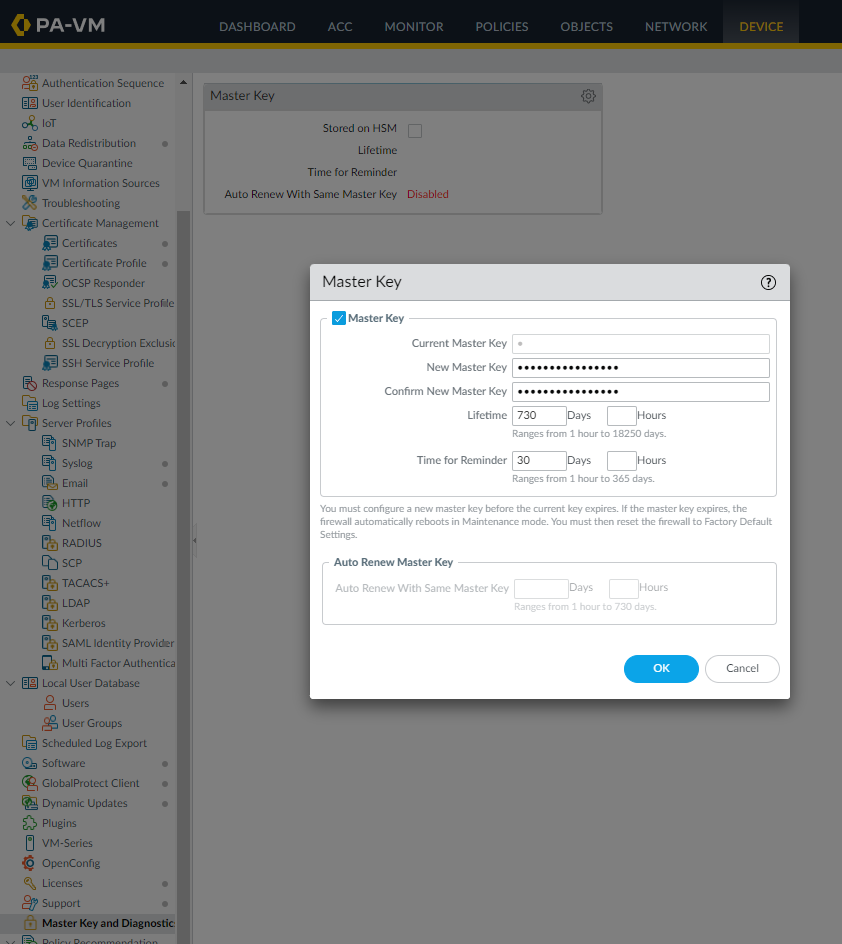
Once you click OK, a commit job will automatically run, executing immediately the change.
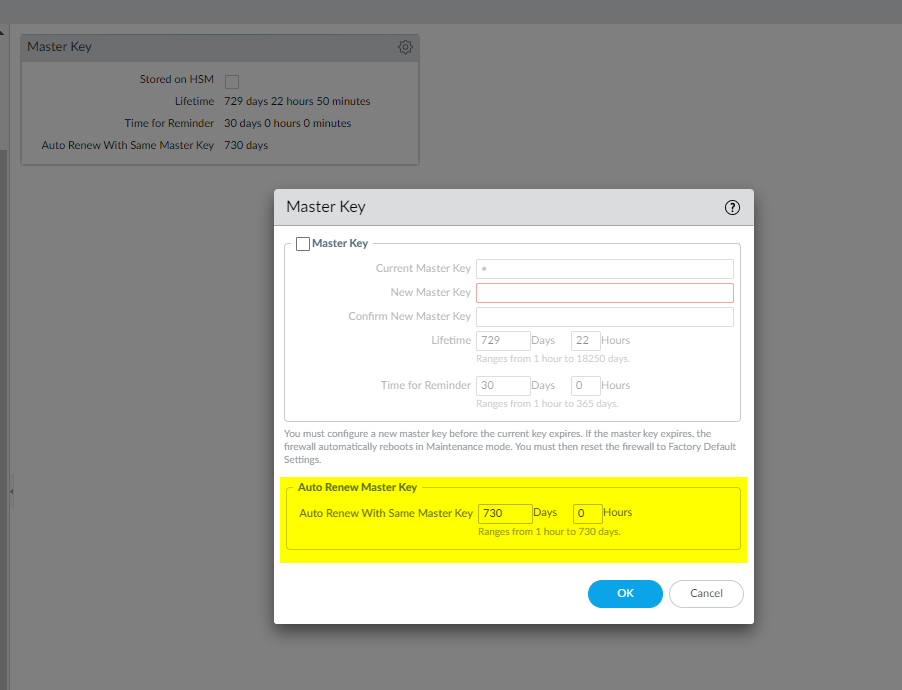
Note that it is necessary to indicate a lifetime for the new key: be careful not to let this time expire, to avoid the automatic reset of the firewall. Eventually, once the key is set, you can enable auto renew to avoid any kind of risk (this last change requires a commit):
HA firewall pair
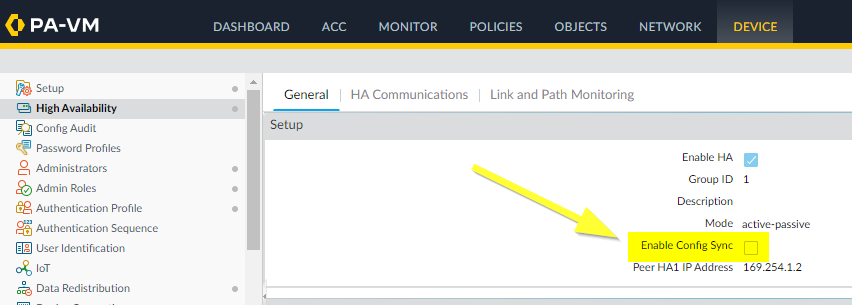
With an high availability firewall cluster, you must be careful to disable configuration sync before changing the master key:
The complete procedure includes the following steps:
Disable configuration sync in the Device - High Availability - General - Setup section on each node and commit;
Change the master key on each node using the same procedure of the standalone firewall (see section above);
Once the master key is changed on both nodes, enable back the configuration sync.
Panorama managed firewall
You can leverage Panorama for deploying a master key to member firewalls.
Keep in mind that if member firewalls are in HA pair, you still need to disable configuration sync before the master key change. See the section above for the detailed procedure.
Once the configuration sync is disabled, we can deploy the master key clicking on Deploy Master Key on the Panorama - Managed Devices - Summary section:
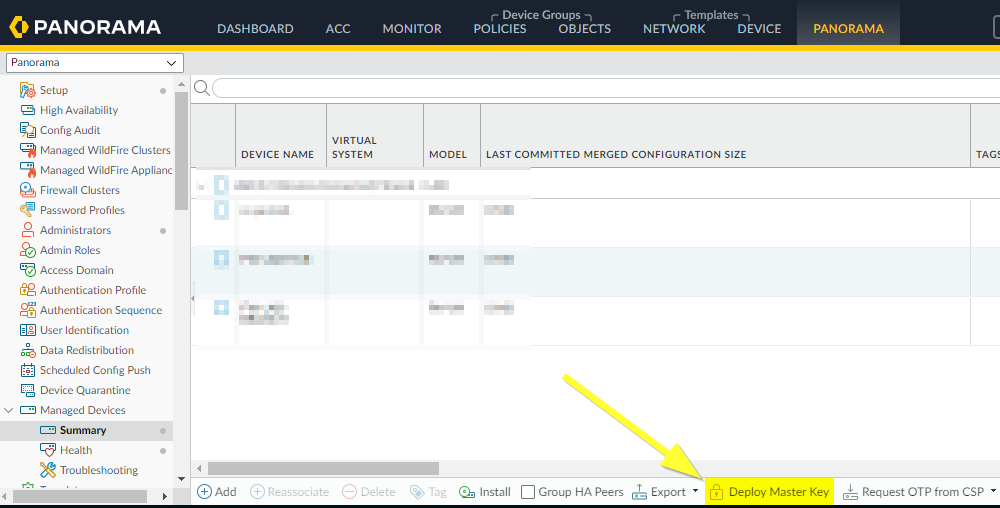
Next we can choose the member firewalls and set the master key like in the previous sections.
NOTE: at the moment, you cannot use Strata Cloud Manager to deploy master key to member firewalls.
Panorama itself
If the Panorama is in HA, you should first disable high availability on both nodes by unchecking the Enable HA flag under Panorama - High Availability - Setup section:
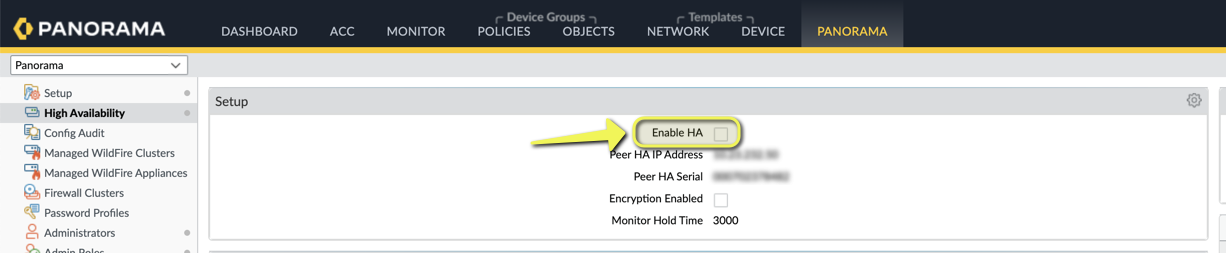
Don't forget to commit to Panorama after disabling HA.
Next, just go to Panorama - Master Key and Diagnostics section and set a new key using the same procedure as firewalls. And finally enable back HA.
NOTE: it is not mandatory to use the same master key for Panorama and member firewalls. Only dedicated Log Collector and Wildfire appliances must share the master key with Panorama.