

If you use Visual Studio Code (VS Code) with Unity, you may have noticed that it has stopped working with your Unity projects in that it stops highlighting code errors and intellisense stops working. Or on the other hand, maybe you've recently started using Unity and VS Code together and noticed that the integrations you expected just don't work.
This post could be confusing if you don't know the difference between Visual Studio and Visual Studio Code (or VS Code for short). They are two different IDEs both made by Microsoft with very similar names. You can use either with Unity, and this post is about getting VS Code to work with Unity specifically.
Pay close attention to when I mention VS Code or Visual Studio as it could be confusing.
Read on for the solution...
Why VS Code isn't Working with Unity
Recently, the way Unity integrates into VS Code has changed. If you are not aware of this change you might not have your project and VS Code setup to work correctly with Unity. In a nutshell, you need to make sure VS Code has the correct extensions and that Unity is setup to work with VS Code in the correct/new way.
Set up VS Code
To use VS Code with Unity you will need the following three Extensions:
C#
C# Dev Kit
Unity
Note: All three extensions are by Microsoft. Update any existing extensions you have to make sure you are on up-to-date versions.
To install/update an extension in VS Code:
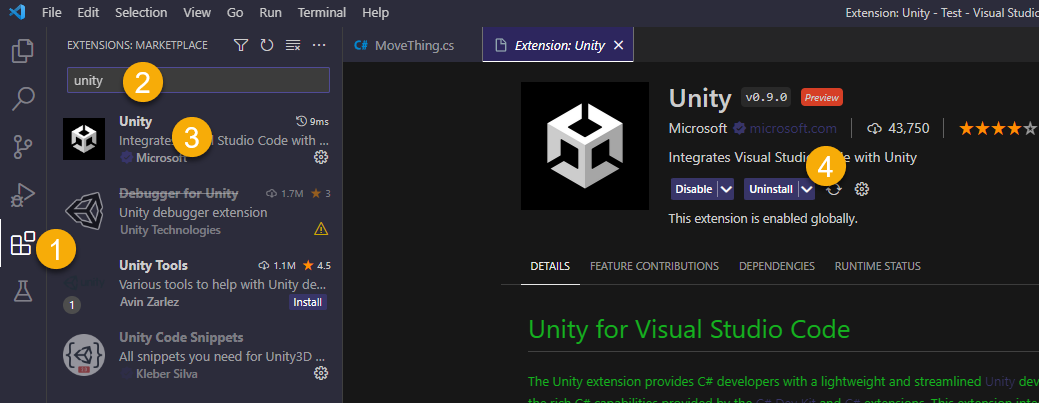
Click the Extensions tab.
Search the extension name.
Click the extension you want to install.
Click the button for the relevant action. If you already have the extension you will only see Disable and Uninstall options as in the image above, otherwise you'll see the Install option.
Set up Unity
Once VS Code is setup, you can go ahead and setup your Unity project.
Some of these steps will be required for all your Unity projects individually.
Use the Correct Package
Previously, you needed the VS Code Editor package to use VS Code with Unity, but that has now changed, and instead you need to use the Visual Studio Editor package (i.e. the same one you would use for regular Visual Studio).
Open your Unity project and open the Package Manager. If you have been using VS Code and it suddenly stopped working properly, you will probably have the VS Code Editor package installed, and you may or may not have the Visual Studio Editor package.
Choose Packages: In Project from the top to view your project's packages.
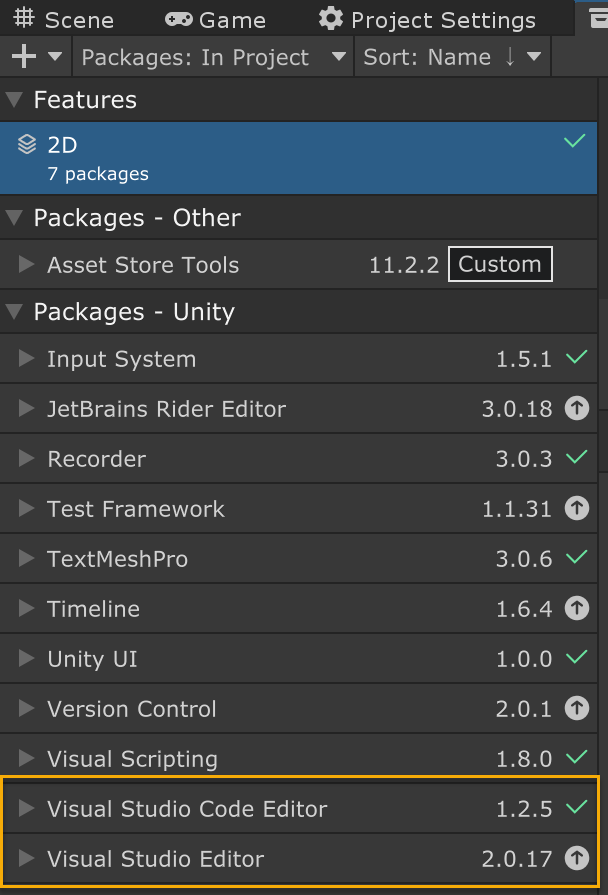 You need to have the Visual Studio Editor package 2.0.20 or higher, and you do not need the Visual Studio Code Editor package.
Yes that is correct: you need the Visual Studio Editor package for VS Code, and the VS Code Editor package is essentially deprecated.
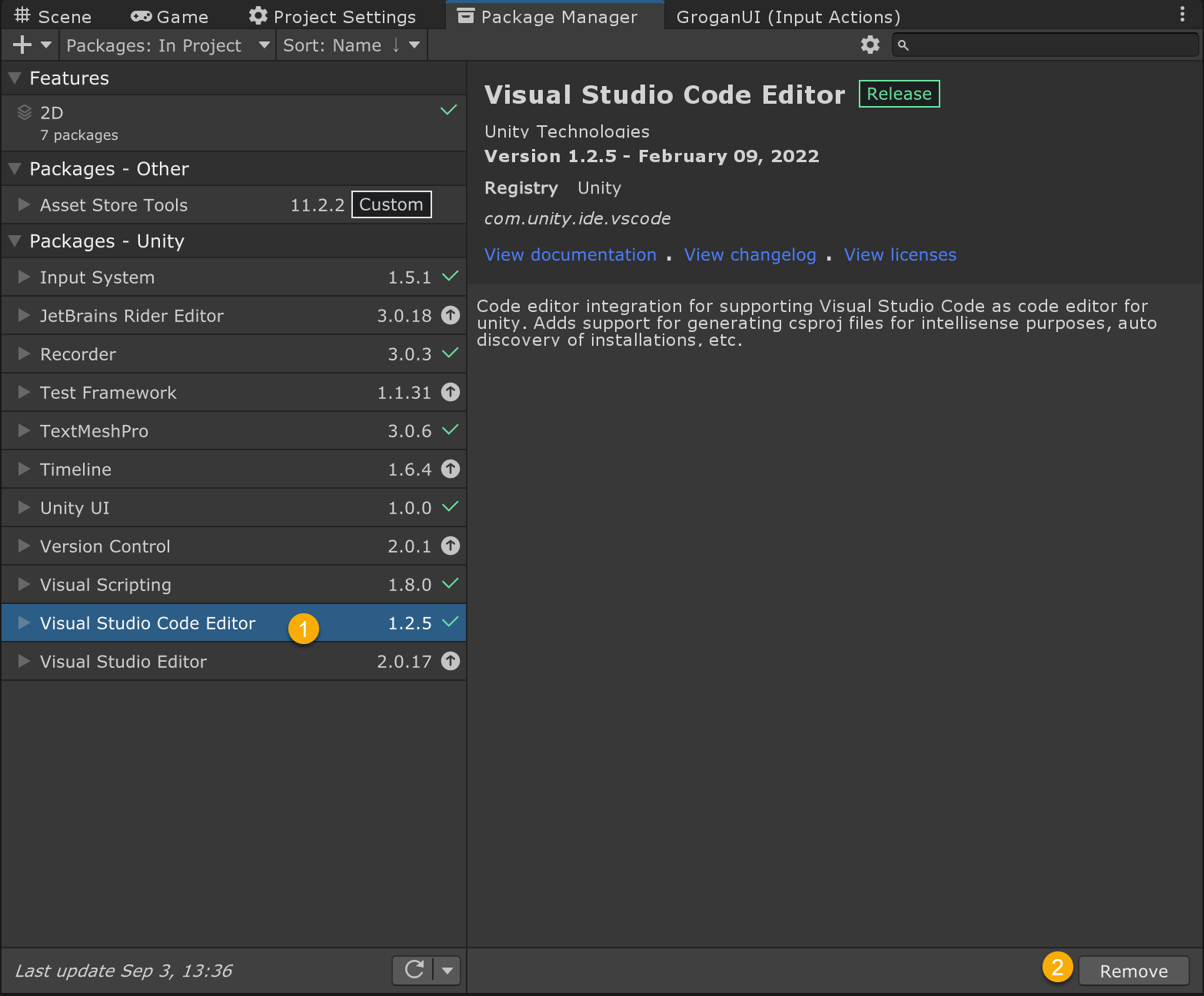
If you have the Visual Studio Code Editor package, select it and click Remove:
If you have the Visual Studio Editor package, click it and update to the latest version:
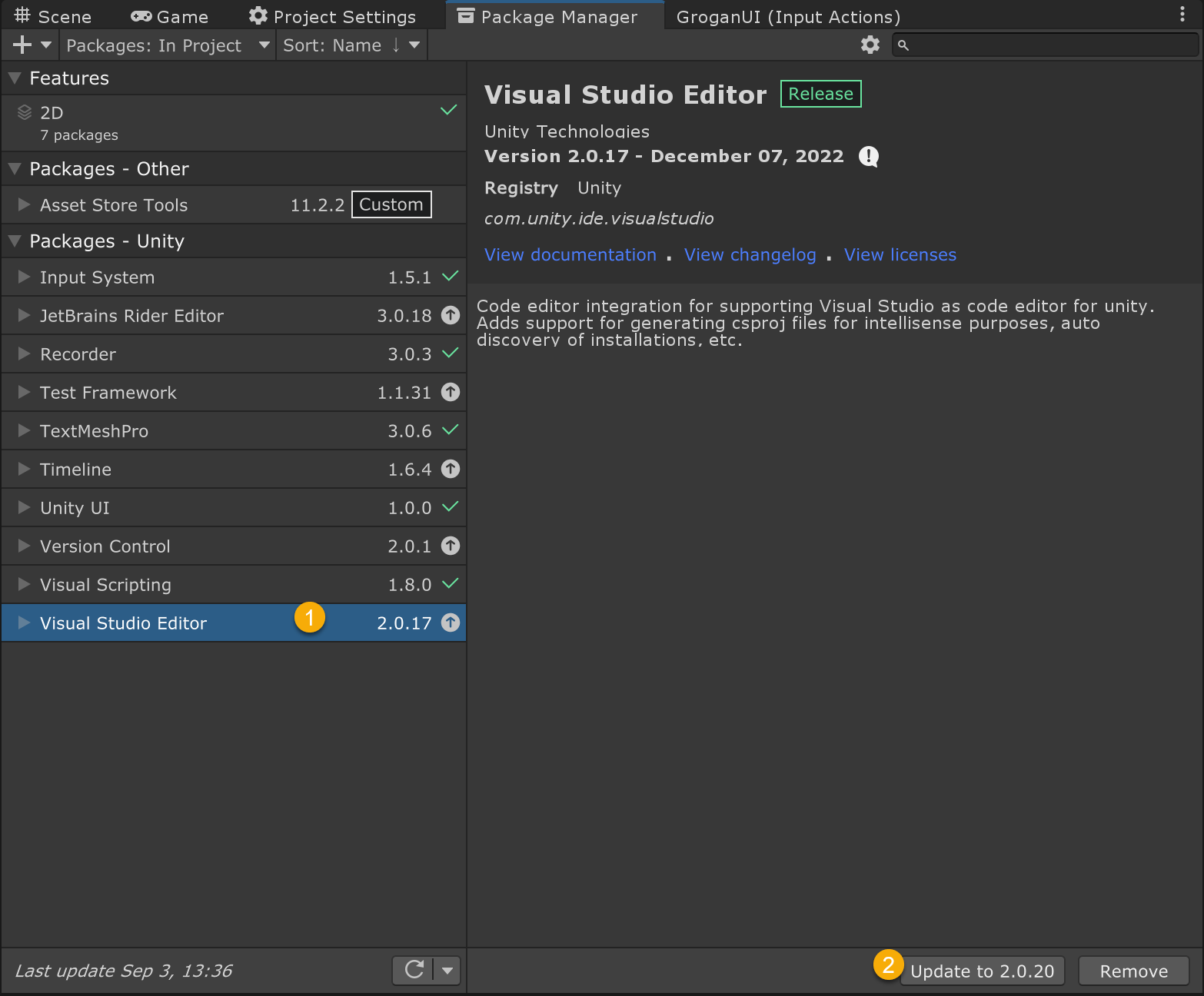
If you do not have the Visual Studio Editor package, do the following to install it:
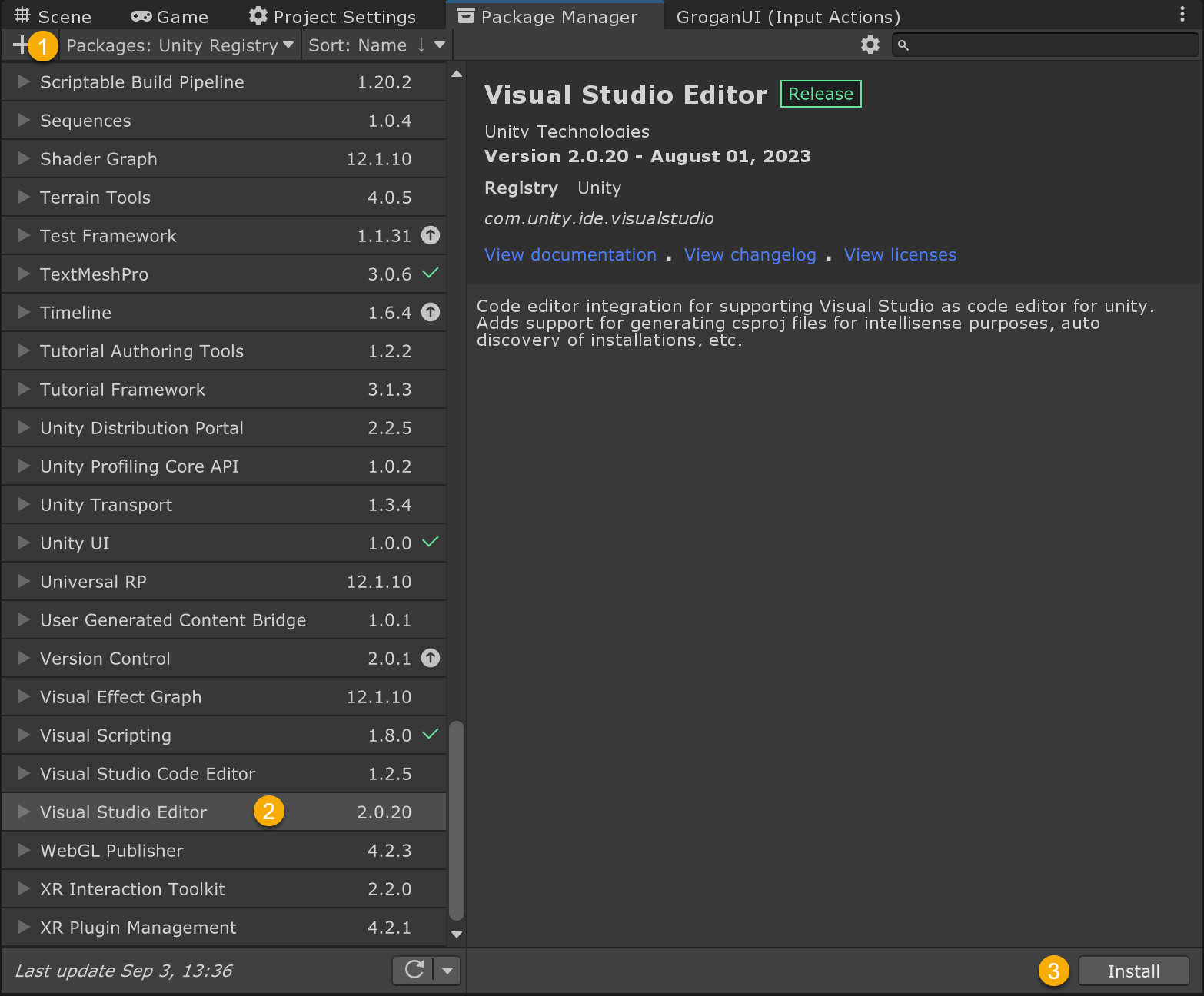
Choose Unity Registry from the Packages drop-down.
Scroll down and select Visual Studio Editor.
Click Install.
Note: because packages are project specific, you will need to make this change to all your Unity projects.
Unity Settings
Next, you need to tell Unity to use VS Code.
Go to Edit > Preferences in the main Unity menu, and the Preferences window will open:
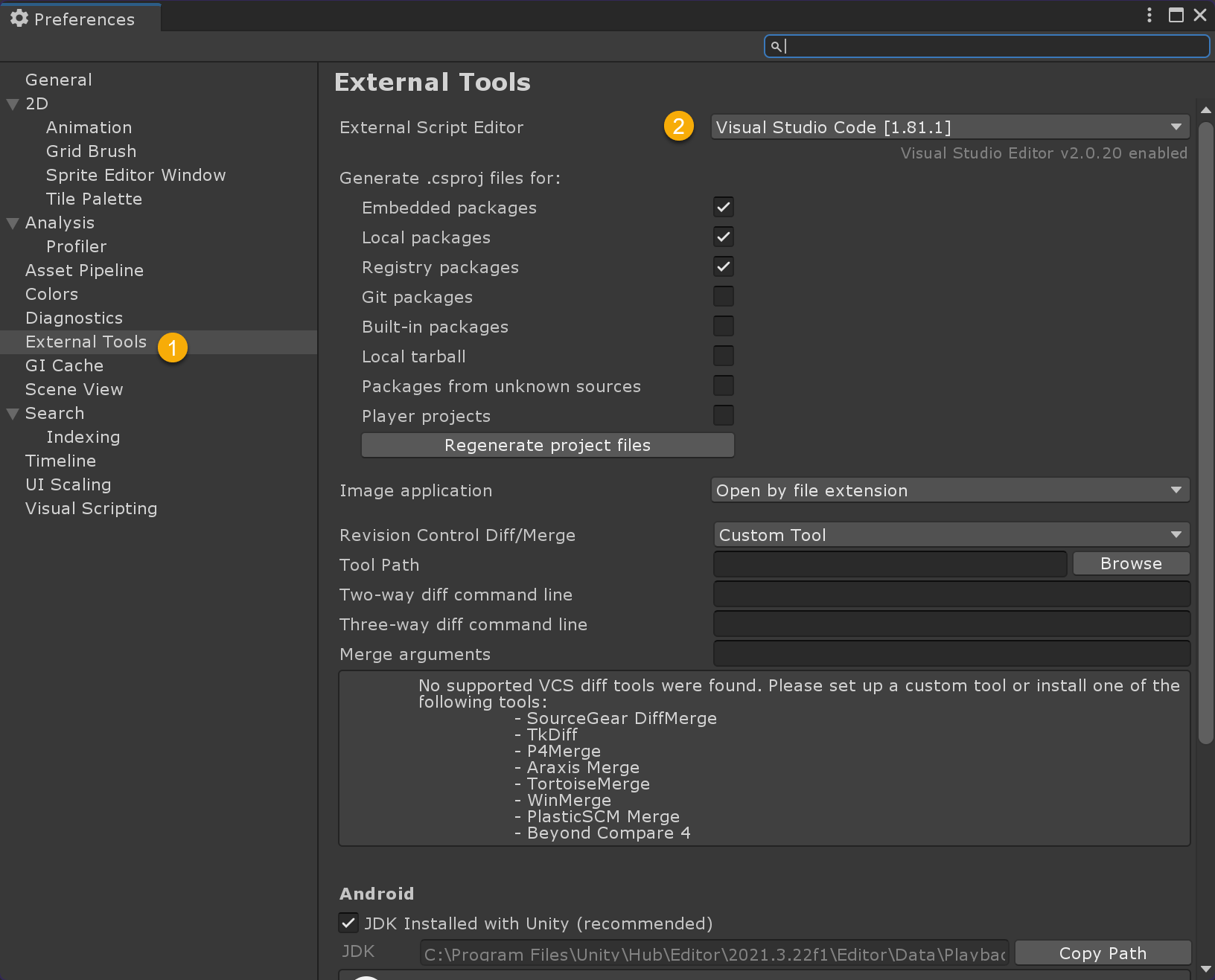
Select External Tools.
Choose Visual Studio Code from the External Script Editor dropdown.
Test It
Close VS Code, then go to your Unity project and double-click a C# code file.
If everything is in order your script should open in VS Code and all the proper functionality should be working.