

Obtain a certificate (it can be a free Let's Encrypt certificate - valid for 3 months)
Let's Encrypt (LE) requires you to prove server ownership. The process basically works like this: LE will provide you with a small text file containing a key. If you copy this file to your server (the server that responds to the domain for which you want to create the certificate, such as "yourdomain.com"), LE will shortly request the same file from the server. If the file is there (i.e., LE can download it from your "yourdomain.com" server), it proves that you own it.
Steps to follow:
Run IWCertificateManager and select "Request Let's Encrypt Certificate."
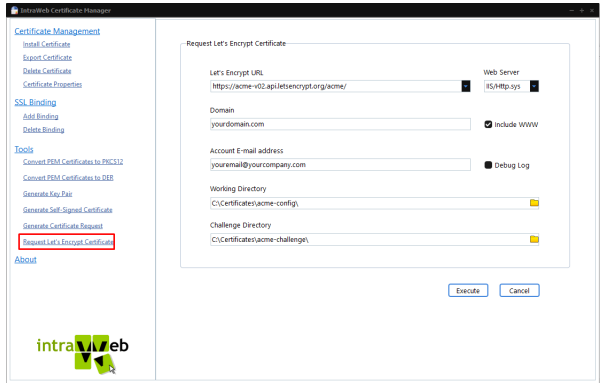
Fill in all required fields. If you are deploying an Http.sys or ISAPI application, select IIS/Http.sys as the web server. If you have an Indy-based SA IntraWeb application, you should select Indy. The difference will be in the name of the certificate file saved to your working directory folder.
For "Let's Encrypt URL," you can use "staging" to test/simulate the process and use another one (as shown above) to perform the actual certificate request.
For the "Challenge Directory," select the physical installation path of your IntraWeb application + '\acme-challenge'. This way, you won’t need to copy files when applying for a certificate manually. In the example above, the application will be in the "C:\Certificates" folder.
Note that your IW application must be compiled with the option ServerController.SSLOptions.EnableACME = True. Otherwise, the application will not respond to LE requests.
Then, click "Execute." The certificate manager will initiate the communication protocol with the LE server, and if everything goes well, you will see a pop-up message like this:
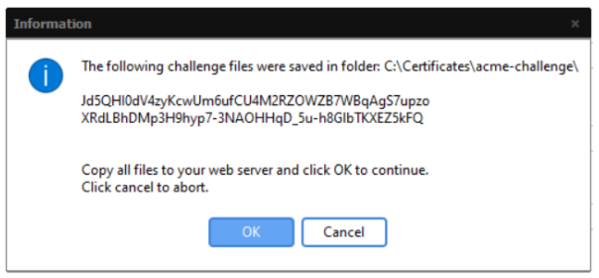
At this point, the file will have been saved to your folder "C:\Certificates\acme-challenge". If your application is running and the folder selection matches the recommendation in item 1.2 above, you won’t need to copy the file manually. If not, you must copy the file into a subfolder named "acme-challenge" within the application directory, then click "OK" above.
After copying the file, simply click "OK." IWCertificateManager will reconnect to the LE server and notify them that the file is ready. The LE server will then attempt to download the file from your "yourdomain.com" server. As long as the property ServerController.SSLOptions.EnableACME = TRUE is set, and your IW application will be prepared to serve these files by default, as mentioned above.
If LE succeeds, it will provide the certificate and additional files, which IWCertificateManager will then copy to the working directory. The copied files should be (if the selected web server type is IIS/Http.sys):
yourdomain_com.crt (the certificate itself, in PEM format)
yourdomaincomprivate.pem (the private key file, in PEM format)
LE.crt (the CA certificate file in PEM format, i.e., the LE root certificate)
LEAccountCert_4096.pem (your account in the LE server certificate. You don’t need this file to run your application, but it’s good to keep it for renewal purposes, though not mandatory).
If the selected web server type is Indy, the files will have different names, which should be used as-is in your IntraWeb application. For IW applications based on Indy, the following steps are not necessary.
II. Converting the LE Certificate to PKCS12 Format:
By default, the certificate provided by LE is in PEM format. Windows requires the certificate to be in PKCS12 format for installation. Now you will learn how to use IWCertificateManager to convert the received certificate.
Now select "Convert PEM Certificate to PKCS12." Fill in all required fields. Choose a password for your certificate (you must retain this password for later installation) and a friendly name. This name will be visible when installing/registering the certificate in the Windows store/server, so choose one related to your website/application.
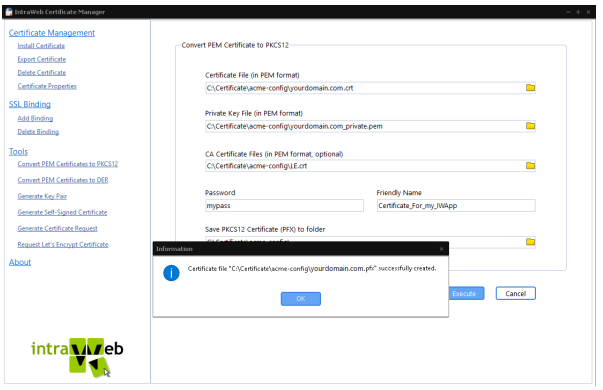
Click "Execute," and a new file with the same name and the extension .pfx will be created in the same folder. This file is what you need to install on the Windows server. The .pfx file combines all other files into one and is protected by the password you provided.
Install the PKCS12 certificate (pfx file):
Now, select "Install Certificate."
Choose the pfx file generated in the previous section, then select "Open." You will be prompted to enter the password for the pfx file. Enter the same password you provided when generating the pfx file (see item 2 above).
You will then see that the certificate is installed on your server.
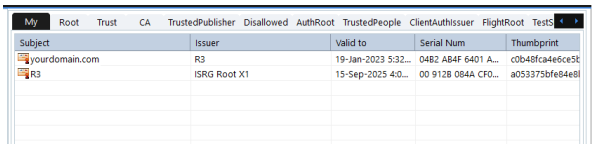
The certificate is now installed on your Windows machine, but we must specify which URL will use it. This will be completed in the next section.
Binding the Certificate:
Binding a certificate links a specific certificate installed in the Windows store to a specific address. This means we want Windows to use the "yourdomain.com" certificate above when responding to all requests to the "https://yourdomain.com" address.
Still using the Certificate Manager, now select "Add Binding."
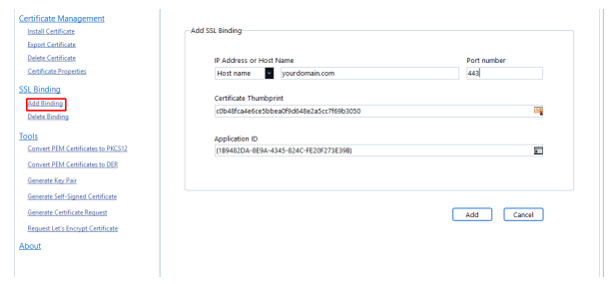
Fill in all fields. Generally, you will not use an IP number but only the hostname (i.e., the server's DNS name). Be sure to use port 443, which is the standard HTTPS port. See the example below:
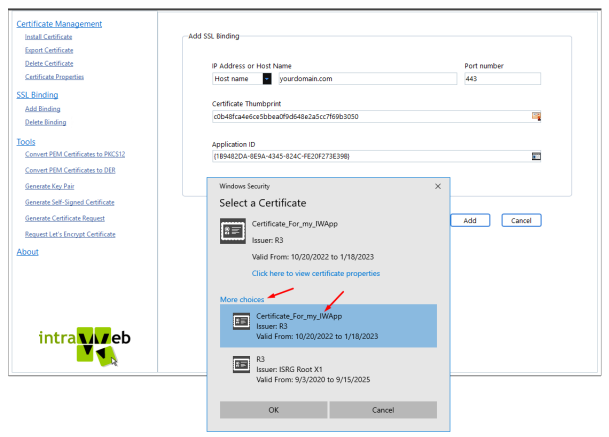
Use the "Certificate Thumbprint" button to select the correct certificate.
Click the button in the "Application ID" field to generate a unique, random Application ID for your app. Then, click "Add."
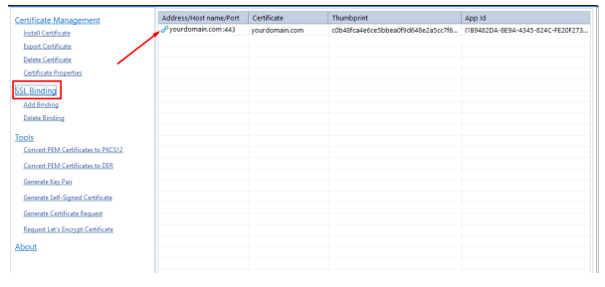
If everything is correct, the binding will succeed. You can view the binding under the "SSL Bindings" link. See the example below. Note that the certificate is now installed and bound to your domain name and port number. Now, every incoming HTTPS request sent to that URL
will use that certificate.
Everything is managed transparently by Windows. Your application doesn’t even need to be aware of the certificate...
Now, you can run the application as an HTTP.SYS application (properly set to use HTTP on port 80 and HTTPS on port 443) will function "normally."
Generating and installing the certificate involves many steps, but our IWCertificateManager tool simplifies and streamlines the entire process.
Self-signed certificates can only be used for development, allowing you to test your application while still utilizing the HTTPS protocol to observe its behavior. However, they cannot be used in production.
The following files are generated:
mysite.cn-key.pem
mysite.cn-crt.pem
mysite.cn-chain.pem
Here’s how to use them:
CertFileName := 'mysite.cn-crt.pem';
KeyFileName := 'mysite.cn-key.pem';
RootCertFileName := 'mysite.cn-chain.pem';
Certificate Information:
Common Name (CN): stk-b.ru
Organization (O):
Department (OU):
Common Name (CN) (STAGING): Artificial Apricot R3
Organization (O) (STAGING): Let's Encrypt
Department (OU):
Date of Issue: Saturday, March 25, 2023, at 16:36:39
Valid Until: Friday, June 23, 2023, at 16:36:38
IW Settings:
SSLOptions.Port = 443;
ServerController.SSLOptions.EnableACME = True;
CertFileName
KeyFileName
RootCertFileName