
Becoming Part of Amazon Associates (Need To Know)
1. Amazon.com website is different from Amazon Associates website.
2. It is also known as Amazon's Affiliate Marketing Program
3. Completely FREE to Join
Setting up your Amazon Associate Account
1. Sign up with the link: https://affiliate-program.amazon.com/
2. Fill out your account information
3. List the website(s) and/or app(s) you plan to promote Amazon Affiliate links.
4. Once you get to the next section (Profile), you need to give them your preferred Store ID. Treat it like a username. After you have came up with a preferred "username", describe the type of content you create.
A. Example: Food Blogger - Post experiences you have had at different restaurants, and etc..
B. Example: Referral Content Creator - Share ways to make money
5. Once you are finished, You will be asked to enter Payment & Tax Information (This is optional; however, you can not get paid until it is done)
What is SiteStripe and Why do I need it?
It is the Amazon Associate Toolbar. It is the easiest way to generate a link for any Amazon product or program. The steps to enabling the toolbar is below.
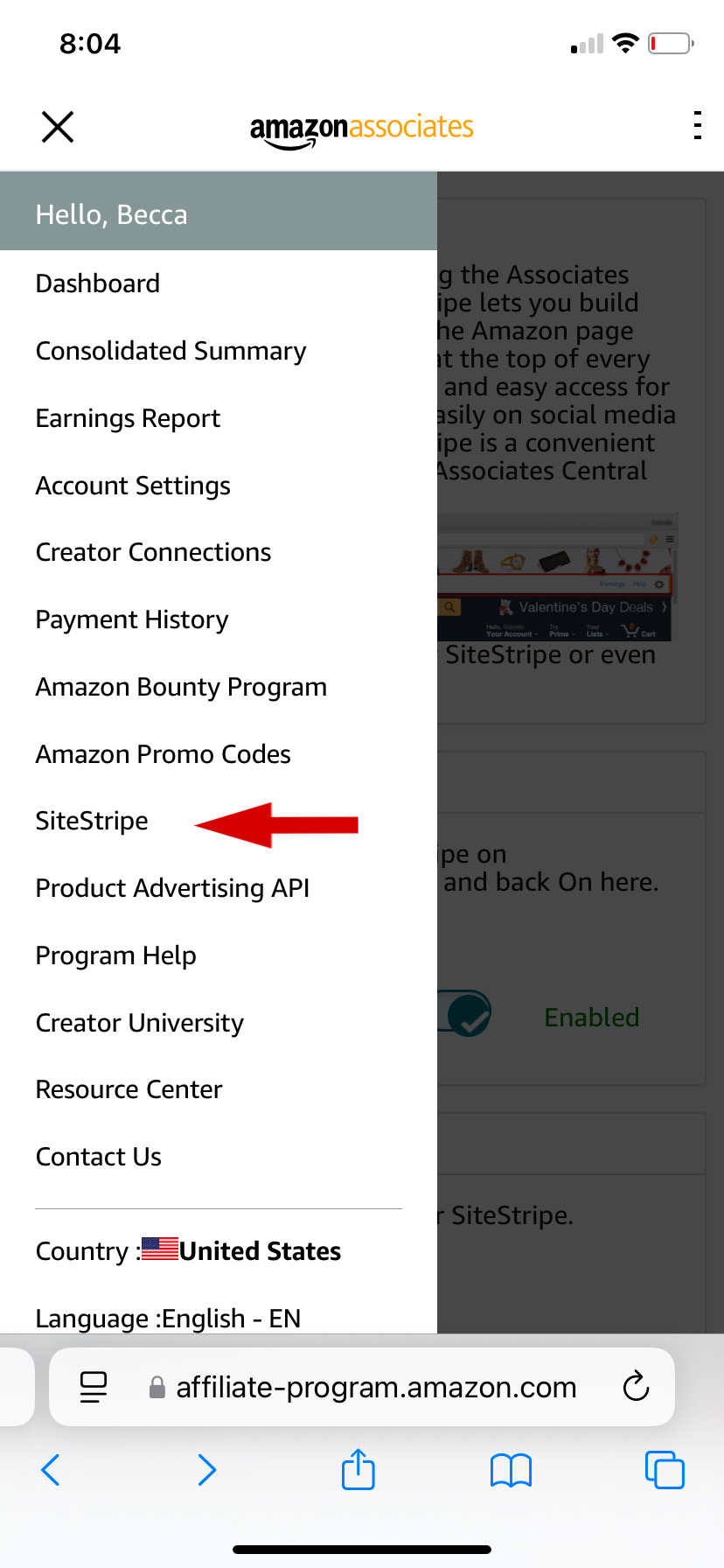
Step 1: In the top left corner of the home page of Amazon Associates, click the 3 lines. The sidebar will appear with different tabs to choose from. Toward the middle of the sidebar, select SiteStripe.
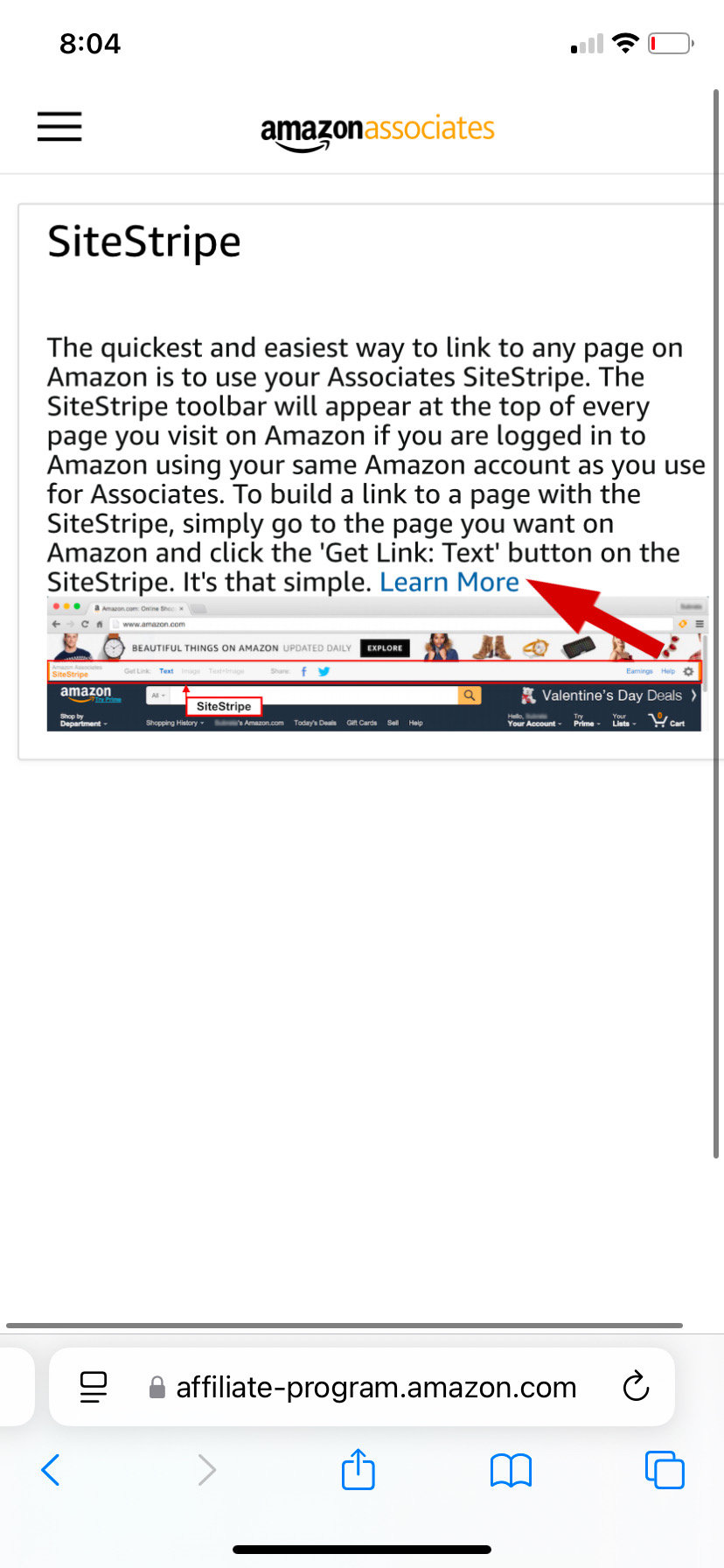
 Step 2: Once you reach this page, it is helpful to read through the paragraph. Once you are ready to go to the next step, select "Learn More"
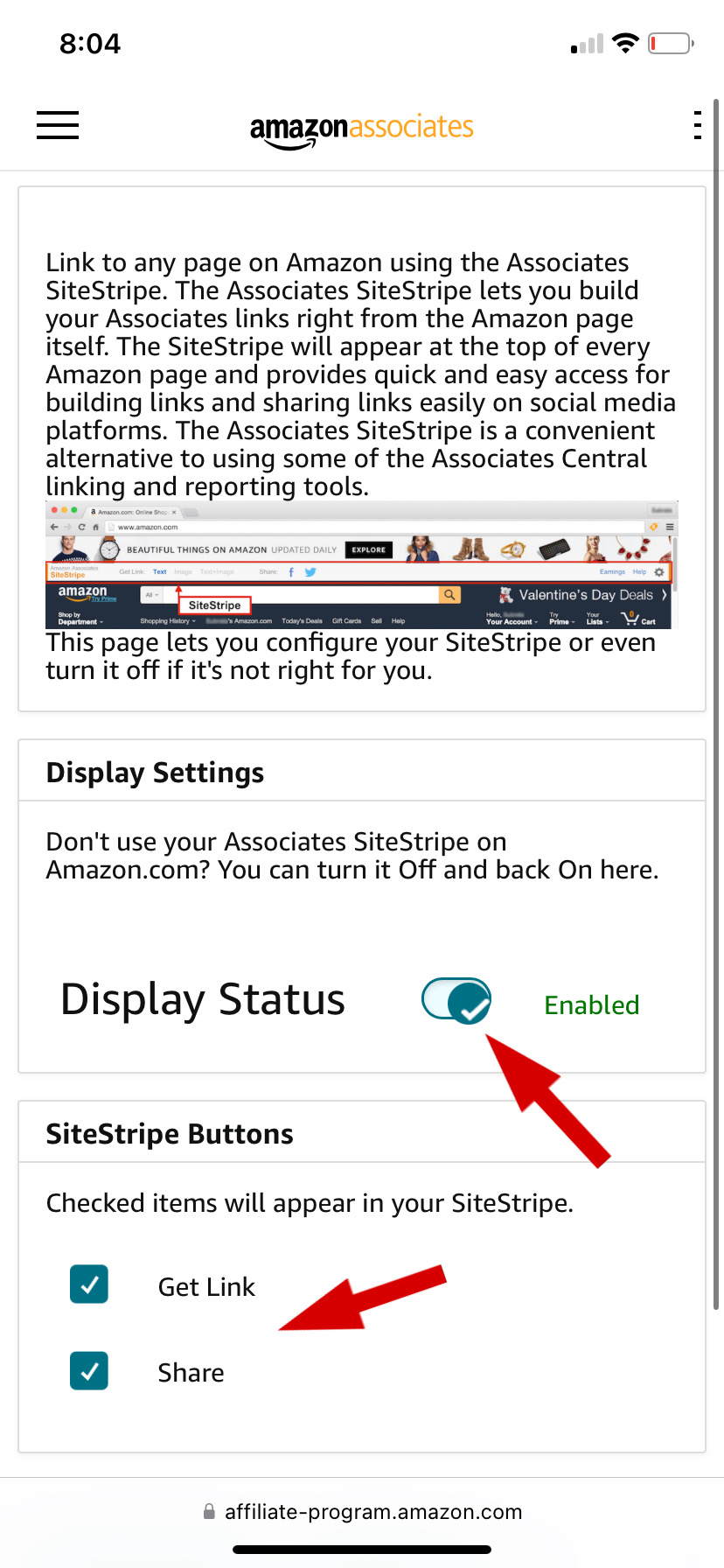
 Step 3: This page has the Amazon toolbar settings and buttons. Make sure the display status is enabled. SiteStripe buttons have two different options, I recommend to check mark both of these.
 SiteStripe Testing By Requesting Desktop Website (Mobile Users)
Step 1: Go to Amazon.com, you will not see the SiteStripe at the top. In order to see the Amazon toolbar, you would need to request desktop website. At the bottom left corner, select the 2 lines.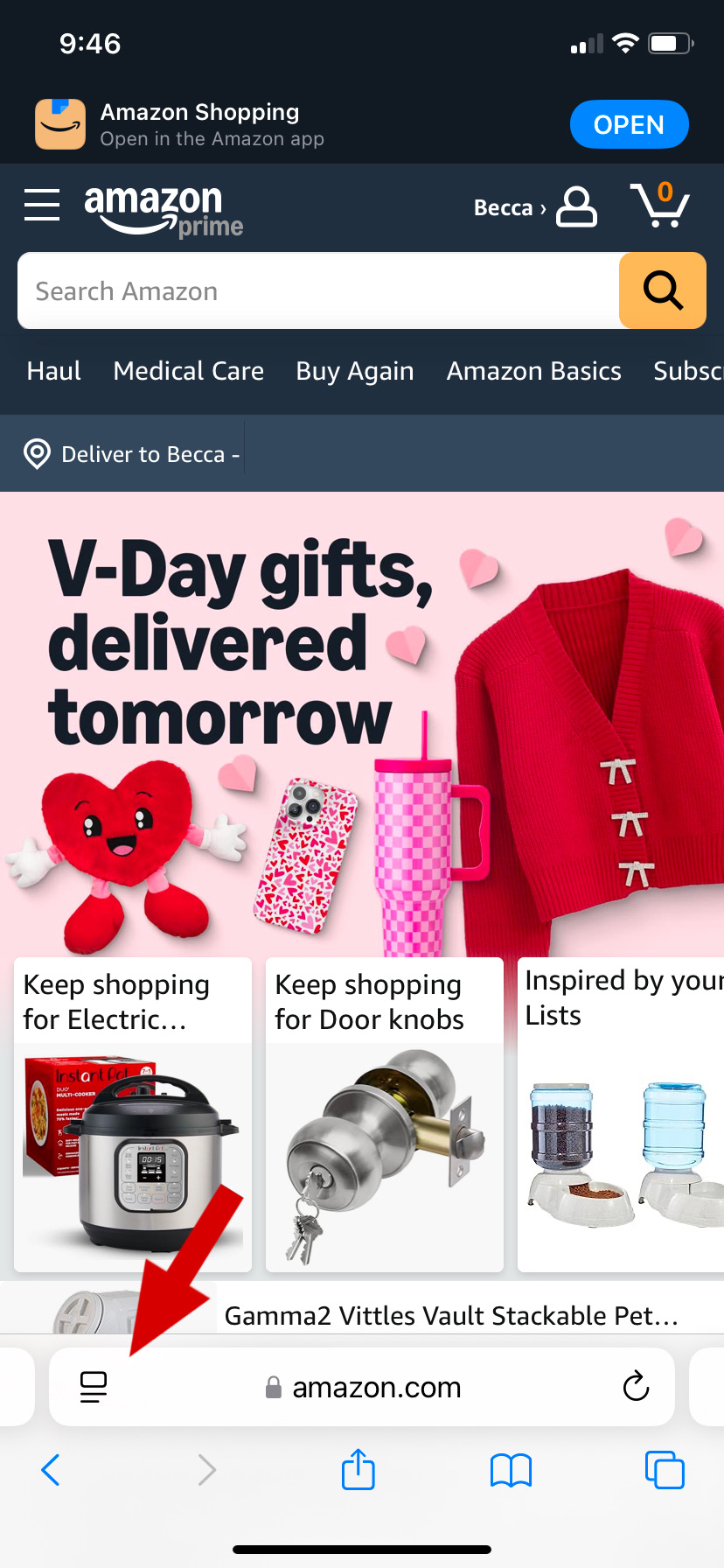 Step 2: At the bottom right, select the 3 dots.
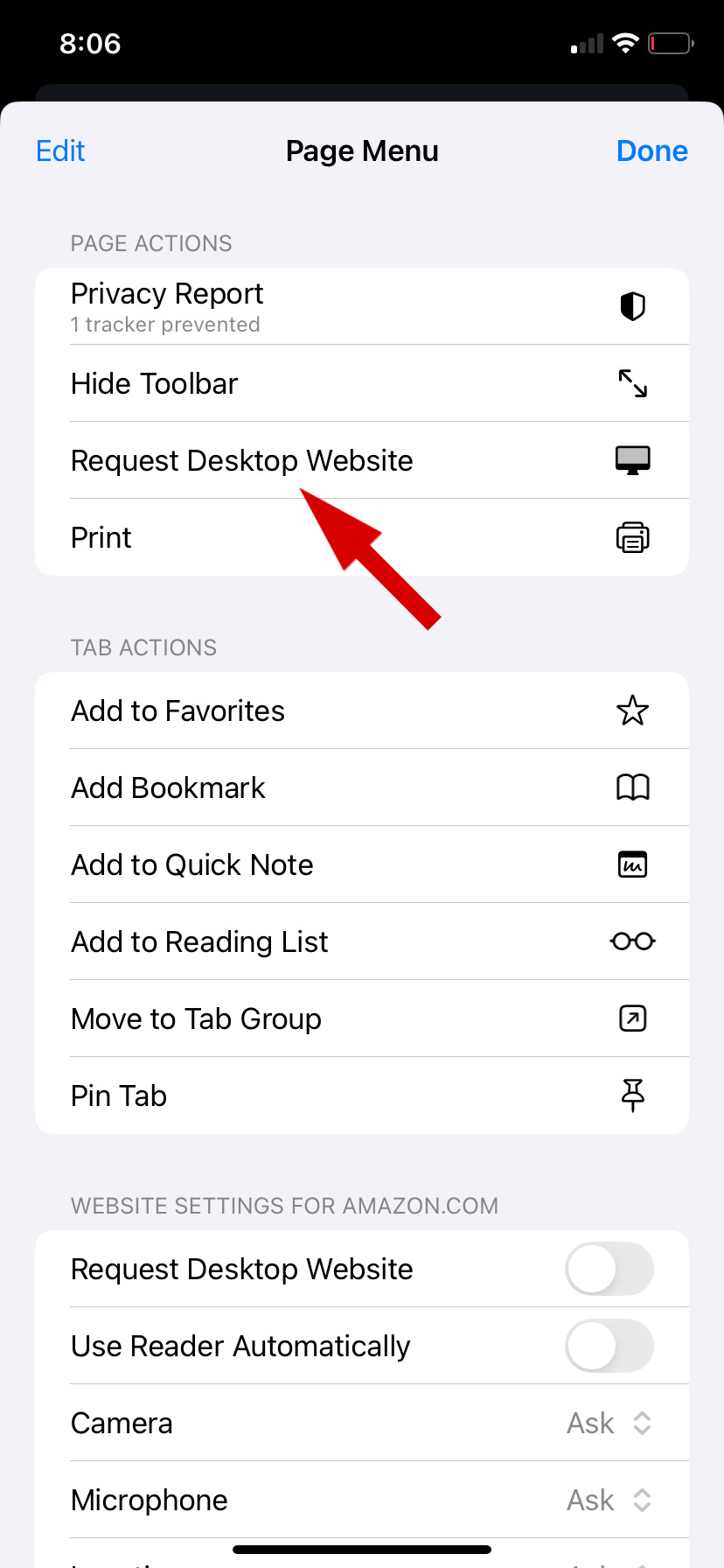
 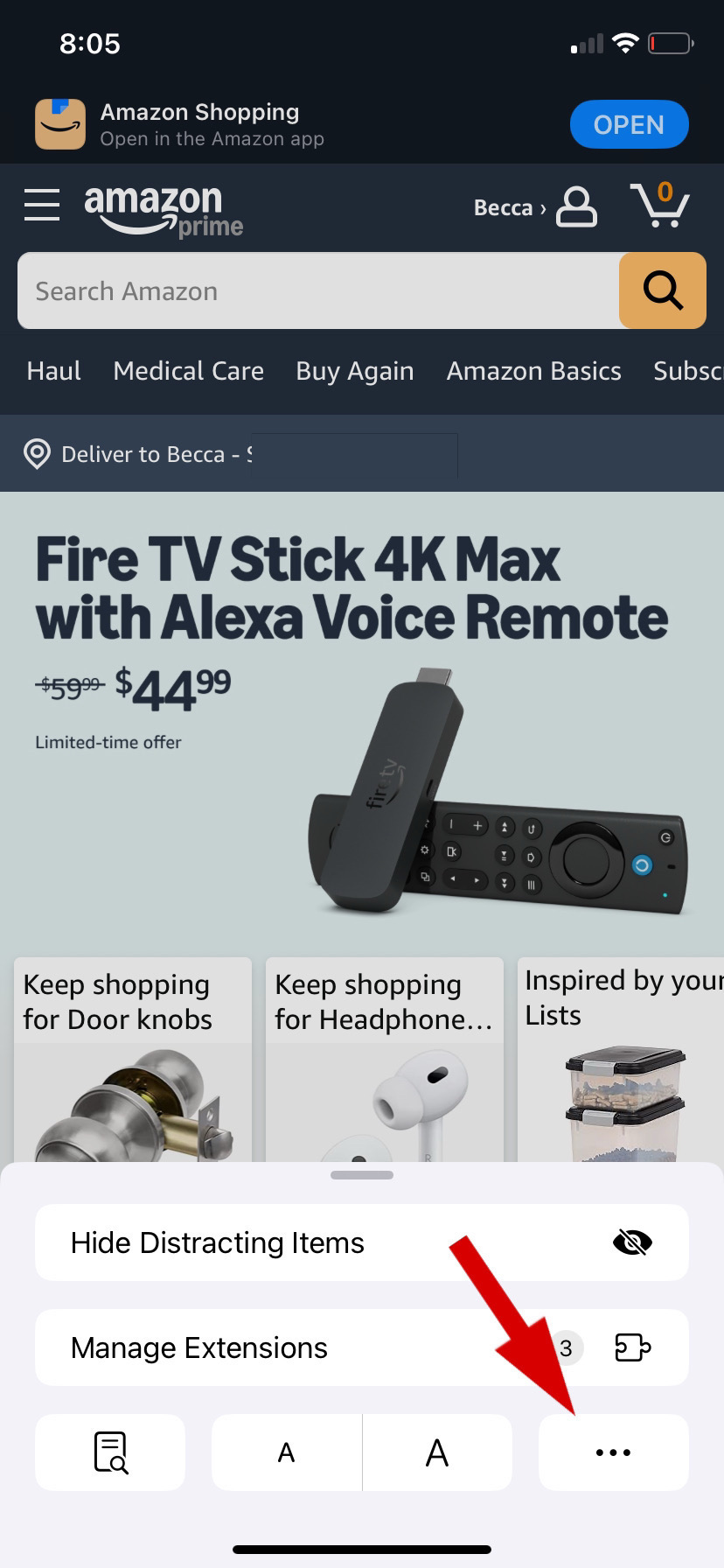 Step 3: The page menu will show up with Page and Tab Actions. Select "Request Desktop Website". This is the temporary version. If you want to keep Amazon in Desktop browser, the option to do is under "Website settings for Amazon.com".
 Step 4: Selecting the Request Website Option will automatically take you back to Amazon. This is what SiteStripe should look like. It is shown at the top of any Amazon pages as long as you are logged in on both Amazon.com and Amazon Associates. You are now able to get your first and future links.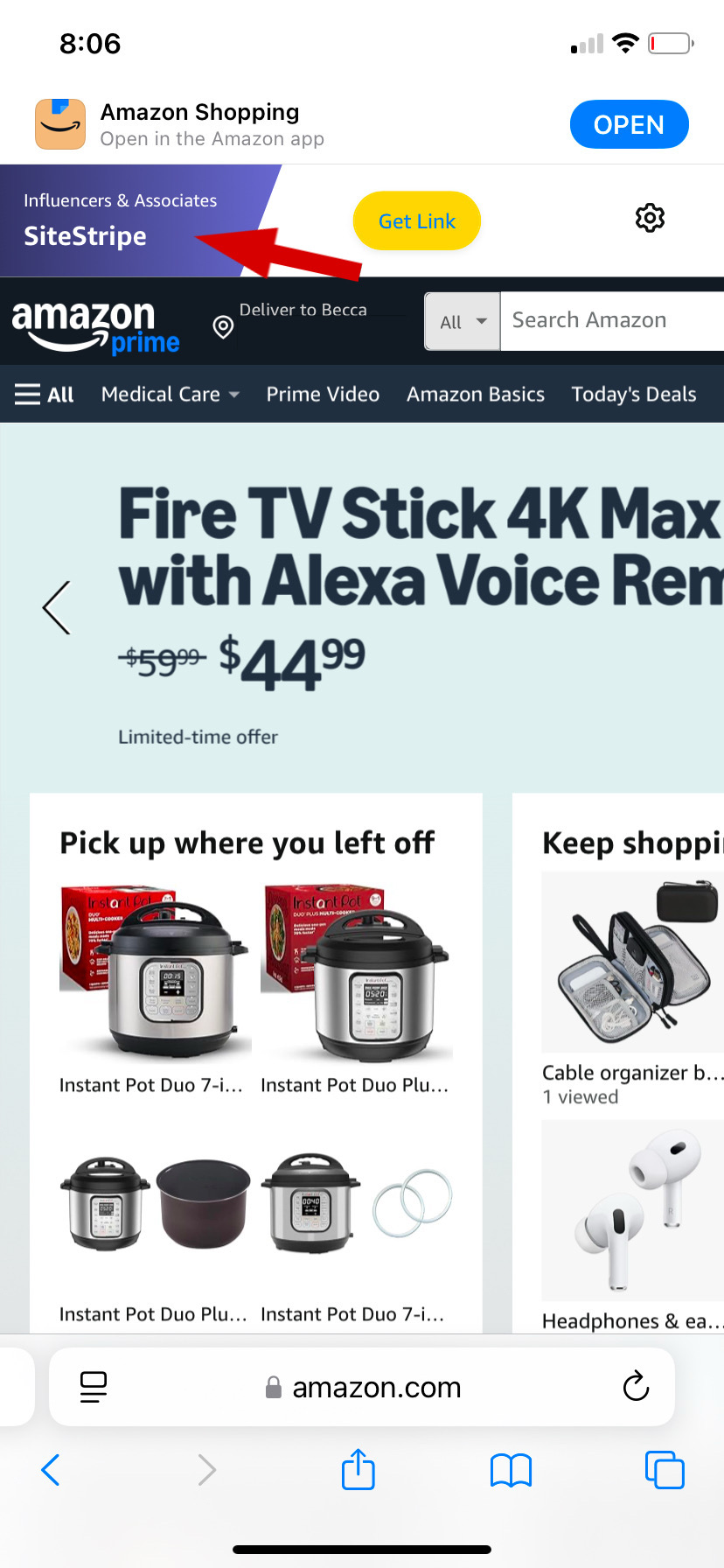
How do I get my generated link?
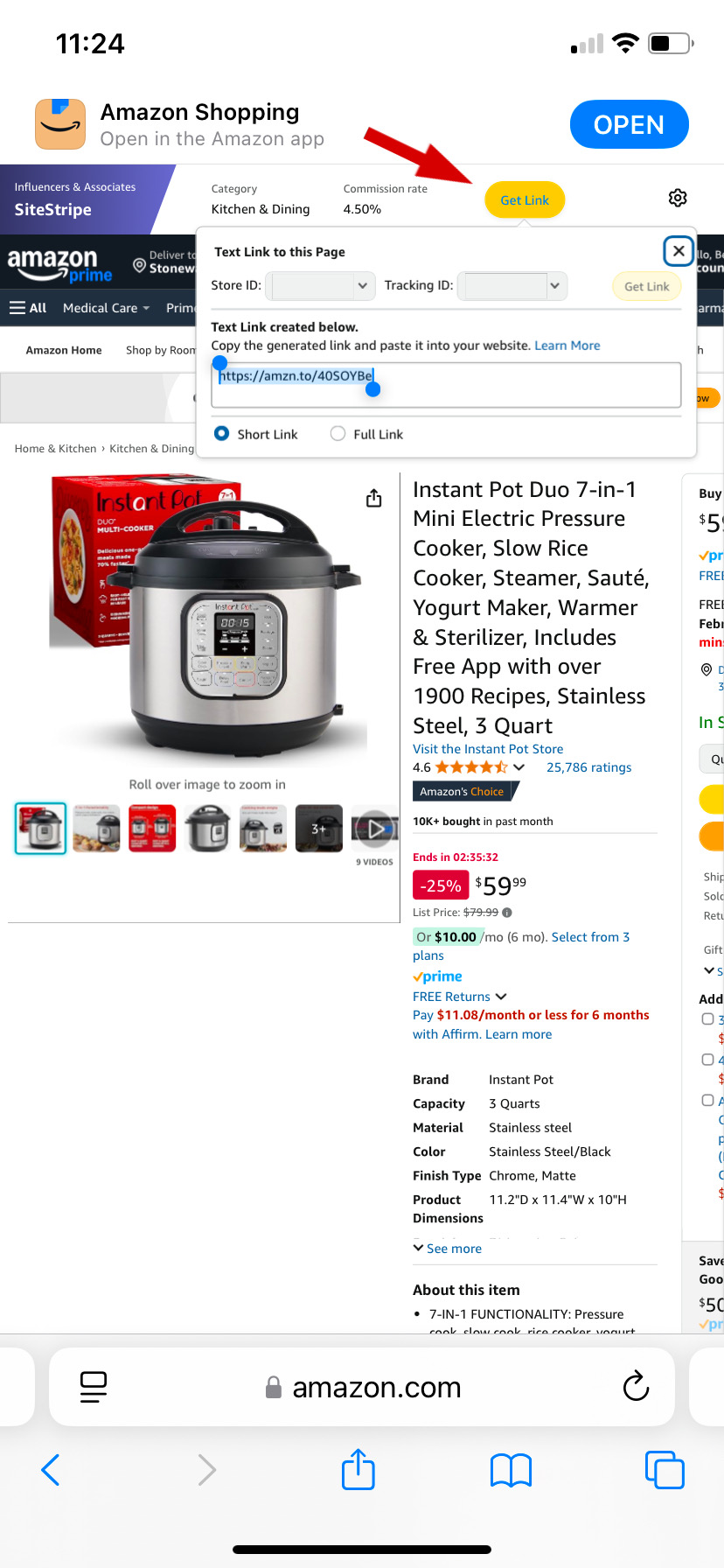
A. Specific Product: On Amazon.com, Find a product you are wanting a link for. Once you do, you need to click "Get Link". This is found at the top right where the arrow is pointed at. You can choose between short & full link. The link provided highlighted in blue is an example. Each link is randomly generated.
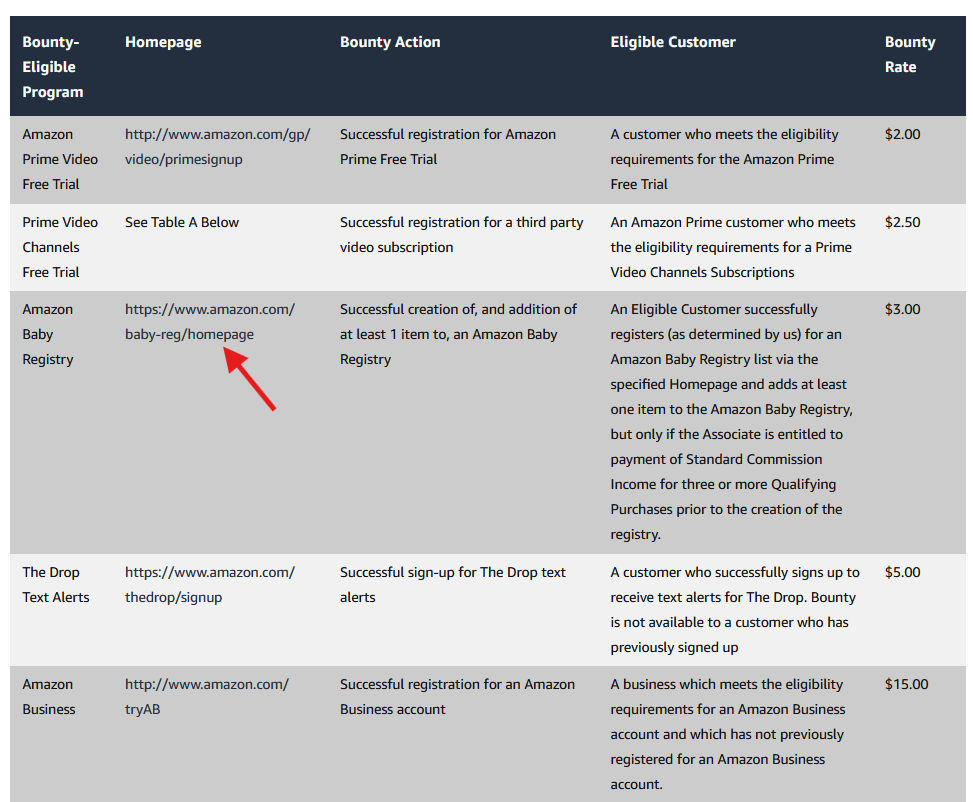
 B. Bounty Events: Bounties are programs. They are mainly consist of free trials and memberships. The screenshot below shows only a small portion of bounties available. To see the full list of bounty programs available, click here. In order to get your generated link for one of the bounties, look at the 2nd section "Homepage". There are a list of links you can choose from.
Example: You are wanting to promote Amazon Baby Registry. Click the link above the red arrow. It will take you to the Baby Registry Page on Amazon.com. Get your link in the top right corner. REMEMBER: If you are not seeing the SiteStripe when you click one of the bounties, you need to make sure you are using the Desktop Website.
 Alternative to SiteStripe (Mobile Users):
The Amazon App is the alternative. You are able to have a generated link for specific items but you are unable to do any bounties. You do not need the SiteStripe enabled to do this section.
Step 1: If you don’t already have the Amazon app on your phone, download it now or skip over this section.
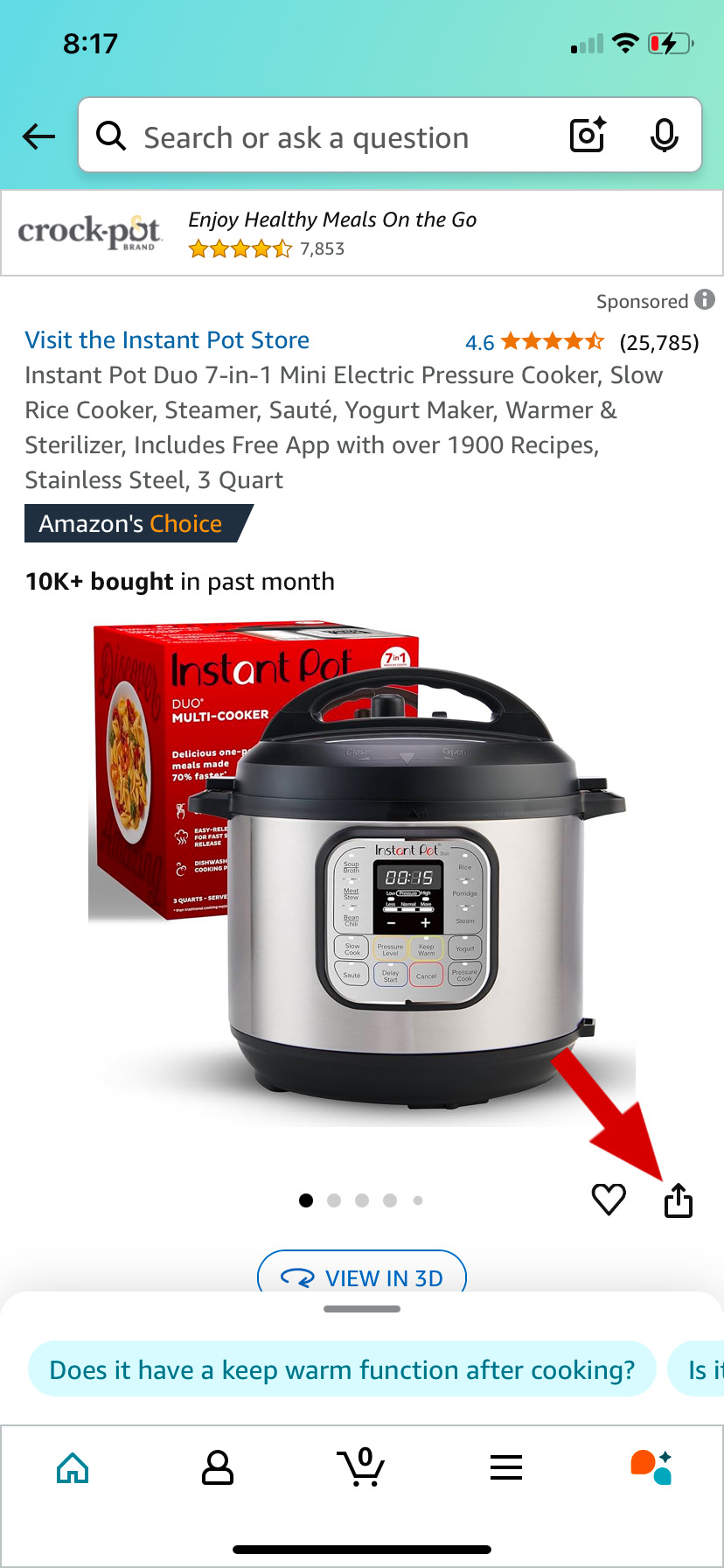
Within the all, click on a product you are interested on getting the generated link. At the bottom of the product photos is the share button. Select it.
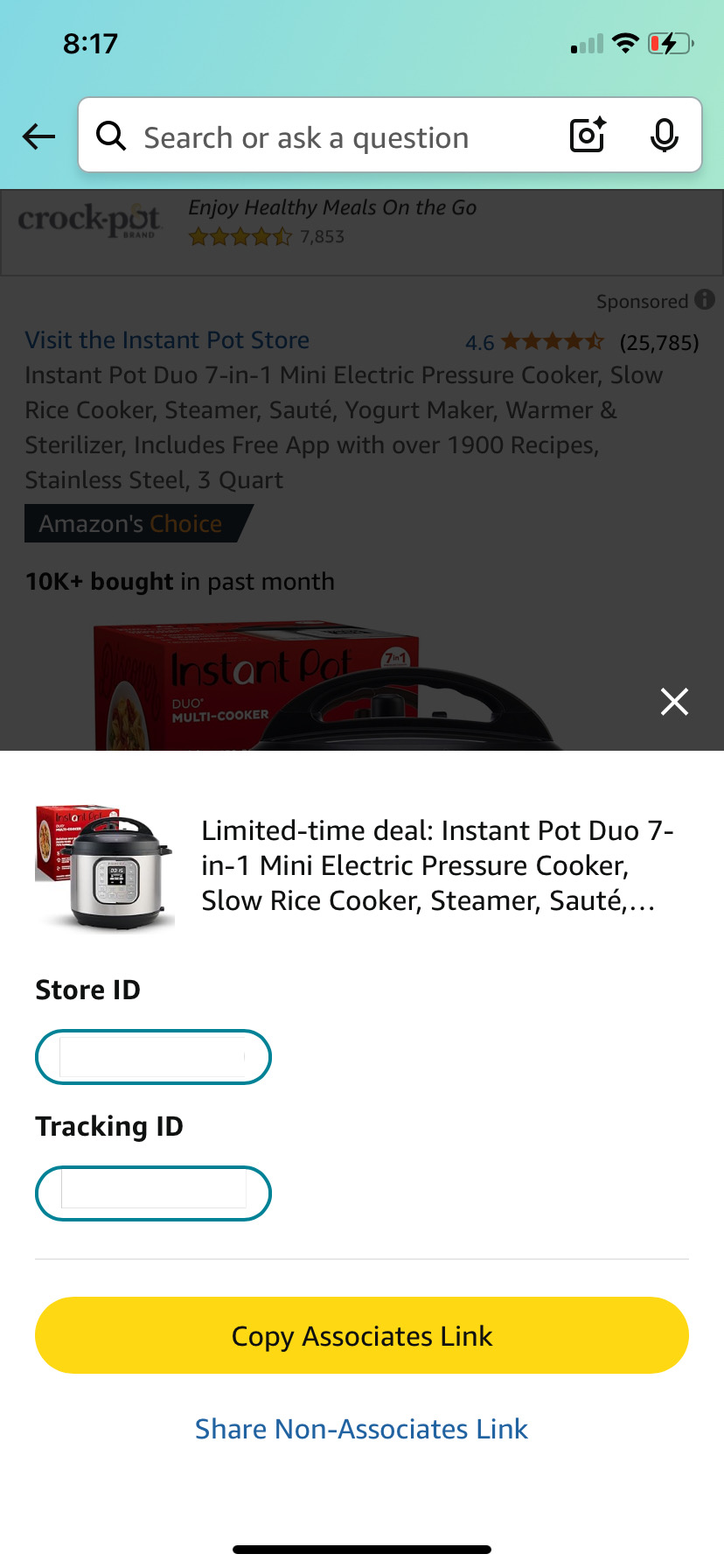
Step 2: When you click on the share button your Store and Tracking ID(s) will pop up. Choose if you want to use your associate link or a regular link. In this case, you want to copy your associate generated link.
What are the commission rates through Amazon?
You can look at the full list here: Associates Program Standard Commission Income Statement
Feel free to ask any questions you may have.
My Contact Information:
Facebook - https://www.facebook.com/profile.php?id=100076935160119