


With the help of Steam, you may play games by yourself or with friends, and the system itself also supports external controllers. Additionally, you may always find games on sale, ensuring that you never run out of games to play, which makes Steam that much more awesome. The service has more to offer than just a huge selection of games and package discounts, if you know where to search. For example, like how local play or even library sharing with friends is made simple via Steam.
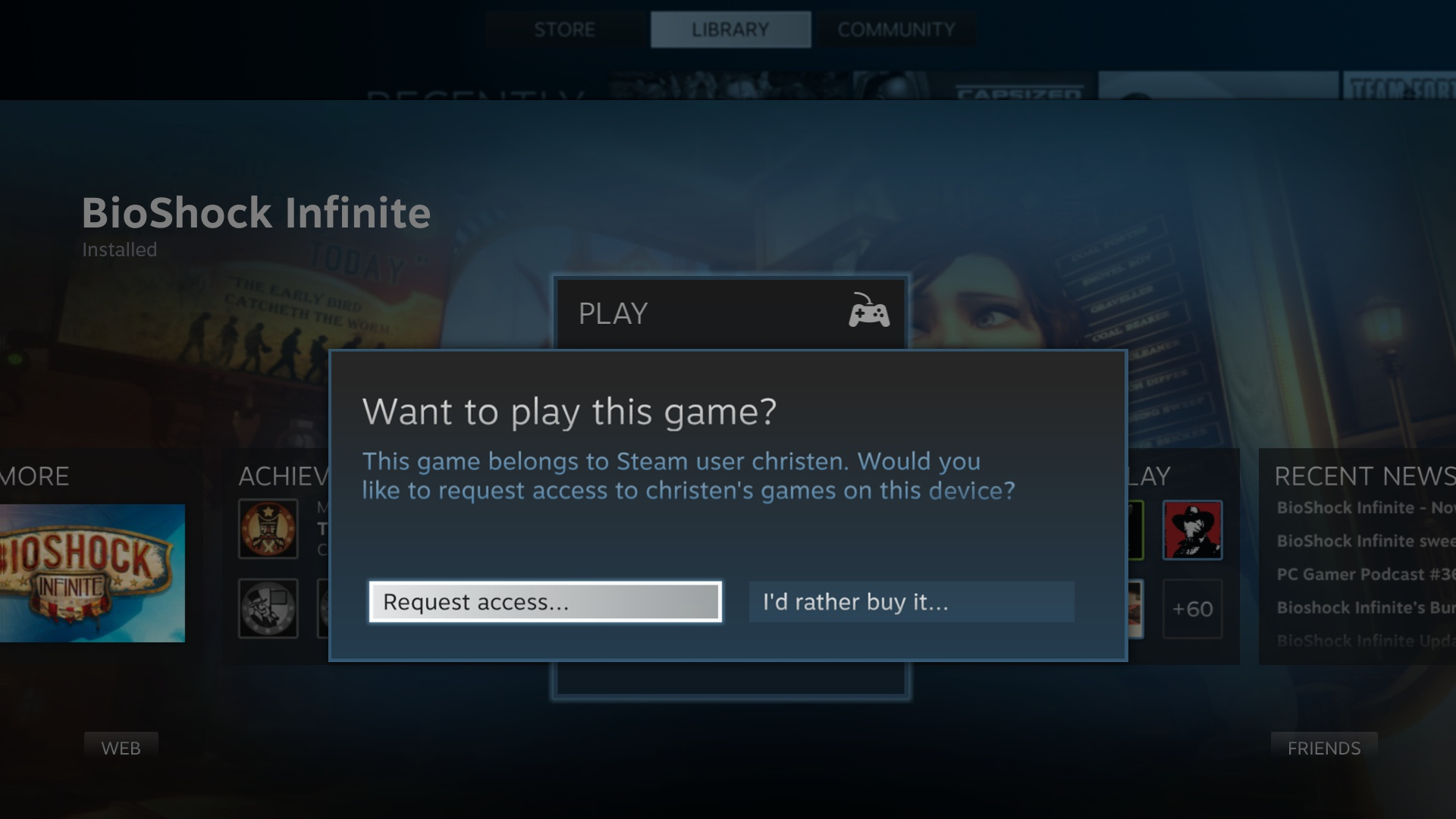
It is super simple to share your large gaming library with friends and family if you use Steam. You can choose up to five users who have access to and use rights over ten devices for your library. Open the Steam app and click Steam in the top left corner of the screen. Select Settings (Windows) or Preferences (Mac) and choose Family in the side menu. Click the box that says Authorize Library Sharing on this computer.
You can also revoke access by clicking your username in the upper right corner of the Steam app and choosing Account Details in the drop-down menu. From there, scroll down to Family Settings and click Manage Family Library Sharing. Under Sharing Status, click Revoke on any devices or accounts you no longer wish to have access.
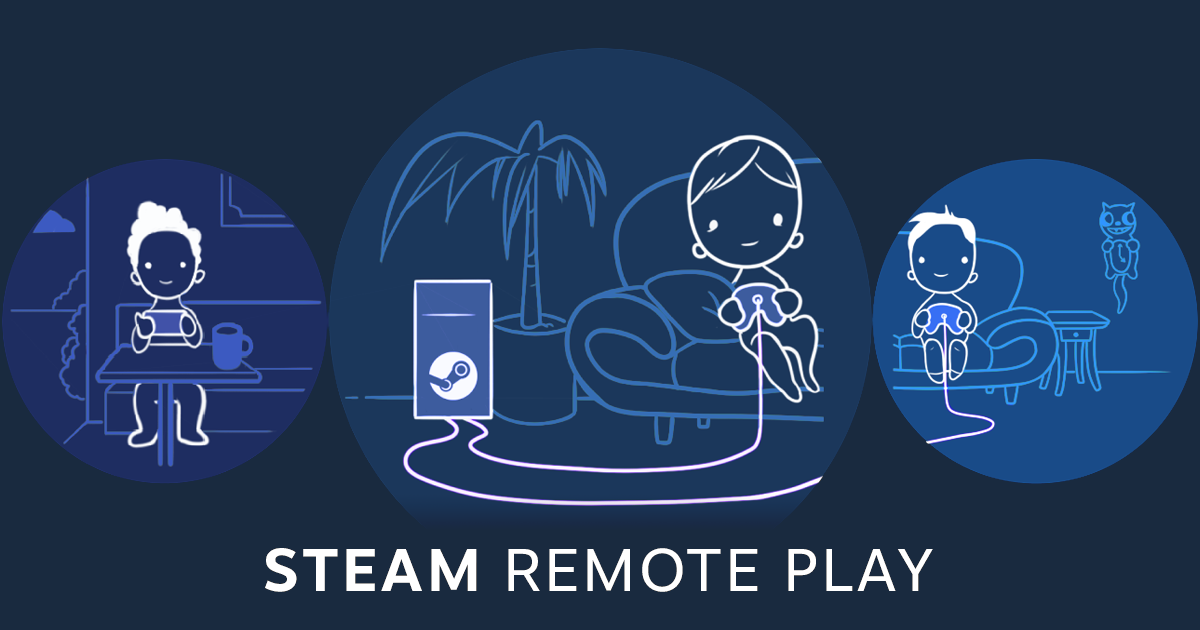
You may play local multiplayer games with friends and family using Steam's Remote Play feature. According to Steam, one player controls and owns the game, and a maximum of four people can participate. To find a list of compatible Remote Play games, open the Steam app, click Categories and choose Remote Play under Special Sections.
To start a session, launch your game, make sure your friends are logged in to Steam from their devices and open Steam Overlay in-game. Find your friends list and right-click the names of the people you want to play with, then click Remote Play Together. You can start playing after all your invitees have accepted.

Steam has so many things to offer when it comes to the PC gaming experience, try it out with friends or by yourself. Either way, there is so much that can be offered through Steam, it's enough to keep you busy for a while.

linktr.ee/alphakitt3n
(Scources - Steam, CNet, HowtoGeek)