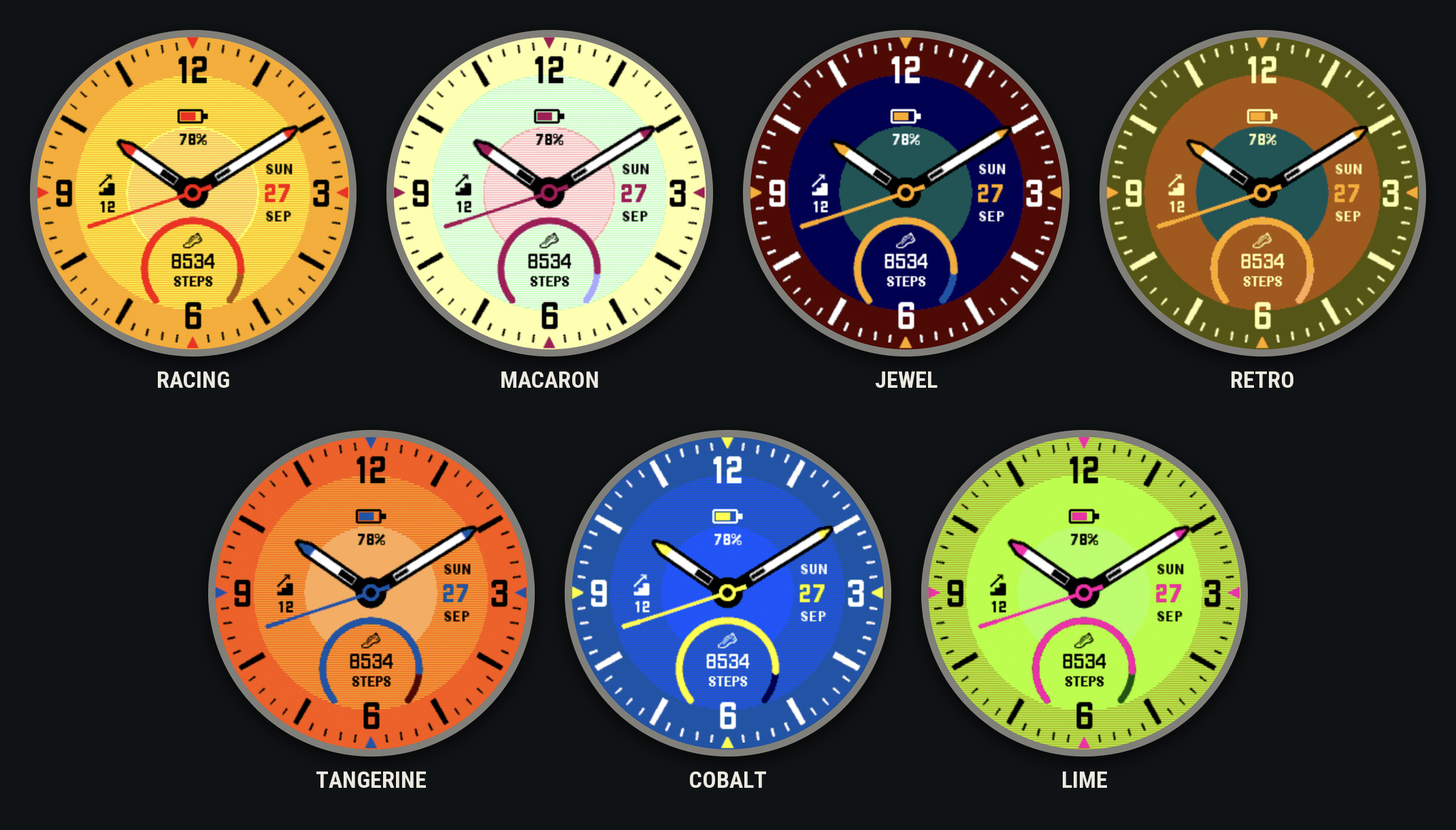

hands-ome for MIP watches: every setting, explained
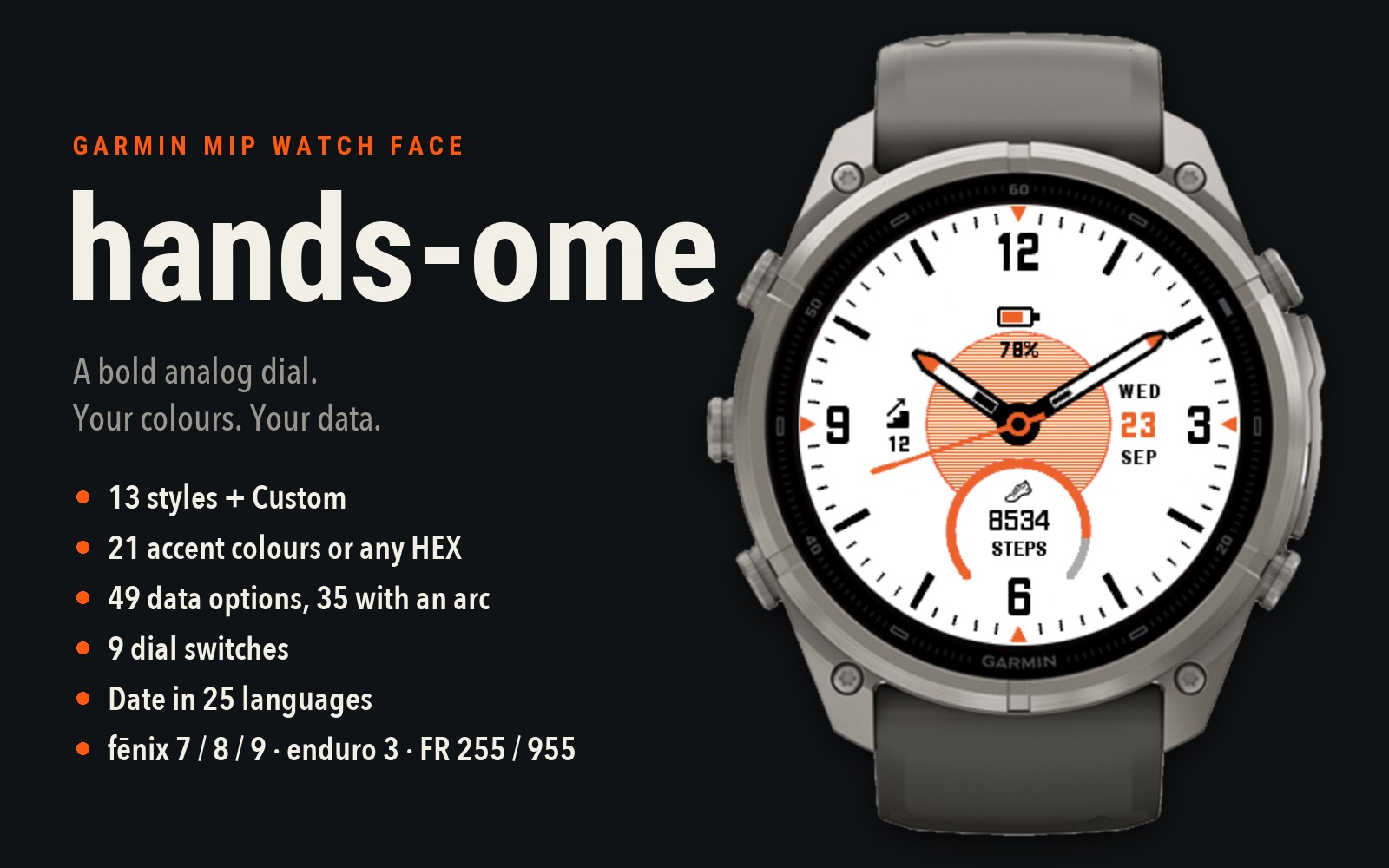
hands-ome is a bold analog watch face, now for round Garmin MIP watches too: fēnix 7 / 7S / 7X, fēnix 8 Solar, fēnix 9 Pro Solar, enduro 3, Forerunner 255 and 955. It has a classic dial with 12-3-6-9 numerals, chunky hands with lume windows, a date, two data slots and a battery gauge. Almost everything on it can be changed.
Where to change it: open the Connect IQ app or Garmin Connect on your phone, then go to hands-ome → Settings. On enduro 3, fēnix 8 Solar and fēnix 9 Pro Solar you can also pick the style and accent on the watch: press and hold the face, then choose Customize.
Below is what every setting does and how the settings affect each other. The screenshots show the dial with the outer ring switched off, except the Outer ring section (section 6).
---
1. Style: 13 presets + Custom
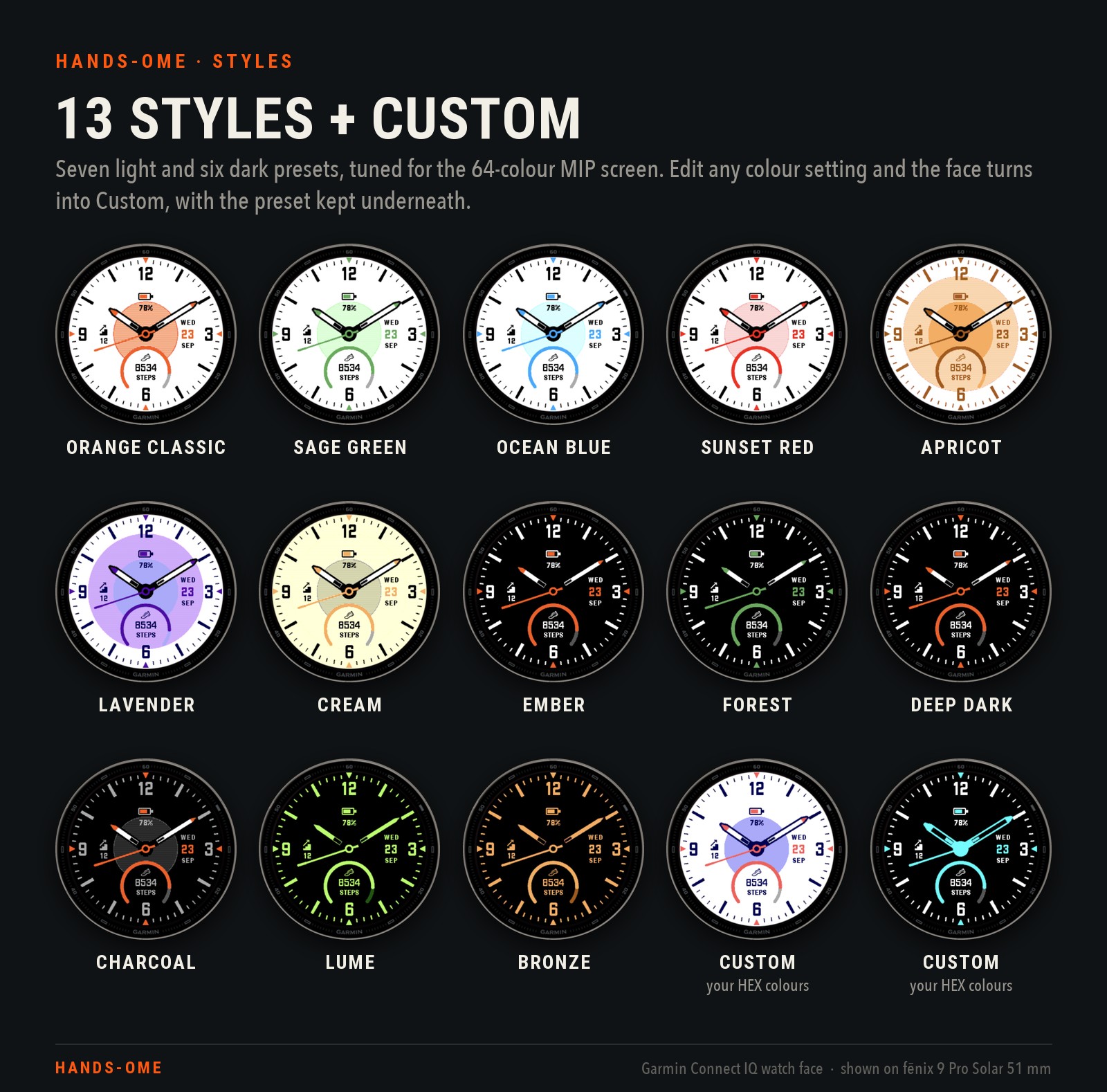
Style sets every colour on the dial at once: the three circles, the numerals and text, the outer ring, the progress-arc track, the hand bodies and a default accent.
- Light: Orange Classic (default), Sage Green, Ocean Blue, Sunset Red, Apricot, Lavender, Cream
- Dark: Ember, Forest, Deep Dark, Charcoal, Lume, Bronze
- Made for the MIP screen: a MIP screen shows 64 colours, so each style was re-tuned to look as close as possible to its AMOLED original. Light styles have a white dial with a tinted inner circle; dark styles are black. A few pale tints are made of two colours in fine alternating rows.
- Custom turns on by itself when you edit a colour setting (accent, whole-dial accent or any HEX field) while a preset is selected. Custom keeps that preset underneath and adds only your edits. Picking Custom from the list shows the last preset you customised (Orange Classic if you never customised one), with your colour settings on top.
- Getting a clean preset back: pick the preset and, in the same save, reset the colour settings: Accent colour to "As style", HEX fields empty, "Accent colours the whole dial" off. If you only pick the preset, your colour edits stay on top of it.
2. Accent colour
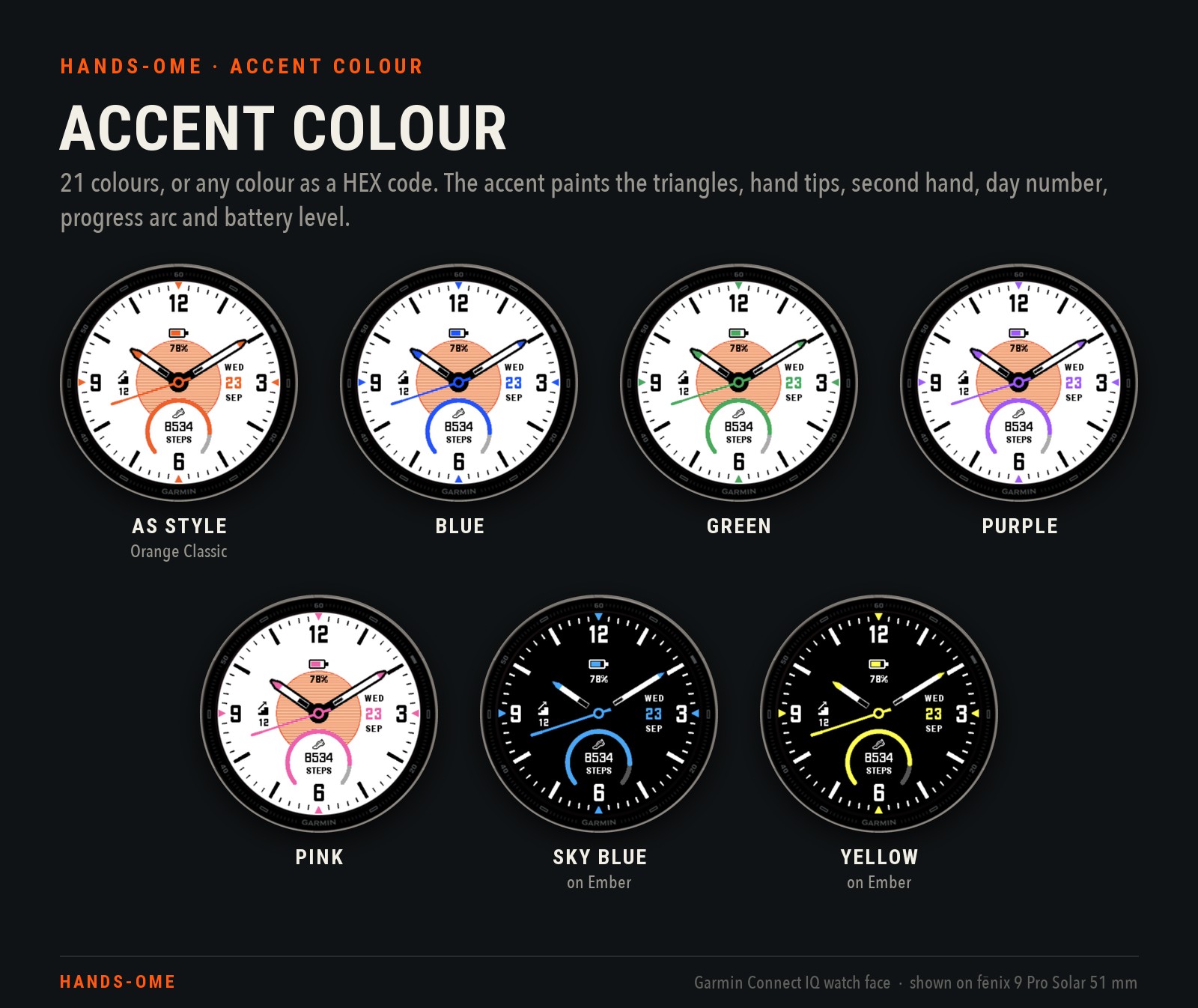
- Accent colour: "As style" (the preset's own accent) or one of 21 colours, from Red to Graphite.
- Custom accent (HEX): any colour as #RRGGBB, e.g. #FE5910. Leave it empty to use the list. An invalid code is ignored. The watch shows the nearest of its 64 colours.
- The accent paints the four triangles at 12 / 3 / 6 / 9, the hand tips, the second hand with its centre ring, the day number, the progress arc and the battery level.
- Priority: an accent picked on the watch (Customize → Accent colors) → Custom accent (HEX) → Accent colour → the style's accent.
- While an accent is picked on the watch, accent changes on the phone don't show.
3. Accent colours the whole dial
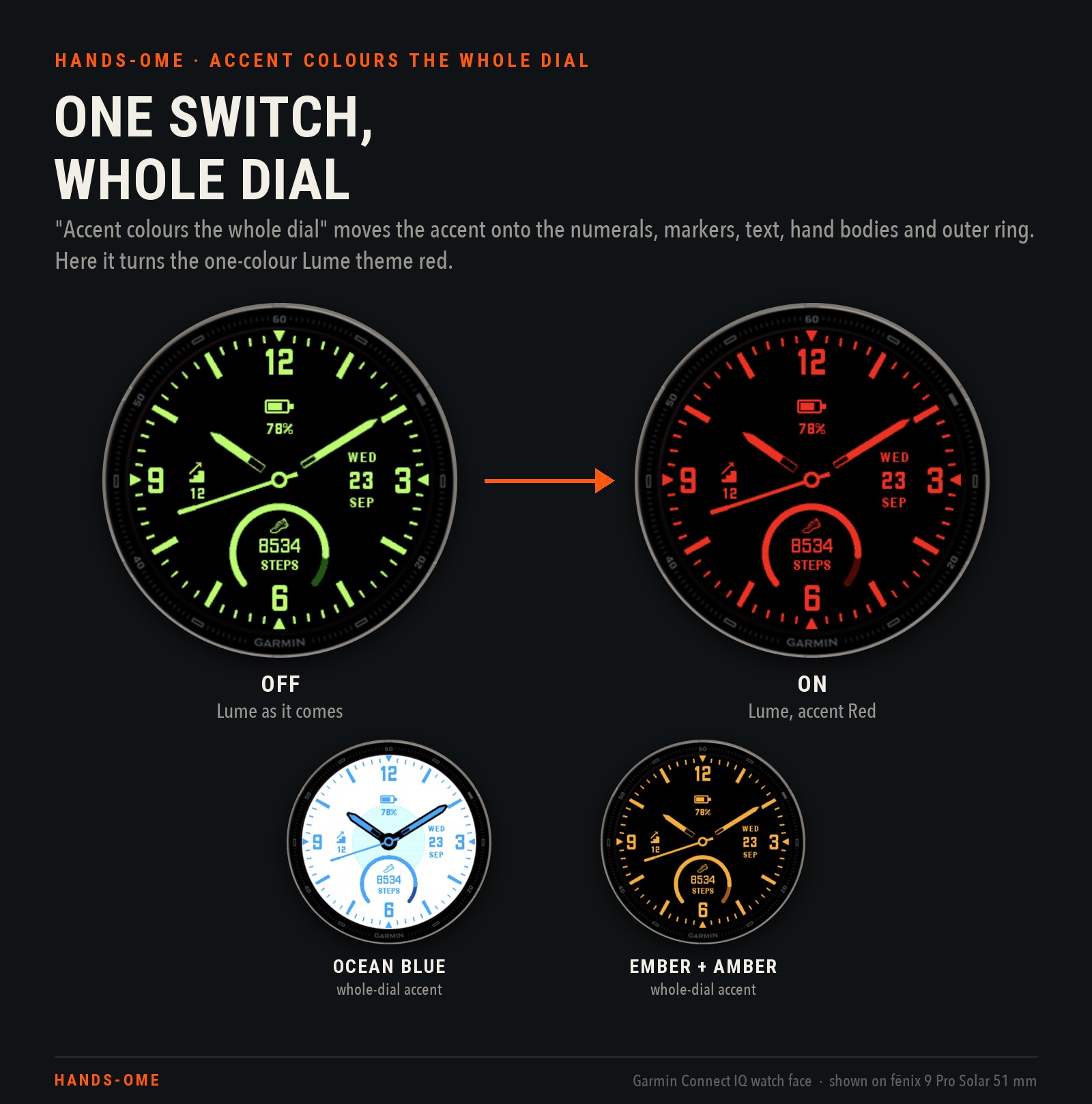
One switch turns any style into a one-colour dial:
- What turns to the accent: the numerals, minute ticks and hour markers, all text and icons, the hand bodies and the outer ring. The progress-arc track becomes a darker shade of the accent, unless you set its own colour.
- What stays: the three dial circles, the hand outlines and the hub.
- HEX fields win: any HEX field you've set overrides it. For example, a Numerals colour keeps the numerals in your colour.
- Contrast is up to you: a very light accent on a light style makes the text faint.
4. Custom colours (HEX)
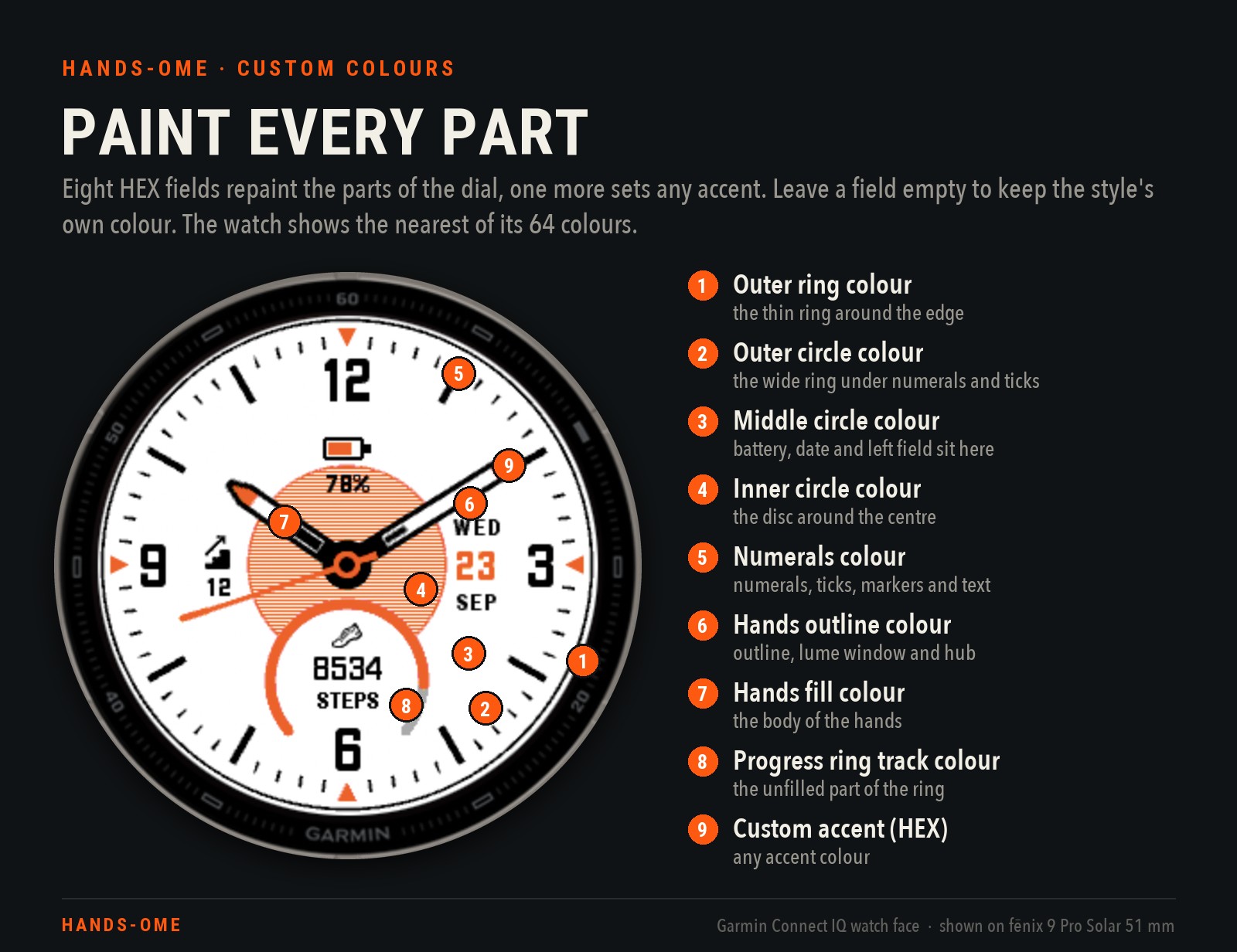
Nine HEX fields: eight for parts of the dial, plus the accent. The format is #RRGGBB or RRGGBB. An empty field keeps the style's colour. Any code works, and the watch shows the nearest of its 64 colours.
1. Outer ring colour: the thin ring near the edge. It shows only while Outer ring is on.
2. Outer circle colour: the wide outer zone under the numerals, ticks and hour markers.
3. Middle circle colour: the ring that holds the battery, date and left field. It also fills the battery icon and the patch behind the bottom cell.
4. Inner circle colour: the disc around the centre.
5. Numerals colour: the numerals, minute ticks, hour markers and all data text and icons. The day number stays in the accent.
6. Hands outline colour: the hands' outline, the lume window and the centre hub.
7. Hands fill colour: the body of the hour and minute hands.
8. Progress ring track colour: the unfilled part of the bottom cell's ring, behind the filled arc.
9. Custom accent (HEX): see section 2.
A HEX colour for a circle replaces the style's tint for that circle with one solid colour.
In-between shades for the circles. Right under each circle's HEX field there is a switch: Outer / Middle / Inner circle: in-between shade (fine stripes) (off by default). With it on, that circle's HEX is drawn as fine alternating rows of two of the 64 colours, which the eye blends into a shade in between, like the pale tints of the built-in styles. For example #E0DDD3, a light grey, turns pale yellow without stripes and stays light grey with them.
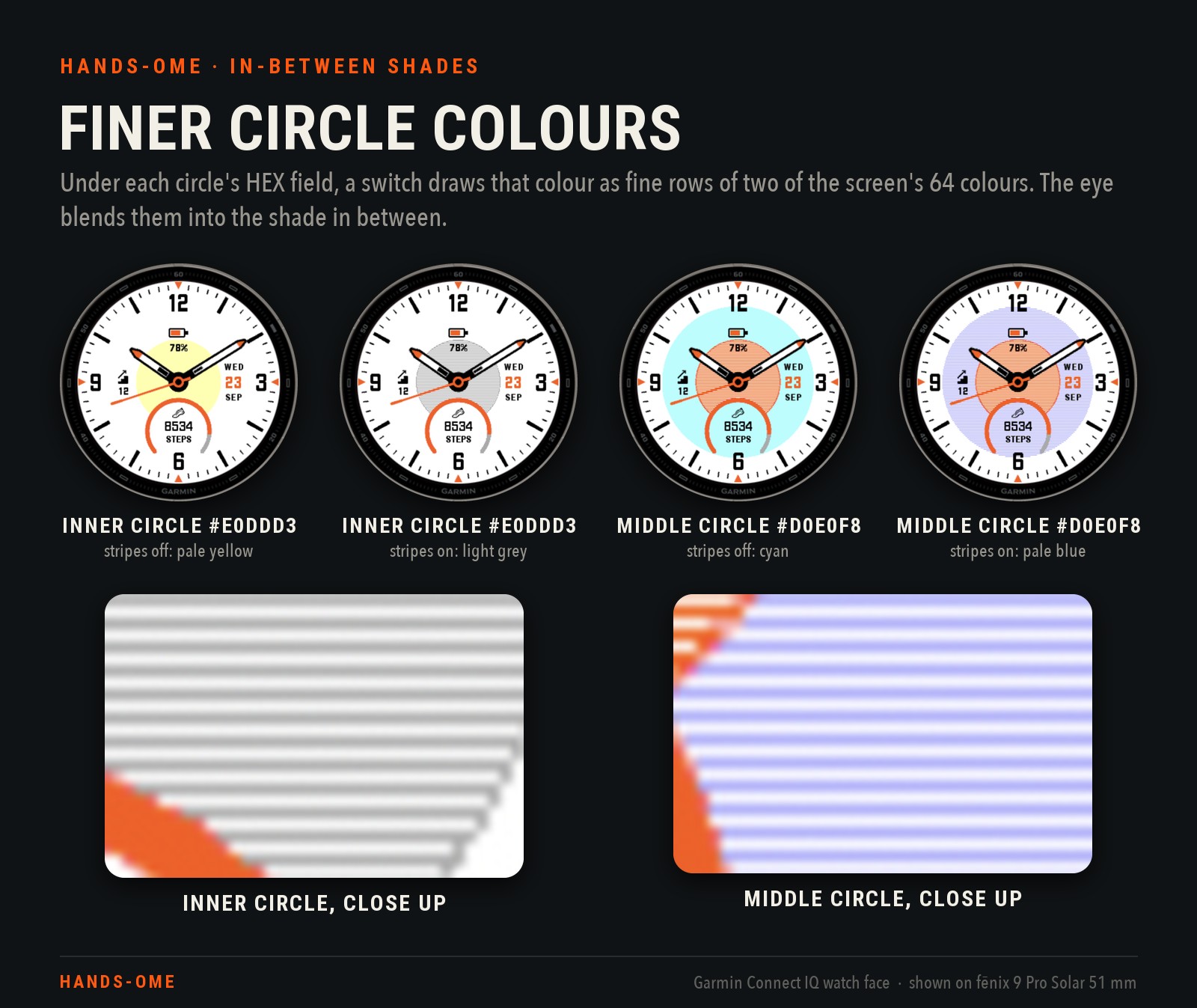
- A switch works only while its circle has a HEX. A code that is exactly one of the 64 colours stays solid.
- Two striped circles next to each other get a slightly ragged edge where they meet.
- fēnix 7 Pro and 7X Pro without Wi-Fi always show the solid colour.
- The switches don't turn the style into Custom by themselves.
One more colour switch: Pure white hands and numerals (off by default). On MIP the styles already paint the hand bodies in pure white, so it changes only Charcoal's light-grey numerals, ticks and markers to white. A HEX field for that part wins, and with "Accent colours the whole dial" on it does nothing.
Editing any of them, the switch included, turns the style into Custom.
5. Show only what you need
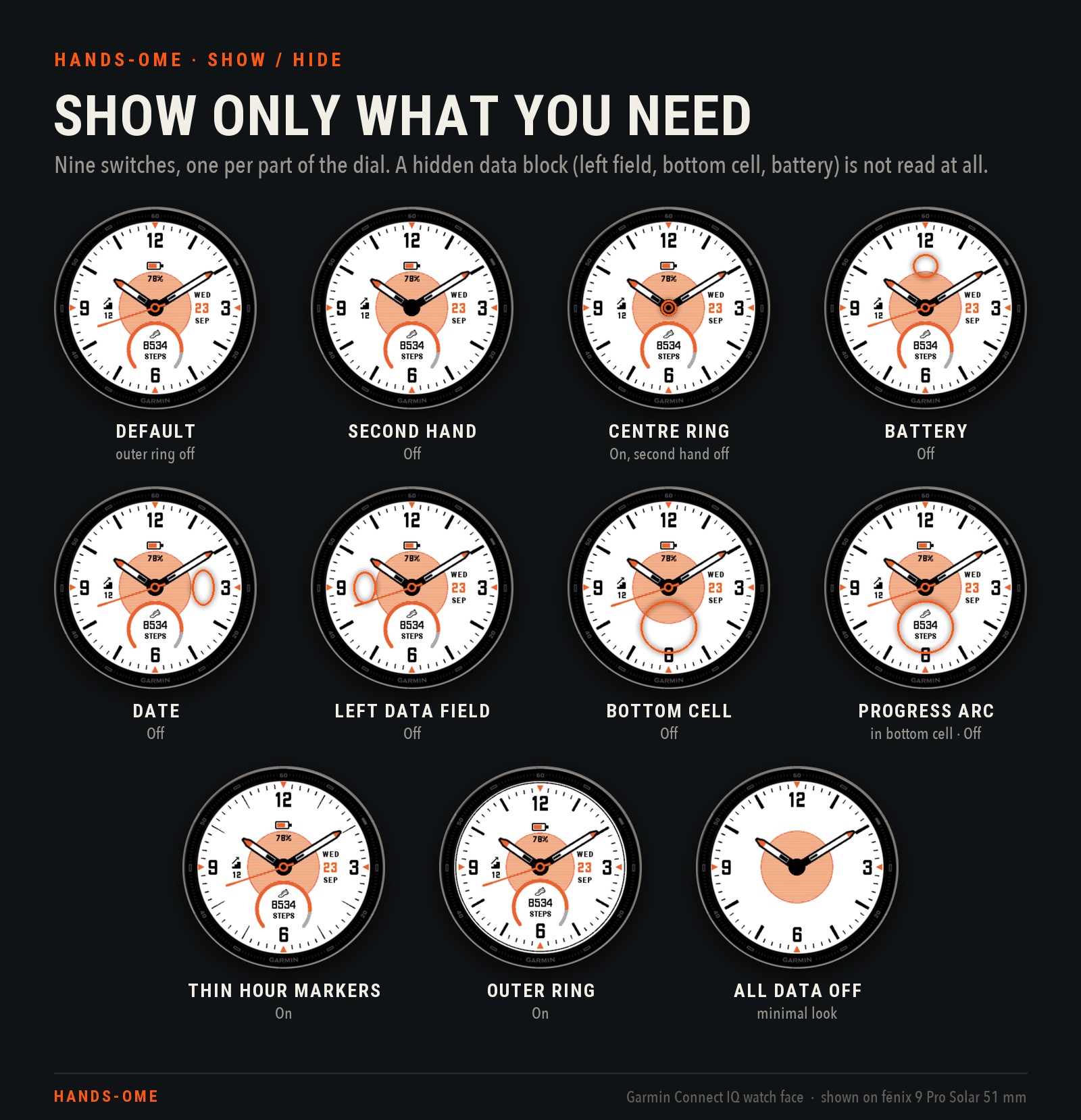
- Second hand (after a wrist turn) (on): the accent second hand. It shows while the watch is awake, after you turn your wrist or press a button (see section 10). When it's off, the hour and minute hands still move smoothly.
- Centre ring without the second hand (off): the small accent ring at the centre always comes with the second hand. This switch keeps it on the dial when the second hand isn't drawn: when the second hand is off, or when the watch sleeps.
- Battery (on): a battery icon under the 12 that fills in the accent, with the percentage below it.
- Date (on): weekday, day number (in the accent) and month, to the right of centre.
- Left data field (on): an icon and a value to the left of centre. Choose what it shows in section 8.
- Bottom cell (on): the round cell above the 6, with icon, value, caption and progress arc.
- Progress arc in bottom cell (on): hides only the arc. The icon, value and caption stay. It works only while Bottom cell is on.
- Thin hour markers (off): swaps the thick hour markers for thin lines. See section 7.
- Outer ring (on): see section 6.
A hidden left field, bottom cell or battery block isn't read at all: no sensor polling, and no weather or sun lookups for it.
6. Outer ring
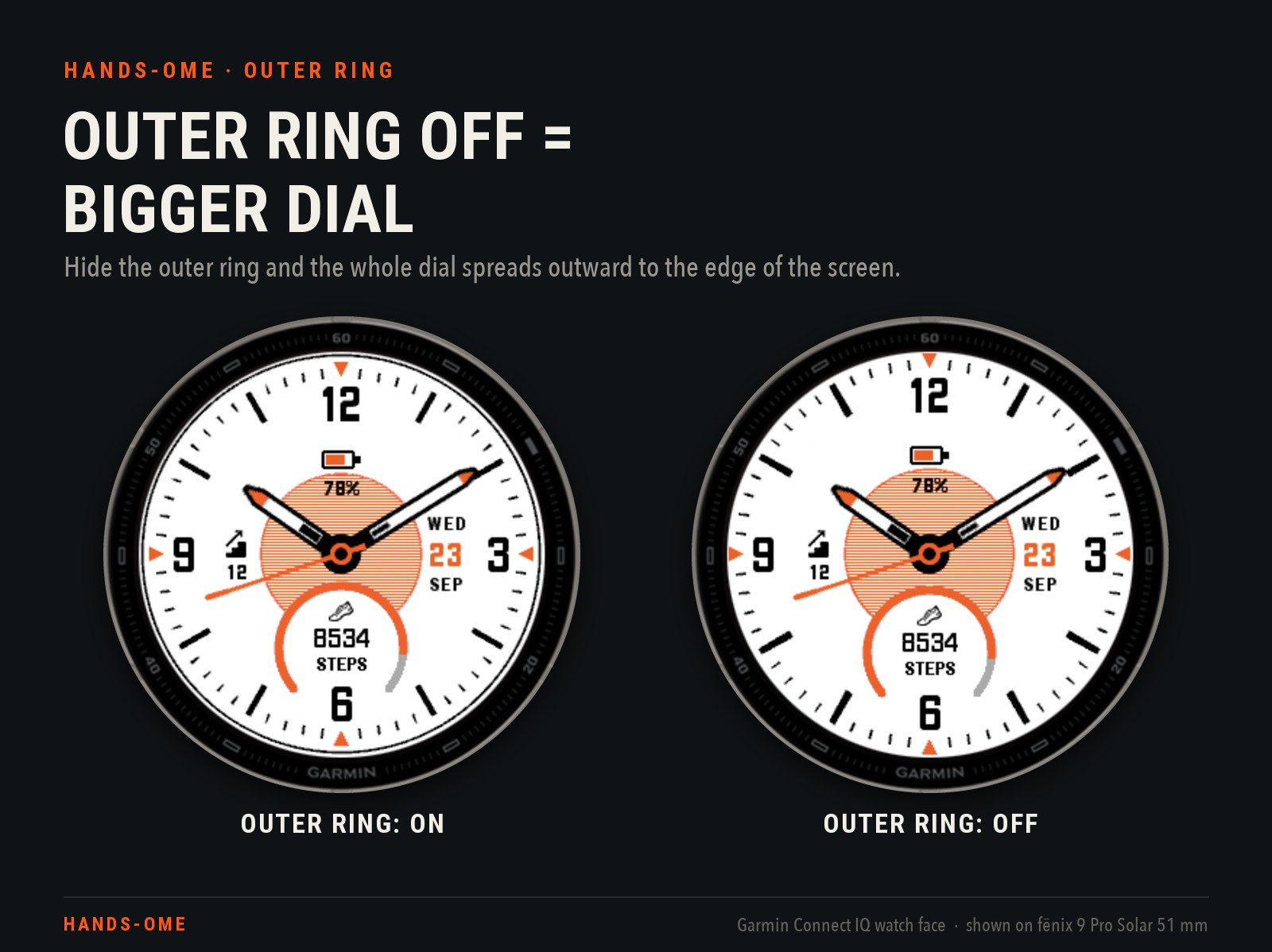
Turn Outer ring off and the thin ring at the edge disappears. The whole dial then spreads outward by about 5%:
- Moves outward: the circles, ticks, markers, numerals, date, left field, battery and bottom cell.
- Doesn't change: the size of the hands.
- Outer ring colour only matters while the ring is on.
The ring is on by default. All the other screenshots in this post show it off.
7. Hour markers
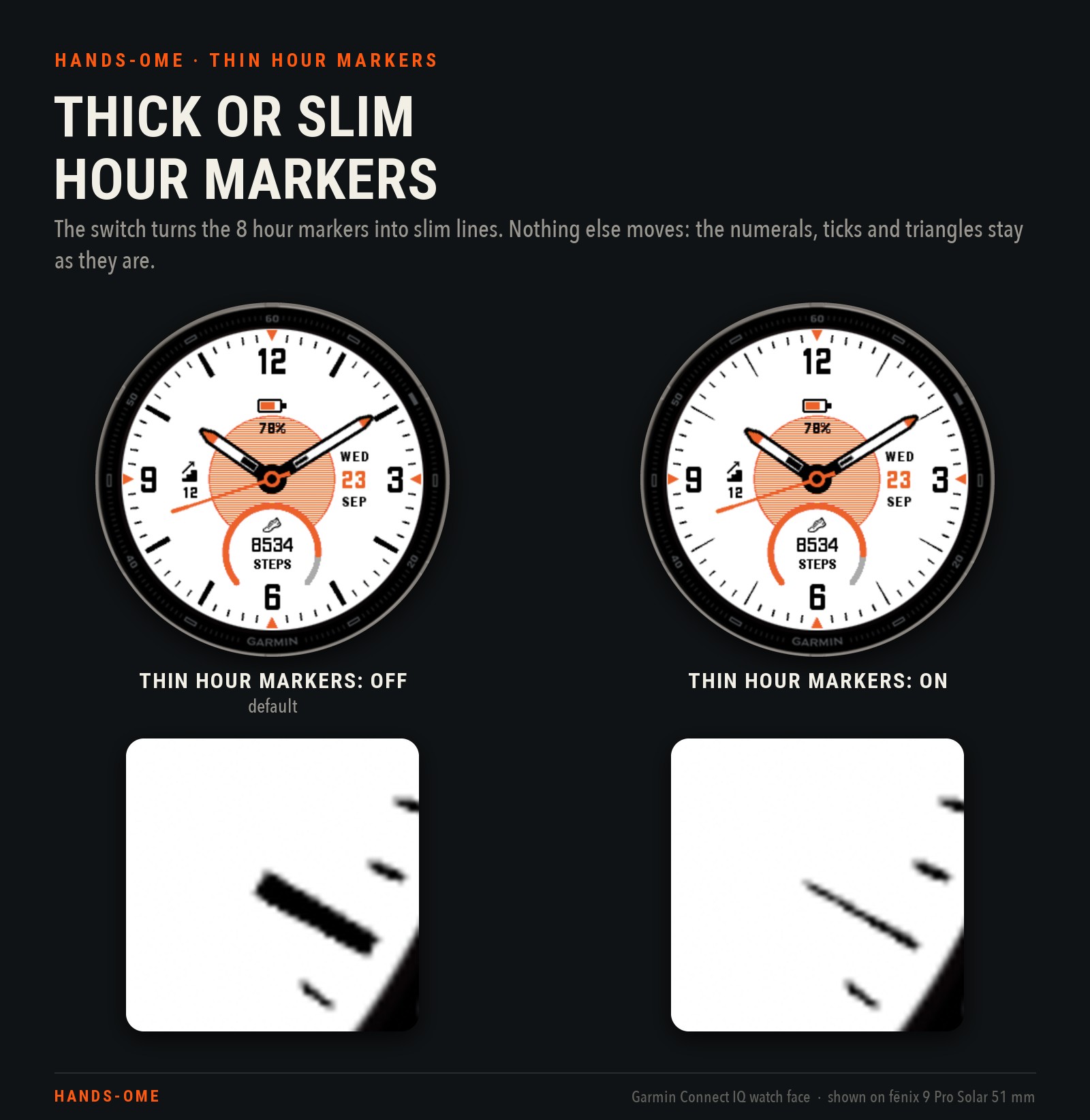
Thin hour markers (off by default) turns the eight thick hour batons into slim lines. Nothing else changes: the markers keep their length, position and colour, and the numerals, minute ticks and triangles stay as they are.
8. Left data field: 49 options
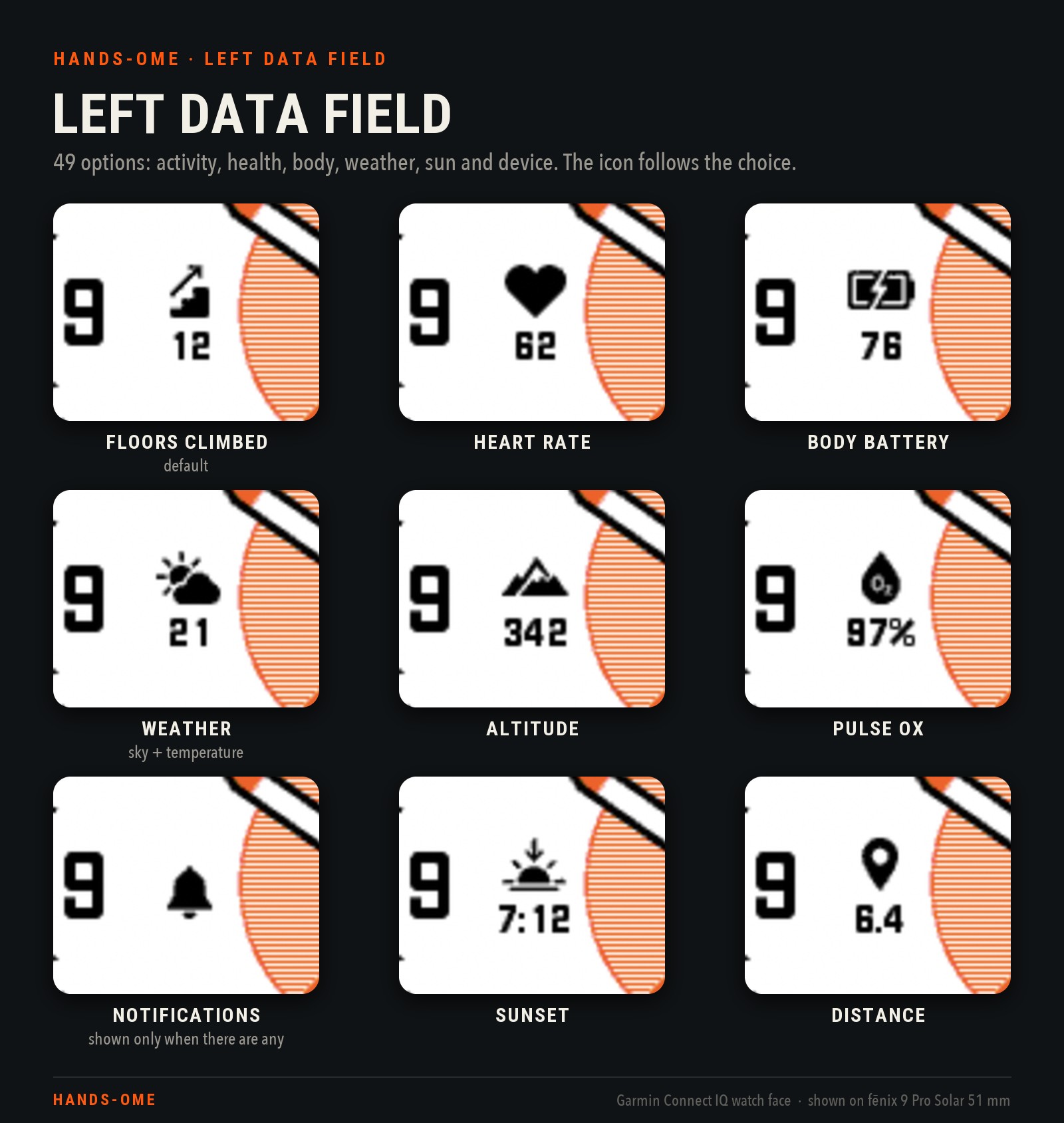
Left data field: parameter shows an icon with the value under it. Wide values switch to a smaller font.
- Activity: Steps, Steps to goal, Distance, Calories (total), Active calories, Floors climbed (default), Floors descended, Meters climbed, Meters descended, Active minutes (day), Active minutes (week), Move bar, Wheelchair pushes, Weekly run distance, Weekly bike distance
- Health and recovery: Heart rate, Resting heart rate\*, Body Battery, Stress, Pulse Ox (SpO2), Respiration rate, Hours to recovery, Hours to chill, Chill status, VO2 Max (run), VO2 Max (bike), Training status\*, Body weight\*
- Weather: Weather (current sky icon + temperature), Feels like, Humidity, Precipitation chance, Wind speed, UV index\*, Visibility\*, High temperature, Low temperature, High / low temperature\*
- Sun: Sunrise, Sunset, Next sun event
- Outdoors: Altitude\*, Pressure\*
- Watch and phone: Battery\*, Battery in days\*, Alarm\*, Notifications\*, Bluetooth\*, Week number\*
\* only in the left field.
- Alarm, Notifications and Bluetooth show just their icon while an alarm is set, notifications are waiting or the phone is connected. Otherwise the field stays empty.
- Training status shows a short word, e.g. PRODU for Productive.
- Units and time format: units and the 12 / 24 h format follow your watch settings (pressure follows the temperature unit: hPa with °C, inHg with °F).
- "--" (no data): a value the watch can't measure shows "--".
9. Bottom cell: 35 options with a progress arc
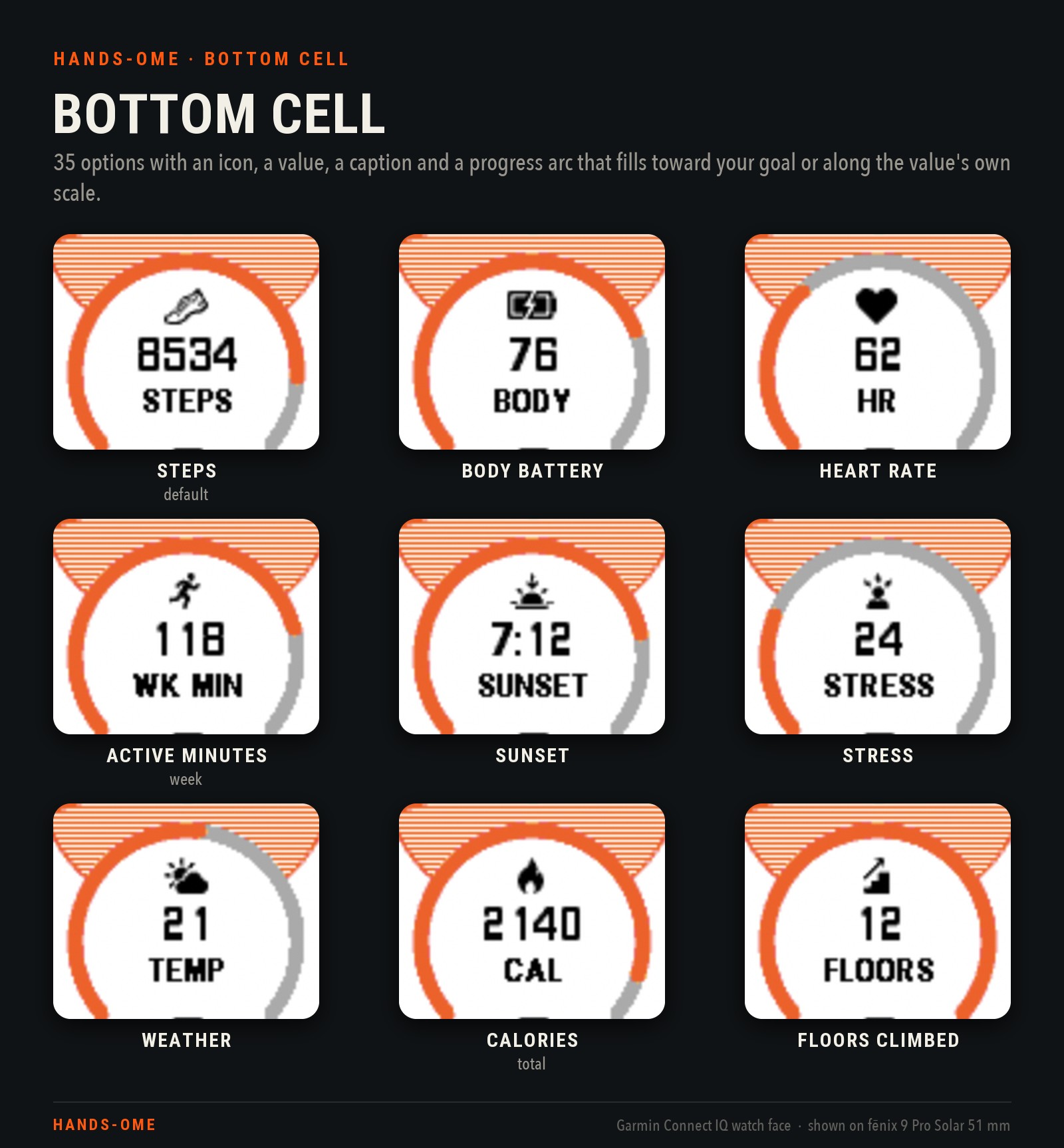
Bottom cell: parameter shows an icon, a value, a caption (translated where available, see section 11) and a progress arc. It offers the 35 parameters that fill an arc: the list above minus the ones marked \*. Steps is the default.
How the arc fills:
- Goals: Steps, Steps to goal, Floors climbed, Active minutes (day), Active minutes (week) and Wheelchair pushes close the arc at the goals you set in Garmin Connect. The daily active-minutes arc uses a seventh of your weekly goal.
- Fixed scales: Body Battery, Stress, Humidity and Precipitation chance fill 0–100; Pulse Ox 80–100%; Heart rate up to your max heart rate; Respiration rate and Move bar along their own ranges.
- Temperatures and wind speed fill along their own scales.
- Hours to recovery / Hours to chill: 0–48 h, or 0–96 h above 48 h.
- Soft references: Calories, Active calories, Distance, Floors descended, Meters climbed / descended and the weekly distances fill toward a reference value, and never quite close.
- Sunrise, Sunset, Next sun event: the arc is a 24-hour dial, with midnight at the left end and noon at the top.
- VO2 Max: fills by fitness category for your age and sex.
- Chill status: fills by level and shows a word: CHILLED, ALMOST, EASY DAY, REST or WRECKED.
The arc is in the accent colour; the icon, value and caption use the numerals colour. The same parameter can be in both slots.
10. When the watch sleeps
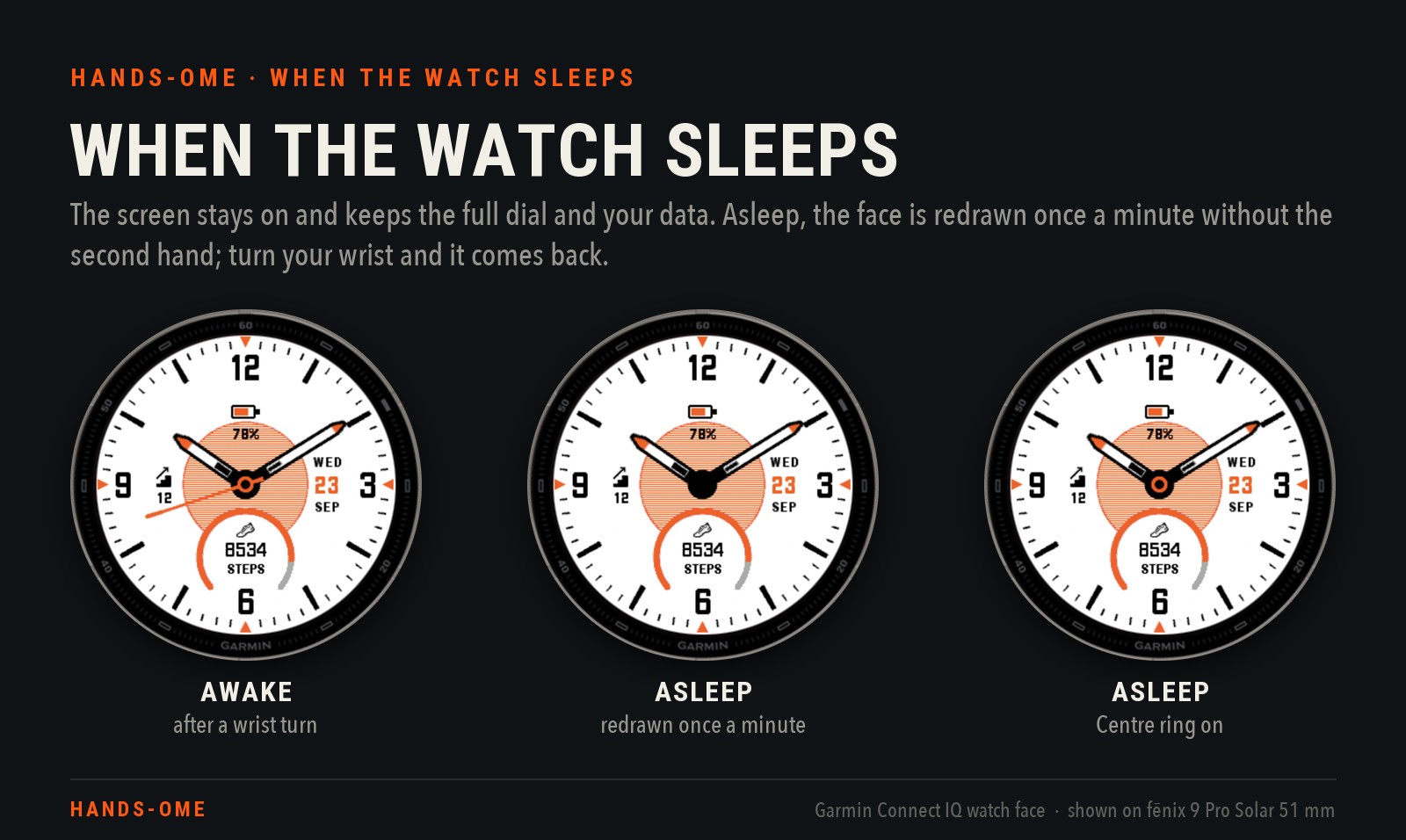
A MIP screen is always on, so there is no separate always-on mode. When you lower your wrist, the watch goes to sleep and hands-ome keeps showing the same full dial, with all your data:
- The dial is redrawn once a minute, and the hour and minute hands move once a minute.
- The second hand is hidden. So is the centre ring, unless Centre ring without the second hand is on.
- Turn your wrist or press a button, and the second hand comes back.
11. Languages
- No language setting: the face follows your watch language.
- Weekday and month in 25 languages: English, German, French, Spanish, Italian, Portuguese, Dutch, Danish, Swedish, Norwegian, Finnish, Polish, Czech, Slovak, Slovenian, Croatian, Hungarian, Romanian, Turkish, Estonian, Latvian, Lithuanian, Indonesian, Malay and Vietnamese.
- Bottom-cell captions and Chill status words are in 21 of them (English plus 20 translations). Lithuanian, Indonesian, Malay and Vietnamese show them in English.
- Long captions: a caption too wide for the ring is left out, and the icon and value stay. This happens mostly on Forerunner 255S, sometimes on fēnix 7S and very rarely on bigger screens. In English only the Chill status word EASY DAY on Forerunner 255S.
- Other watch languages (Russian, Greek, Chinese, Japanese…) show English labels.
- Always in English: the settings screen on the phone and the style names in the watch's Customize editor.
Compatibility
hands-ome runs on 18 round MIP Garmin watch models and sizes:
- fēnix 7S / 7S Pro, fēnix 7 / 7 Pro, fēnix 7X / 7X Pro (including the Pro models without Wi-Fi)
- fēnix 8 Solar 47 / 51 mm, fēnix 9 Pro Solar 47 / 51 mm
- enduro 3
- Forerunner 255S / 255S Music / 255 / 255 Music, Forerunner 955
Screenshots are from the Connect IQ simulator (fēnix 9 Pro Solar 51 mm) with demo data.
Updates:
New styles added: