

Q: How do I capture text (like chat messages) from the main window and put it in another window?
A: You can use a combination of triggers to capture the text and GUI elements to solve this problem. A MiniConsole can display text and works just like the main window. It can be in a fixed position on its own, but it usually combined with a UserWindow or AdjustableContainer so it can be moved around the screen with your mouse.
Creating a UserWindow
UserWindow's come with a MiniConsole built-in and can be moved to another monitor so they are perfect for this task. They can also be docked to one of the main screen edges.
Create a new script in the Script Editor and add the following code to create a new floating window.
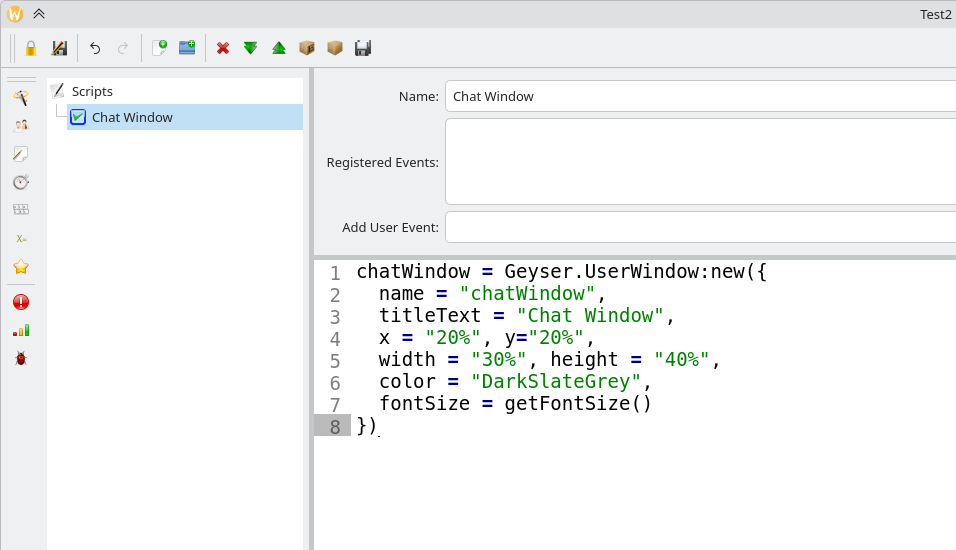
chatWindow = Geyser.UserWindow:new({
  name = "chatWindow",
  titleText = "Chat Window",
  x = "20%", y="20%",
  width = "30%", height = "40%",
  color = "DarkSlateGrey",
  fontSize = getFontSize()
})
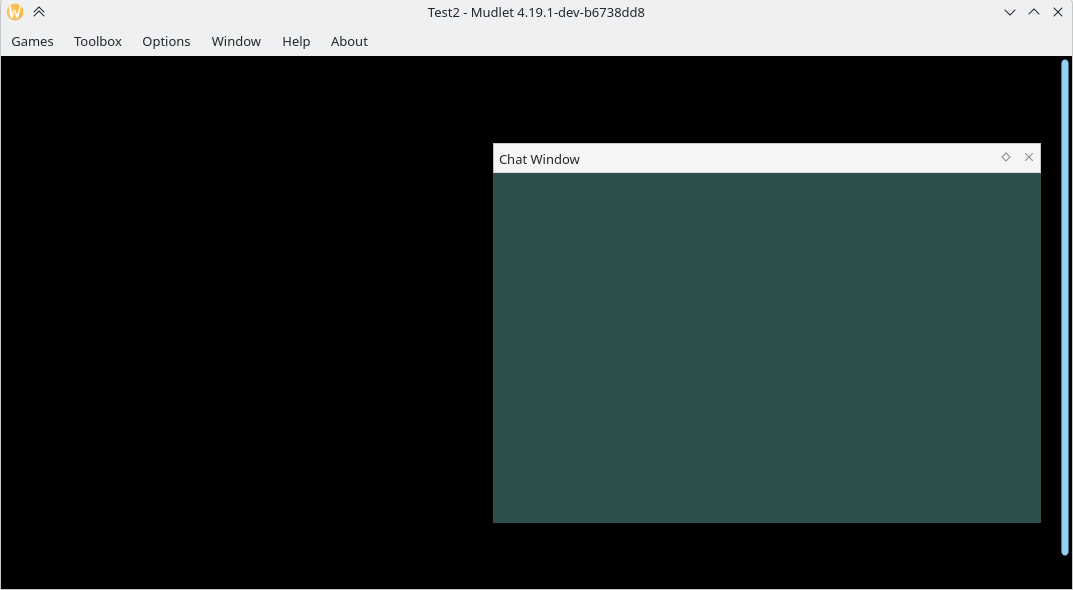
Save your script and the result should look something like this.
 You can manually send text to the new UserWindow from the command line to test. Try this;
lua chatWindow:echo("testing 1..2..3")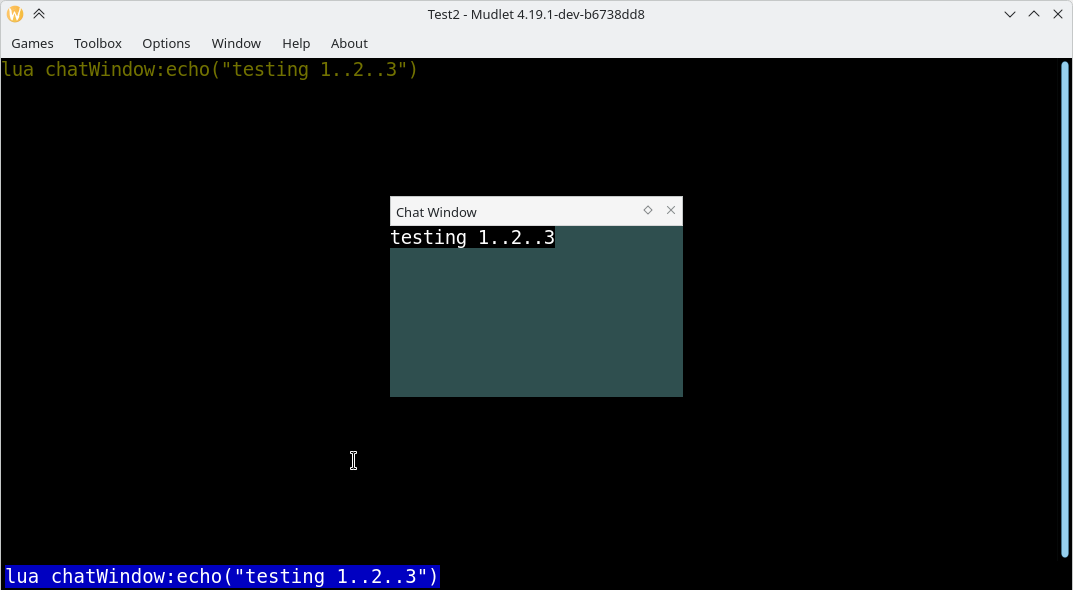 Setting up the Capture Triggers
For this example let's assume you want to capture tells. A tell in your game looks like this
Zooka tells you 'Hey, have you tried Mudlet?'
We need to setup a trigger to capture this and others like it to send to the new window.
The most basic method is to capture the whole line and echo it.
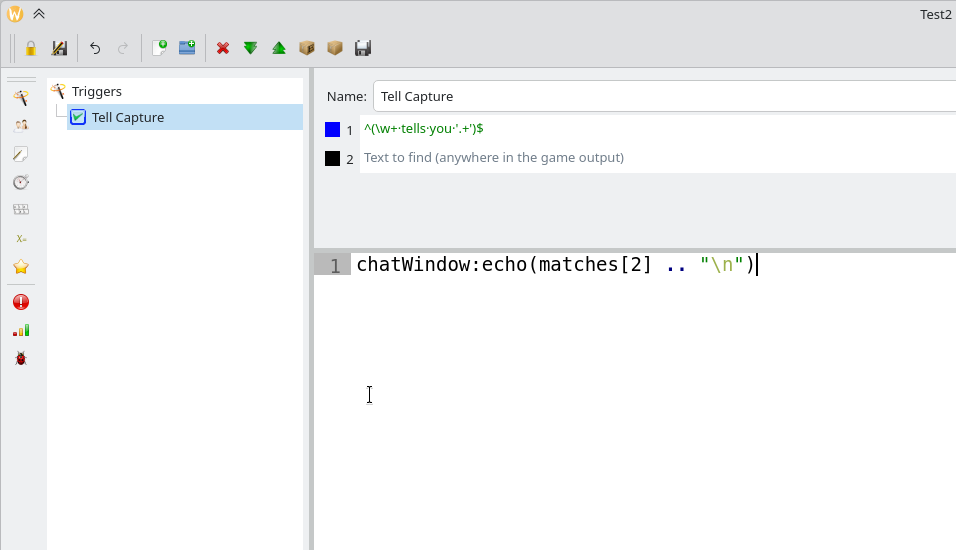
Regex trigger:
^(\w+ tells you '.+')$

Script:
chatWindow:echo(matches[2] .. "\n")
You can also delete (or hide, gag) the line from the main console by adding deleteLine() to the script.
chatWindow:echo(matches[2] .. "\n")
deleteLine()
Keeping Original MUD Colours
-- copy entire current line including colour codes
local str = copy2decho()
-- print in colour to the chatWindow
chatWindow:decho(str)
Other ideas involve adding a timestamp to the start, or changing the colours. Take a look at the manual references below for more inspiration on how to customise this to your needs.