

When analyzing data, our eyes are easier to see visual cues to see pattern in data. We can use color scales to see the value range between one data with another. In this tutorial, I'll show you how to use Color Scales to coloring cell based on Value in Microsoft Excel.
1. What we need to do before start the tutorial?
Use Microsoft Excel, either you can purchase it with license or using free Microsoft 365 Online
2. Coloring Cells in Excel Based on Value
Select the range all of the data you want to color.
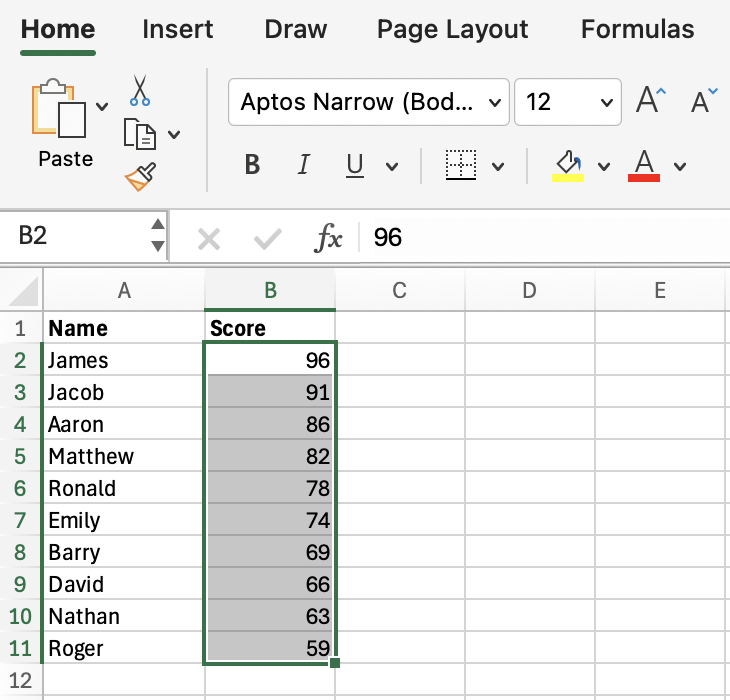
Go to Home > select Conditional Formatting
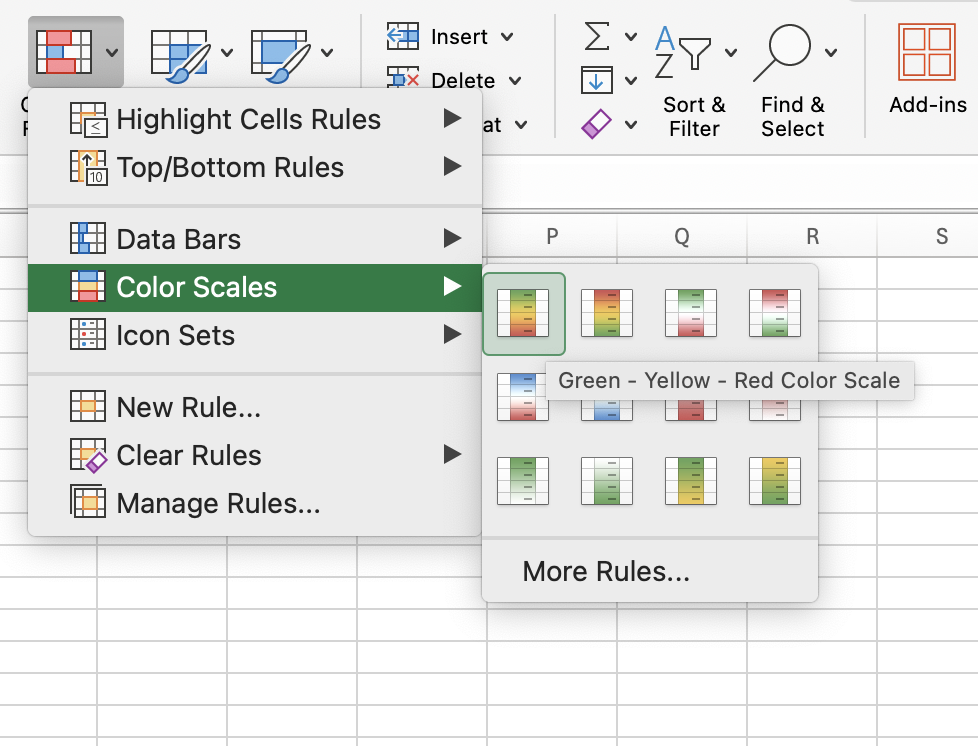
Dropdown will appear, then select Color Scales > Then select color you prefer.
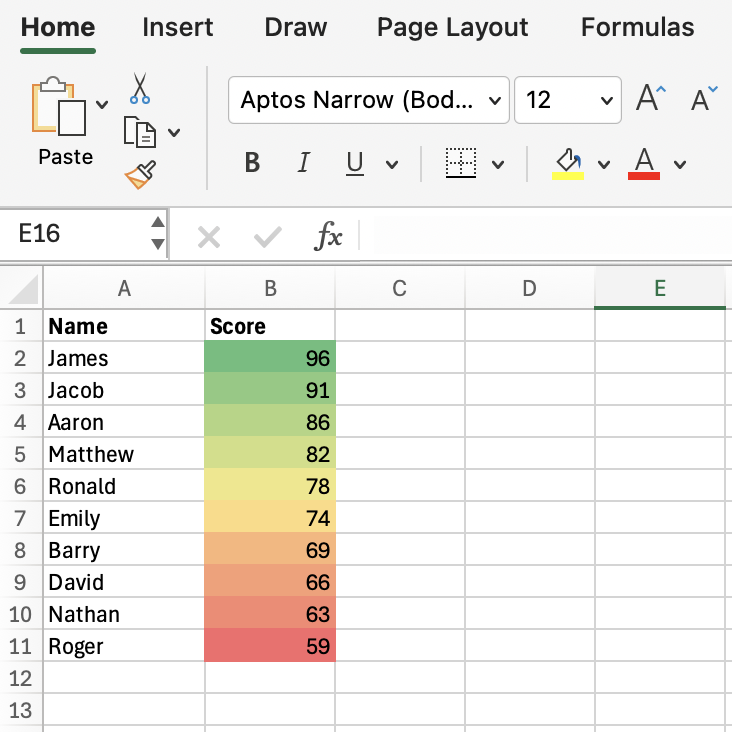
Your range of data will colored based on Value
💡 Insight
By default, Color Scales will coloring your date from highest to lowest value. If you want to define the higher and lowest value, you can go to Conditional Formatting > Manage Rules > Edit Rule > Define the highest and lowest value > OK
By doing this steps, you should success coloring cells based on Value in Microsoft Excel.