

This guide tells you how to download Trade Confirmations from ETrade.
UPDATE 2024-12-15: ETrade's website has changed, making the process slightly more cumbersome than before. Instructions are now updated.
How to find the PDF files?
Go to https://edoc.etrade.com/e/t/onlinedocs/docsearch?doc_type=cnf (you need to be logged in).
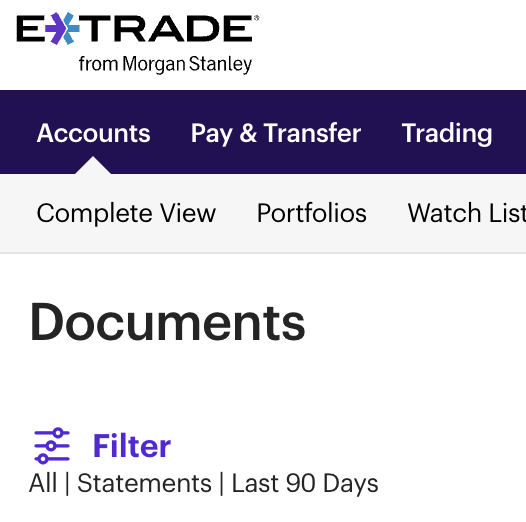
Click on the purple "Filter" icon:
Filter:
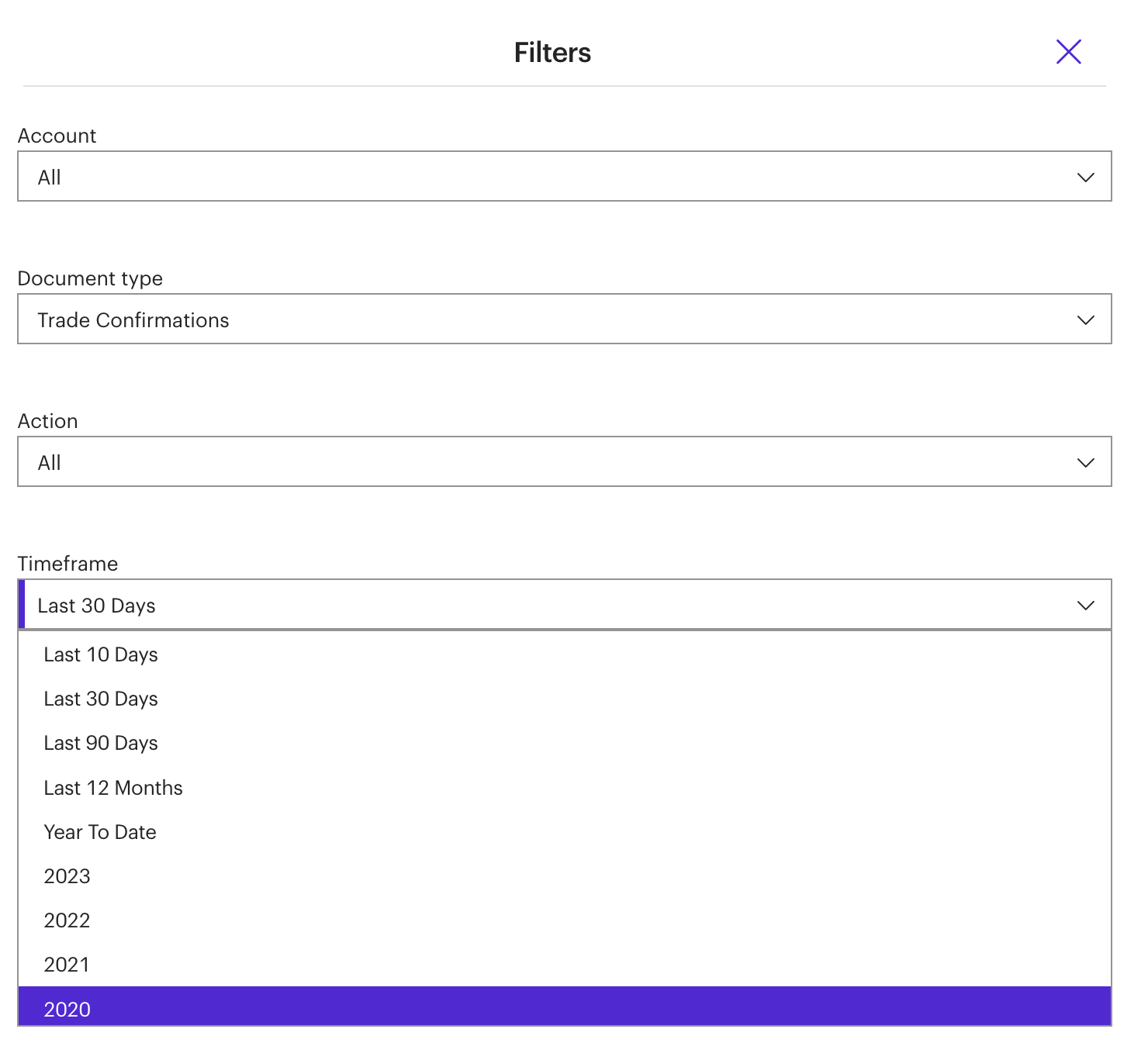
In the filter, select Document Type: "Trade Confirmations"
Select Action: "All"
Select the first year you have trades.
Click each checkbox in the list of trade confirmations for the selected year.
Click Download and select "Download multiple files"
In your download folder, you will find an archive with the files. Extract them into a folder.
Repeat the steps for each year where you have any trades, selecting one year per cycle.
Next Steps
If you don't already have all your Stock Plan documents dowloaded, check how to Bulk Download ETrade Stock Plan Confirmations and download them too.
Upload all documents to Skatteguru and have your K4 form automatically generated for you when it's time to declare your taxes.
If you have owned shares via other brokers in addition to ETrade or if you owned shares before the first date available in ETrade, you can still use Skatteguru but will need to also import the other trades using the Skatteguru CSV format.