

Hi there botters,
Today I'm going to tell you about an easy way of back testing any 3commas bot configuration directly on Trading View, and on the fly.
Paper trading is the closest thing you will have as the real performance, or behavior of a bot / strategy, but it will take you a long time until you have some good results that can attest to your findings, and that is why Back Testing before going into Paper Testing is so important, it will save you time and yield better results.
You can finetune your bot configurations based on the results you get from your quick back tests, and once you get that perfect fine-tuned performance, then it is time to paper test it, where you will exactly see how the config performs when introduced to the random variables such as app processing time and exchange communications latencies, etc.
So most often then none, during your paper tests you’ll be able to have a more real feel to the performance of your bot configuration and decide which changes will bring the best results to compensate for the random and unpredictable variables that real world brings into play. Once you have the paper tests results of your new bot configuration, only then should you move the bot configuration into the real-world trading and see if anything else is needed.
And yes, different Coins/Tokens pairs which you’ll be trading can have different results even using the same bot configurations, so again, having the ability to back testing on the fly can give you the hedge you were seeking to better understand which changes you should be making to your favorite config in order to better adapt it to the coin/token you’ll be trading.
So, there is this Trading View Strategy/Indicator which you can very easily add to your Trading View favorites and enable it with a click and bam, there is your favorite config backtest results for the pair you’re analyzing… Pretty cool right! And the best thing, it is free! 😊
So, how can you add this strategy tester indicator?
Very easy, let’s go step by step:
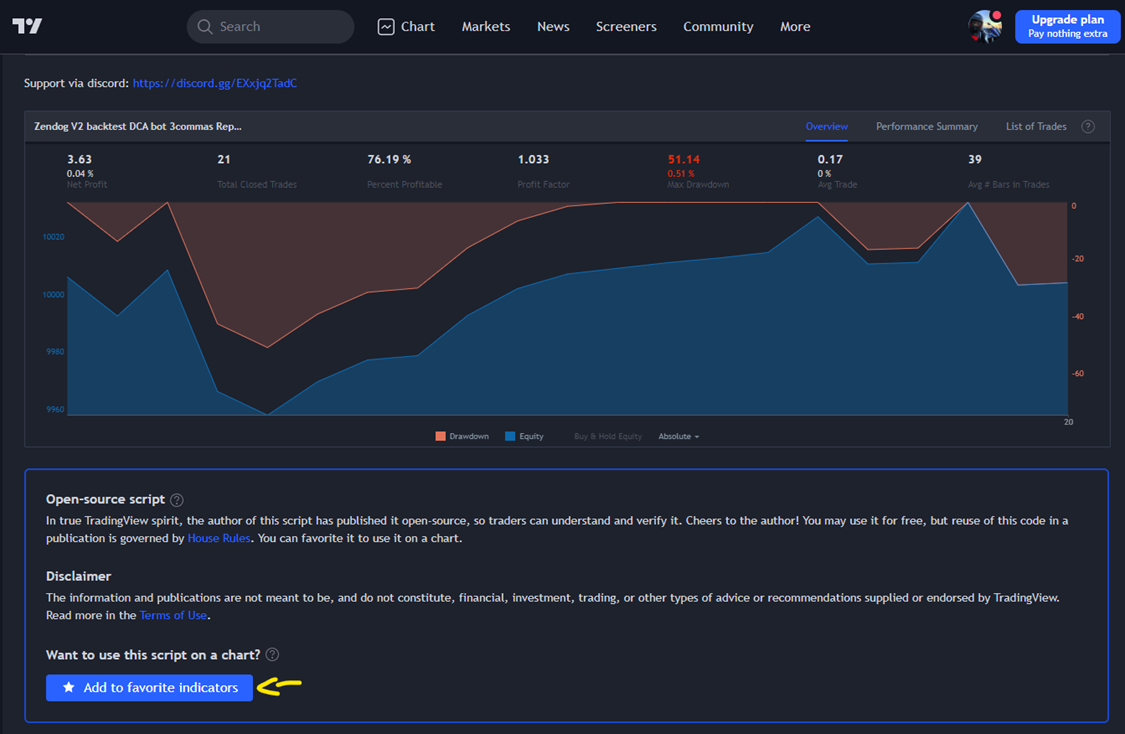
1. Go to https://www.tradingview.com/script/9NXf1Bqb-Zendog-V2-backtest-DCA-bot-3commas/9NXf1Bqb
2. Read through the Authors release notes to better understand what it is all about, and at the end of the notes just click the button that says “Add to favorite indicators”. (the link points to a V2 version, but actually there is a new V3 version available, use V3 as it appears to have been improved)
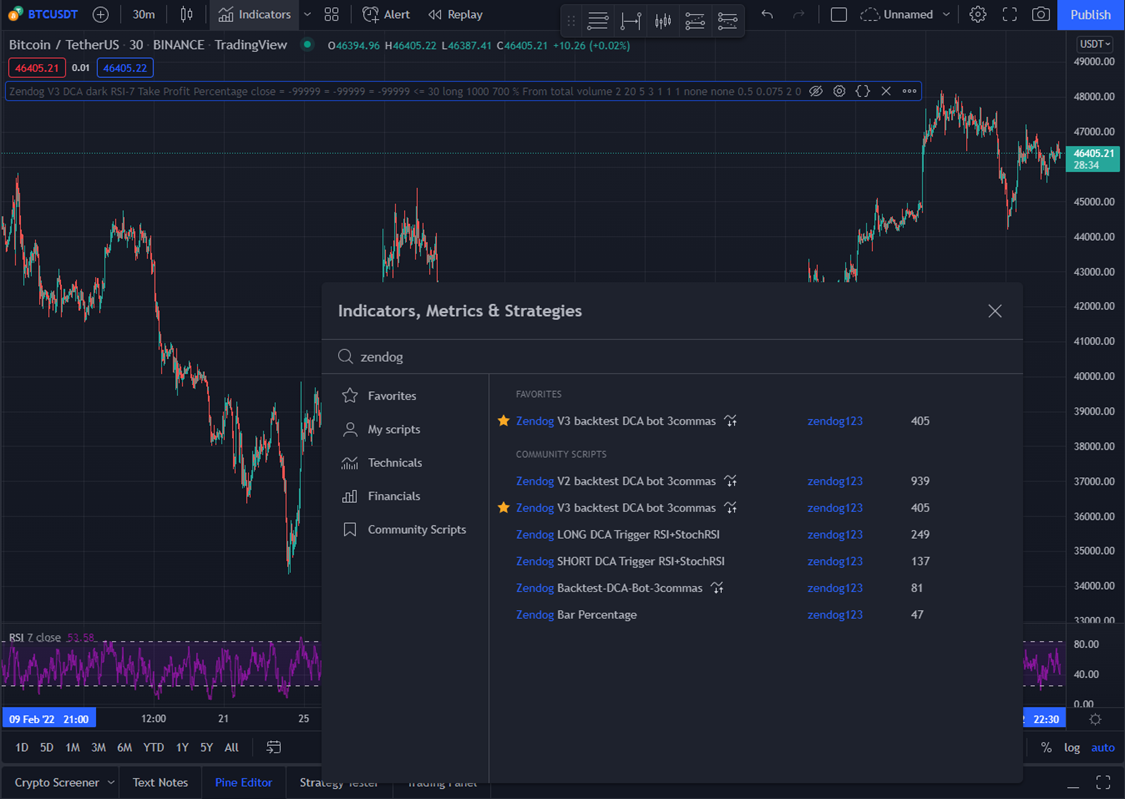
3. Alternatively, in Trading View you could also just click Indicators and search for Zendog, then select Zendog V3 backtest DCA bot 3commas:
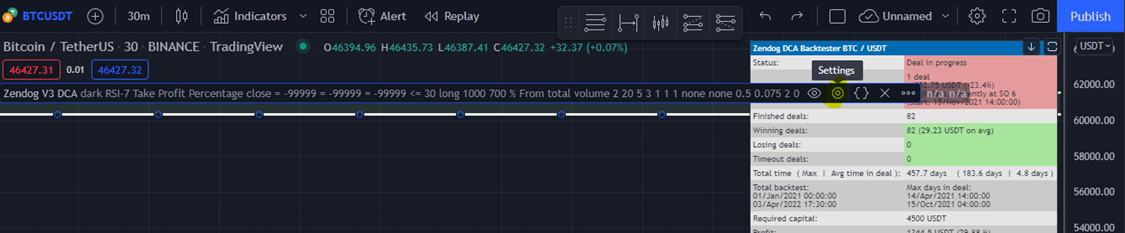
4. Once you’ve added the indicator it is time to configure it to your bot definitions, so for that just click the indicator settings button:
5. Then, setup your favorite 3commas DCA bot parameters, and an RSI start indicator, 100 is basically ASAP, and click OK to see the magic happen!
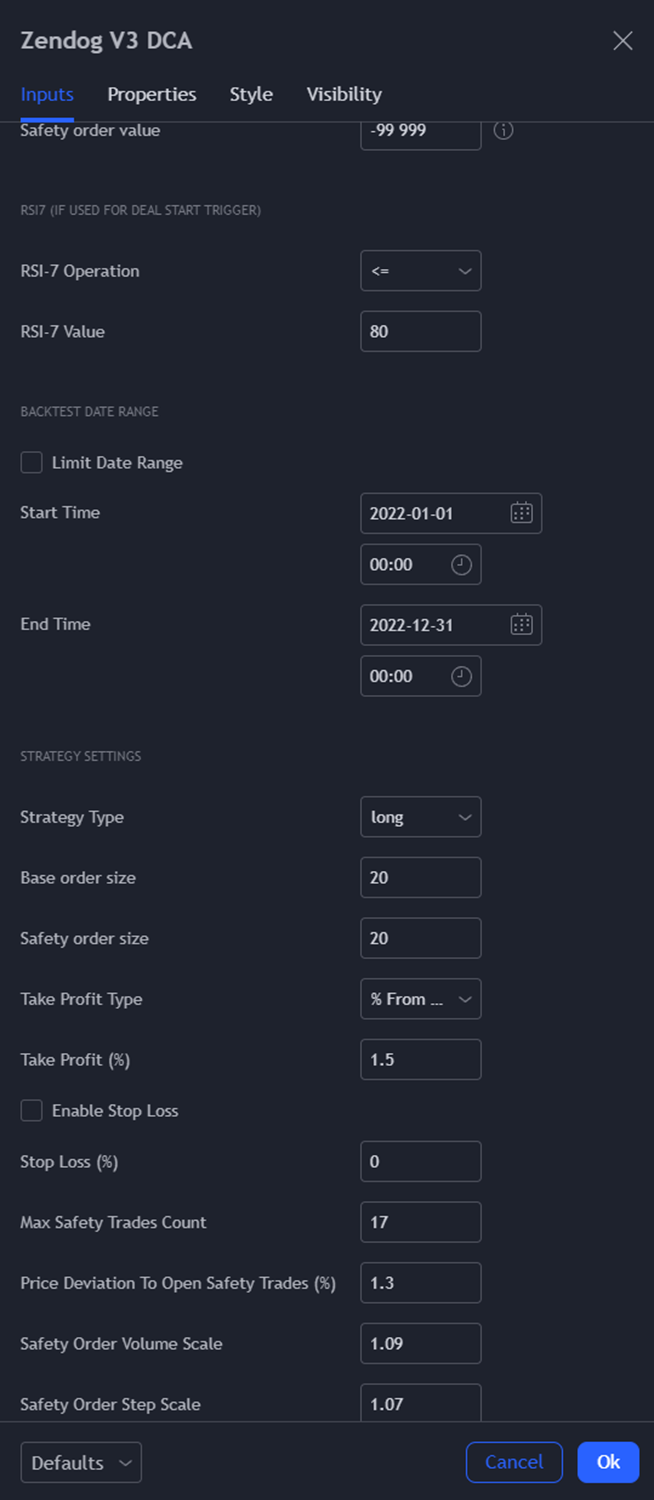
6. And you are all set, now every time you want to backtest your favorite config against a coin/pair that you are charting in trading view you just need enable the Zendog indicator, very easy and cool right? 😊
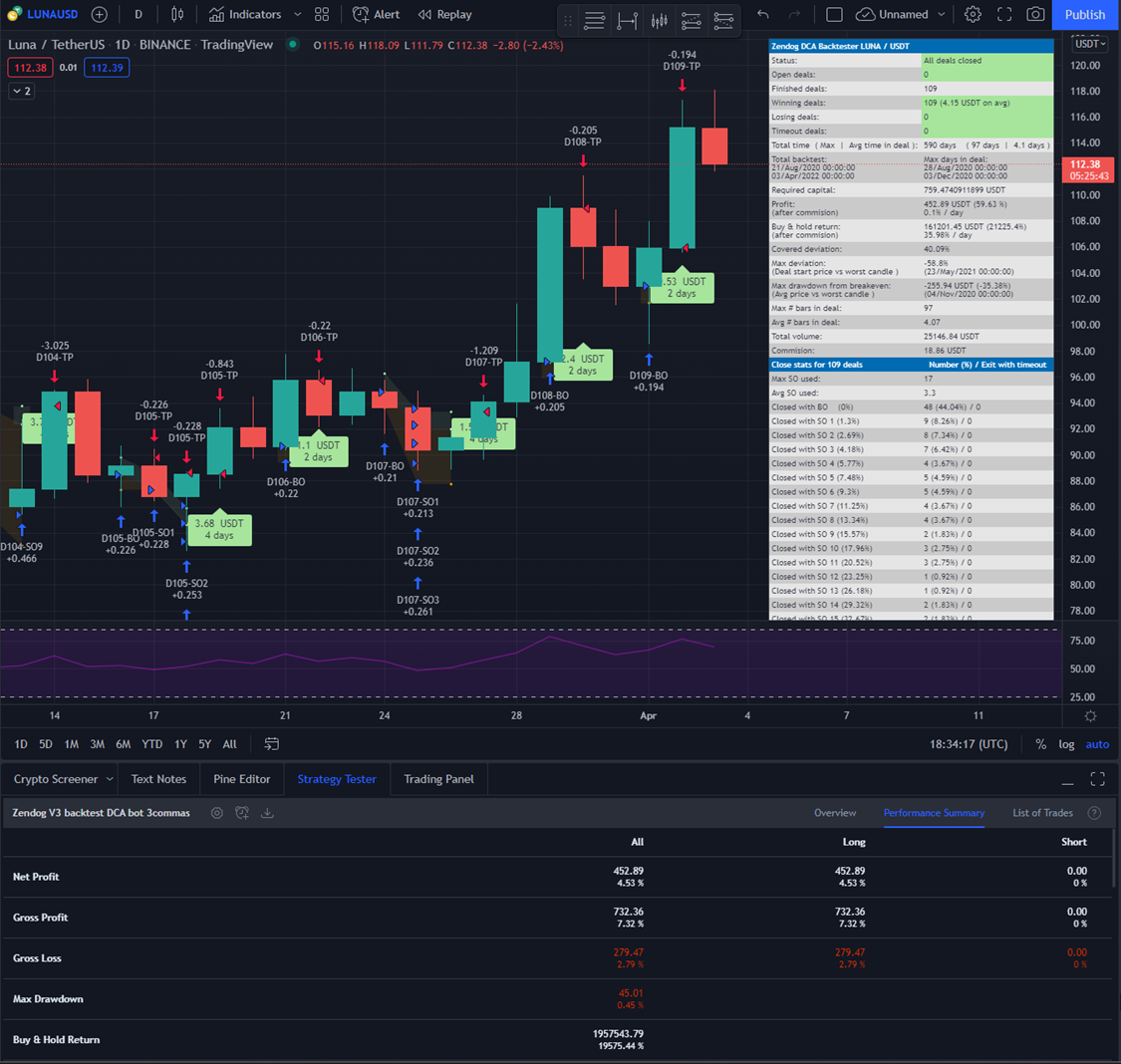
Just remember, in the main chart view the indicator will plot all of the entry and exit points of your deals, and it shows a summary in the top right, but don’t forget that below in the Strategy Tester Tab you’ll also have great detailed info to look up:
And that is it for today, hope this helps you in perfecting your bot settings pair by pair, and maybe who knows, also spotting that next coin or token that just lives in bot world! 😉
Thank you all for support in these past months, and remember, be the house!
So trade smart, trade safe!
- Sellium -