

Gemini in Your Terminal: A Comprehensive Guide to Using the Gemini CLI
The command-line interface (CLI) has received a powerful upgrade with the introduction of Google's Gemini CLI, an open-source tool that brings the advanced capabilities of the Gemini family of models directly to your terminal. This empowers developers, data scientists, and anyone comfortable with the command line to seamlessly integrate cutting-edge AI into their workflows, from coding and debugging to data analysis and creative text generation.
This report provides a full guide on how to install, configure, and effectively utilize the Gemini CLI, transforming your terminal into an intelligent and interactive partner.
1. What is the Gemini CLI?
The Gemini CLI is an interactive, conversational AI tool that operates within your terminal. It allows you to chat with Gemini models, providing them with context from your local files and receiving assistance with a wide range of tasks. Unlike traditional command-line tools, the Gemini CLI excels at understanding natural language prompts and generating human-like responses, code snippets, and even entire scripts.
The CLI leverages the power of Google's latest models, including the highly capable Gemini 2.5 Pro, and offers a generous free tier for individual users, making it an accessible tool for a broad audience.
2. Getting Started: Installation and Configuration
Before you can begin to harness the power of the Gemini CLI, you need to set it up on your system. The process is straightforward and primarily involves installing it via the Node Package Manager (npm).
Prerequisites:
Node.js: You'll need to have Node.js (version 18 or higher) and npm installed on your machine. You can verify your installation by running
node -vandnpm -vin your terminal.
Installation:
There are two primary ways to install the Gemini CLI:
Using
npx(Recommended for quick use): This command executes the Gemini CLI package without installing it globally.Bash
npx @google/gemini-cliGlobal Installation with
npm: This will install the Gemini CLI globally on your system, allowing you to run it from any directory by simply typinggemini.Bash
npm install -g @google/gemini-cli
Authentication:
Upon the first run, the Gemini CLI will guide you through the authentication process. You have two main options:
Sign in with your Google Account: This is the simplest method and provides you with a generous free usage tier, including a significant number of requests per minute and per day. The CLI will open a browser window for you to log in and grant the necessary permissions.
Use an API Key: For more advanced use cases or to access specific projects and higher limits, you can authenticate using an API key from Google AI Studio. You'll need to set this key as an environment variable:
Bash
export GEMINI_API_KEY="YOUR_API_KEY"
3. How it Works: The Interactive Experience
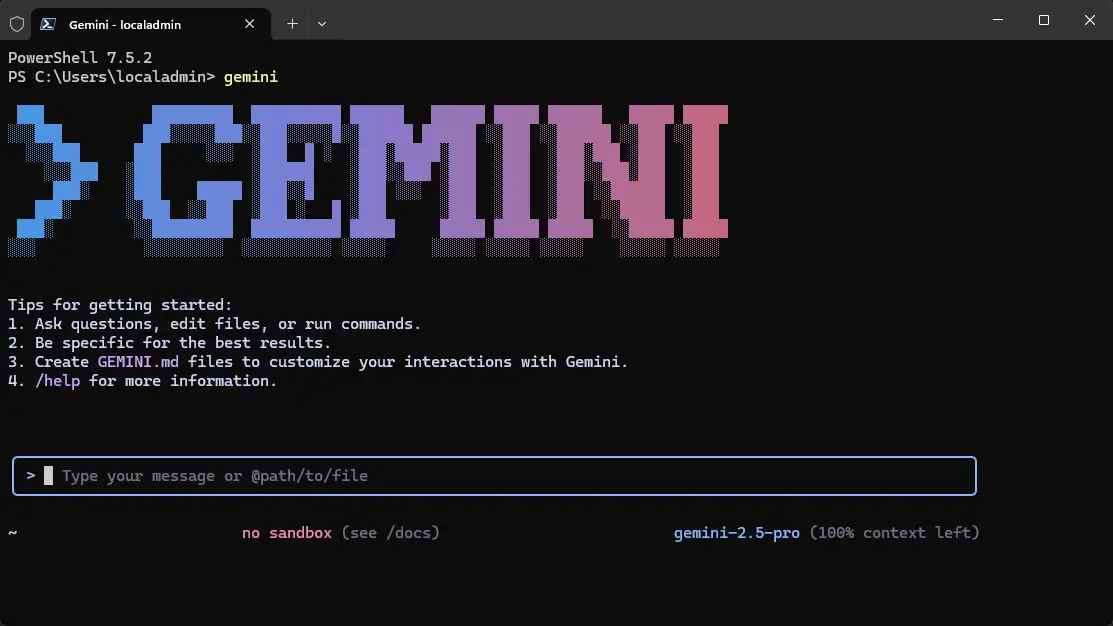
Once installed and authenticated, you can start interacting with the Gemini CLI by running the gemini command in your terminal. This will launch an interactive chat session where you can enter your prompts.
The core of the Gemini CLI's functionality lies in its conversational nature. You can ask questions, provide instructions, and even feed it the contents of your local files for context.
Key Features and How to Use Them:
Natural Language Prompts: Simply type your requests in plain English. For example:
"Explain the difference between a list and a tuple in Python.""Write a shell script to find all files larger than 100MB in the current directory.""Summarize the main points of the attached article."(after providing the file)
File Context with
@: To provide the CLI with the context of a local file, use the@symbol followed by the file name. This is a powerful feature for tasks like code explanation, debugging, and summarization.> @my_script.py Can you explain what this Python script does?Code Generation and Debugging: The Gemini CLI is a powerful coding assistant. You can ask it to write code from scratch, refactor existing code, or help you debug errors.
> Write a Python function that takes a list of integers and returns the sum of the even numbers.
> I'm getting a 'FileNotFoundError' in my Python script. Here's the code: @my_app.py. Can you help me fix it?
Shell Command Execution: For direct interaction with your system, you can execute shell commands within the Gemini CLI by prefixing them with an exclamation mark (
!).> !ls -lMulti-turn Conversations: The CLI remembers the context of your conversation, allowing you to ask follow-up questions and refine your requests iteratively.
4. Advanced Capabilities: Extending Functionality
Beyond basic chat and code assistance, the Gemini CLI offers advanced features that cater to more complex workflows.
Model Context Protocol (MCP) Servers: This is a powerful feature that allows you to extend the capabilities of the Gemini CLI by connecting it to external tools and services. By setting up an MCP server, you can enable the CLI to interact with your own APIs, databases, or other proprietary systems. This opens up a vast range of possibilities for automation and integration.
Customization and Configuration: You can customize the behavior of the Gemini CLI through configuration files. This allows you to set default prompts, define custom tools, and tailor the experience to your specific needs.
5. Use Cases and Applications
The versatility of the Gemini CLI makes it suitable for a wide array of applications:
Software Development: From scaffolding new projects and writing boilerplate code to debugging complex issues and writing unit tests, the Gemini CLI can significantly accelerate the development lifecycle.
Data Analysis: Quickly write scripts for data cleaning, transformation, and analysis. You can also use it to generate queries for databases.
Content Creation: Generate articles, blog posts, emails, and other written content directly from your terminal.
Learning and Research: Get quick explanations of complex topics, summarize long documents, and explore new concepts interactively.
System Administration: Automate repetitive tasks by generating shell scripts and interacting with system utilities.
6. The Future of the Command Line
The Gemini CLI represents a significant step forward in the evolution of the command-line interface. By integrating powerful AI capabilities directly into the terminal, it transforms a traditionally text-based and command-driven environment into an intelligent and collaborative workspace. As the underlying models continue to improve and the feature set of the CLI expands, we can expect even more innovative and powerful applications to emerge, further blurring the lines between human and machine interaction in the developer's primary workspace.