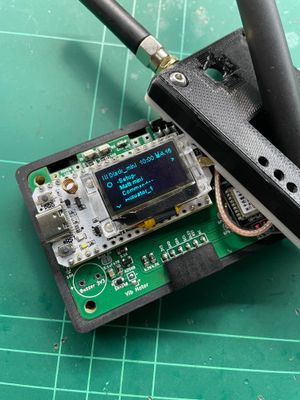

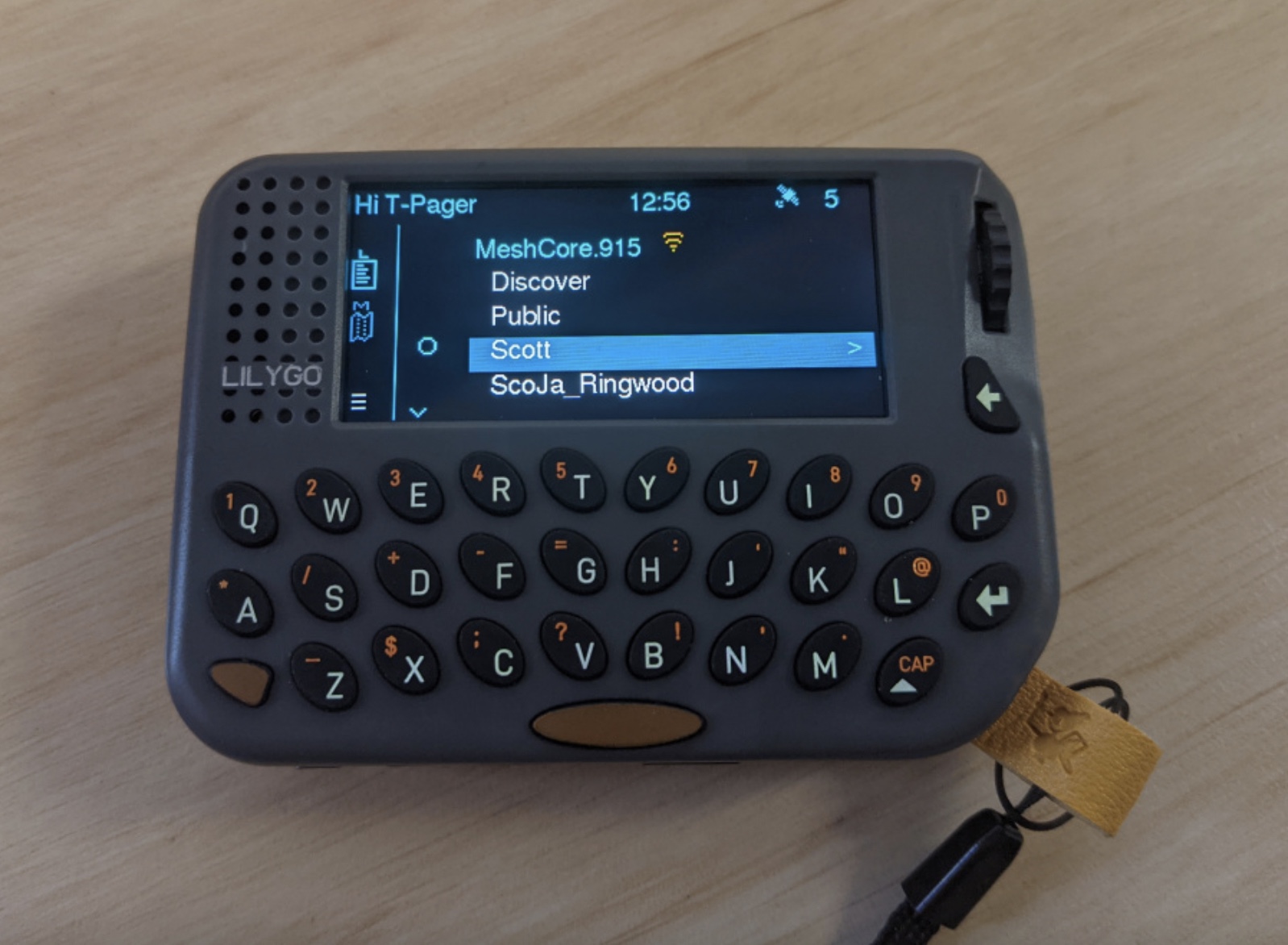
The new LilyGo T-Lora Pager is now here, and I have been busily porting the 'Ultra' firmware to it. The beta firmware version is available here.
The T-Pager has a nice 2.3" colour display, scroll wheel for easy navigation, and a backlit keyboard. It has quite a nice ergonomic feel. Inside is a SX1262 LoRa radio, GPS, realtime clock, microphone and speaker (and headphone jack).
Installing the firmware
For new devices, flashed one of the -merged.bin file to offset 0. Refer to this post about flashing to ESP32 devices. There are two firmware variants:
the "..-SD.." bin file, stores all config/contacts on the SD card.
the other, non-SD, stores all config/contacts in internal flash.
Help Tutorial
When you first boot up the device, you will be taken through a series of help screens which help get you familiar with the basic UI navigation.
UI Navigation
Most of the UI is navigated using the scroll wheel, and pressing it in to select. There are some extra keyboard features to know:
Long-press ( > 300ms) Backspace : navigate back
Long-press ( > 300ms) Enter : popup the context menu
The three buttons along the bottom edge are: Reset, screen on/off, power on.
Shutdown
Long press (2 seconds) the screen on/off (middle) button to power down the device.
Setup Network Profile
Initially, you will be prompted to enter the details of your mesh network, like the frequency, spreading factor, and a name for the profile.
Home Screen
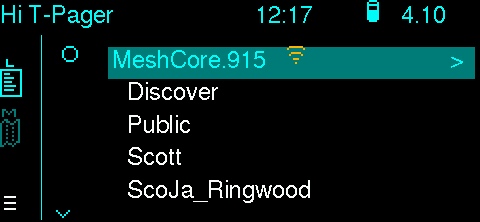
The home screen is like the other Ultra firmwares (like the T-Deck). There are just a few keyboard short-cuts to be aware of:
space : toggles between map/list view
List Short-cuts
In the home screen list view, and in the Discover list view, you can press a letter, say 'S', and it will select the next contact starting with 'S', and will wrap around to the start of list if it hits the end.
Also, you can press '@' to refresh/re-order the list (by most recent advert).
Map Short-cuts
In the map view, you can use these keys:
P : toggle GPS tracking on/off
scroll wheel : zoom in/out
Screen Capture
If you want to take a screen shot, you just hold down the ALT + CAP buttons together. NOTE: you must have an SD card inserted before the device was booted.
Future Stuff
There are no doubt various tweaks and improvements that will be coming, but the main thing currently missing is sound support. So, no nice alert sounds, unfortunately. This will be coming. The T-Pager has proper audio support (and even an external headphone jack!), so it is capable.