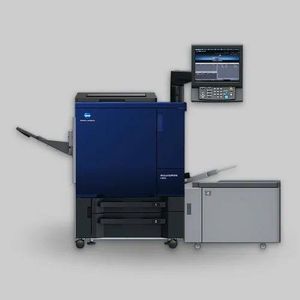

Error Codes Overview
The four error codes represent color-specific sensor issues in Konica Minolta printers:
C 2801: Yellow color sensor error
C 2802: Magenta color sensor error
C 2803: Cyan color sensor error
C 2804: Black color sensor error
These errors are applicable to various Konica Minolta models, including the C 1070, 1060, 2060, 2070, 3080, 3070, 4065, 4070, 4080, and their respective HC variants (71hc, 73hc, 74hc).
Root Cause
The C 2801/2802/2803/2804 errors are related to IDC (Image Density Control) sensor output being too high. During machine startup, the printer generates color patches (yellow, magenta, cyan, and black) on the transfer belt. The IDC sensor reads these patches to verify color values. If any color's sensor value exceeds the normal threshold, the corresponding error code is triggered.
Troubleshooting Steps
Step 1: Check and Clean the IDC Sensor
Open the front door and locate the IDC sensor unit. Remove the process unit to access the sensor assembly from the left side. The sensors are normally covered by a plate that's controlled by a solenoid during machine operation.
Manually lift the protective plate and gently clean the IDC sensors using a dry, clean cloth (not a wet cloth). This removes any accumulated toner or dust that may be causing false readings.
Step 2: Inspect the Solenoid
Check if the solenoid that controls the sensor cover plate is functioning properly. A malfunctioning solenoid may fail to lift the protective plate, which can also cause this error.
Step 3: Verify the Developing Unit
Examine the developing unit for toner concentration issues. The TCR (Toner Concentration Ratio) sensor monitors toner levels inside the developing unit.
Check for:
Excessive toner accumulation
Insufficient toner levels
TCR sensor connectivity and function
While the TCR sensor cannot always be replaced separately on all machines, you can remove it to verify proper seating and connection, then reinstall it.
Step 4: Check Connectors
Inspect all connectors related to the sensor units and developing unit to ensure they are properly seated and making good contact.
Step 5: Service Mode Adjustment (Last Resort)
If all hardware checks pass, access service mode and navigate to System Settings > Software DIP Settings > 3.1.
Modify the gamma correction settings by entering 242 ON (place "24" in the first position and "2" in the middle, then enable). This setting disables gamma correction, allowing the machine to run without performing the initial color patch calibration. Use this setting temporarily to verify if the error resolves.
Once confirmed, restore the original settings to resume normal gamma correction functionality.
Step 6: Component Replacement
If the error persists after all above steps, replacement of the developing unit may be necessary.
Applicable Models
This troubleshooting guide covers the following Konica Minolta models:
C series: 1060, 1070, 2060, 2070, 3070, 3080, 4065, 4070, 4080
HC series: 71HC, 73HC, 74HC