

A lot has happened since my first ShotForge update.
The reason is a new project of my own: I'm currently preparing an app for the Ship-a-ton that works across iPhone, iPad, and Mac and keeps its data synchronized through cloud sync.
For my first app, I mainly needed iPhone screenshots. Naturally, the original version of ShotForge focused on smartphone mockups and traditional store graphics.
That was no longer enough for the new app.
I didn't just want to show a few individual screens. I wanted to communicate clearly that the app works across multiple devices and that its content stays synchronized between them.
That need gradually led to some of the biggest ShotForge additions so far.
Photorealistic 3D Devices
It started with a new collection of photorealistic 3D device frames.
Screenshots can now be displayed from either a left- or right-facing perspective instead of only using a traditional front view.
ShotForge distinguishes between Apple and Google devices. iPhones include an appropriate Dynamic Island, while Pixel devices use their characteristic punch-hole camera and matching hardware details.
The 3D views work in both portrait and landscape orientation. Alongside smartphones, there are now matching models for the iPad Pro and Pixel Tablet.
Device Sync Across Multiple Platforms
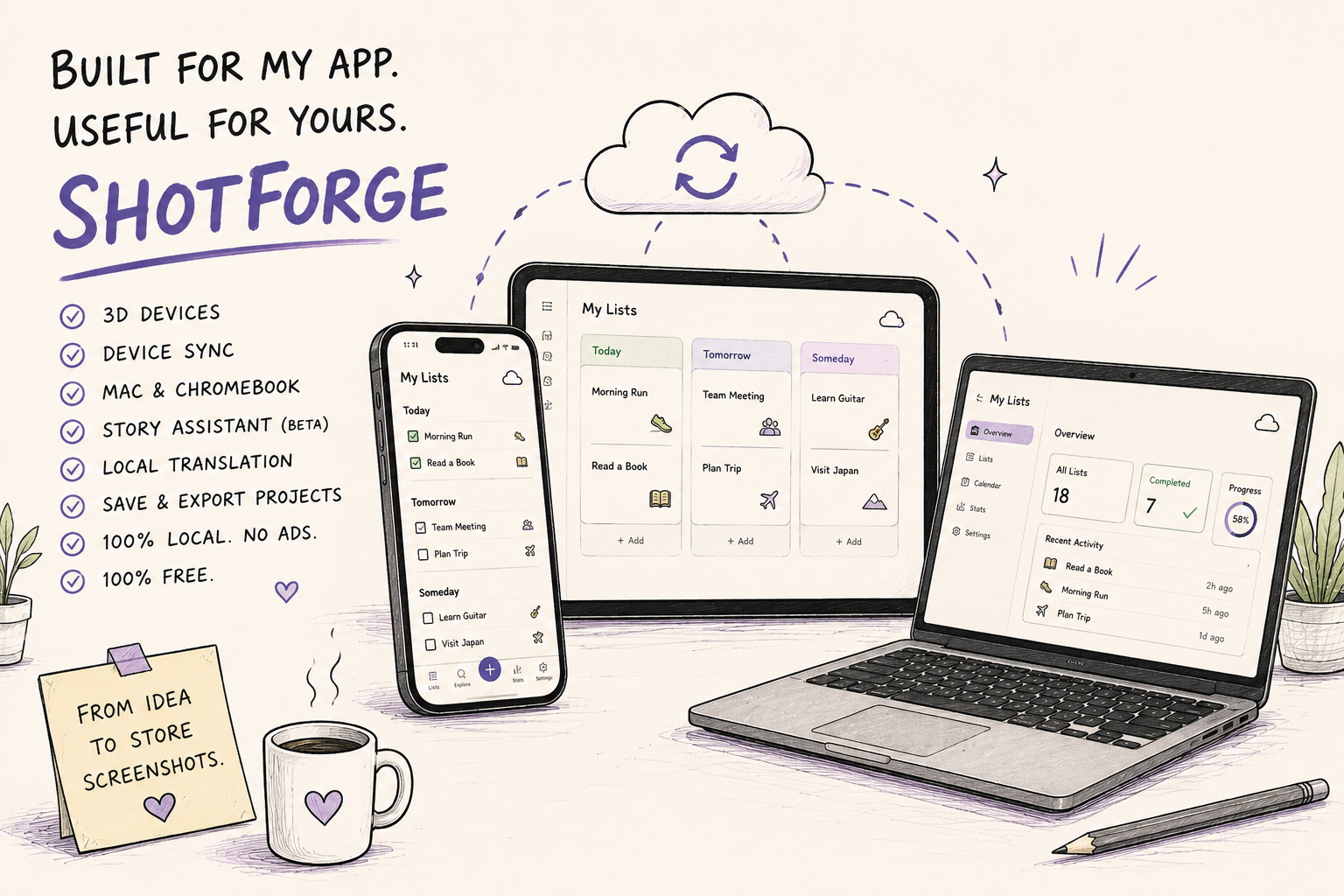
For my new app, I needed a way to show that the same data is available on both iPhone and iPad. That became the new Device Sync layout.
It allows a smartphone and tablet to appear together in a single store graphic. Each device can display a different app screen, while a subtle visual element connects them and communicates synchronization.
Depending on the selected platform, ShotForge automatically uses an iCloud- or Google Drive-inspired theme.
Portrait and landscape formats have their own layouts so that the devices and accompanying text still have enough room.
Because my Ship-a-ton app also runs on the Mac, I later expanded the composition to include a third device. Smartphone, tablet, and laptop can now be presented together in one graphic.
MacBook and Chromebook Support
Adding a desktop device also meant introducing dedicated formats for Mac and ChromeOS apps.
For Mac apps, ShotForge includes screenshot dimensions accepted by App Store Connect. Google Play projects can use a dedicated Chromebook format.
Both platforms have matching laptop frames that can be used either on their own or as part of the Device Sync composition.
What began as a solution for my own iPhone, iPad, and Mac app has therefore also become useful for other cross-platform projects.
Screenshot Story Assistant — Currently in Beta
Another major addition is the Screenshot Story Assistant.
Its purpose is to help turn a collection of individual screenshots into a more coherent App Store or Google Play story.
After uploading the screenshots, you can add information about the app and assign each image to a screen type. The assistant then suggests a suitable order, along with short headlines and sublines in either English or German.
The assistant also works without AI.
In its free template mode, ShotForge uses rule-based story planning and curated text templates. On devices where Chrome already supports its built-in local language model, that model can optionally be used to create more individualized suggestions.
The actual screenshot images are not passed to a language model. Only the app information you enter and the screen types you select manually are processed.
The assistant is still explicitly in beta. Its suggestions are intended as a starting point and should always be reviewed and adapted before export.
Translate All Project Texts Locally
For store listings in multiple countries, all headlines and sublines in a project can now be translated together.
When available, ShotForge uses Chrome's built-in Translator API.
The translation runs directly on the device, requires no API key, and does not send the text to an external translation service.
If the result isn't right, the entire translation can be undone.
Save and Transfer Projects
As projects became more complex—with multiple devices, screenshots, images, and text—ShotForge also needed a better way to preserve work in progress.
In addition to the automatically saved session, multiple projects can now be stored in the browser under custom names.
A complete project can also be exported as a .shotforge.zip file. The archive contains the screenshots, additional images, and all project settings.
It can later be restored or transferred to another computer.
As before, everything happens locally. ShotForge requires neither an account nor a server upload.
Still Free, Local, and Now Ad-Free
I've also removed all advertising and the associated consent banner from ShotForge.
A tool that works without a login, uploads, or watermarks shouldn't greet visitors with an advertising cookie dialog before they've even started using it.
ShotForge remains free and privacy-focused.
Many of these features came from a very specific need of my own.
My first app was made exclusively for the iPhone. The new Ship-a-ton app, however, is designed to work across iPhone, iPad, and Mac while keeping its data synchronized through the cloud.
I needed a way to communicate that difference in the store screenshots.
As a result, ShotForge is gradually evolving from a simple screenshot editor into a complete local workflow—from the first story idea to the final export for different devices and stores.
You can try the latest version at shotforge.studio.
If ShotForge helps with your own app screenshots and you'd like to support its continued development, buying me a coffee is always appreciated. ☕️