

This guide will work for all free Shopify store themes
This works based on the Photoswipe library. It will work fine on JavaScript, so you won't need any additional libraries, like Jquery.
This is a paid tutorial, so steps 5 and 7 will be code protected. If you want to get the code, please contact us directly via email: [email protected] , I will guide you in detail with just a cup of coffee.
Please follow these steps:
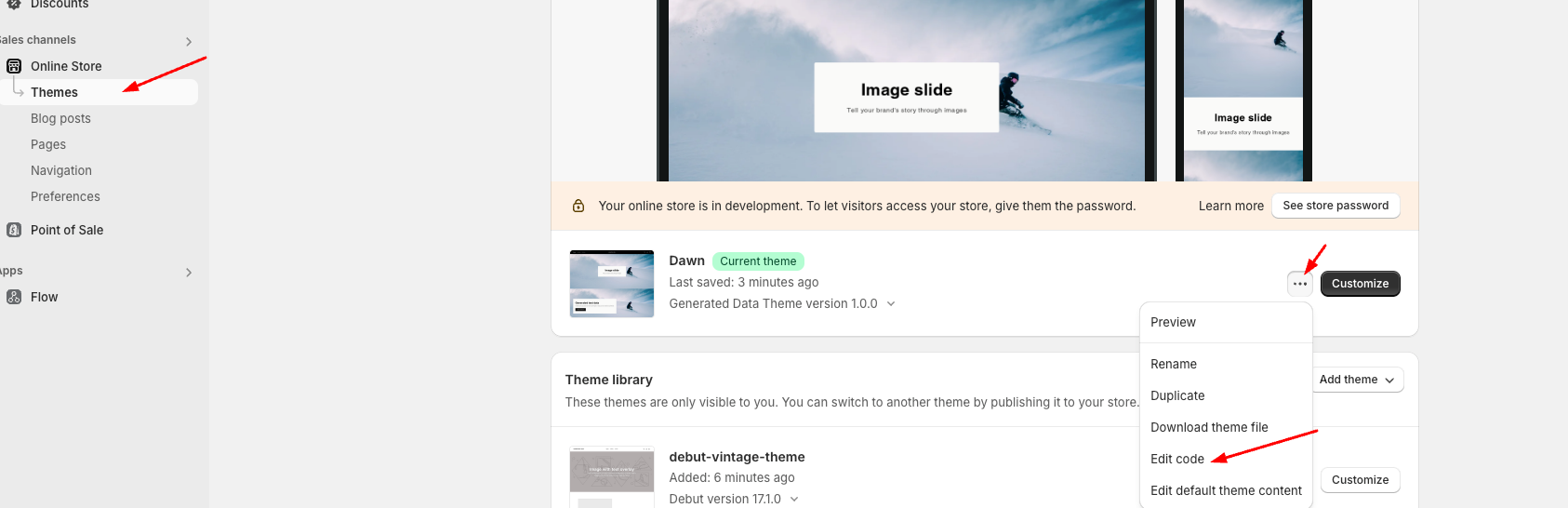
Step 1: Go to Online Store > Themes > Edit code:
Step 2: Upload the photoswipe.min.js file at Assets.
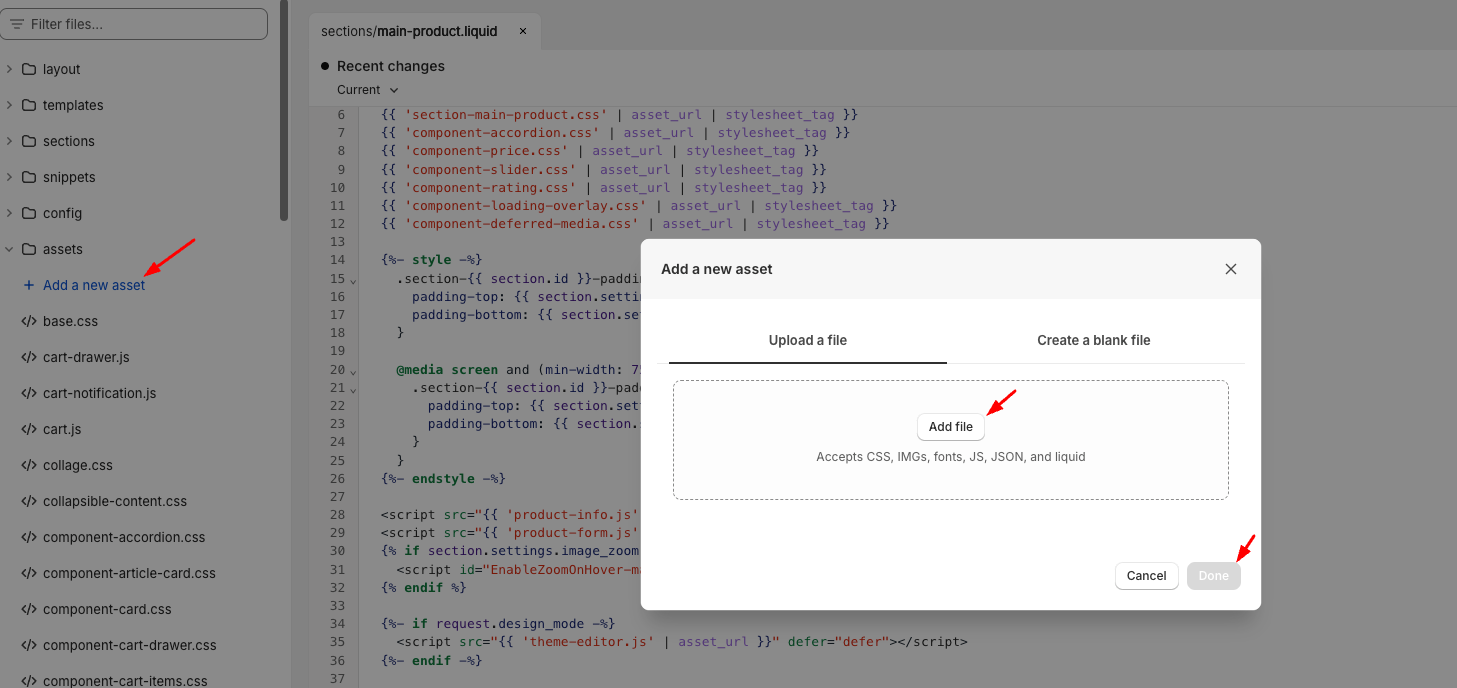
Link file: https://pastebin.com/raw/yk78pTGU
Step 3: Upload the photoswipe.min.css file at Assets. Link file: https://pastebin.com/raw/UXBBJKBB
Step 4: Upload the default-skin.png file at Assets. Link file: https://i.imgur.com/tBMzold.png
Step 5: Upload the media-photoswipe.js file at Assets.
Step 6: Find 'main-product.liquid' file, go to line 493 and add code here:
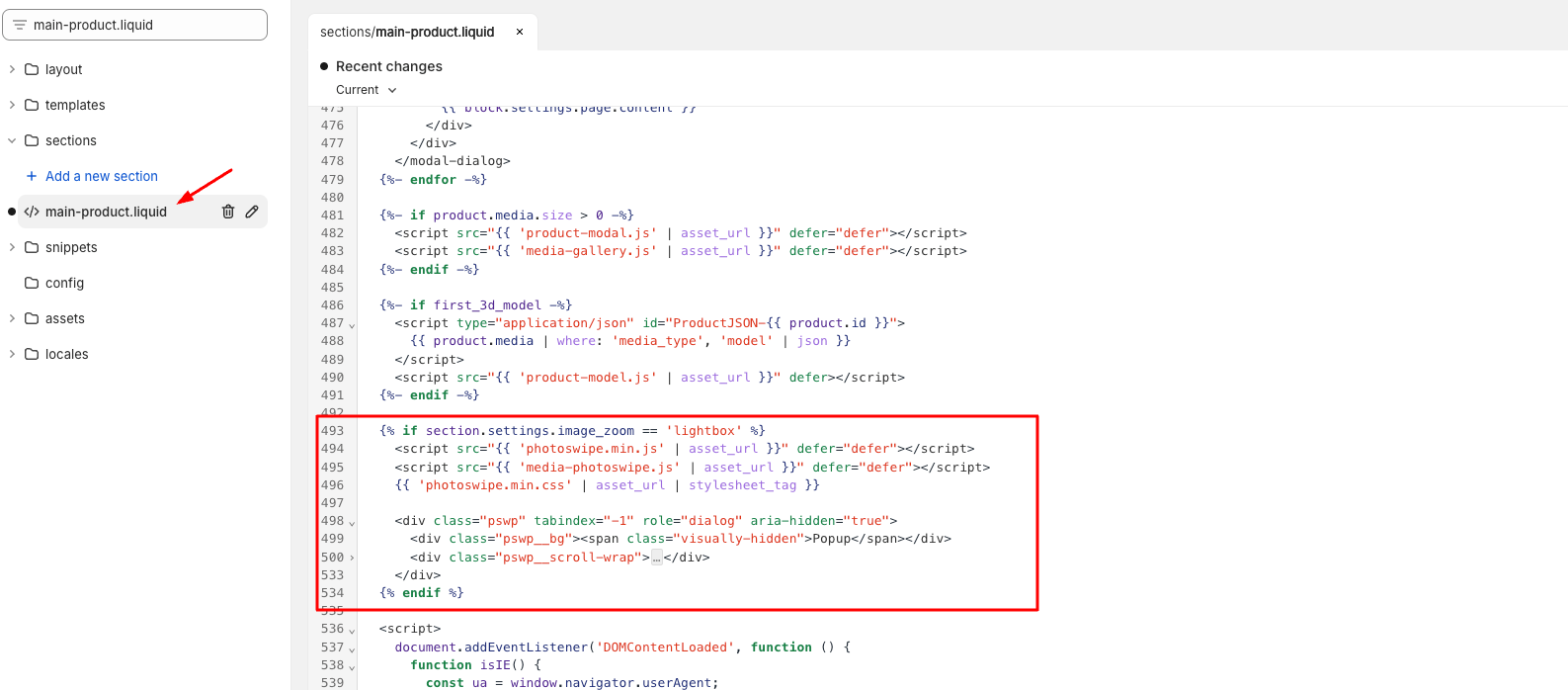
Code:
{% if section.settings.image_zoom == 'lightbox' %}
<script src="{{ 'photoswipe.min.js' | asset_url }}" defer="defer"></script>
<script src="{{ 'media-photoswipe.js' | asset_url }}" defer="defer"></script>
{{ 'photoswipe.min.css' | asseturl | stylesheettag }}
<div class="pswp" tabindex="-1" role="dialog" aria-hidden="true">
<div class="pswp__bg"><span class="visually-hidden">Popup</span></div>
<div class="pswp__scroll-wrap">
<div class="pswp__container" style="transform: translate3d(0px, 0px, 0px);">
<div class="pswpitem" style="display: block; transform: translate3d(-1596px, 0px, 0px);"><div class="pswpzoom-wrap" style="transform: translate3d(549px, 44px, 0px) scale(1);"><div class="pswpimg pswpimg--placeholder pswpimg--placeholder--blank" style="width: 729px; height: 647px; display: none;"></div><img class="pswpimg" src="//cureblame.com/cdn/shop/files/FC446E1A-D283-4864-8E31-D4514D95ED30.png?v=1713510385" style="width: 328px; height: 291px;"></div></div>
<div class="pswpitem" style="transform: translate3d(0px, 0px, 0px);"><div class="pswpzoom-wrap" style="transform: translate3d(549px, 44px, 0px) scale(1);"><div class="pswpimg pswpimg--placeholder pswpimg--placeholder--blank" style="width: 727px; height: 647px; display: none;"></div><img class="pswpimg" src="//cureblame.com/cdn/shop/files/2AEE72CA-6C08-4520-A554-33A40D74A032.png?v=1711749772" style="display: block; width: 327px; height: 291px;"></div></div>
<div class="pswpitem" style="display: block; transform: translate3d(1596px, 0px, 0px);"><div class="pswpzoom-wrap" style="transform: translate3d(567px, 44px, 0px) scale(1);"><div class="pswpimg pswpimg--placeholder pswpimg--placeholder--blank" style="width: 647px; height: 647px; display: none;"></div><img class="pswpimg" src="//cureblame.com/cdn/shop/files/IMG-6185.png?v=1713510386" style="width: 291px; height: 291px;"></div></div>
</div>
<div class="pswpui pswpui--fit pswp__ui--hidden">
<div class="pswp__top-bar">
<div class="pswp__counter">1 / 9</div>
<button class="pswpbutton pswpbutton--close" title="Close (Esc)"></button>
<button class="pswpbutton pswpbutton--share pswp__element--disabled" title="Share"></button>
<button class="pswpbutton pswpbutton--fs" title="Toggle fullscreen"></button>
<button class="pswpbutton pswpbutton--zoom" title="Zoom in/out"></button>
<div class="pswp__preloader">
<div class="pswppreloadericn">
<div class="pswppreloadercut">
<div class="pswppreloaderdonut"></div>
</div>
</div>
</div>
</div>
<div class="pswpshare-modal pswpshare-modal--hidden pswpsingle-tap pswpelement--disabled">
<div class="pswp__share-tooltip"></div>
</div>
<button class="pswpbutton pswpbutton--arrow--left" title="Previous (arrow left)">
</button>
<button class="pswpbutton pswpbutton--arrow--right" title="Next (arrow right)">
</button>
<div class="pswp__caption">
<div class="pswpcaptioncenter"></div>
</div>
</div>
</div>
</div>
{% endif %}
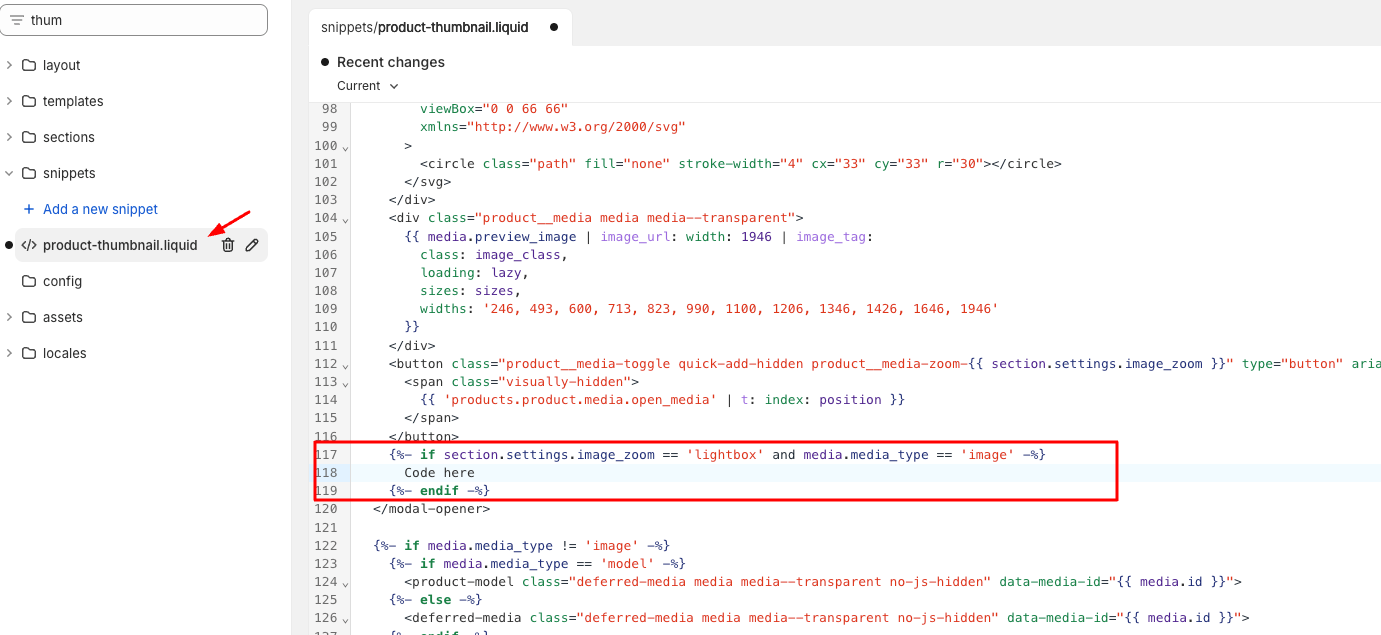
Step 7: Find 'product-thumbnail.liquid' file, go to line 117 and add code here:
Step 8: Go to Customize and select lightbox for Image zoom:
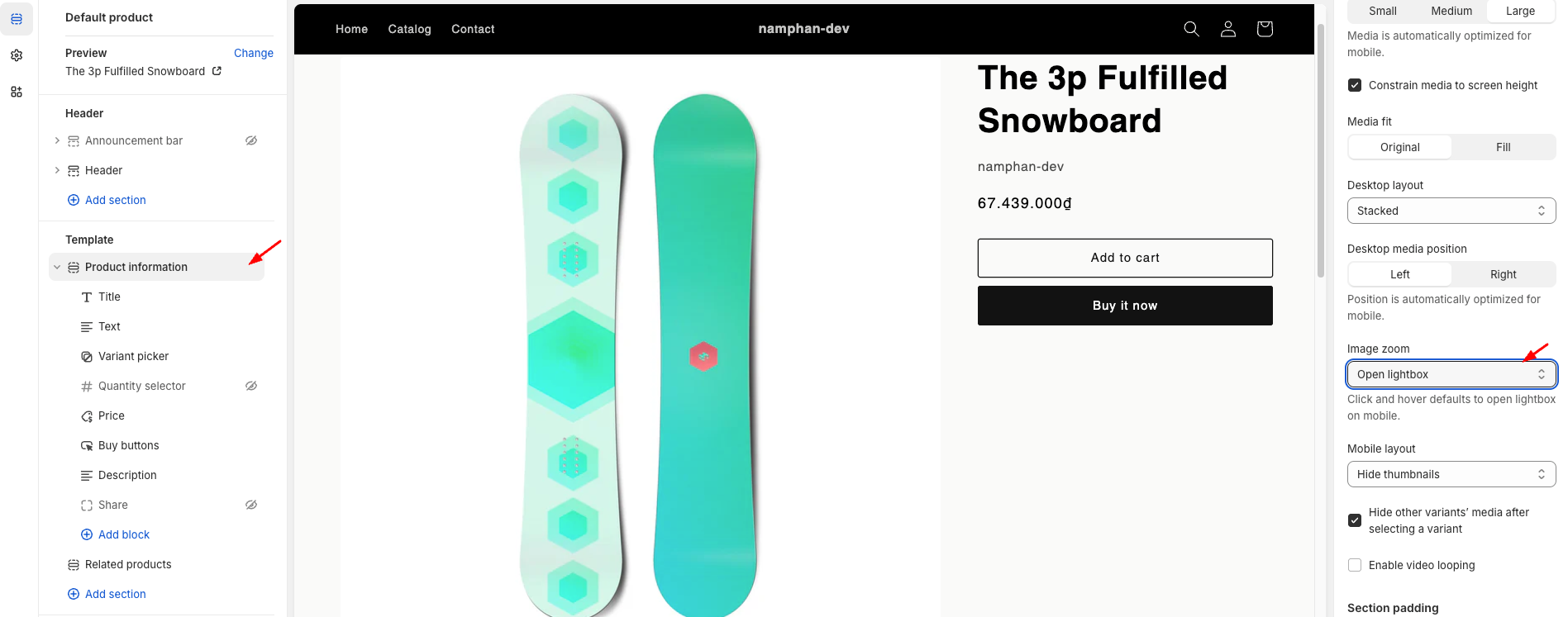
You can check the preview result from this link: https://namphan-dev.myshopify.com/products/the-3p-fulfilled-snowboard ( password: namphan ).
I hope my solution worked well for you!