

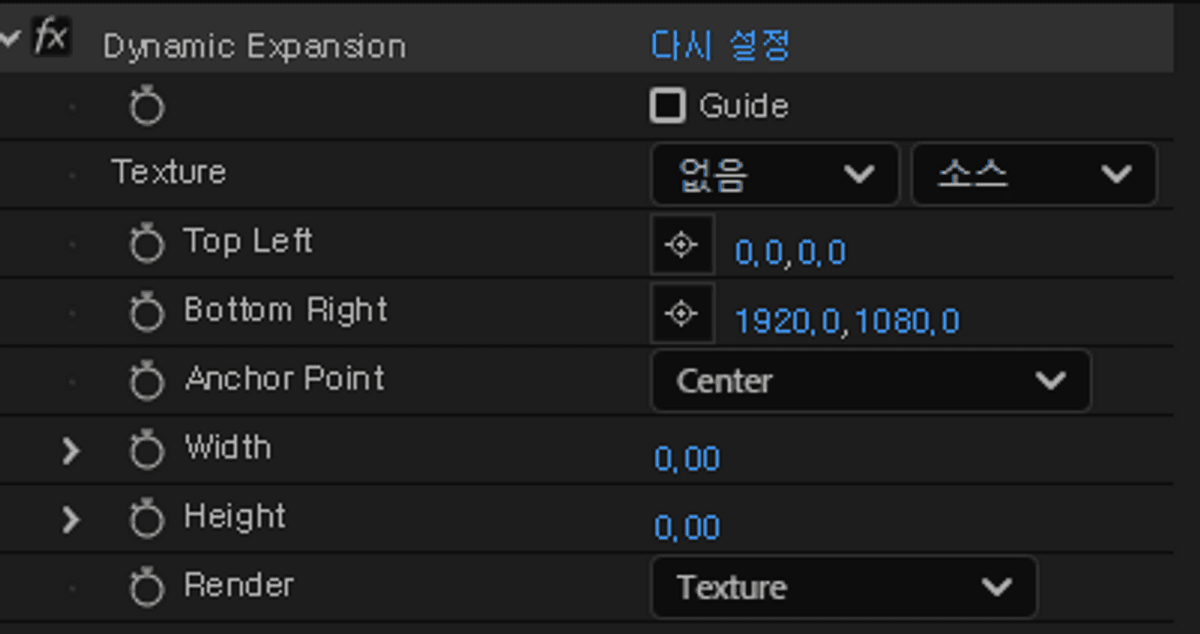
다이나믹 확장(Dynamic Expansion)
$30
https://x.com/repiece_/status/1915767146472255975
This plug-in supports Mac and windows.
On Mac, permission must be granted in Privacy & Security settings during the first launch.
Maintain Image Proportions with 9-Slicing When Scaling an Image
How to Use
1. Create a solid color layer that is larger than the texture layer
2. Assign a Texture
3. Set Top Left & Bottom Right values inside the border to maintain proportion
4. Adjust Width & Height as needed for your situation.
Feature Description
*This is a brief overview. Experiment with various settings to fully experience the functionality
Anchor Point -Provides 9 directional options. These act as the reference point when scaling the texture with Width & Height
Important Notes
For Non-Collapse Layers Only.
When using this plugin with Shape Layers or similar layer types, please pre-compose them before use.
Compatibility is guaranteed for After Effects 2023 and later versions.
Installation
Place the latest version file in the After Effects Plug-ins folder.
Mac → .plugin
Windows → .aex
Tip
You can automate various tasks by using expressions when adjusting Width and Height.
Try using expressions that reference the boundaries of the layer directly above the solid layer
value + thisComp.layer(index-1).sourceRectAtTime(time).width
value + thisComp.layer(index-1).sourceRectAtTime(time).height
이미지를 9개 부분으로 슬라이싱하여 크기를 확장할 때 이미지의 비례를 유지할 수 있도록 합니다. (9-slicing)
사용 방법
1. 텍스쳐 레이어보다 크기가 큰 단색 레이어를 생성합니다.
2.Texture를 지정합니다.
3. Top Left &Bottom Right를 비례를 유지할 테두리 안쪽으로 설정합니다.
4. Width &Height를 상황에 맞게 조절합니다.
기능 설명
*간략한 기능 설명입니다. 수많은 기능을 직접 만져보면서 체험해 보세요
Anchor Point - 9방향 선택지를 제공합니다. Width & Height으로 확장되는 텍스쳐의 기준이 됩니다.
Render
- Texture - 확장된 텍스쳐를 표시합니다.
유의상황
비 콜랩스 레이어 전용 (Non-Collapse Layer Only)입니다. 모양레이어등 하고 사용시 프리컴포지션 해주세요
After Effect 2023 이상 버전에 정상 작동을 보장합니다.
적용 방법
After Effects \ Plug-ins에 최신 버전 파일 하나만 넣어주세요.
Mac -> .plugin
Windows -> .aex
팁
Width & Height를 조절할 때 표현식을 사용하면 여러 가지를 자동화할 수 있습니다.
단색 레이어의 바로 위 레이어의 경계를 가져오는 표현식을 활용하여 응용해 보세요.
value + thisComp.layer(index-1).sourceRectAtTime(time).width
value + thisComp.layer(index-1).sourceRectAtTime(time).height
画像を9分割スライスして拡大しても比率を維持する方法 (9-slicing)
使い方
1. テクスチャレイヤーよりも大きい単色レイヤーを作成します。
2. テクスチャを指定します。
3. Top Left& Bottom Right を、比率を維持したい枠内に設定します
4. Width &Heightを状況に応じて調整します。
機能説明
*これは概要に過ぎません。さまざまな設定を試して、機能を最大限に体験してください。
Anchor Point - 9方向の選択肢を提供します。Width & Height による拡張の基準点になります。
Render
- Texture - 拡張されたテクスチャを表示します。
注意事項
非コラップスレイヤー専用(Non-Collapse Layer Only)です。
シェイプレイヤーなどで使用する場合は、あらかじめプリコンポーズしてからご使用ください。
After Effects 2023以降のバージョンでの動作を保証します。
インストール方法
After Effects の Plug-ins フォルダに最新バージョンのファイルを1つ入れてください。
Mac → .plugin
Windows → .aex
TIP
Width & Height を調整する際、エクスプレッションを使うとさまざまな自動化が可能です。
単色レイヤーのすぐ上のレイヤーの境界を取得するエクスプレッションを活用してみてください
value + thisComp.layer(index-1).sourceRectAtTime(time).width
value + thisComp.layer(index-1).sourceRectAtTime(time).height
Browse the other products below. English is supported.
아래의 다른 상품을 살펴보세요. 한국어를 지원합니다.
以下の他の商品をご覧ください。日本語に対応しています。
$30
$30