


When organizing your video files on Windows, having a visual representation of each file can make it much easier to navigate and identify your content. By embedding a custom image directly into an MP4 file, you can ensure that Windows Explorer displays a personalized thumbnail for your video, making your file library more visually appealing and organized.
In this guide, we’ll walk you through how to embed a custom image into an MP4 file which acts as cover art and then explain how Windows Explorer uses this embedded image when viewing your files.
Why Embed a Custom Image in an MP4 File?
By default, Windows Explorer generates thumbnails for MP4 files by extracting a frame from the video. However, this frame might not always represent the content accurately or look visually appealing. Embedding a custom image allows you to:
Set a professional or personalized thumbnail for your video.
Make it easier to identify files at a glance in Windows Explorer.
Improve the visual organization of your video library.
How to Embed a Custom Image in an MP4 File on Windows
To embed a custom image into an MP4 file, you’ll need a tool that can edit the file’s metadata. One of the most popular and free tools for this is MP3Tag, which supports MP4 files as well. Here’s how to do it:
Step 1: Download and Install MP3Tag
Go to the MP3Tag website and download the software.
Install the program on your Windows computer. The installer of MP3Tags allows for portable installations.
Step 2: Open Your MP4 File in MP3Tag
Launch MP3Tag.
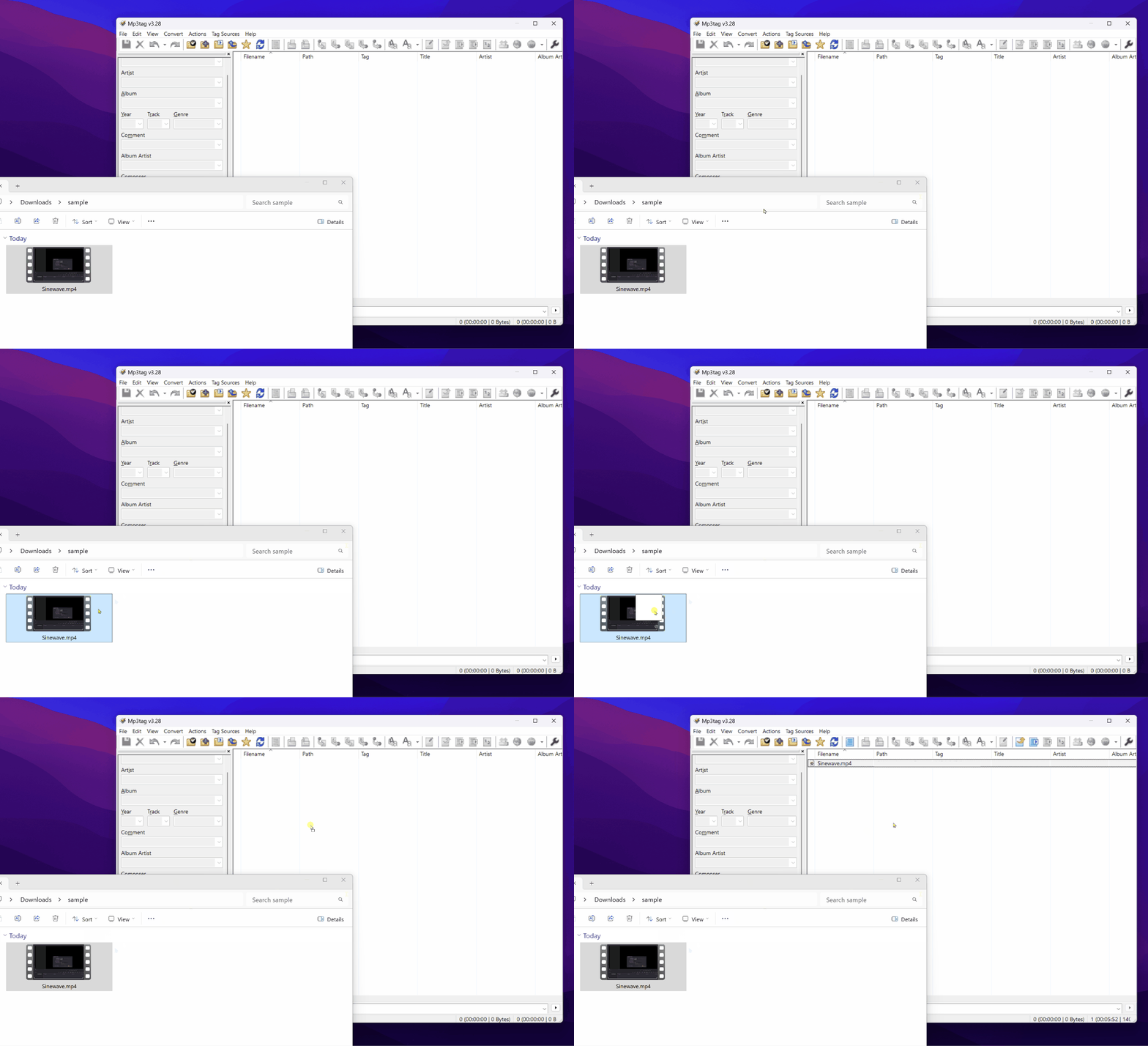
Drag and drop your MP4 file into the MP3Tag window, or use the File > Add Directory option to locate your file.
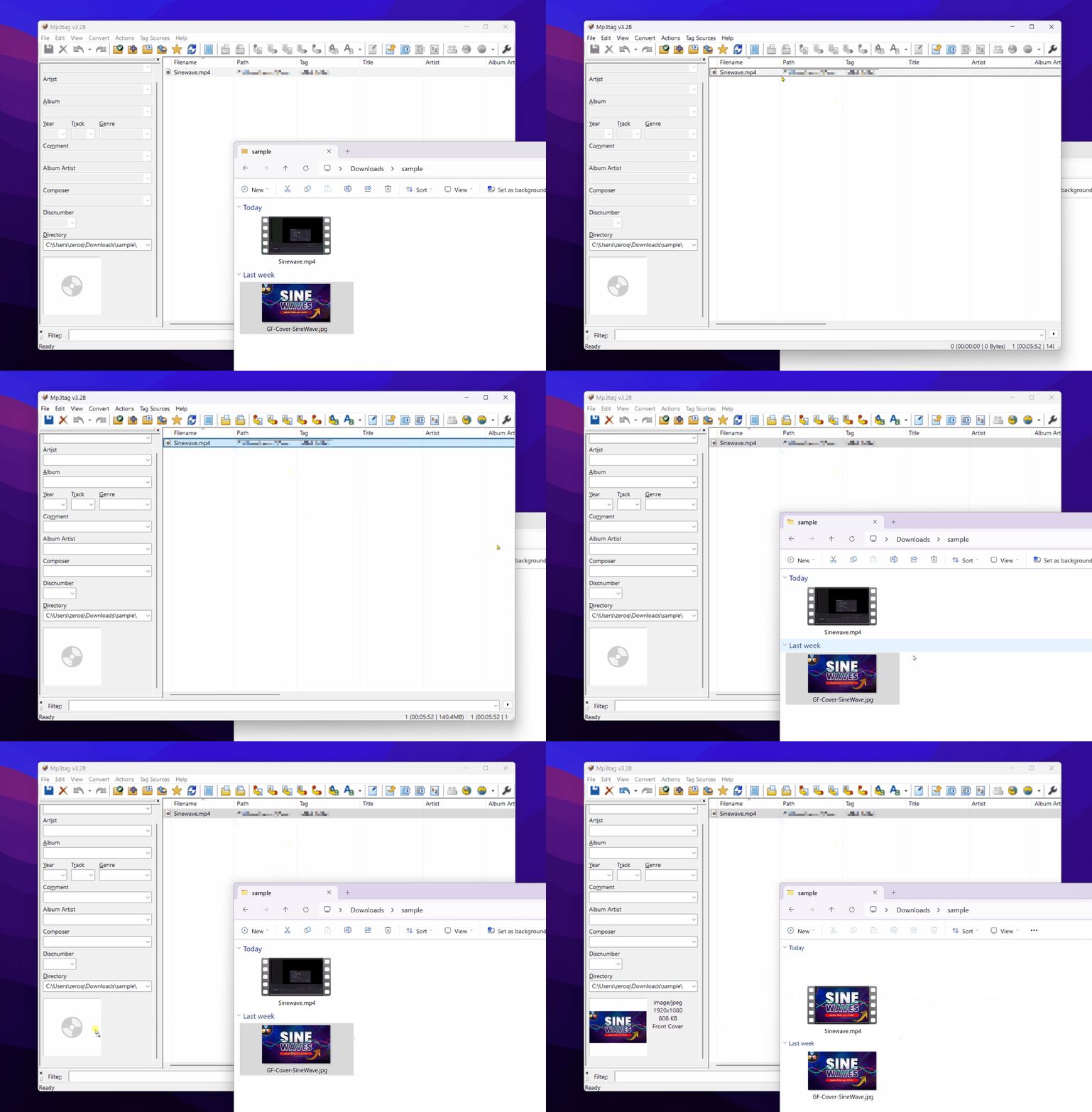
Step 3: Add Your Custom Image
Select the MP4 file in the list (important)
Drag and drop your image (JPEG or PNG) to the empty cover art holder, which should be just below the directory and contains an icon of a CD.
Save the changes by clicking Save in the toolbar or pressing Ctrl + S.
Step 4: Verify the Embedded Image
Open Windows Explorer and navigate to the folder containing your MP4 file.
Switch to Large Icons or Extra Large Icons view to see the embedded image as the thumbnail.
How Windows Explorer Uses Embedded Images
When you embed a custom image in an MP4 file, Windows Explorer uses this image as the thumbnail for the file in certain view modes. Here’s how it works:
Thumbnail View:
In Large Icons or Extra Large Icons view, Windows Explorer displays the embedded image as the thumbnail for the MP4 file. This makes it easy to identify the file visually without opening it.Details View:
In Details view, the embedded image does not appear directly, but you can still see the file name, size, and other metadata. However, hovering over the file or opening the folder in a thumbnail view will display the custom image.File Preview:
When you select the file in Windows Explorer, the embedded image may also appear in the Preview Pane (if enabled) or as part of the file’s metadata in the Details Pane.Folder Icons:
If the MP4 file is part of a folder, the embedded image may influence the folder’s thumbnail representation, especially if the folder contains multiple media files.
Tips for Best Results
Image Size: Use a square image (e.g., 500x500 or 1000x1000 pixels) for the best results. This ensures the thumbnail looks clean and professional.
File Format: JPEG or PNG formats are recommended for compatibility.
Backup Your Files: Before editing metadata, make a backup of your MP4 files in case anything goes wrong.
Conclusion
Embedding a custom image in an MP4 file is a simple yet powerful way to personalize and organize your video library on Windows. Keep in mind that this only works for .mp4 files. By following the steps above, you can ensure that Windows Explorer displays your chosen image as the thumbnail, making it easier to navigate and identify your files. Whether you’re managing a personal collection or preparing files for professional use, this small tweak can make a big difference in how your content is presented and accessed.
Give it a try and see how much more visually appealing your video library becomes in Windows Explorer.