

 You Can Take It With You is a short new series on exporting community data from internet silos. The planned portion of this series starts with Discord. The series begins with getting your chat history out of Discord servers, which will be the focus of this post. Subsequent posts will focus on hosting your archive such that it can be searched and viewed by your community without being on Discord and a tutorial for using a software to render the archive more legible. While I am keen to archive our other previous online haunts and intend to write about them should that happen, I won't tease them because the work is nowhere near done. The Discord work is, though, so that is where we will begin.
Discord, with its mountain of venture capital money, has solved a real problem for people around the world. They have made an easy-to-use voice chat system, bolted internet-relay chat to it, and managed to convince nerds and normies alike to create an account to connect with their friends. Its wide adoption by people means that community groups, organizations, and collectives of people have moved their communications there.
Scores of people communicating on Discord has been a disaster for privacy, indexing, information retrieval, and knowledge preservation generally. Most people don't concretely care about end-to-end encryption (E2EE), but they care about their privacy. More than privacy, people care about staying connected with their friends.
Given Discord's lack of E2EE and present circumstances, people may be seeking out alternatives, but their friends and the shared history they possess may be anchoring them to a platform that will one day IPO and heed the siren song of increasing shareholder value. This post won't go over whether you should move project communications elsewhere (you should) or where you should take your community, but if the knowledge embedded within Discord chats is what is keeping you and yours beholden, the goal of these posts is for you to be able to yell "anchors aweigh."
Prerequisites
For this piece you will need the following
Permissions to add a bot account to the server you wish to preserve and that bot must have permissions to preserve all the channels want to archive.
Developer mode enabled on the server.
The ID of the server you are attempting to archive.
You might want to open a scratch file for text we need to save for later parts of this tutorial.
Download DiscordChatExporter
This post is written from a Linux device, so the commands will work on those systems; however, the software we will use to rescue our data has been compiled for Mac and Windows as well. You can get the software from the DiscordChatExporter's releases section on GitHub..
This post will detail the command line arguments used, but you may want to keep their documentation on hand in case you have questions.
Setting up a bot account
Scraping with personal accounts is a terms of service violation on Discord. The software we use does allow you to take that path, but go ahead and setup a bot.
Navigate to the developer portal

Select New Application
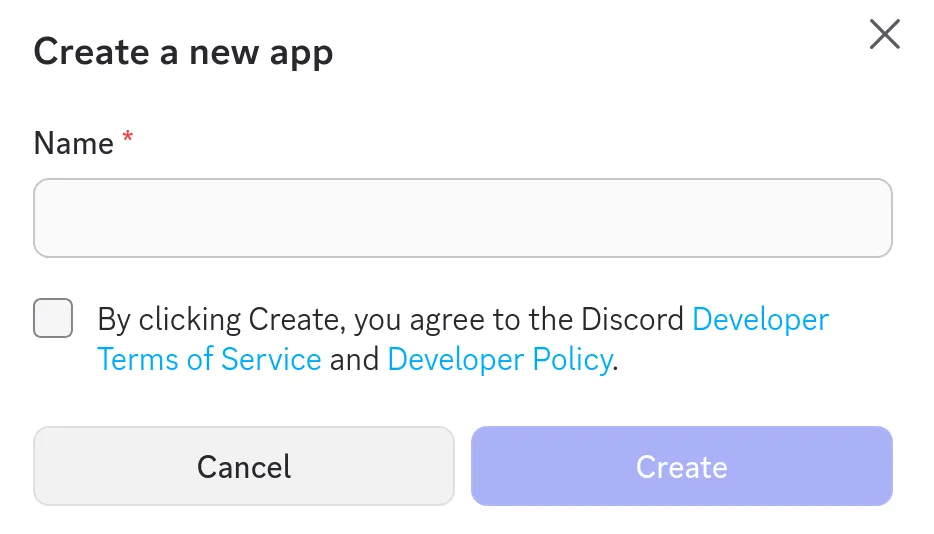
Enter your app name and agree to the terms of service.
Fill out General Information
There is a ton of information you can fill out for your bot. I opted not to because I was exporting information from a small community and had no intention of sharing it elsewhere because I only created the bot to get access to a bot token.
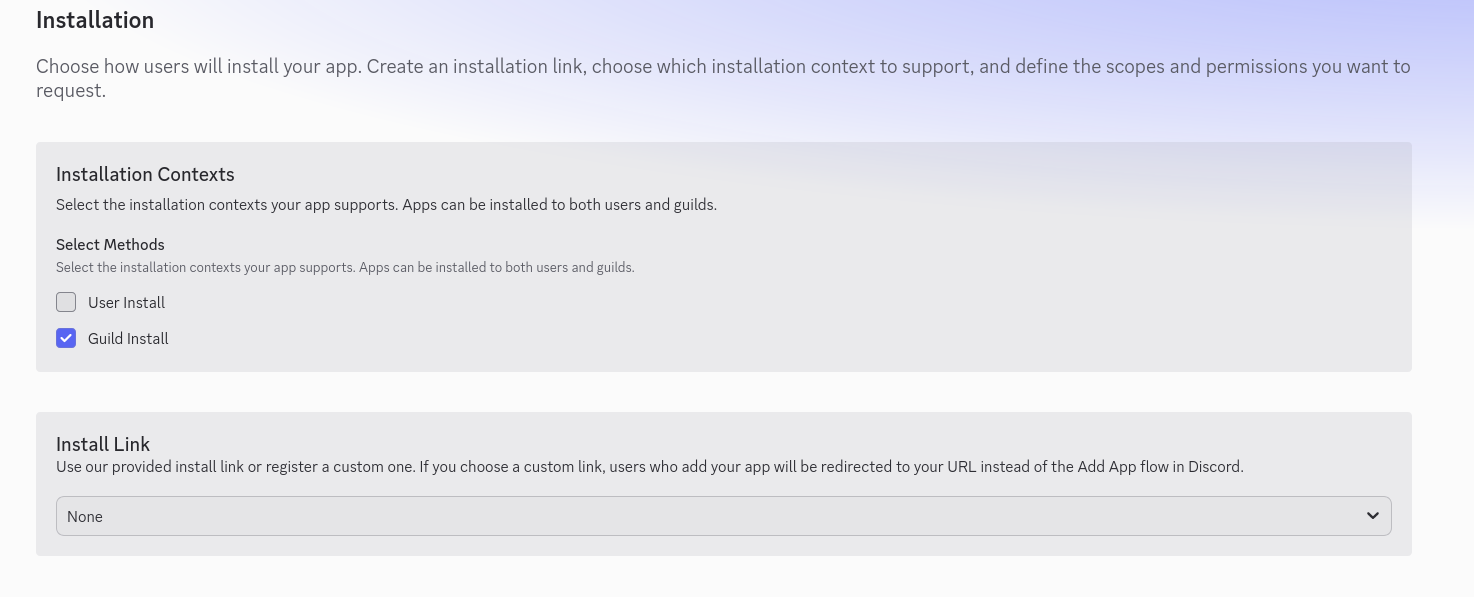
Setup the Installation page.
Set the invite link to
None. This process goes through setting up a private bot and private bots must have either a custom installation link or none. Since this is not some consistent dedicated workflow, we will opt to go withNoneand setup OAuth2.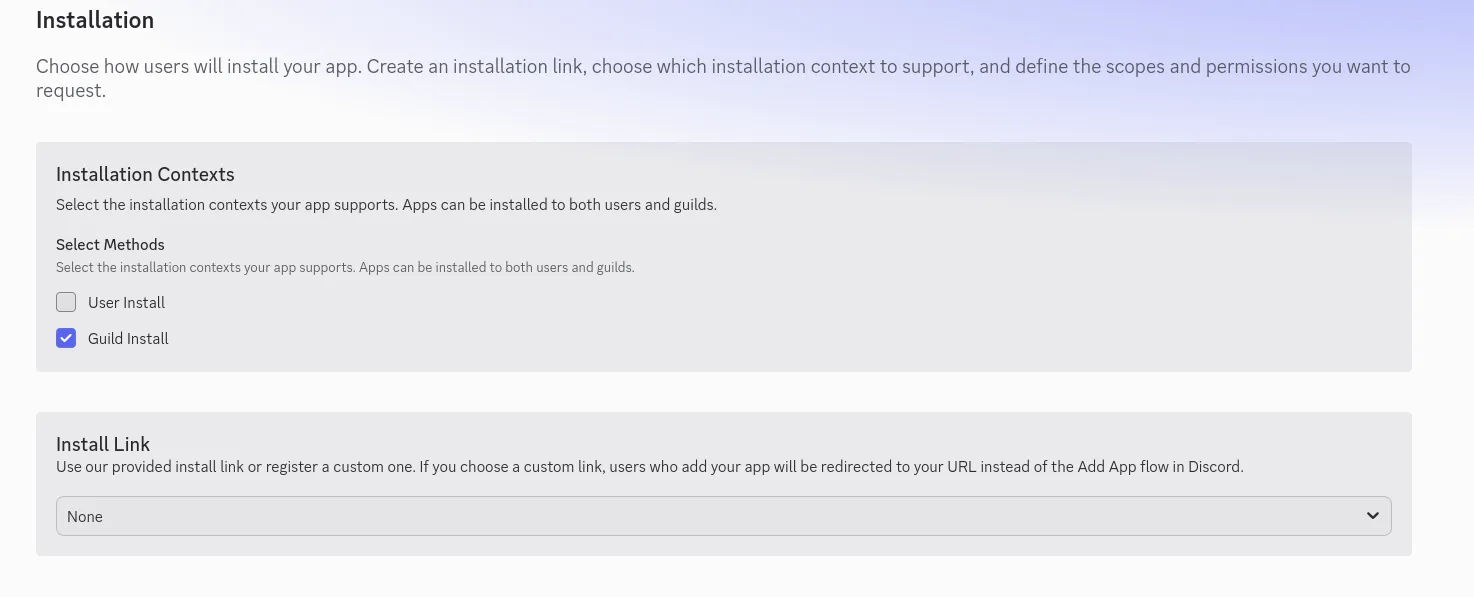
get the token
Navigate to the Bot page.
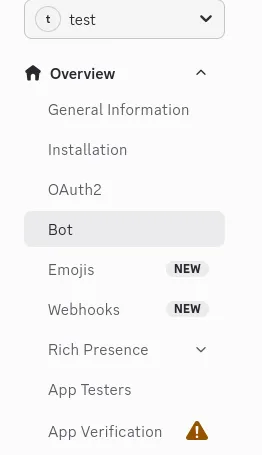
Under the Token section you can create or regenerate the token.

Save the token in somewhere, we will need it later during setup.
Make the bot private so that you must install it on the servers you want to export.

Preparing the Server
With the bot set up, we still need to prepare the server for archiving.
Enabling Developer Mode
Developer mode is required so that we can expose the machine readable name of the server.
Navigate to
User Settings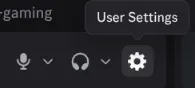
Scroll down to
Developer, it should be just aboutLog Out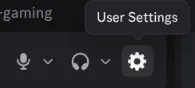
Set the toggle to on.

Acquiring the Server ID
With Developer Mode enabled we can now access the server ID.
Click into the server options and navigate to
Copy Server Info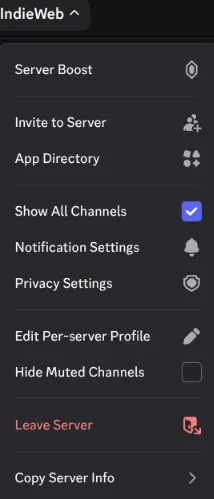
With Developer Mode enabled we can now access the server ID.
Click into the server options and navigate to
Copy Server InfoSelect
Copy Server ID
Put the server ID somewhere safe, it will be needed for a later step.
Adding the Bot to the Server
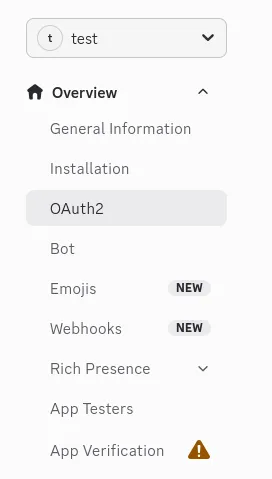
Navigate to OAuth2
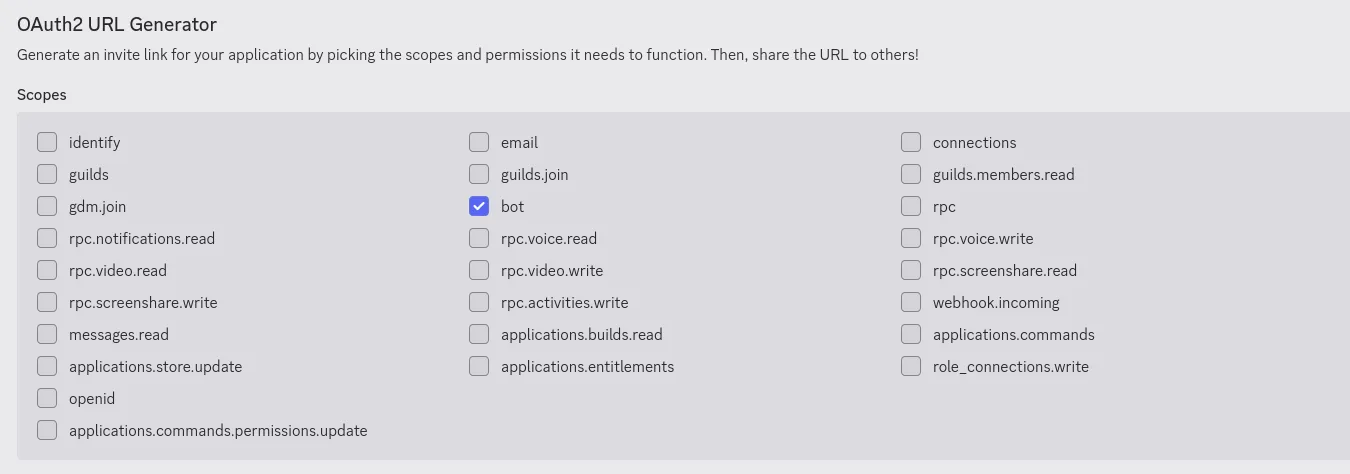
In the OAuth2 URL generator select bot
Grant permissions to the bot
When I did mine, I opted for administrator permissions out of a desire to not spend a ton of time tweaking the permissions. My guess is that
Read Message Historyshould be sufficient, but I didn't test this. I went withAdministratorprivileges and after I confirmed the archival process worked, I booted the bot from the server.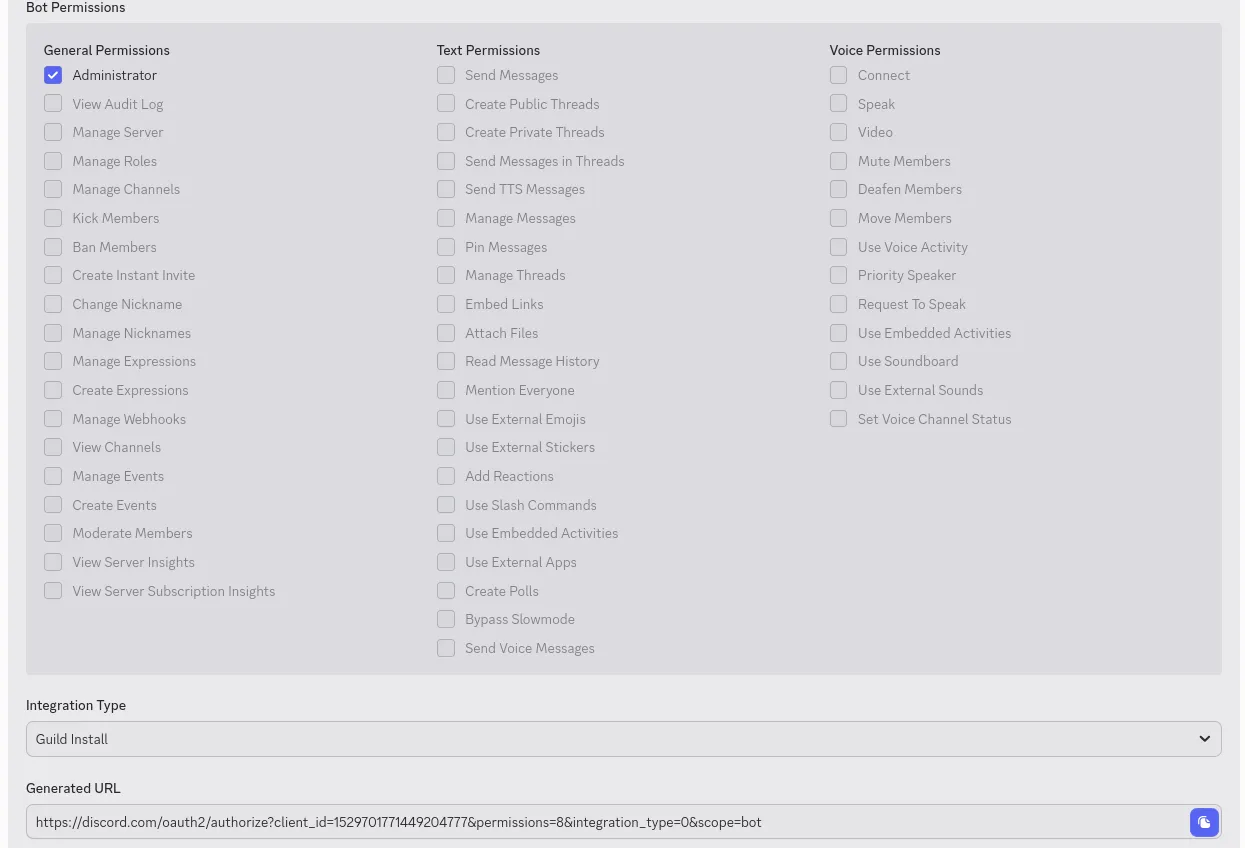
Use the generated URL to add the bot to your server.
This will actually give you the option to add the bot to any server where you have the
Manage Serverpermission. Double check which server you are adding to, to ensure it is the correct one.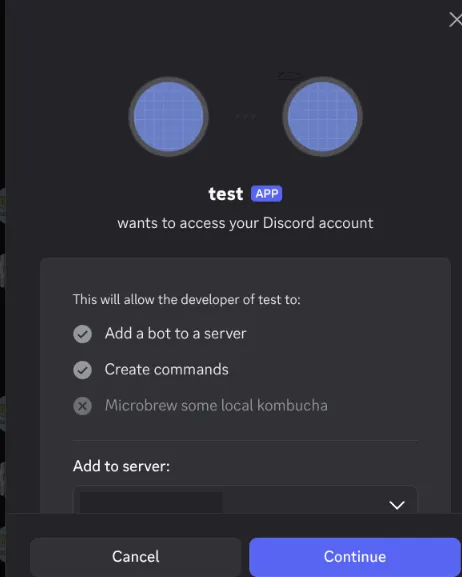
Setting up DiscordChatExporter
Installation
You can snag the binary from the executable linked at the beginning of this guide, or you can visit the downloads section of the README and use one of the methods there. Here on EndeavorOS, I have access to the Arch User Repository and opted to get the software with yay -S discord-chat-exporter-cli.
Archiving the Server
It is finally time. We can now do what brought us together: preserving our community data. There is both a graphical interface and a command line interface for DiscordChatExporter. This guide focuses on the command line, but if the GUI is your preference, the settings used within may still be relevant.
Command
If you want a decent command and don't care what it does, you can take this and fire away: discord-chat-exporter-cli exportguild -t {token} --guild {server_id} -o ./ --reuse-media --parallel 3 --include-threads All --markdown false --format Json
For those who have continued reading, let's walk through the command.
discord-chat-exporter-cli is the command that invokes the software from my terminal.
exportguild "Guild" is a synonym for "server" in Discord and the resulting archives. For example, the Zig server would be like The Zig Programming Language guild according to the JSON we get from this software. There are other commands like exportdm or exportall. If you run discord-chat-exporter-cli -h , the help file will provide additional information.
-t is the shorthand for how you pass in the token that was saved from an earlier step.
--guild is the flag that allows you to set your server_id. We acquired that in an earlier step.
-o is where the archive will output to. I created a directory and invoked the above command from within the directory so all the files would go there, but you might have different ideas.
--reuse-media effectively reduces the number of times an image is downloaded. I can't say that I quite understand how this works; I didn't go digging in, but I hope that something cool like file hashing is happening to know whether a file has already been downloaded, and that allows for more efficient resource reuse. If the media of your server is of key importance to you, then I recommend taking a deeper look at this command.
--include-threads allows you to determine if you want no threads, active threads, or all threads.
--parallel allows multiple channels at a time to be archived. If you have a huge amount of channels, you may want to tweak this for performance. I chose three because it was better than a single instance working at one time, and it didn't feel like that amount would make my computer cry.
--markdown This allows for the processing of Markdown and mentions. I opted to keep it plaintext.
--format There are all sorts of formats you can choos from plain text to HTML; however, the most useful format for my purposes was JSON (later posts in this series will make it clear as to why).
Post-Archive
Once you have run the command, I would mostly take some time to peruse the files to get a feel for the structure of your prize but to also spot check the output and make sure that it feels like everything has been retrieved.
Removing the Bot
Once you are done, you can choose to delete the application, which will remove it from any servers you install. You can also manage this through the Roles/Members of the Discord server itself, but I found this more straightforward.
Navigate to General Information
At the bottom right select
Delete App.
Enter the name of your bot and click
Delete Appagain.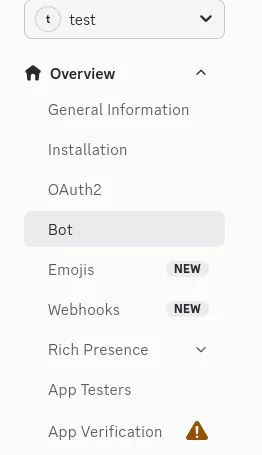
Coda
Going into the writing of this, I thought it would be fairly straightforward, because it was for me. It was only straightforward for me, though, because three years ago I mounted a half-baked attempt at archiving our server and laid all the groundwork for this. This time around, the only thing I needed to do was to refresh a token, install the software, and learn how to write the command I needed. That took me maybe 30-40 minutes to get to a satisfactory place with our archive. Having done it better, I feel good about not keeping the Discord around, and making the argument that we should consign the server to fickle corporate memory. The next post will focus on hosting a web copy of the archive that allows you to search it from a web browser while remaining in the familiar Discord interface.
If you liked this piece, consider supporting the work at Screaming at the Silicon. The other current in-progress series is We Have the Torment Nexus at Home, where I go through setting up and using local language models with free software, but there is other computer and programming work entirely unrelated to tech de jour already available and in the pipeline.
Bibliography
“Creating a Bot Account.” Accessed July 20, 2026. https://discordpy.readthedocs.io/en/stable/discord.html.
Discord. “Setting Up Permissions FAQ.” Discord Support. Accessed July 20, 2024. https://support.discord.com/hc/en-us/articles/206029707-Setting-Up-Permissions-FAQ.
Holub, Oleksii. Tyrrrz/DiscordChatExporter. C#. Accessed July 20, 2024. https://github.com/Tyrrrz/DiscordChatExporter.
License
This piece You Can Take It With You © 2026 by Glass Hound Computing, LLC is licensed under CC BY-NC-SA 4.0. To view a copy of this license, visit https://creativecommons.org/licenses/by-nc-sa/4.0/
The accompanying image Taking It With You © 2026 by Glass Hound Computing, LLC is licensed under CC BY-SA 4.0. To view a copy of this license, visit https://creativecommons.org/licenses/by-nc-sa/4.0/