

Microsoft Excel may disable macros by default to protect your system. Below are the common macro-related security messages and their solutions.
Problem 1: PROTECTED VIEW – Enable Editing
Problem Details: When opening an Excel file downloaded from the internet or received via email, Excel may open it in Protected View. A yellow bar appears at the top stating:
“Be careful—files from the Internet can contain viruses. Unless you need to edit, it’s safer to stay in Protected View.”
 Solution: If you frequently open trusted Excel files and want to avoid Protected View:
1. Click File → Options
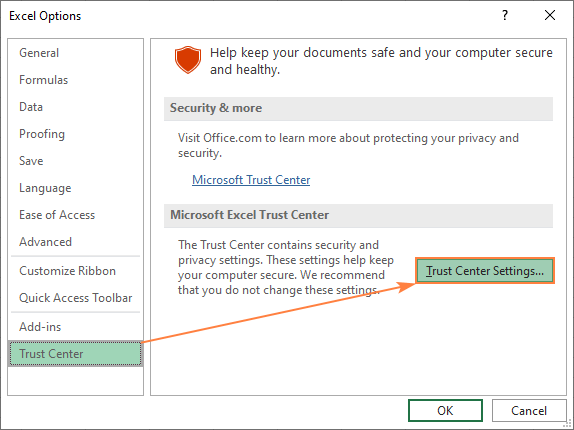
2. Select Trust Center
3. Click Trust Center Settings…
4. Choose Protected View
5. Uncheck All
6. Click OK
Problem 2: SECURITY WARNING – Macros Have Been Disabled
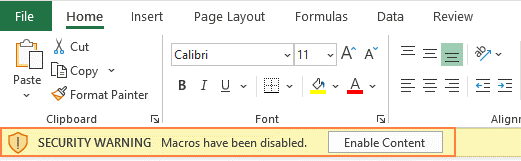
Problem Details: With the default macro settings, when you open a macro-enabled workbook for the first time, a yellow Security Warning bar appears below the ribbon.
 Solution: If you trust the source of the file and know that all the macros are secure,
1. Click Enable Content on the yellow security warning bar.
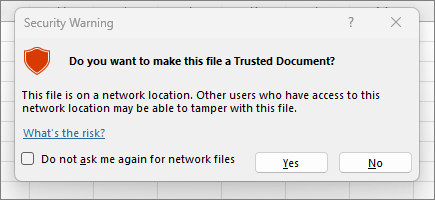
2. In the Security Warning dialog box, select Yes to trust the document.
Problem 3: Enable Macros via Security Notice (VBA Editor Open)
Problem Details: If the Visual Basic Editor (VBE) is open while opening a macro-enabled workbook, Excel displays a Microsoft Excel Security Notice instead of the yellow bar.
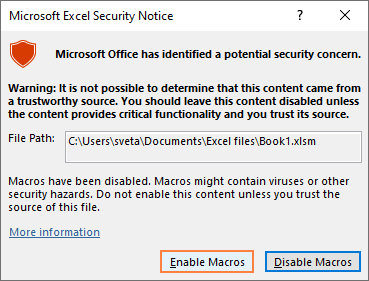 Solution: If you trust the source of the file and know that all the macros are secure, click Enable Macros button. This will turn on the macros and make the file a trusted document. The next time you open the workbook, the security warning won't appear.
Problem 4: SECURITY RISK – Microsoft has blocked macros from running because the source of this file is untrusted
Problem Details: In newer versions of Excel, macro-enabled files downloaded from the internet may show a red Security Risk message
 Solution: To unblock a macro that is blocked by Microsoft, this is what you need to do:
1. Close the Excel workbook.
2. Navigate to the file location.
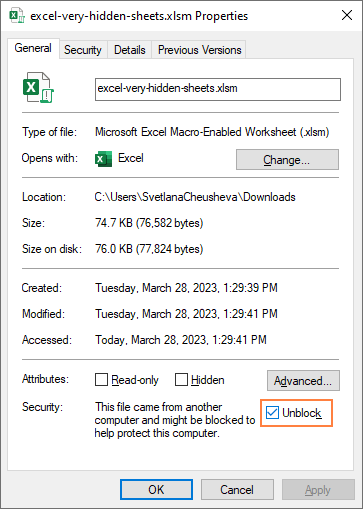
3. Right-click the file and select Properties.
4. In the General tab, check the Unblock option.
5. Click OK, then reopen the workbook.
Problem 5: Enable Macros via Trust Center Settings
Problem Details: Excel determines whether VBA code can run based on the macro settings configured in the Trust Center.
Solution: To enable macros for all workbooks by default:
1. Click the File tab and select Options.
2. Choose Trust Center from the left pane.
3. Click Trust Center Settings…
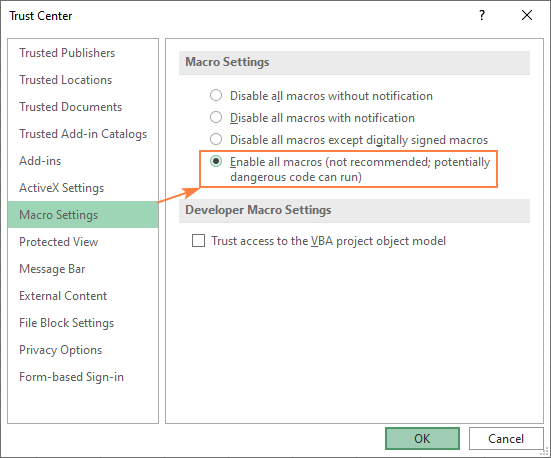
4. Select Macro Settings.
5. Choose Enable all macros.
6. Click OK to save changes.