

Remote browser isolation (aka RBI) is one of the top growing technologies for the security of web browsing. For those who don’t know, the idea is to isolate users’ Internet browsing in a remote environment, preventing possible malicious code to execute on endpoints.
Along with several other products, Palo Alto Networks offers its RBI product as part of the Prisma SASE platform. For smaller or otherwise on-premise deployments, at the moment it is not possible to use this product, so I tried to setup a "craft" solution for these use cases.
Neko (and neko-rooms)
Neko is a fully-functional self-hosted virtual browser that runs in Docker and uses WebRTC technology. It’s a really powerful and well-made open source software, and it’s very easy to setup. Among the various installation options, my advice is to use Docker Compose, which is super simple and also allows easy customisations by modifying the docker-compose.yaml configuration file.
Below the command for installation using Docker Compose:
wget https://raw.githubusercontent.com/m1k1o/neko/master/docker-compose.yaml
sudo docker-compose up -d
Once installed, you can access the virtual browser by pointing at the server FQDN or IP address on port 8080. You can use whatever username to access with neko as password. Simple isn’t it?
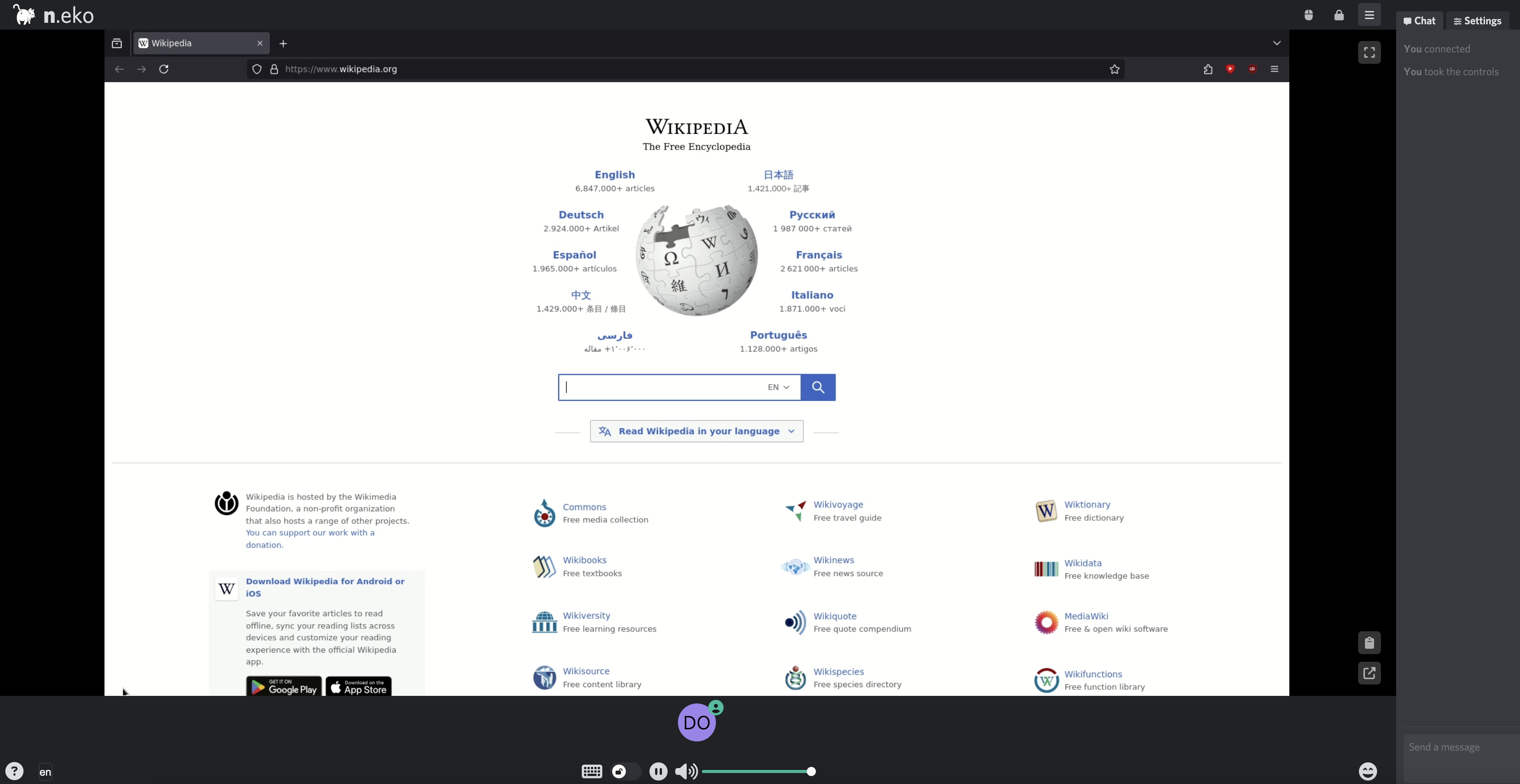
One thing to note about Neko (but also about other similar software, for example BrowserBox) is that the virtual browser instance is shared between among all users accessing. That is, if two users access the server URL they will see the same browser instance, such as if they were sharing the screen in a video conference.
Thinking about multi-user access, Neko could be easily managed with multiple “rooms” with the neko-rooms add-on. Even in this case we can use Docker Compose for installation, below the commands:
wget https://raw.githubusercontent.com/m1k1o/neko-rooms/master/docker-compose.yml
sudo docker-compose up -d
Once the installation is done, as with standalone neko, you can access the room management interface by pointing at the server FQDN or IP address on port 8080:
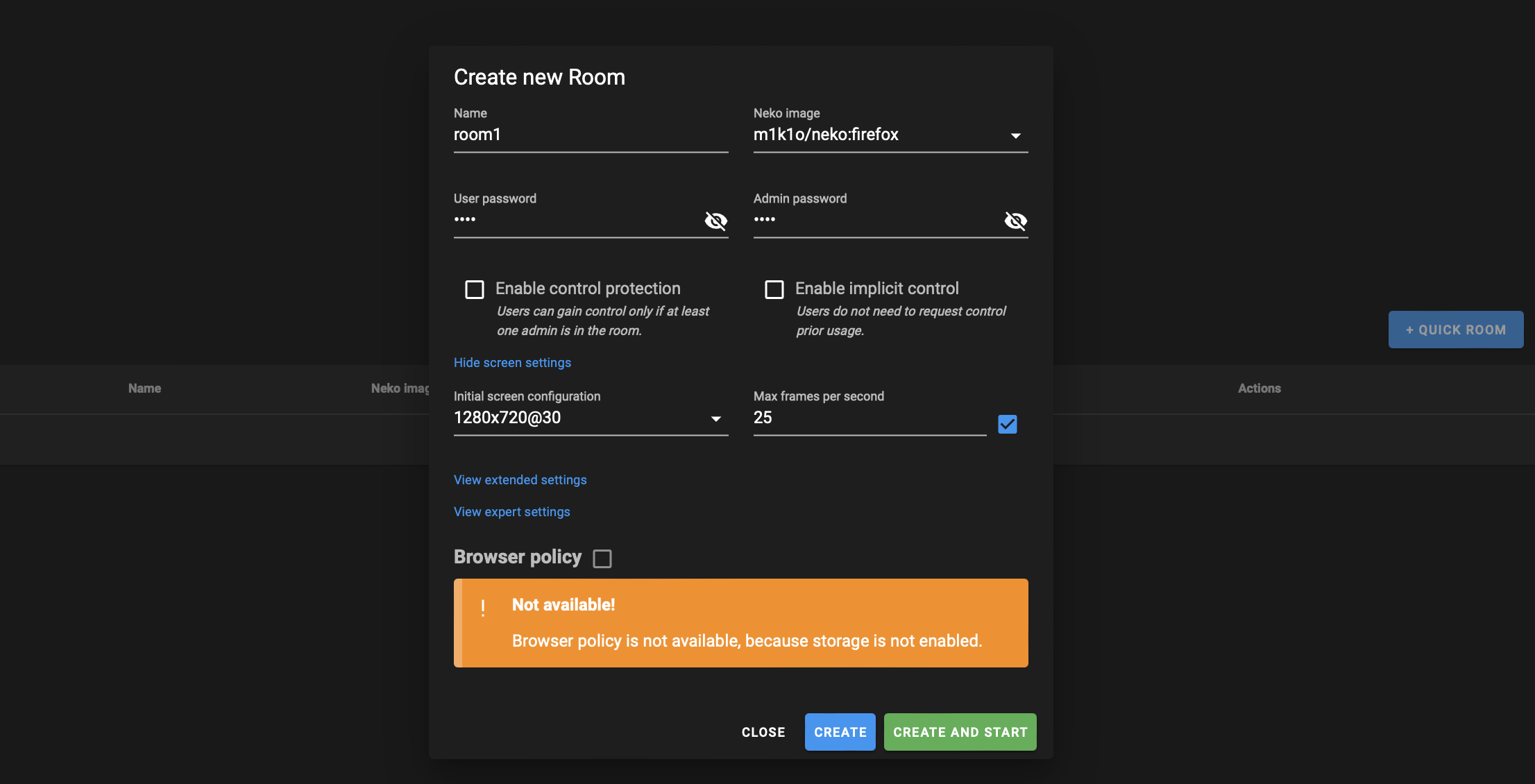
Each room can then by accessed using the pattern https://<server-fqdn-or-ip>/<room-name>
Firewall binding
To redirect users’ sessions to Neko rooms using our NGFW, one idea could be to take advantage of the continue action of Advanced URL Filtering. The idea is to determine in advance which categories of sites, either pre-defined or custom, need to be accessed through the isolated virtual environment, and set the action for those categories to continue. The other necessary task is the customisation of the courtesy page that is displayed for sites that match. Here is an example:
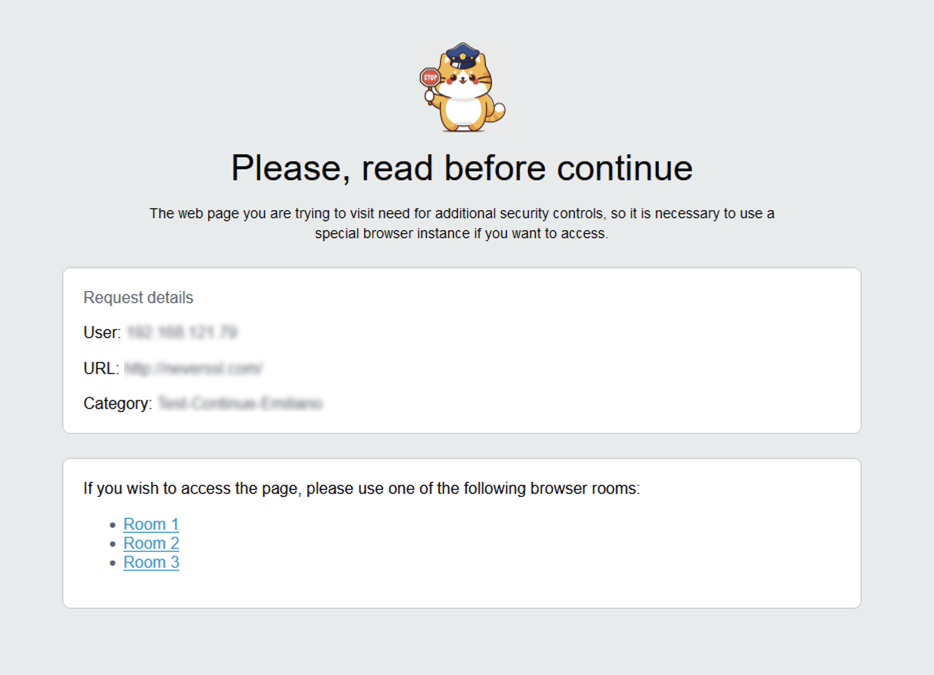
HTML code for the above page is here.
Optionally, if the user session is identified by User-ID, we can also automate the login to the Neko instance building an URL like https://<server-fqdn-or-ip>/<room-name>?usr=<your-user-name>&pwd=<room-pass>
An additional advantage
Beside security benefits, remote browser isolation in conjunction with NGFW can also be used to perform TLS inspection where you normally can’t, for example in situations where clients are not managed. Since you have full control of the self-hosted virtual browser, you can easily add an internal root CA within it and configure TLS Forward Proxy for sessions originated by that browser.
Conclusion
I hope this idea can be inspirational! Clearly, the above setup with default Neko settings is a bit hacky, but I think it shouldn’t be too complicated to make it stronger and production ready. Indeed, Neko has many configuration options you can try and play with.
And if you find this content useful, please consider buying me a coffee! Till the next time!