

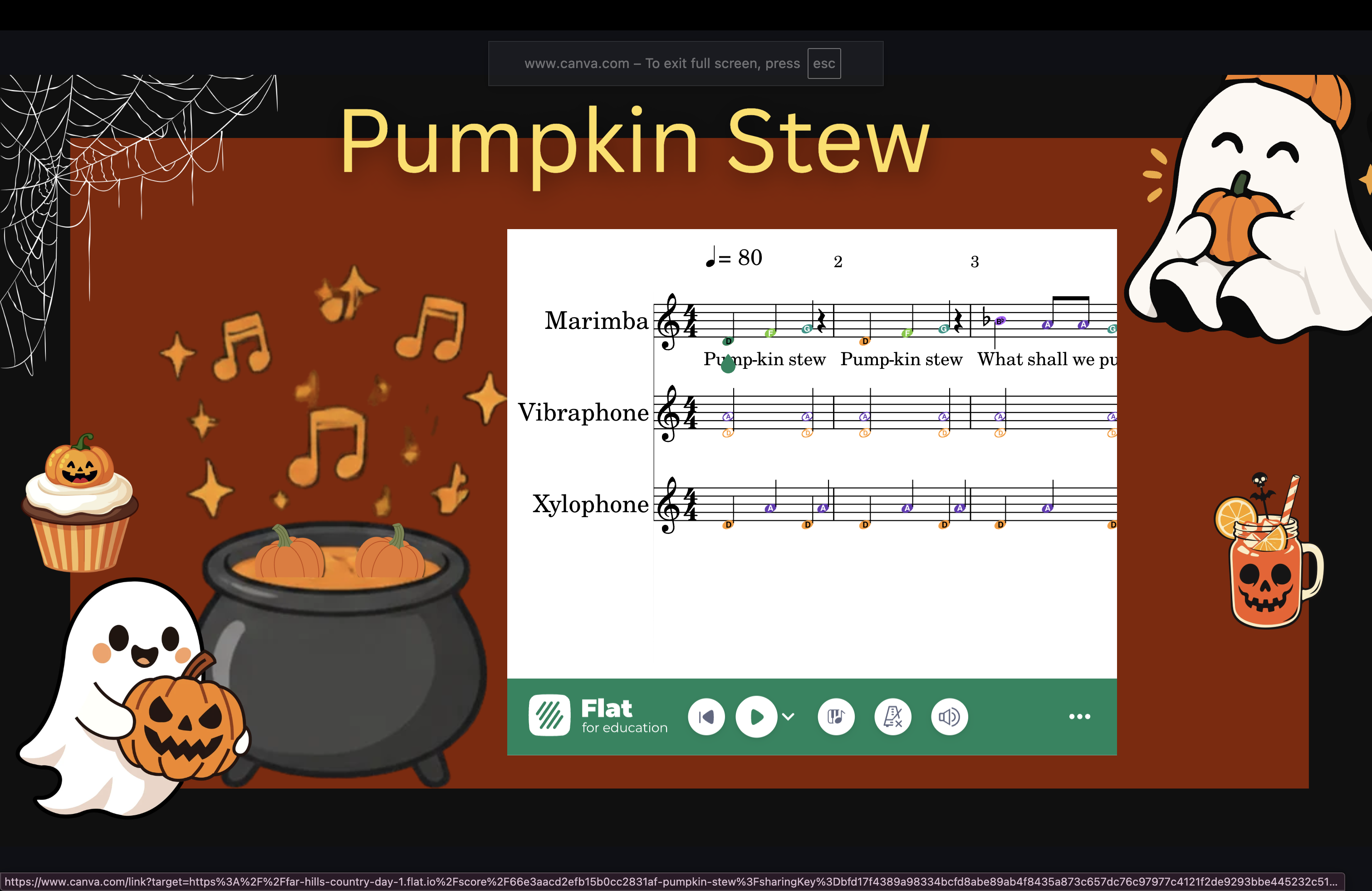
Your Orffestration is on the screen. You’re ready to teach. Wouldn’t it be great to press play without leaving your Canva slide?
This is one of my favorite Canva tricks for elementary music teachers!
I love creating manipulatives in Canva, especially interactive ones. A few years ago, I discovered that I could add a score from Flat EDU to a Canva presentation—and play it right inside the slide!
Think about the possibilities: display an Orff arrangement, listen together, and then have your students join in on their instruments. Everything is right there in your presentation.
Want to try it? Here’s how:
Create your score in Flat EDU. Try an Orffestration or a short pattern for your students to practice.
Click Share and copy a link that allows anyone with the link to view the score.
Paste the link into your Canva slide. Make sure you haven’t selected an image, text box, or another object when you paste.
Switch to Present mode and press play! Your score is now interactive within your Canva presentation.
My one wish? More even spacing of the notation, like I see when viewing the score directly in Flat EDU. But I still love having the score and playback together in my teaching slides!
What would you add first—a recorder melody, an Orffestration, or a rhythm pattern?
Here is a video showing how to do this: