
 Why It Works Locally but Fails on Live Hosting ( Hostinger ) – Complete Fix Guide?
Introduction
One of the most frustrating issues Laravel developers face after deploying their project to a live server is missing images, icons, or logos, even though everything works perfectly on localhost.
You upload a logo, favicon, or product image, but instead of seeing it on your website, you get broken images, 404/422 errors, or empty placeholders.
This article explains why this happens, why Laravel behaves differently on localhost vs production, and how to fix it permanently by correctly configuring:
config/filesystems.phpconfig/media_library.php.env
This guide is based on a real production issue on Hostinger and applies to most shared hosting environments.
1. The Problem: Images Work Locally but Not on Production
Symptoms:
Images appear correctly on
localhostAfter deployment:
Logos do not appear
Icons are broken
Uploaded images return
404or422 Unprocessable Content
Browser Network tab shows URLs like:
Why this is confusing:
Laravel doesn’t throw a clear error.
Uploads may succeed, but generated URLs are wrong.
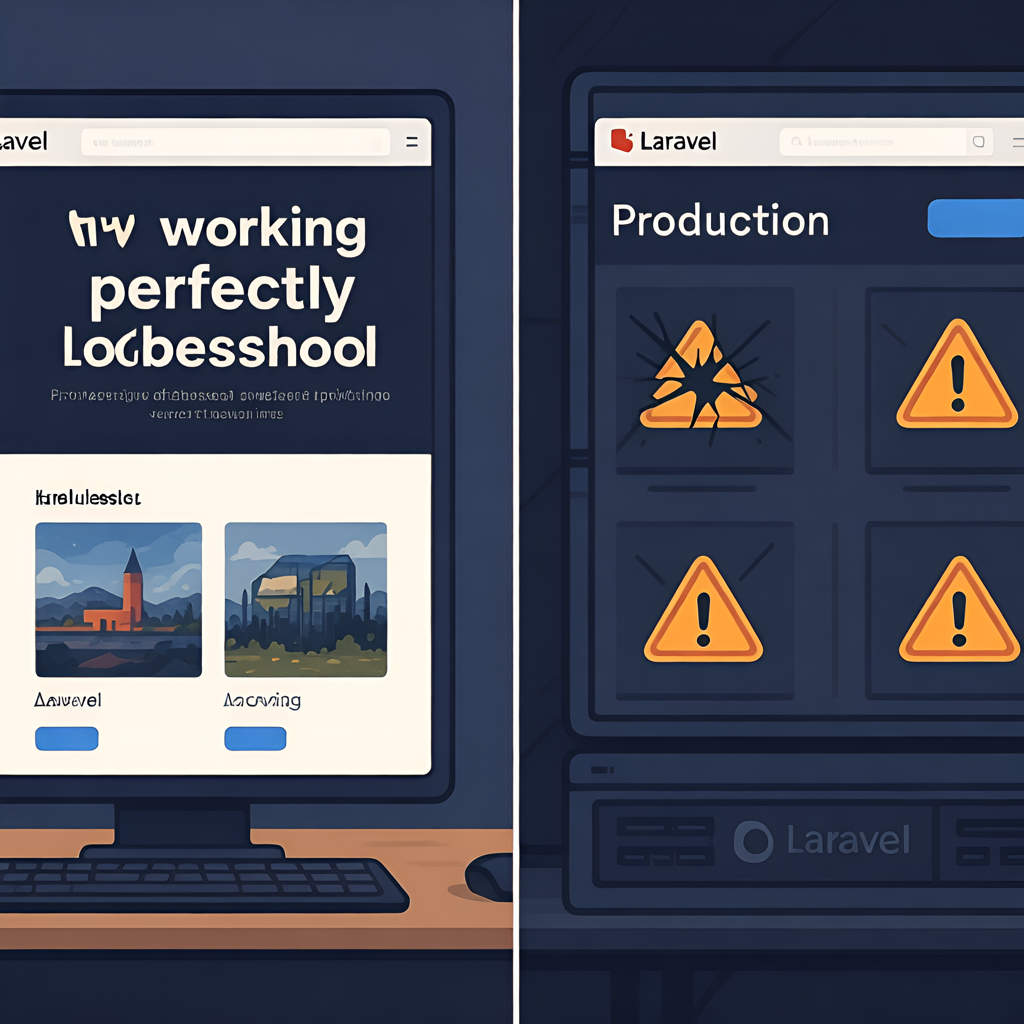
2. Why This Happens: Localhost vs Production Explained
Localhost Environment
When running Laravel locally:
You usually access the project via:
Laravel tolerates incorrect paths like
/public/uploadsFile system structure matches your URLs
Production (Shared Hosting like Hostinger)
On live hosting:
public_htmlIS the web rootThere is NO
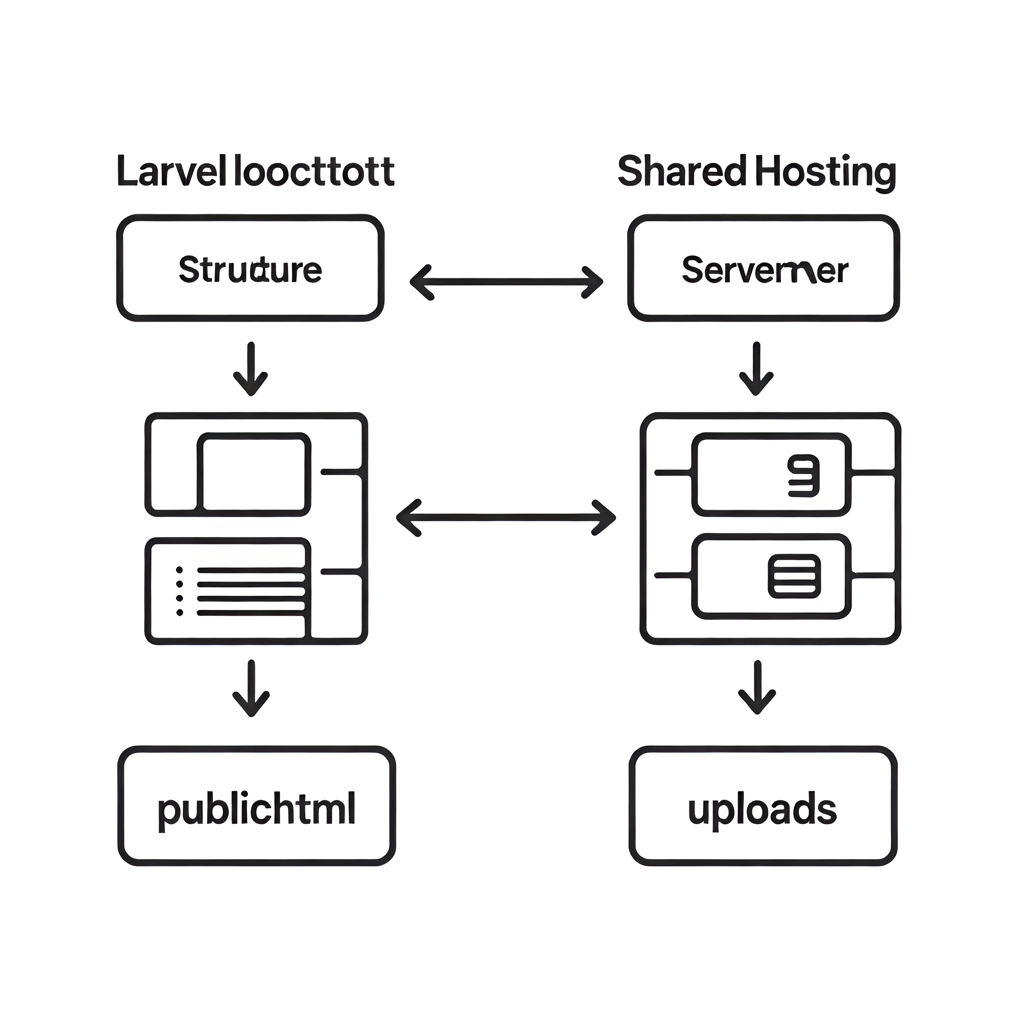
/publicdirectory in the URLActual structure:
public_html/
uploads/
index.php
👉 Any URL containing /public/ will fail
3. The Real Cause: Misconfigured File Systems
The issue is almost always caused by incorrect disk configuration in:
config/filesystems.php.envMedia libraries (like Spatie Media Library)
Common Mistake ❌
'url' => env('APP_URL') . '/public/uploads',
This generates invalid URLs on production servers.
🟢 4. The Correct & Safe Solution (Recommended)
Step 1: Fix config/filesystems.php
'public' => [
'driver' => 'local',
'root' => public_path('uploads'),
'url' => env('APP_URL') . '/uploads',
'visibility' => 'public',
],
✅ This ensures:
Files are stored in
public/uploadsURLs are generated correctly
No need for
storage:link
🟢 5. Fixing Media Libraries (Spatie Example)
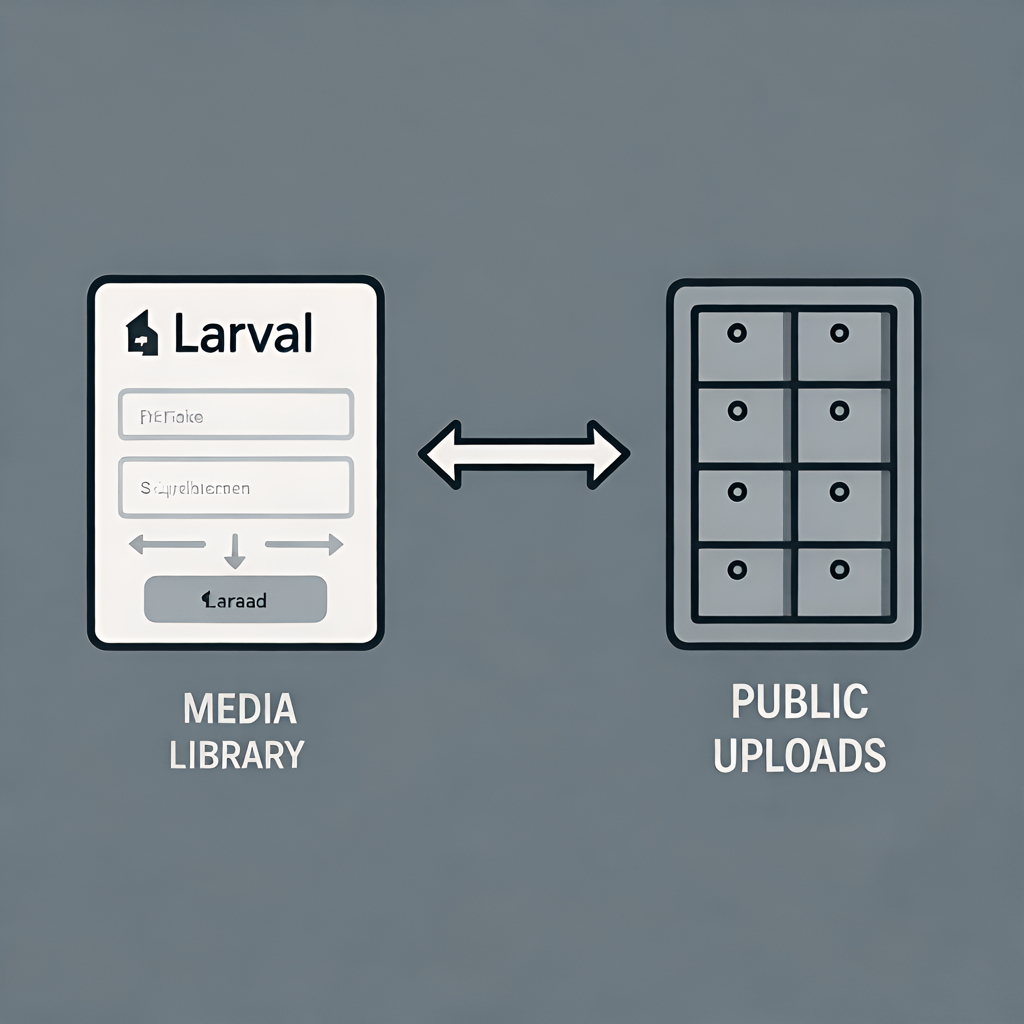
If you use Spatie Media Library, it must also point to the correct disk.
config/media_library.php
'disk_name' => env('MEDIA_DISK', 'public'),
.env
MEDIA_DISK=public
If this is misconfigured, files upload correctly, but URLs break.
6. Clear Laravel Cache (Critical Step)
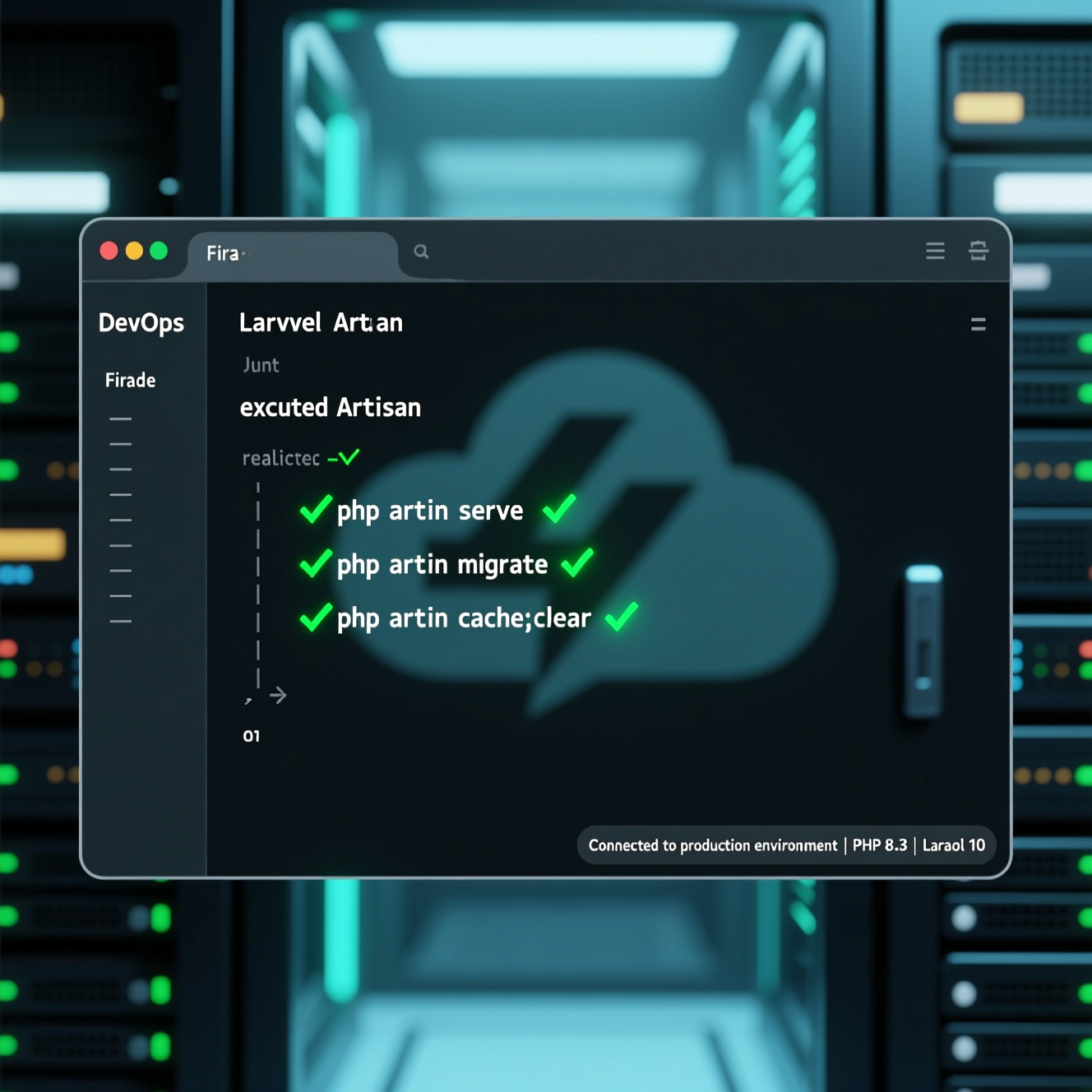
After changing configuration files, Laravel will not update automatically.
Run:
php artisan config:clear
php artisan cache:clear
php artisan view:clear
⚠️ Always run these commands inside the Laravel root directory (where artisan exists).
7. How to Verify the Fix
Upload a new image (logo or favicon)
Confirm it exists in:
Open it directly in the browser.
✅ If it loads → the problem is fully resolved.
8. Key Takeaways
Laravel behaves differently on localhost vs production
Shared hosting does not support
/publicin URLsA correct disk configuration is mandatory
Media libraries must use the same disk
Cache clearing is not optional
🟢 Final Thoughts
This issue affects thousands of Laravel deployments, especially on shared hosting platforms like Hostinger.
Once you understand how Laravel generates file URLs and how production servers work, the fix becomes simple — but missing it can cost hours or even days of debugging.