

Applying an existing animation to another element in a PowerPoint presentation can streamline your workflow and ensure consistency throughout your slides. Here's a step-by-step guide on how to do it:
Watch Video
Open Your PowerPoint Presentation
Launch PowerPoint and open the presentation file where you want to apply the animation.
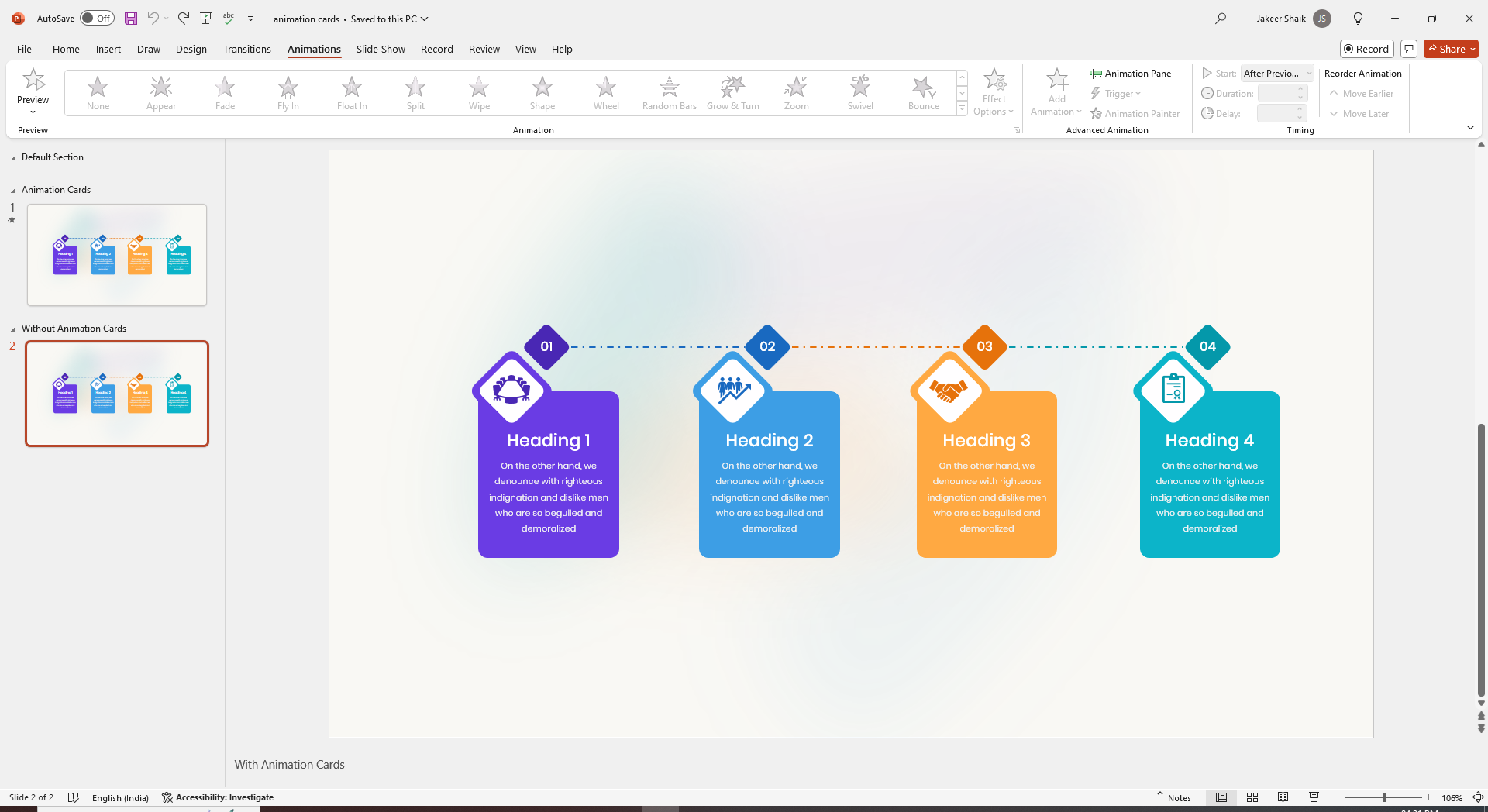
Select the Element with the Desired Animation
Navigate to the slide that contains the element with the animation you want to replicate.
Click on the animated element to select it.
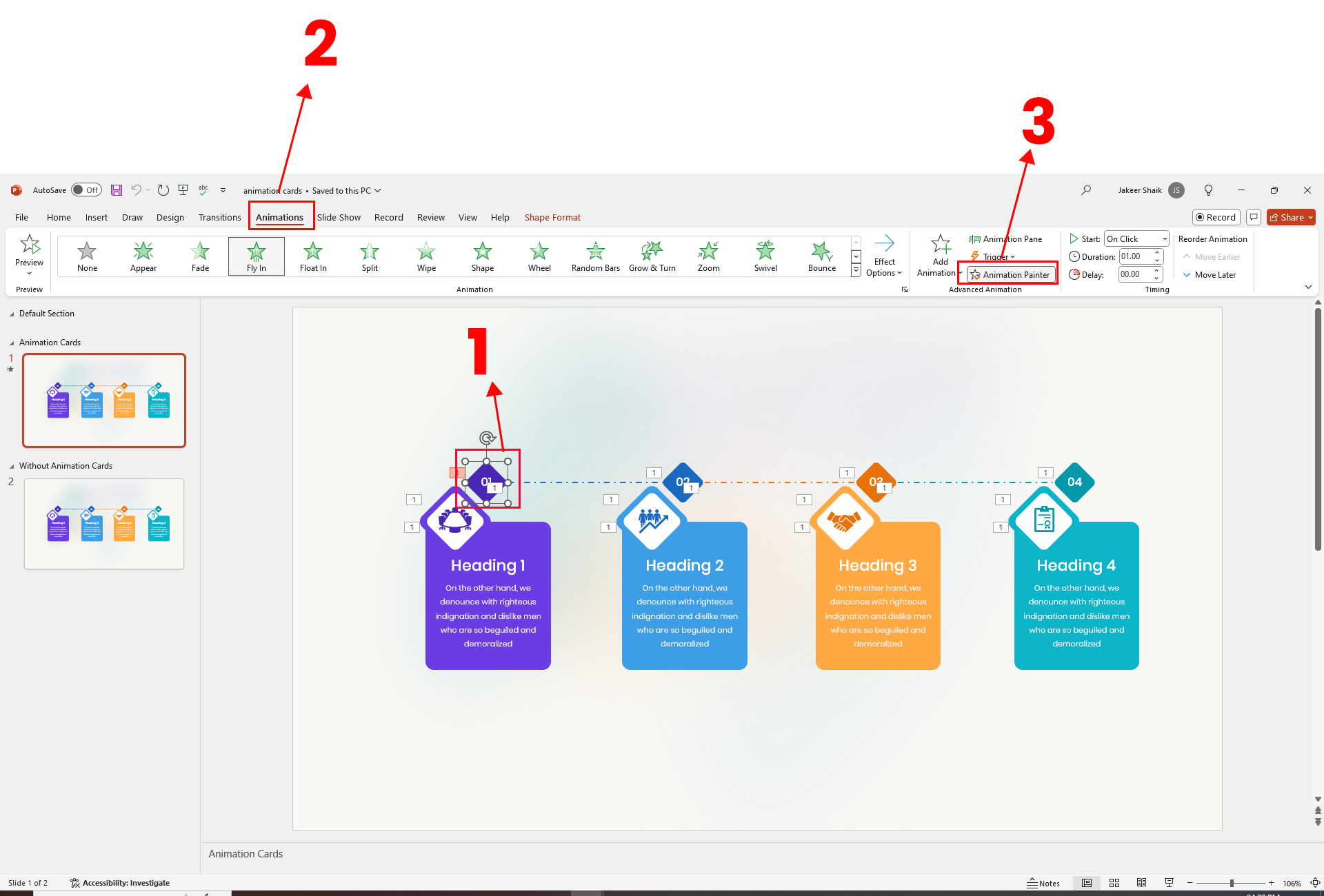
Copy the Animation
Go to the "Animations" tab on the Ribbon.
In the "Advanced Animation" group, click on "Animation Painter." This tool allows you to copy the animation settings from one element to another.
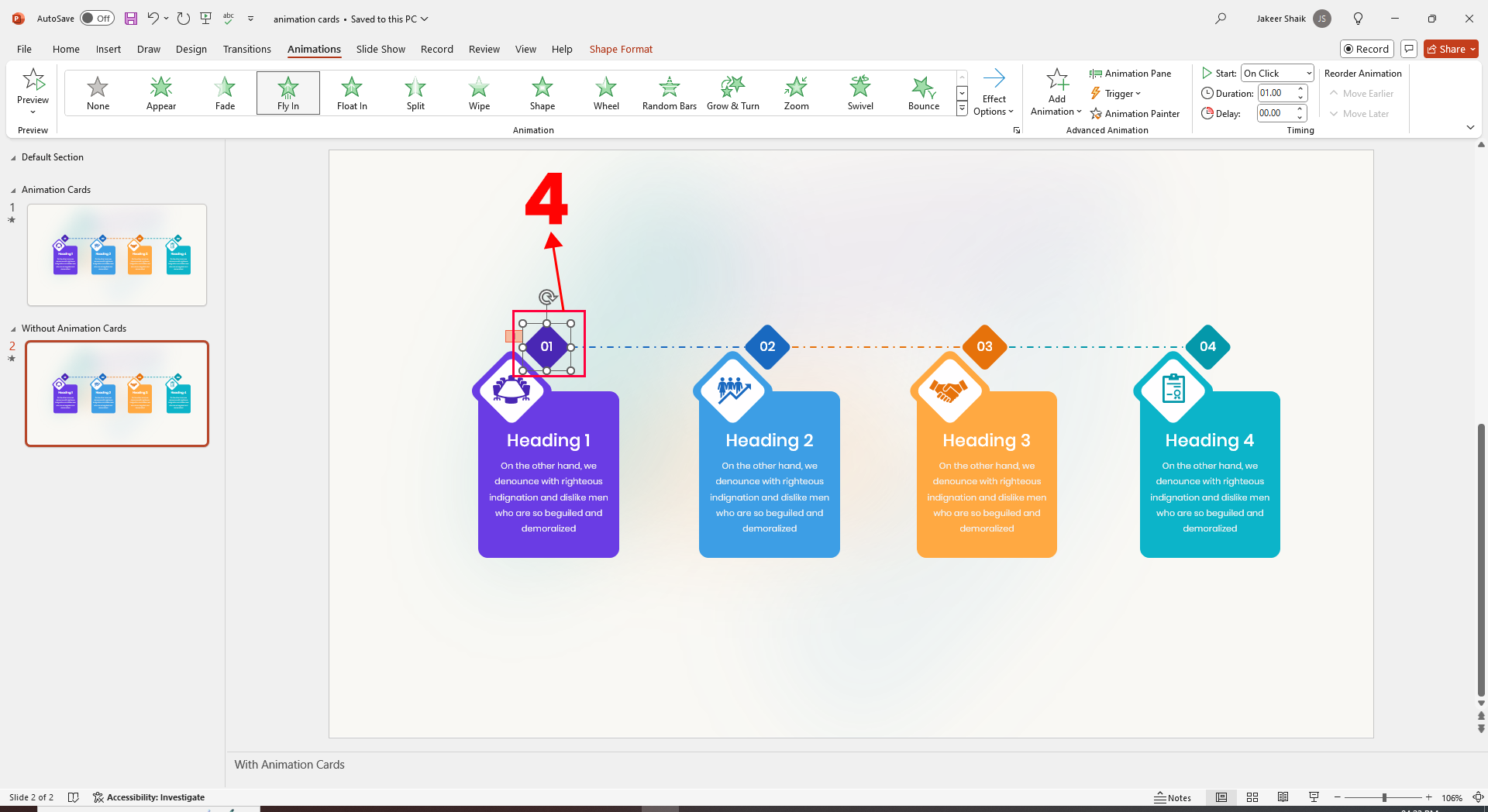
Apply the Animation to Another Element
After clicking "Animation Painter," your cursor will change to a paintbrush icon.
Navigate to the slide and element where you want to apply the copied animation.
Click on the new element to apply the copied animation settings.
Adjust if Necessary
If needed, you can further customize the animation by selecting the animated element and adjusting the settings in the "Animations" tab.
Review and Fine-Tune
Preview the slide show to ensure the animation looks as expected.
Make any necessary adjustments by selecting the animated element and modifying the animation settings or timings.
Additional Tips
Consistency is Key: Using the same animations can help maintain a consistent and professional look throughout your presentation.
Experiment with Timing: Ensure that the timing of the animations aligns well with your presentation flow. You can adjust the start, duration, and delay settings in the "Timing" group under the "Animations" tab.
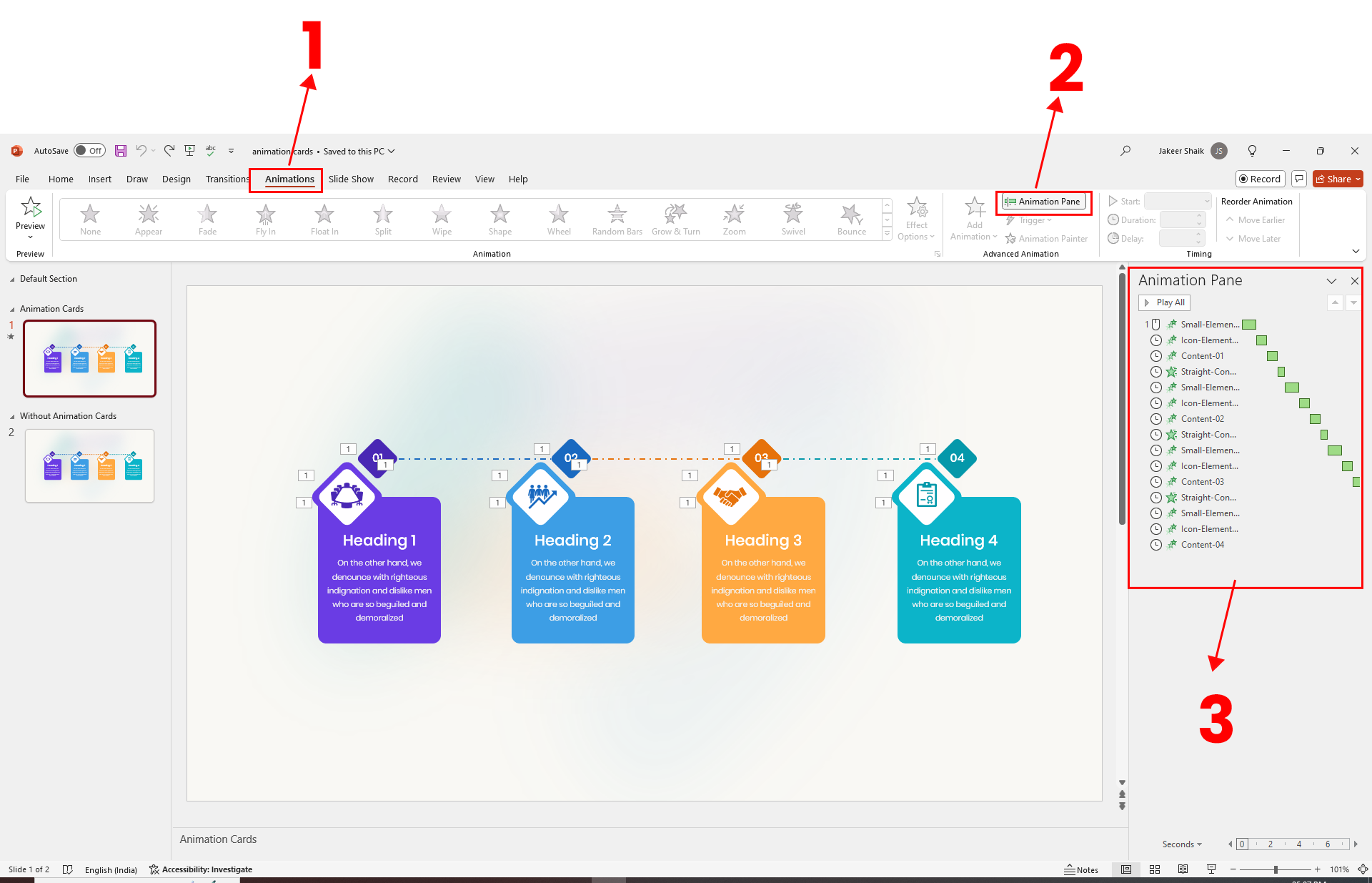
Use Animation Pane: The "Animation Pane" provides a detailed view of all animations on the current slide. You can access it from the "Animations" tab. This panel allows you to reorder animations, adjust timings, and fine-tune other settings.