

Hey you!
Today we will install ComfyUI on Runpod, step by step.
What is RunPod? An online service that will allow us access to high end computing power at a minimal cost per hour.
What is ComfyUI? A tool that we will use to generate image. Generating images is a complex procedure. ComfyUI is an interface that will help us understand visually what is happening, thus abstracting the complexities.
Why are we doing this? To generate images and do cool stuffs in later episodes, we need to start with baby steps. This is the first step :)
We will cover the below in this post
Creating an account on Runpod
Adding Credits to your account
Installing Comfyui
Quick image generation
Terminate instance
Creating an account on Runpod
This is my referal for Runpod. Click on the link and create an account by clicking "Claim your Bonus" :
 Runpod has a referral program currently that would gift you between $5 and $500 when using a referal link like mine. I will also get the same bonus , so win win :)
I find it easier to signup using a google account, less password etc, but up to you.
Adding Credits to your account
Once you have created your account, you will get to this screen which would ask you to add 10$ to start. That 10$ will be used to rent GPU, CPU, storage that is needed to start using Runpod for image generation.
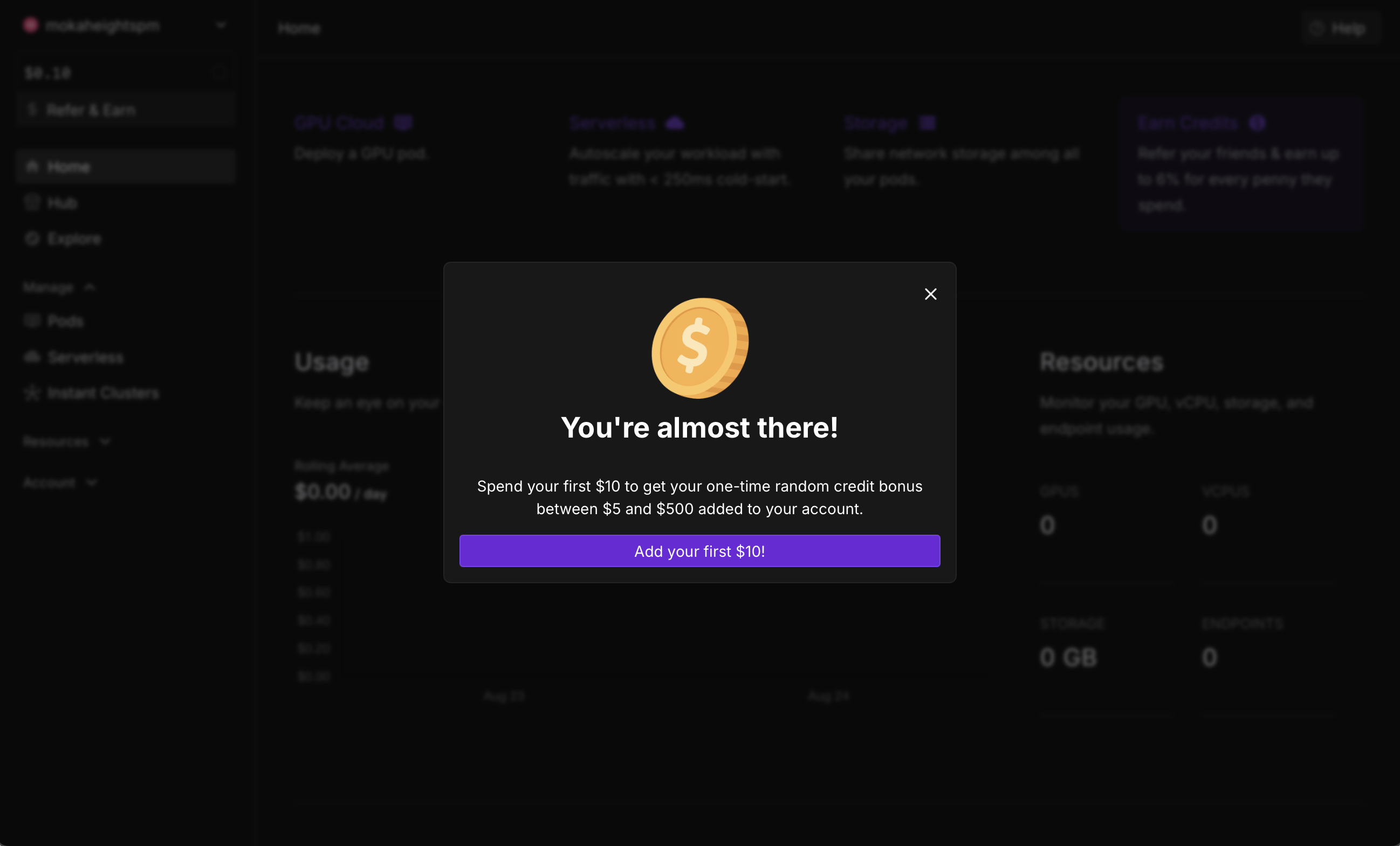 Once you have added 10$ minimum and IF you have used the referral link, you should see a $5 minimum bonus. (I'm crossing fingers that we will win the 500$ bonus)

Installing Comfyui
Ok, there are a bunch of new pop-ups on runpod.
1- Close everything until you get to your console screen as below :
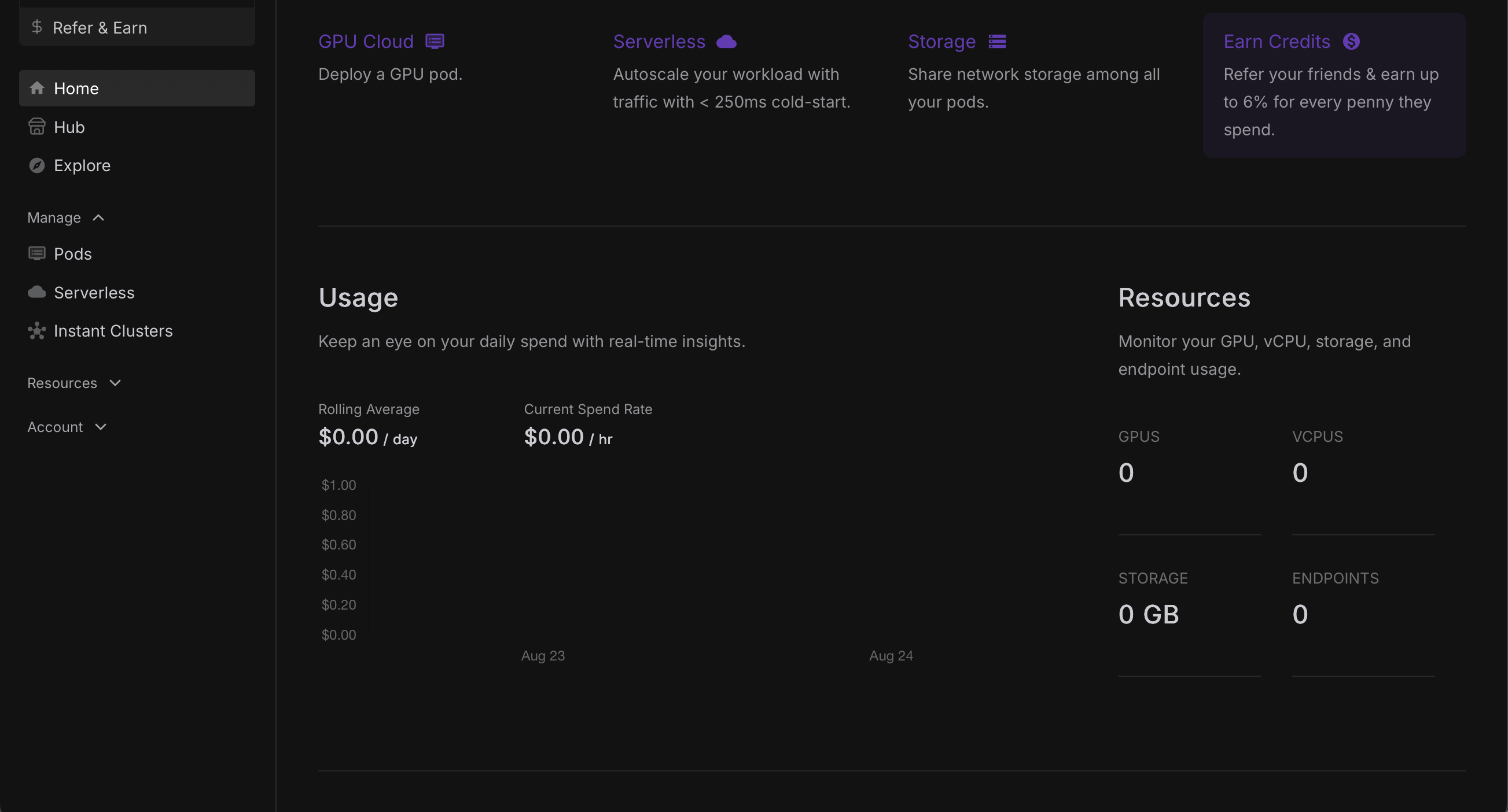 2-Click on Pods on the left menu and you will see a screen similar to the below:
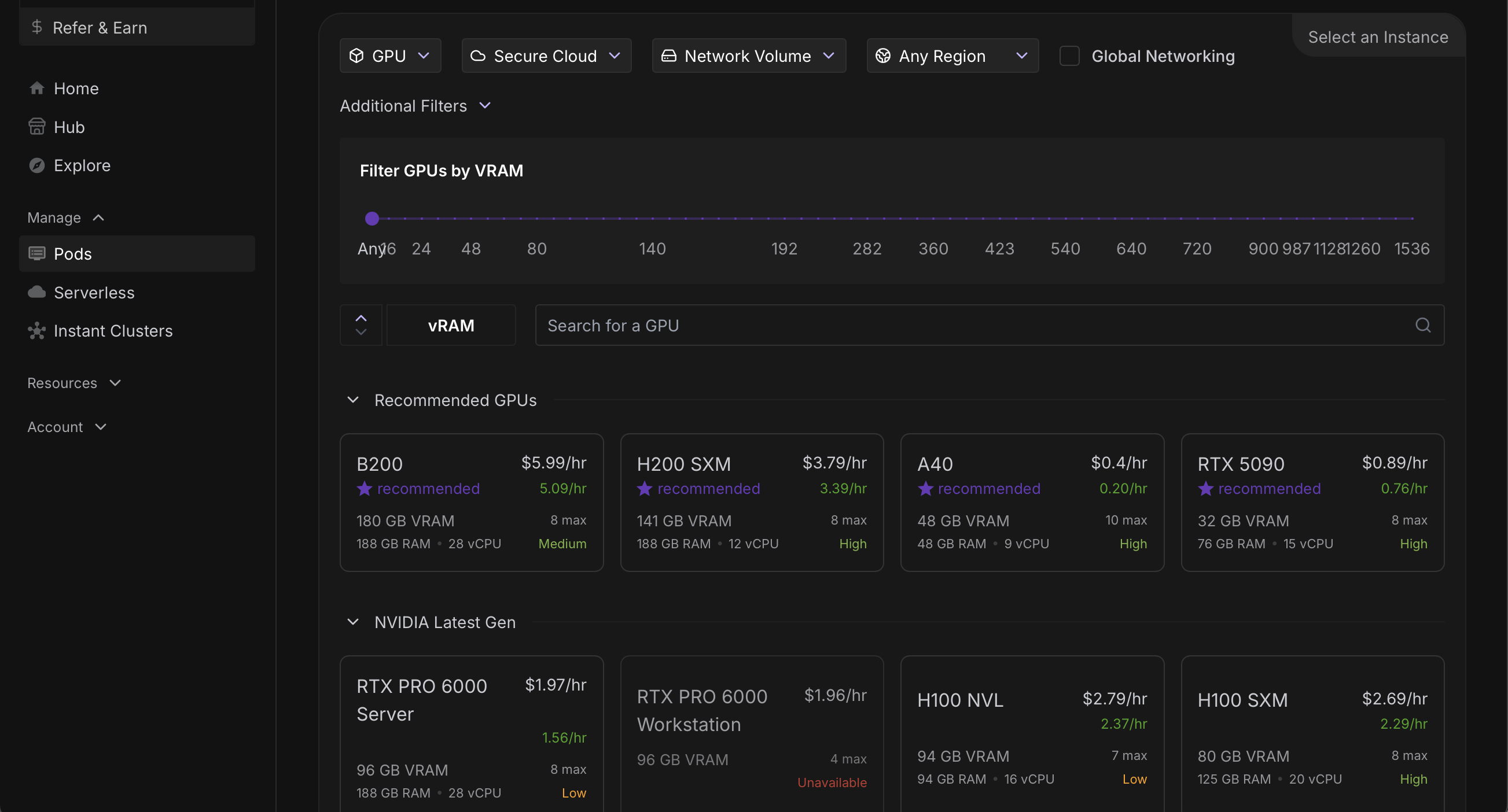 This is your first time using runpod and we are just taking it for a quick spin. We will use some simple steps today. For now, under the section called "NVIDIA Latest Gen" on the right part of the screen, choose RTX 4090 ( you might need to scroll a little). The RTX 4090 is a nice GPU option which generates images and video relatively quick for demo purposes.
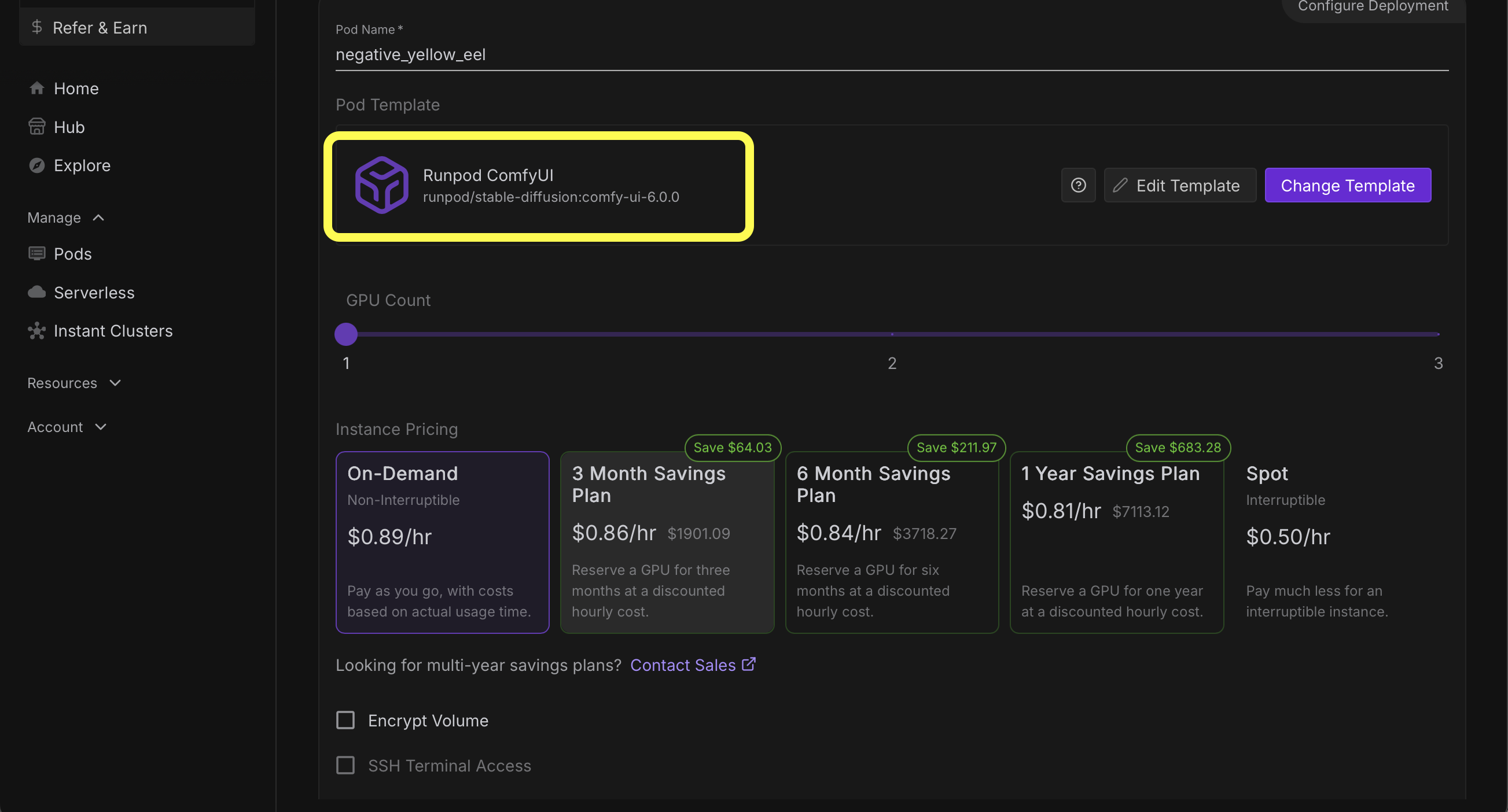
3-Once selected, scroll down until you find the section called "Configure Deployment" and click on "Change Template":
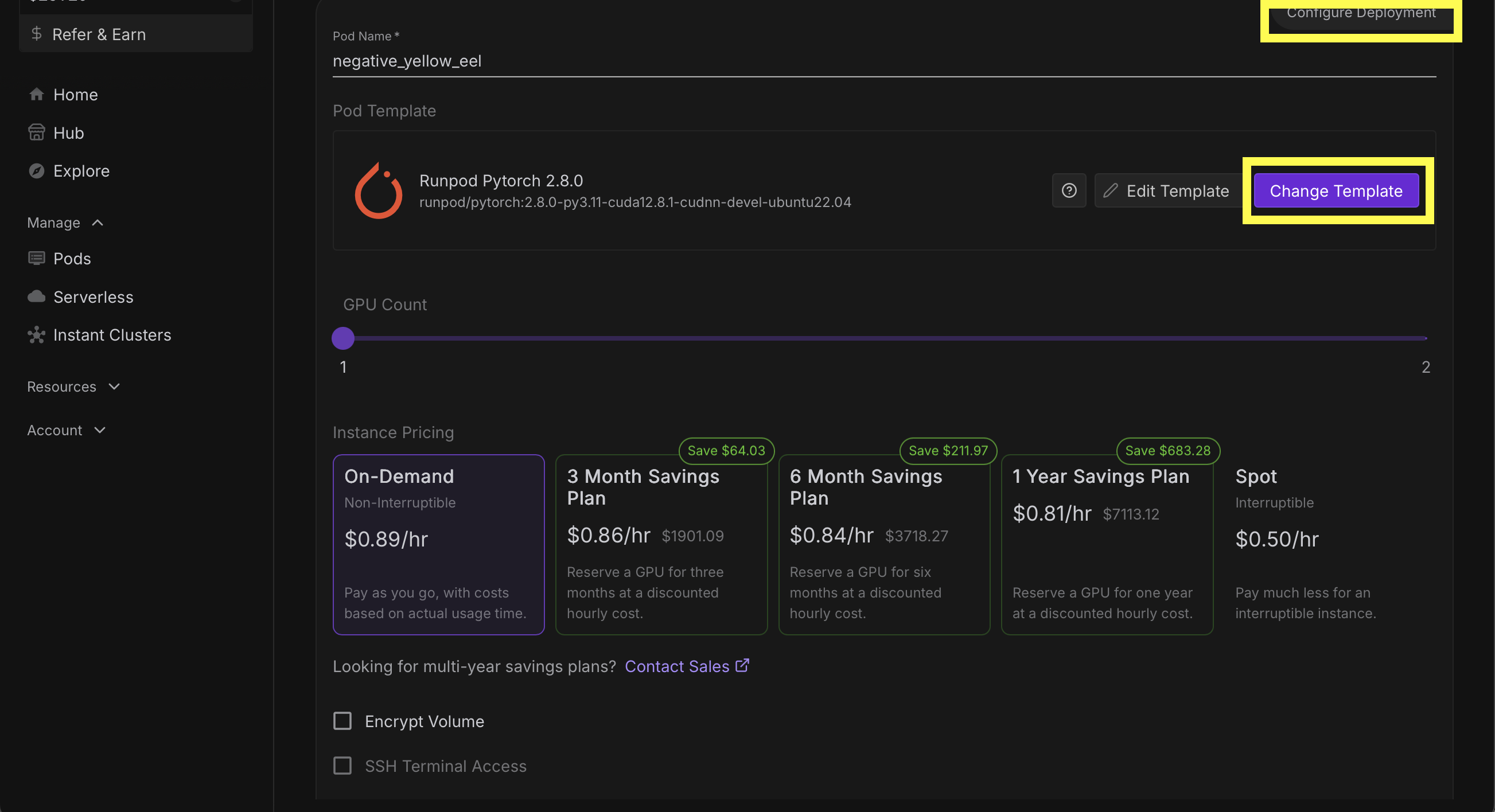
4- This will bring you to a screen with a heading of "Explore Pod Templates"
In the search bar, enter "comfy" and select "Runpod ComfyUI" in the "Pod Templates" section at the bottom of the screen.
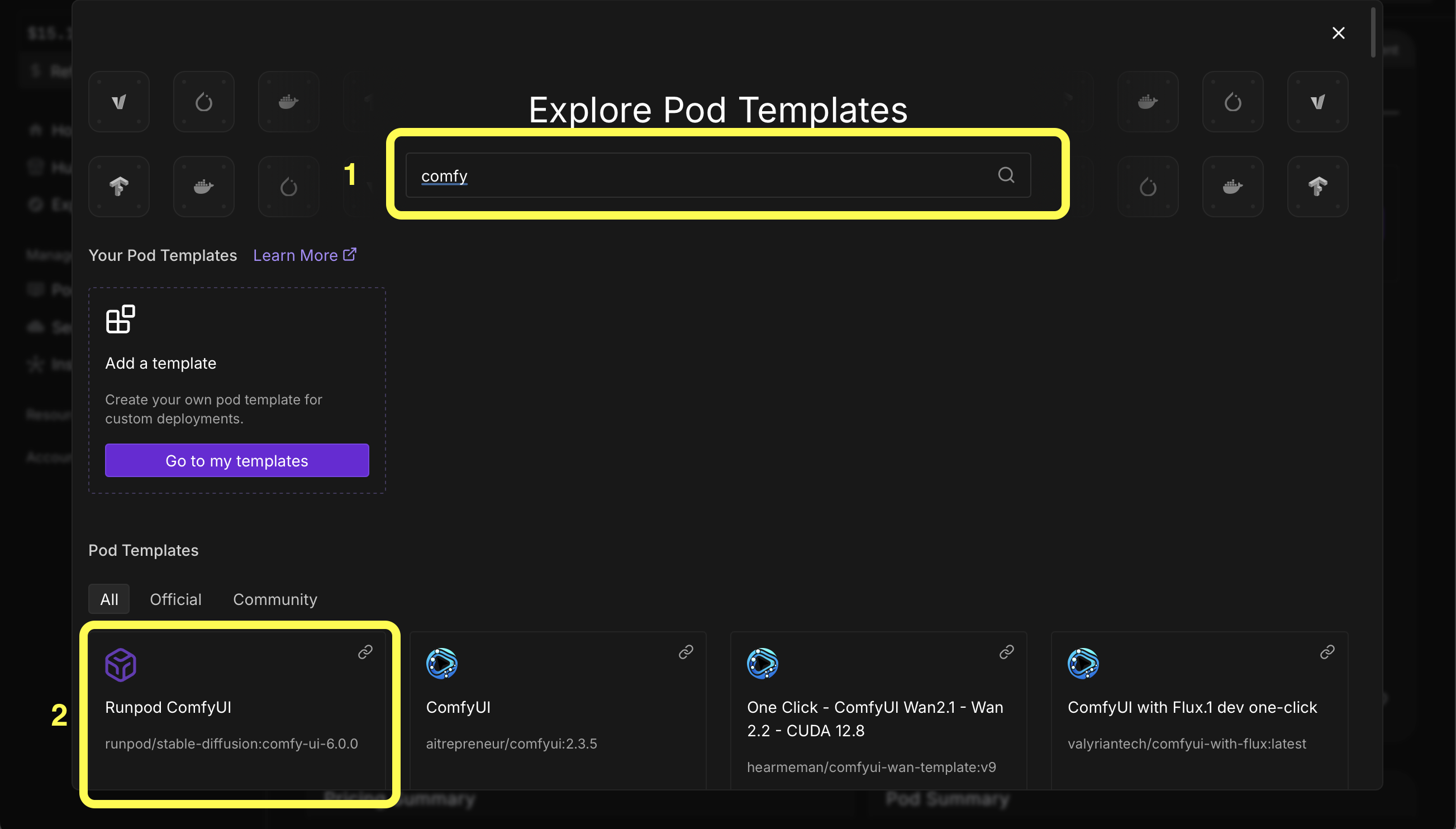 Clicking on "Runpod ComfyUI will bring you back to the previous screen with the correct Template selected :
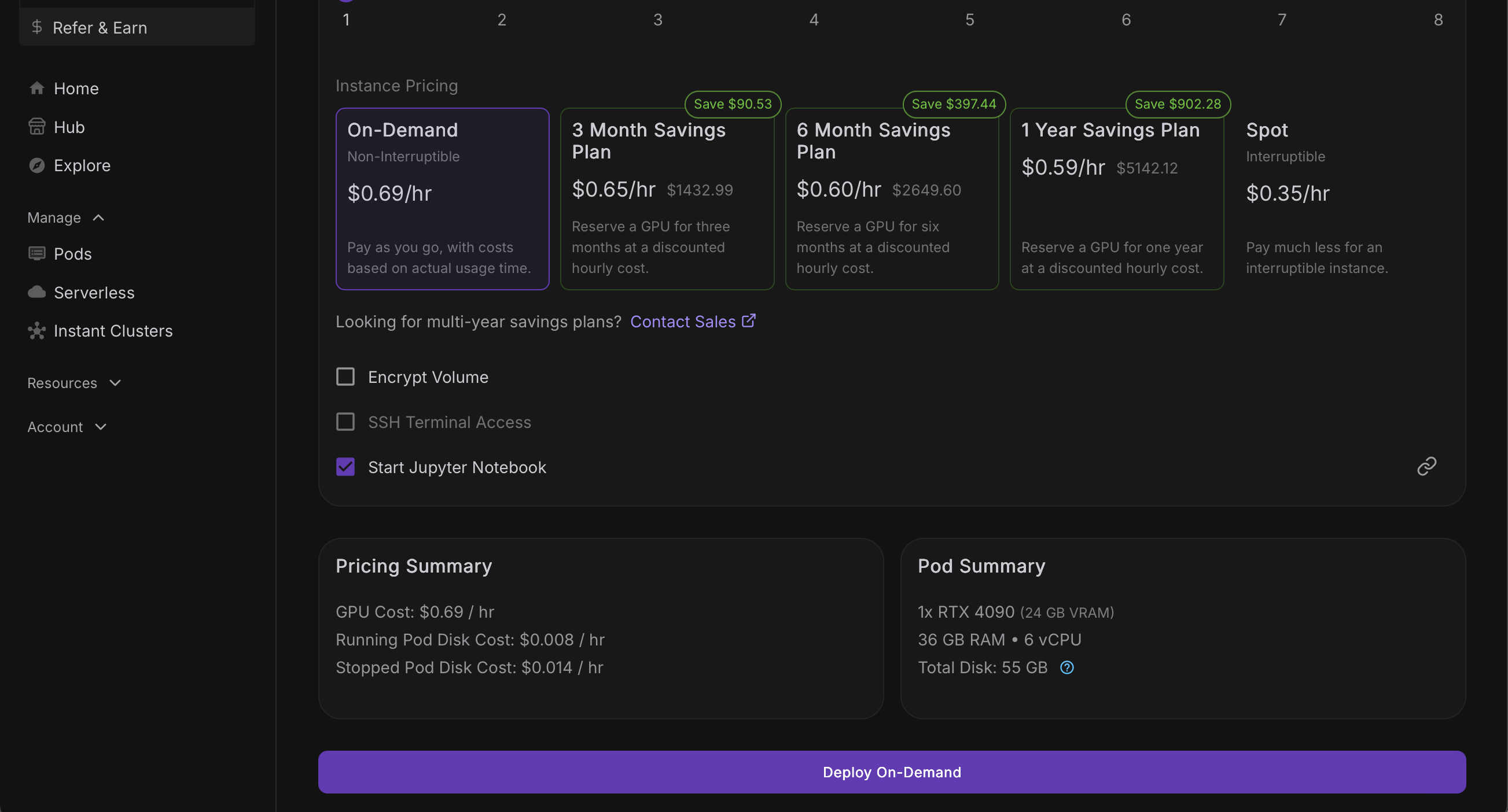
5- Scroll down until you find Deploy on-Demand
What did we just do?
In the previous steps ,
we selected a GPU (the RTX 4090)
this will be the brain of our setup.
we selected a template (Runpod ComfyUI)
this will be our setup and comes as one of the official templates of Runpod. ComfyUI is already installed in this setup and will really simplify our first step.
Now click on "Deploy On-Demand" and move to the next step.
6- Our POD
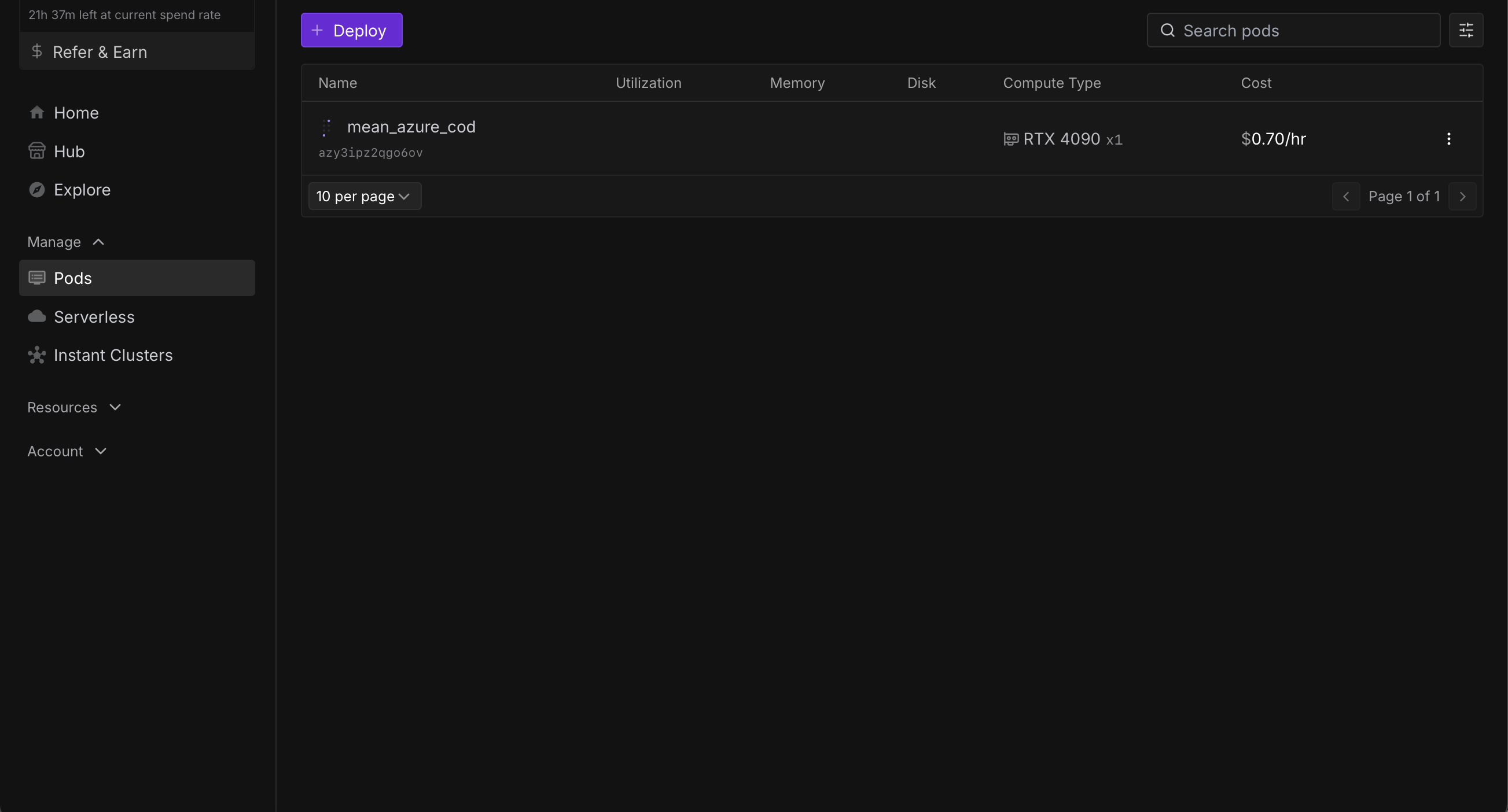 mean_azure_cod in the previous section will not be displayed in your setup. Wait until you find the icons under "Utilization" "Memory" "Disk" as below :
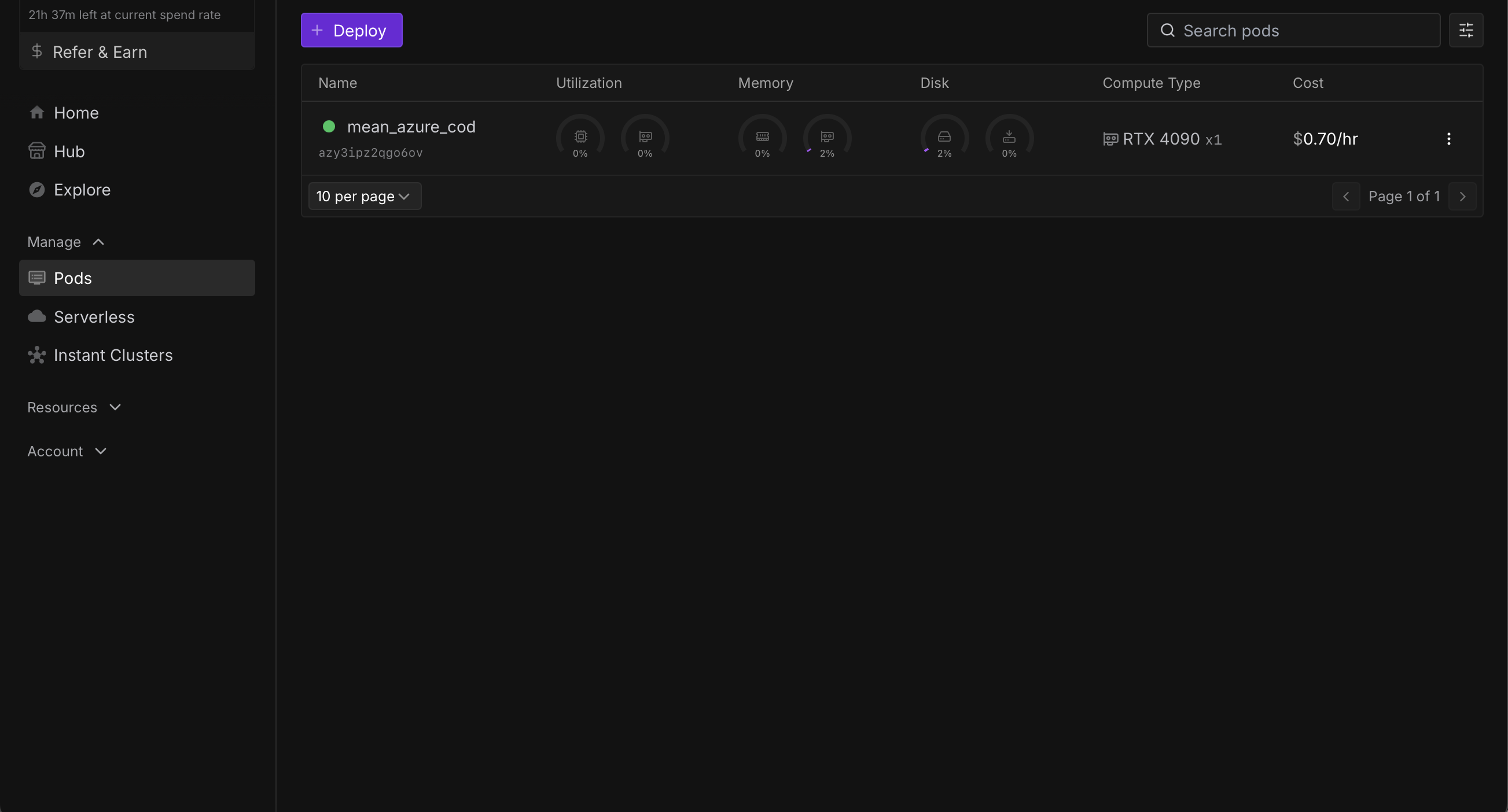
And the click on the name with the green circle to get to the following screen :
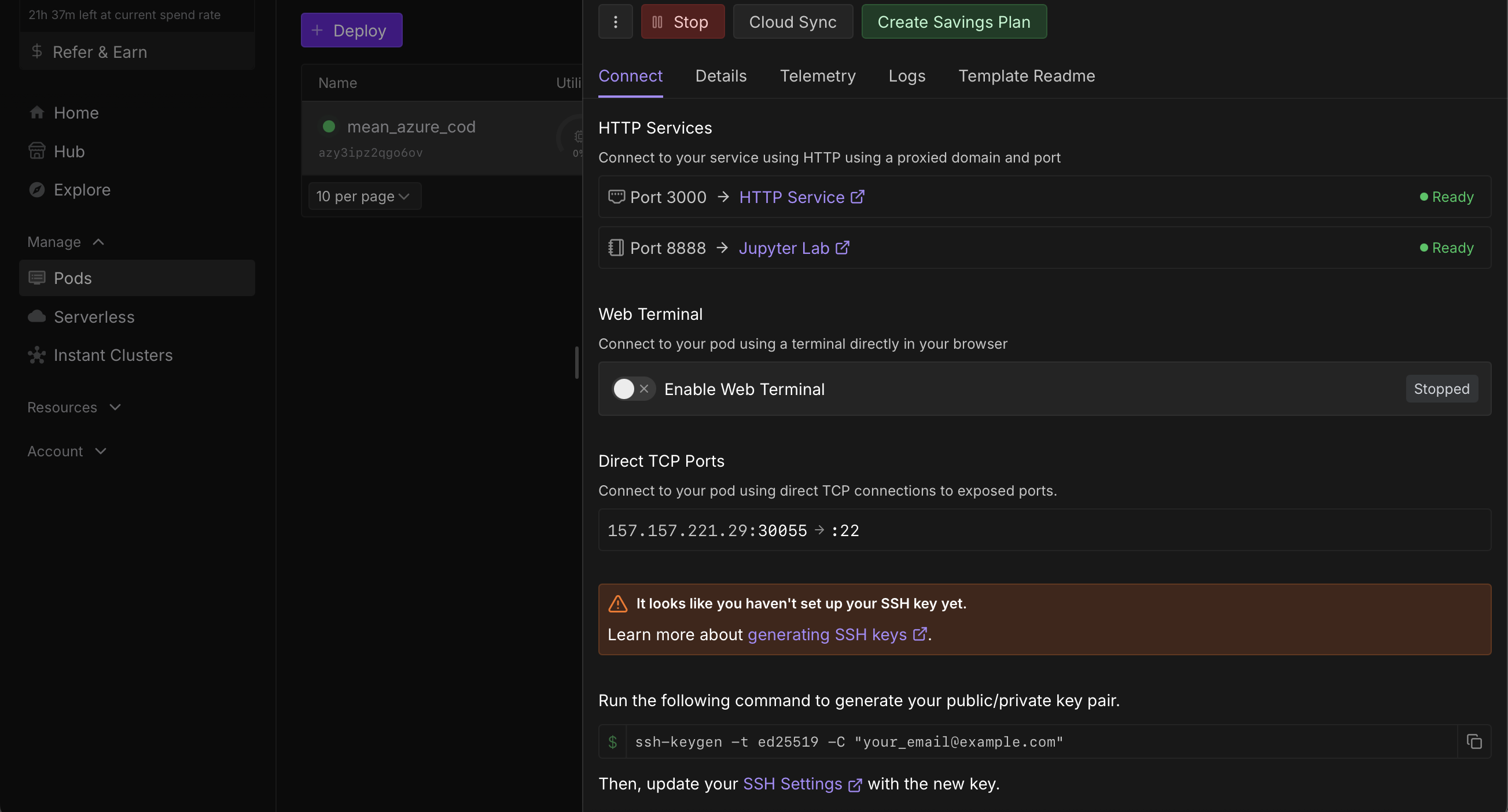 Under HTTP Services, click on Port 3000 -> HTTP Service.
This will open a new tab as below.
IF NOT, something was not done right. Either try the steps again or contact me.
7-ComfyUI
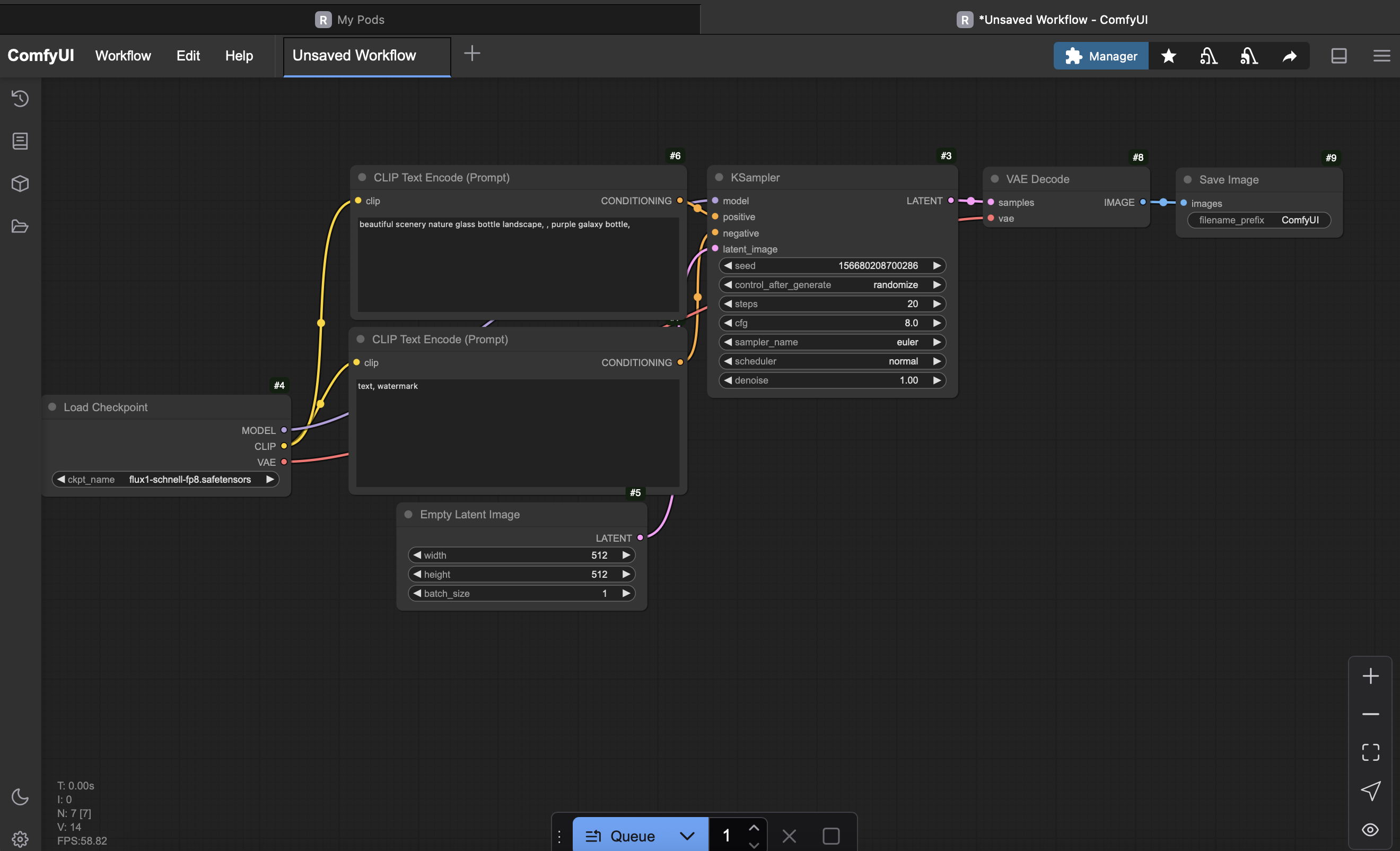
If you see the above, CONGRATULATIONS!
Click on Queue at the bottom of the screen and you will see the your first image generated.
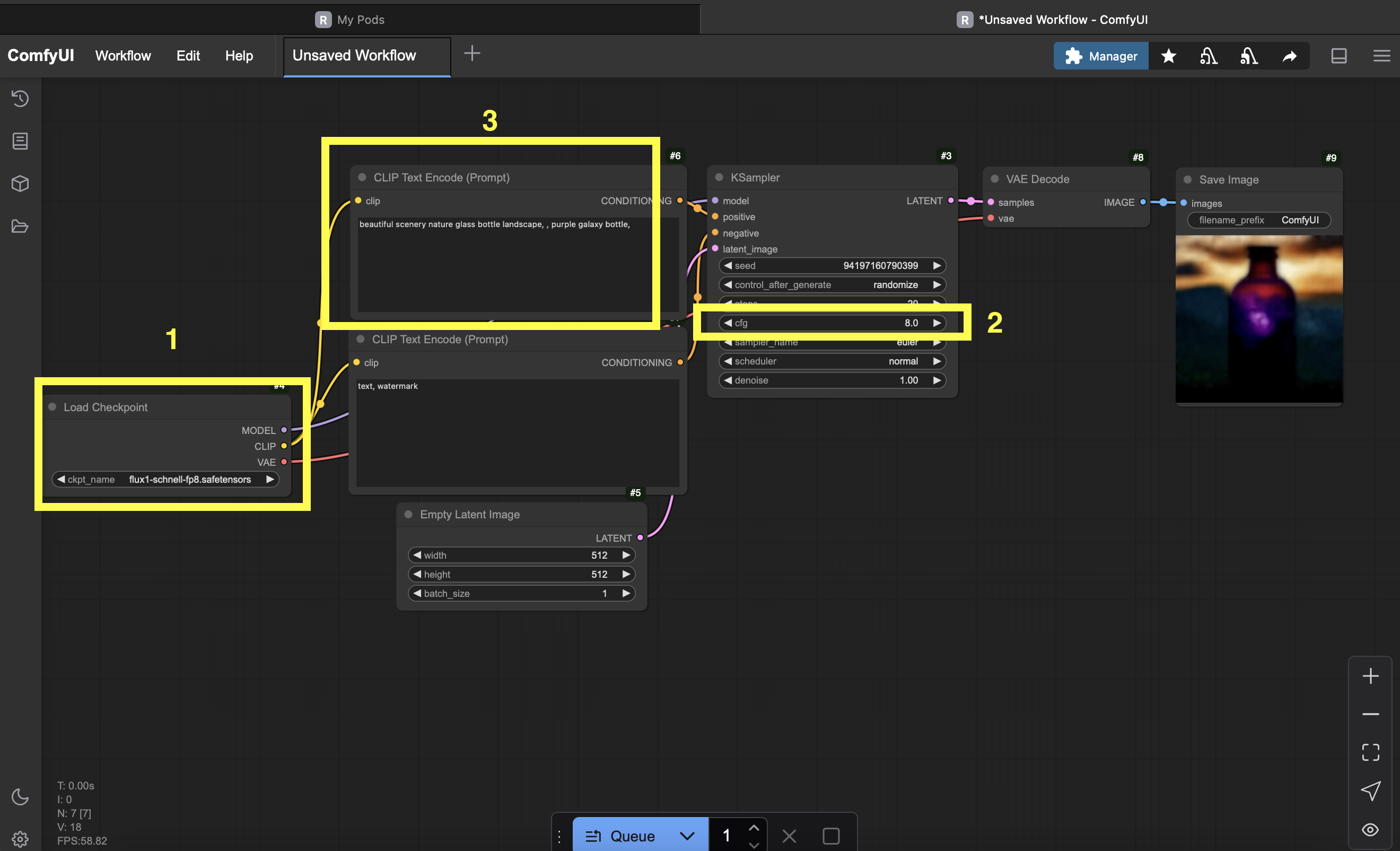
IF the image is blurry, make sure your "Load Checkpoint" Node (1 in above screenshot) has "flux-schnell-somethingsomething" selected. Find the KSampler node(#2 in screenshot) and change the cfg to 1. In my previous screenshot, my "cfg" was 8.
Play with the text in the "CLIP Text Encode (Prompt) (#3 above) to generate to your whim.
Your first generation will take around 20seconds, then it will go down.
You can also play with the "steps" setting of the ksampler. Normally for flux schnell, you can go very low, around 4 should be still generating good images.
Terminating the POD
It is very important to understand that you are using resources on runpod.io by the hour. Once you have played with the above, you need to stop the pod instance, else RunPod will continue to use up your credit even when you are not using it.
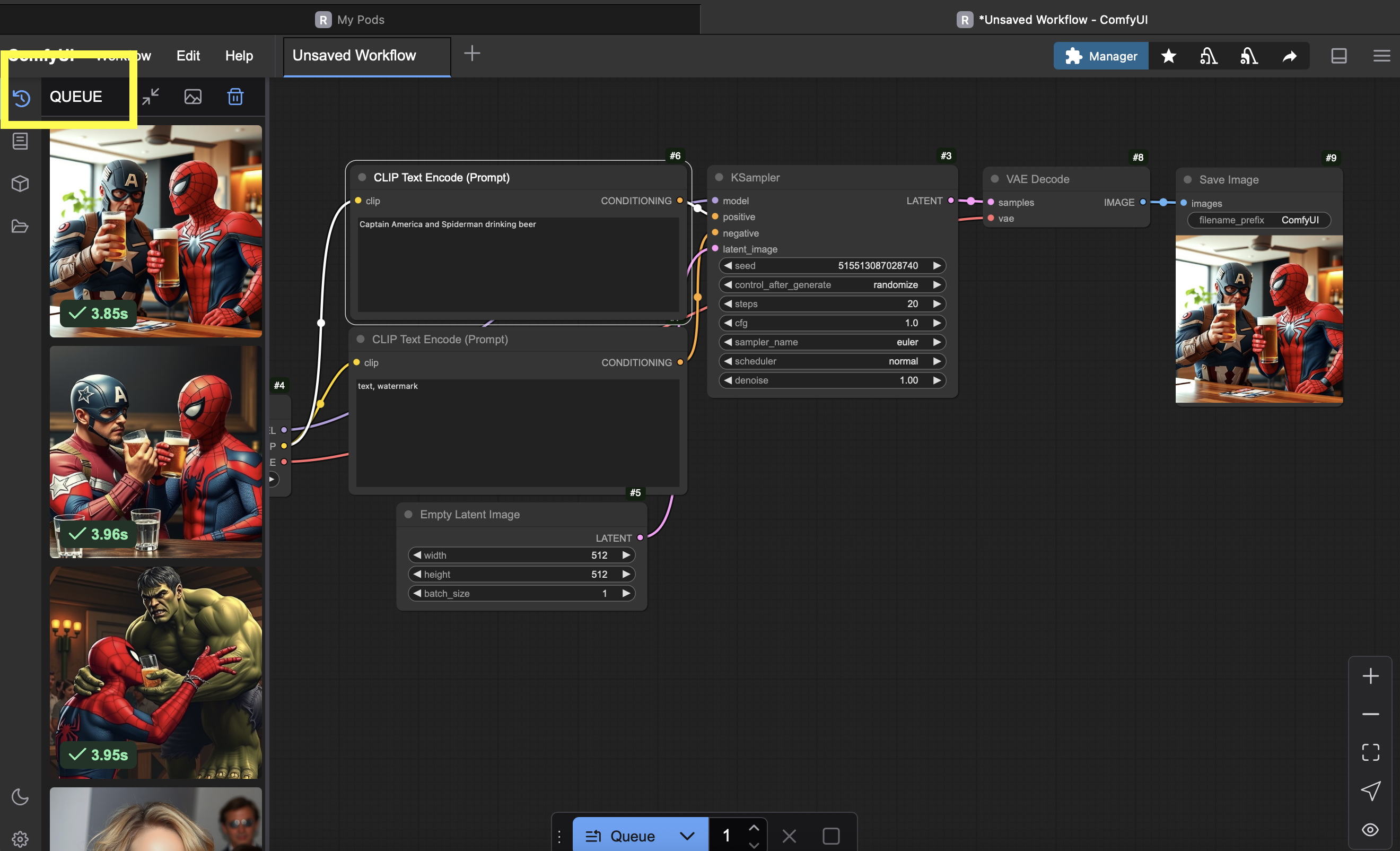
You will lose everything when you terminate the pod. So please save your newly generated images on your local disk before doing the next steps. You can see all your creations by clicking on the queue icon on the top left :
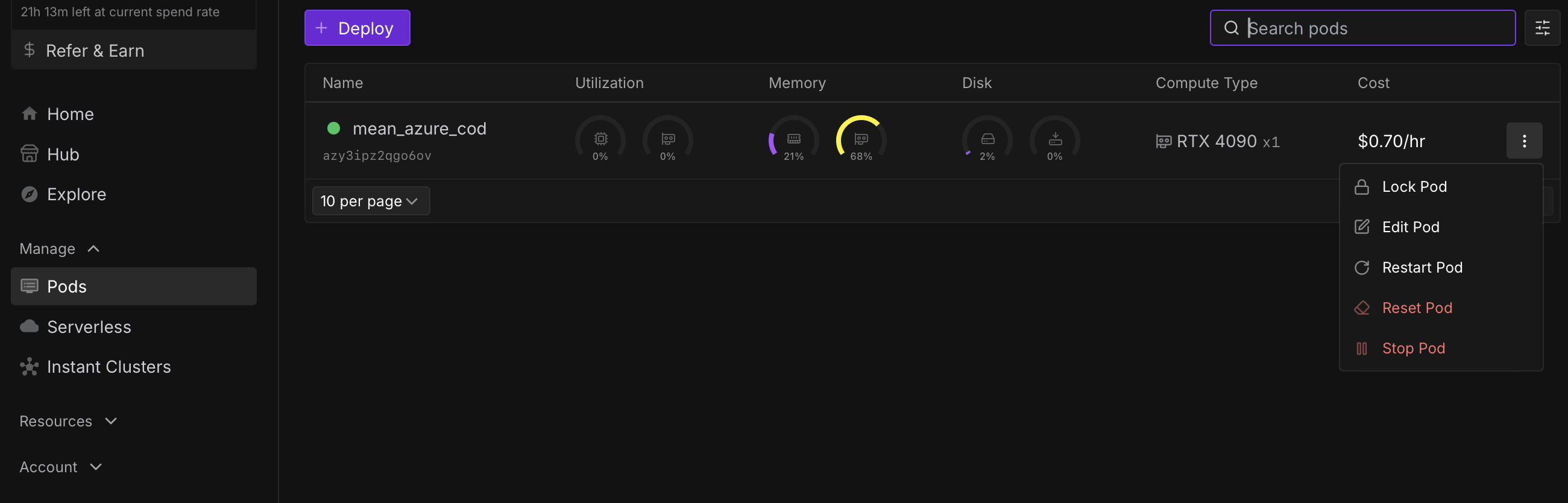
To terminate the pod, go to your runpod tab in your browser and click on the on the right of the cost to bring down the submenu:
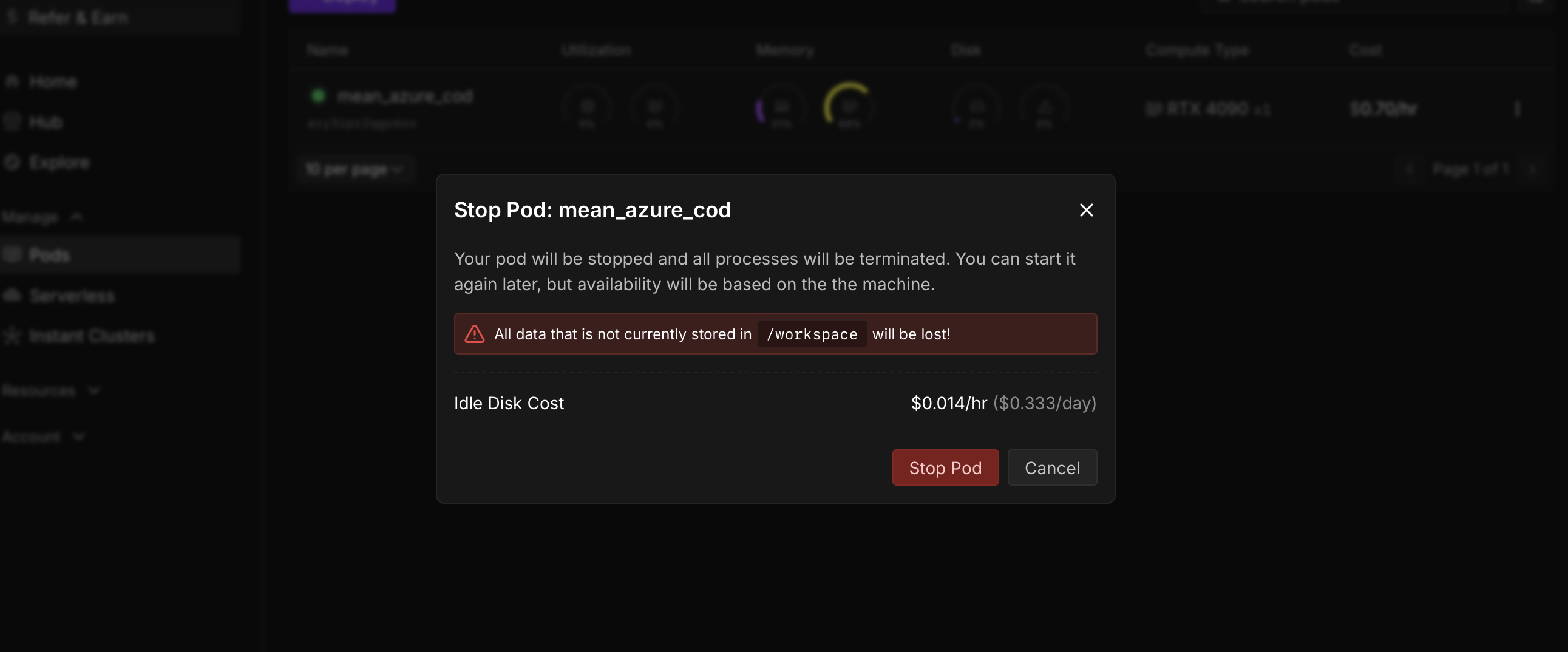
Choose Stop Pod and again on stop Pod in the below warning.
Again, click on the menu on the far right and select Terminate Pod.
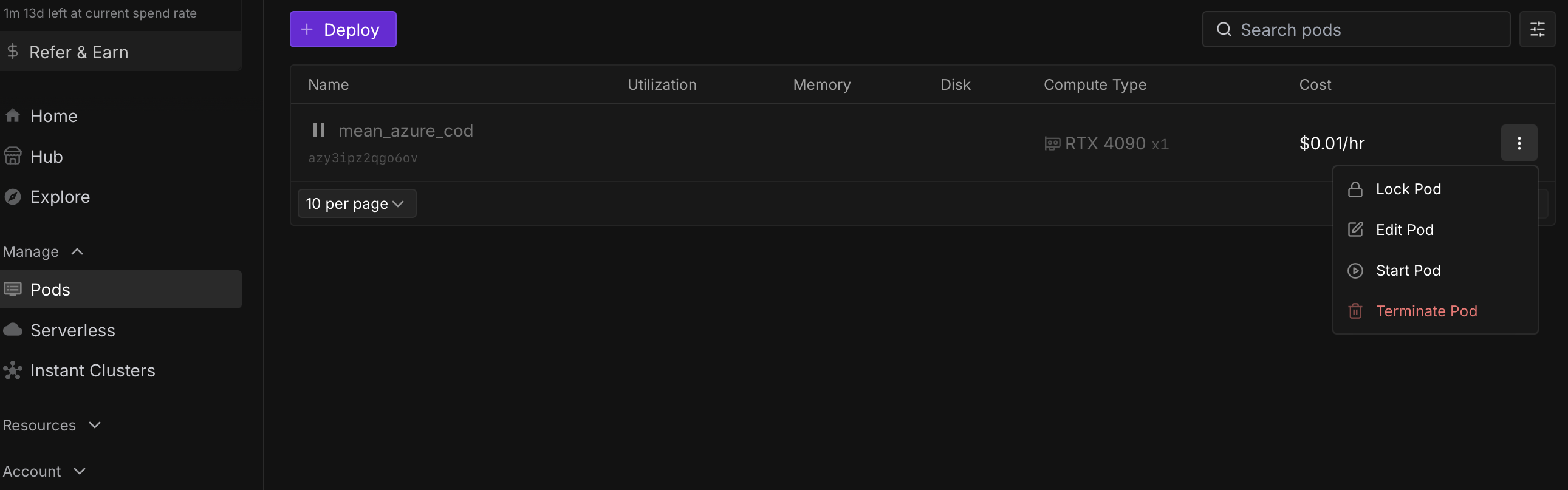
When you confirm, you should not see any more pods with strange names like "mean_azure_cod" or whatever, when you click on "Pods".
Conclusion:
You created an account on a cloud GPU provider.
You instantiated a linux environment and launched a https service with ComfyUI.
You generated images by using Flux Schnell and using t2i (text to image) method while fine tuning the Classifier Free Guidance (CFG) scale and steps of your ksampler.
You are now a data scientist and should ask for a raise with your boss or at the minimum update your linkedin profile.
You rock!
See you soon