
Introduction
Linux is one of the most important operating systems in modern computing. It powers web servers, cloud infrastructure, mobile devices, supercomputers, IoT devices, embedded systems, network appliances, and countless software platforms used every day.
Whether you are building web applications, managing databases, deploying containers, creating AI applications, or administering cloud servers, there is a high chance your software will eventually run on a Linux system.
Understanding Linux is not simply about learning commands. It is about understanding how an operating system works, how software communicates with hardware, how applications interact with the kernel, and how systems are managed securely and efficiently.
This tutorial introduces the foundation of Linux by explaining its architecture, philosophy, distributions, and its role in modern software engineering.
What Is Linux?
Linux is an open-source, Unix-like operating system built around the Linux Kernel.
An operating system acts as the bridge between:
Hardware
Applications
Users
Without an operating system, applications cannot efficiently communicate with hardware resources such as:
CPU
Memory (RAM)
Storage
Network devices
USB devices
Graphics hardware
Linux manages all these resources while allowing multiple users and multiple programs to work simultaneously.
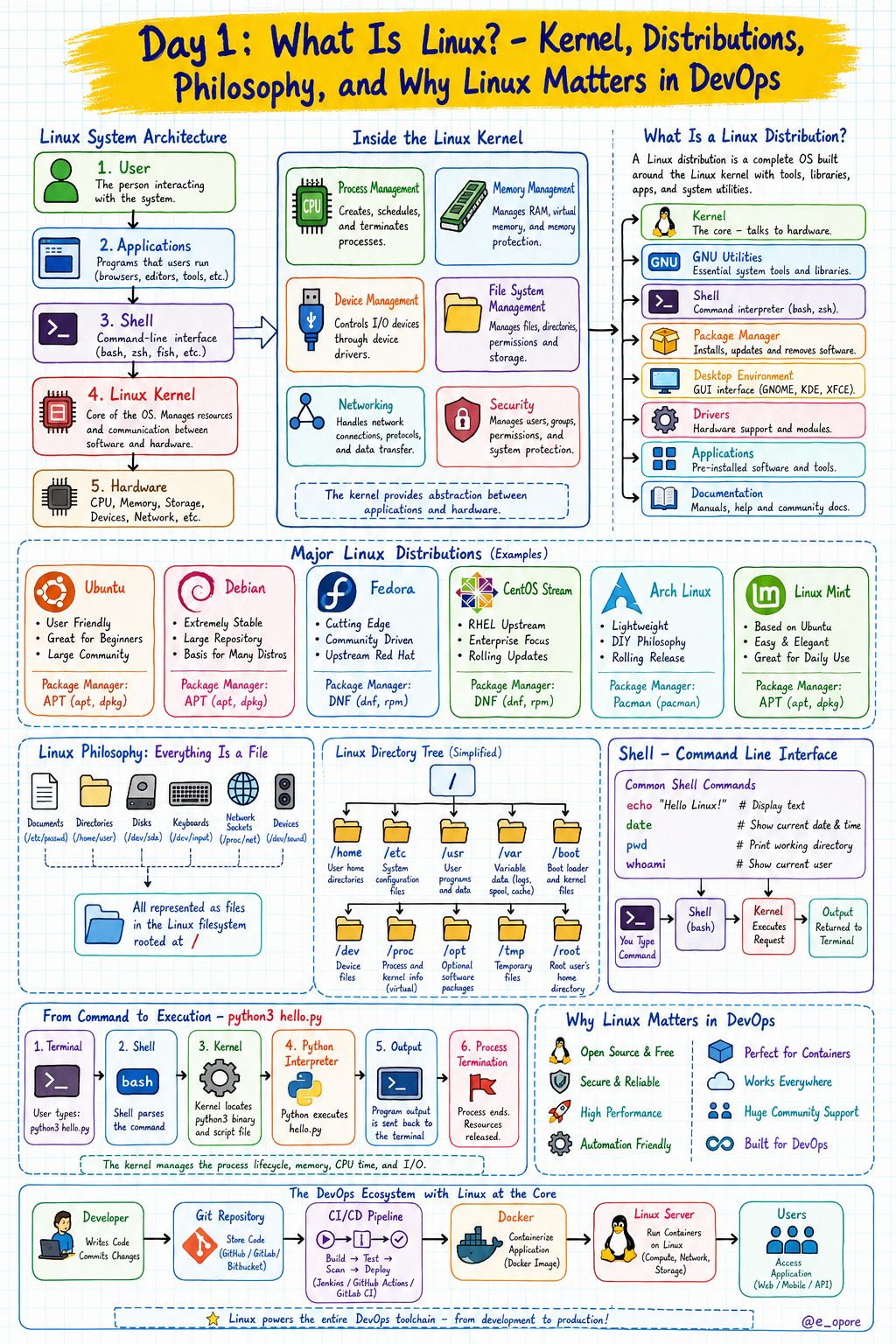
The Complete Linux Architecture
A Linux operating system is composed of several layers.
+------------------------------------------------+
|                  User                          |
+------------------------------------------------+
                    │
                    ▼
+------------------------------------------------+
|       Applications (Chrome, VS Code, Nginx)    |
+------------------------------------------------+
                    │
                    ▼
+------------------------------------------------+
|      Shell (Bash, Zsh, Fish, Dash)             |
+------------------------------------------------+
                    │
                    ▼
+------------------------------------------------+
|             Linux Kernel                       |
+------------------------------------------------+
        │        │        │        │
        ▼        ▼        ▼        ▼
     CPU      Memory    Storage   Network
                    │
                    ▼
+------------------------------------------------+
|                 Hardware                       |
+------------------------------------------------+
Every command you execute eventually reaches the Linux Kernel, which communicates directly with the hardware.
What Is the Linux Kernel?
The Kernel is the heart of Linux.
It is the core software responsible for controlling every hardware resource on the computer.
Without the kernel, Linux cannot function.
The kernel performs critical responsibilities including:
Process Management
Memory Management
Device Management
File System Management
Networking
Security
Scheduling
Kernel Responsibilities
1. Process Management
Every running application becomes a process.
Examples include:
Browser
Terminal
Database
Python application
Docker container
The kernel decides:
Which process runs first
How much CPU each process receives
When a process pauses
When a process resumes
Example:
Google Chrome
VS Code
Python Script
MySQL Database

↓

Kernel Scheduler

↓

CPU
The scheduler constantly switches between processes thousands of times every second.
2. Memory Management
Programs require memory to execute.
The kernel allocates:
RAM
Virtual Memory
Swap Space
Example:
Python App

Needs

500 MB RAM

↓

Kernel Allocates Memory

↓

Application Runs
When the application closes, the kernel releases the memory automatically.
3. Device Management
Every hardware component communicates through the kernel.
Examples include:
Keyboard
Mouse
SSD
USB
GPU
Network Card
Webcam
Applications never communicate directly with hardware.
Instead:
Application

↓

Kernel

↓

Hardware Driver

↓

Device
4. File System Management
Linux stores everything as files.
Examples include:
Images
Videos
Programs
Configuration files
Devices
Logs
The kernel manages:
Reading files
Writing files
Deleting files
File permissions
Disk access
5. Networking
The kernel controls:
Ethernet
Wi-Fi
TCP/IP
UDP
DNS
Routing
Firewalls
Whenever you open a website:
Browser

↓

Kernel Network Stack

↓

Internet
6. Security
The kernel enforces:
User permissions
File permissions
Process isolation
Authentication
System calls
Security modules
Without kernel security, every application could access every file.
What Is GNU?
Many people say Linux, but a complete Linux operating system contains much more than the kernel.
Most Linux systems combine:
Linux Kernel
GNU Utilities
GNU Compiler
GNU Shell
GNU Core Utilities
Examples of GNU tools include:
ls
cp
mv
rm
cat
mkdir
chmod
grep
find
echo
pwd
These are separate from the Linux kernel.
Linux Is Open Source
One of Linux's greatest strengths is being Open Source.
Its source code is publicly available.
Developers can:
Read the code
Modify the code
Improve the code
Redistribute the code
Thousands of developers worldwide contribute to Linux.
What Is a Linux Distribution?
The Linux kernel alone is not enough for daily use.
A complete operating system packages together:
Kernel
Desktop Environment
Package Manager
GNU Tools
Drivers
Software Repository
Installer
This package is called a Distribution or Distro.
General Linux Distribution Structure
Linux Distribution

├── Linux Kernel
├── Shell
├── GNU Utilities
├── Package Manager
├── Desktop Environment
├── Applications
├── Drivers
└── Documentation
Popular Linux Distributions
Ubuntu
Best for:
Beginners
Developers
Servers
Cloud
Package Manager:
APT
Debian
Known for:
Stability
Reliability
Long-term support
Package Manager:
APT
Fedora
Popular among:
Developers
Red Hat ecosystem
Package Manager:
DNF
CentOS Stream
Common in enterprise environments.
Package Manager:
DNF
Arch Linux
Ideal for users who want complete control over their operating system.
Package Manager:
Pacman
Linux Mint
Designed to be beginner friendly.
Based on:
Ubuntu
Desktop Environments
The desktop you see is not Linux itself.
It is called a Desktop Environment.
Popular desktop environments include:
GNOME
KDE Plasma
XFCE
LXQt
Cinnamon
MATE
Example:
Linux Kernel

↓

Ubuntu

↓

GNOME Desktop

↓

Graphical Interface
The Linux Shell
The Shell is the command interpreter.
It accepts commands from the user and sends them to the kernel.
Popular shells include:
Bash
Zsh
Fish
Dash
Example command:
echo "Hello Linux"
Output:
Hello Linux
Explanation
echo
Prints text to the terminal.
"Hello Linux"
The string that will be displayed.
Another example:
date
Output:
Mon Jul 13 12:30:00 UTC
Explanation
The date command requests the current system date and time. The shell sends this request to the kernel, which retrieves the information from the system clock and returns it to the terminal.
Linux File System Philosophy
Linux follows a single directory tree.
Everything begins from the Root Directory.
/
Unlike some operating systems that separate storage into drive letters, Linux organizes files under one unified hierarchy.
Example:
/

├── home
├── etc
├── usr
├── var
├── boot
├── dev
├── proc
├── opt
├── tmp
└── root
Every file and directory exists somewhere beneath /.
Everything Is a File
One of Linux's defining philosophies is:
Everything is a file.
Examples include:
Regular files
Directories
Hard disks
USB devices
Network sockets
Printers
Keyboards
Processes (through virtual file systems such as /proc)
This design allows many system resources to be managed consistently using familiar file operations.
Multiuser Operating System
Linux was designed from the beginning for multiple users.
Several users can:
Log in simultaneously
Run different programs
Own separate files
Have individual permissions
Share system resources securely
Example:
Alice

↓

Linux Server

↑

Bob

↑

Charlie
Each user works independently without interfering with others.
Multitasking Operating System
Linux supports true multitasking.
Multiple applications can execute concurrently, including:
Web browsers
Databases
Development environments
Web servers
Containers
Background services
The kernel scheduler allocates CPU time so quickly that programs appear to run simultaneously.
Why Linux Matters in DevOps
Modern DevOps relies heavily on Linux because the majority of production environments are Linux-based.
Linux is commonly used for:
Cloud servers
Docker containers
Kubernetes clusters
Continuous Integration pipelines
Continuous Deployment pipelines
Nginx
Apache
Redis
PostgreSQL
MySQL
MongoDB
Git servers
Monitoring systems
Typical deployment flow:
Developer

↓

Git Repository

↓

CI/CD Pipeline

↓

Docker

↓

Linux Server

↓

Users
Every stage either runs directly on Linux or depends on Linux technologies.
Real-World Example: Running a Python Program on Linux
Create a file named hello.py.
print("Hello, Linux!")
Run it from the terminal:
python3 hello.py
Output:
Hello, Linux!
How It Works
The Shell receives the command
python3 hello.py.The shell locates the python3 executable.
The shell asks the Kernel to create a new process.
The kernel allocates memory and CPU resources.
The Python interpreter reads hello.py.
The interpreter executes the
print()function.The output is written to stdout.
The shell displays the text in the terminal.
The process exits, and the kernel releases its allocated resources.
Project: Choose a Distribution and Set Up Your First Linux Environment
Choose one of the following environments based on your goals:
EnvironmentBest ForUbuntu DesktopBeginners and developersUbuntu ServerServer administration and DevOpsFedora WorkstationSoftware developmentDebianStability and production environmentsLinux MintDesktop users migrating from other operating systemsCentOS StreamEnterprise-focused learning
After installation:
Boot into your Linux environment.
Open the Terminal application.
Verify that the system is operational by running:
echo "Linux is working correctly"
Expected output:
Linux is working correctly
Then verify your shell:
echo $SHELL
Example output:
/bin/bash
Check your current user:
whoami
Example output:
student
Display the current working directory:
pwd
Example output:
/home/student
These commands confirm that your Linux environment, shell, user session, and terminal are functioning correctly.
Grab the Linux Ebook: https://codewithdhanian.gumroad.com/l/hqtbxt