

Hi friends! I decided to start a mini blog series where I share tips and tricks for my sticker-making process as well as simple tutorials. Die-cut stickers are some of the easiest stickers to make so I thought I would share a quick tutorial to help you get started. I hope you find my process behind how I make die-cut stickers in Silhouette Studio helpful, and as always feel free to leave any comments or questions below.
Today we are using the "house plants" illustrations from Creative Fabrica's free graphics to make some die-cut stickers. You can find and download these free PNGs here and more free graphics here or other graphics here.
To get started, make sure you have the following tools and materials.
Tools and materials:
- Silhouette cutting machine
- printer
- Portrait cutting mat
- Silhouette studio
- PNG images
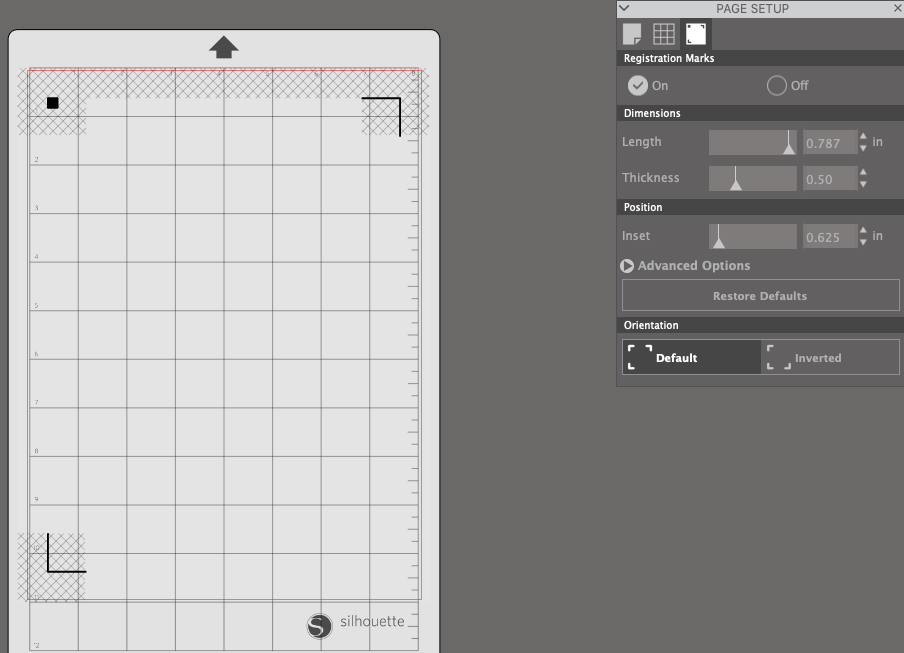
I have a Silhouette Portrait 2, so my cutting mat is set to auto portrait size. Firstly, we need to turn on our registration marks in the "page setup panel". This allows our machine to use the print and cut feature, which is needed for our project. It is really simple to use, and it is my favourite feature.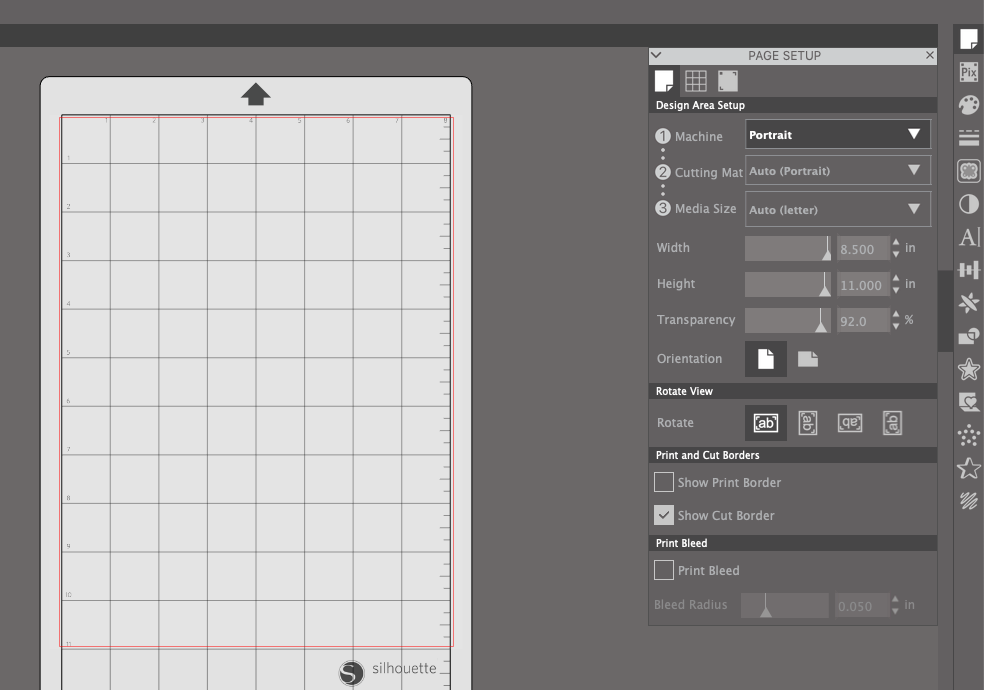
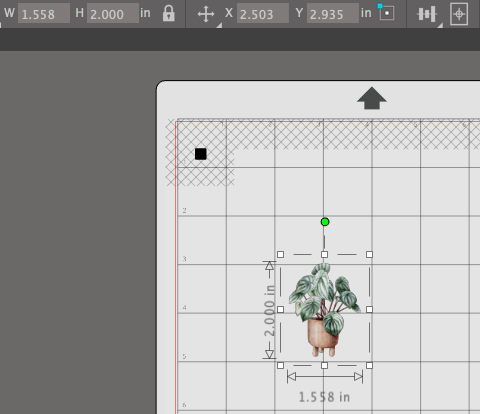
 Now, we can open our PNG file. Use the sizing feature at the top of the workspace (where it shows W and H in inches) to change the size. Keep it locked to avoid stretching or squishing the design. I normally set my stickers to 2 inches tall or wide, but it is up to you which size you prefer.
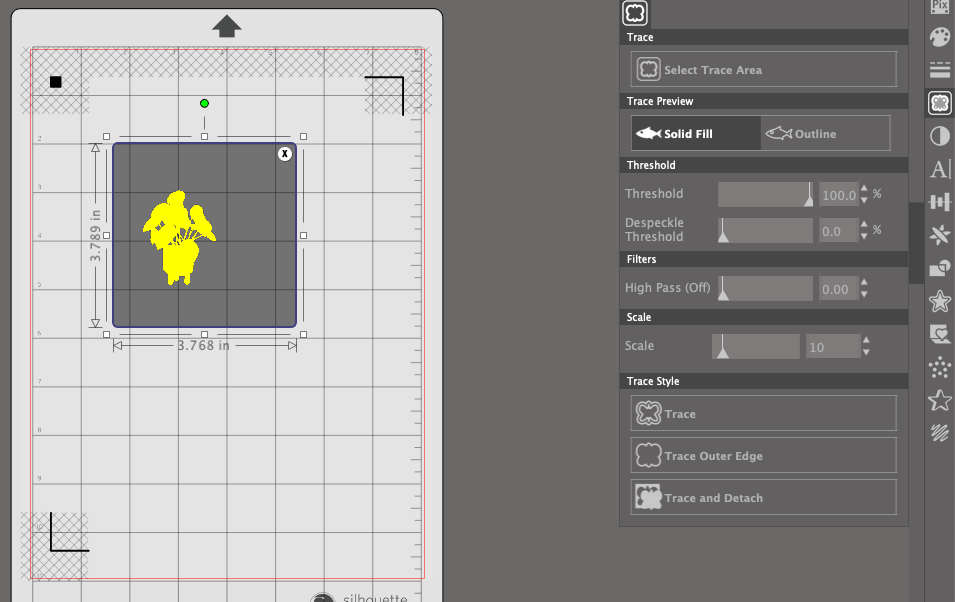
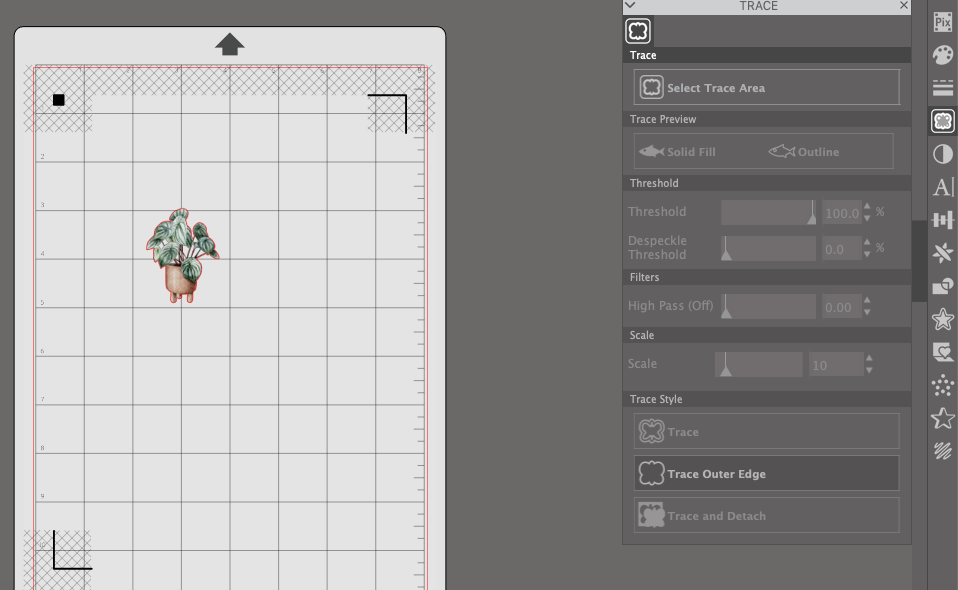
 Next, open the "trace panel" and select trace. Notice how parts of the design are not selected. To fix this, simply turn the threshold to 100% and click "trace outer edge". You can see a red border around your design.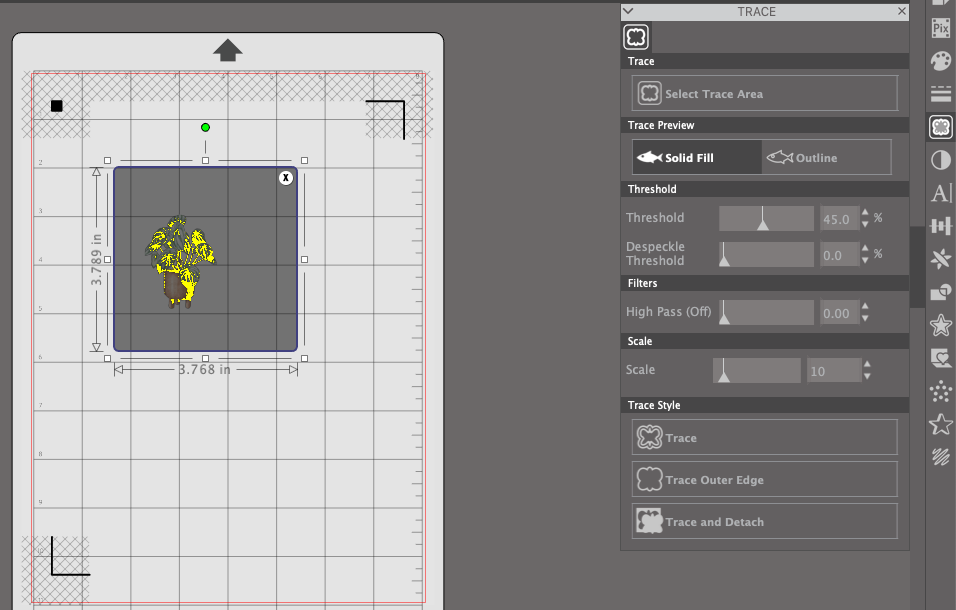
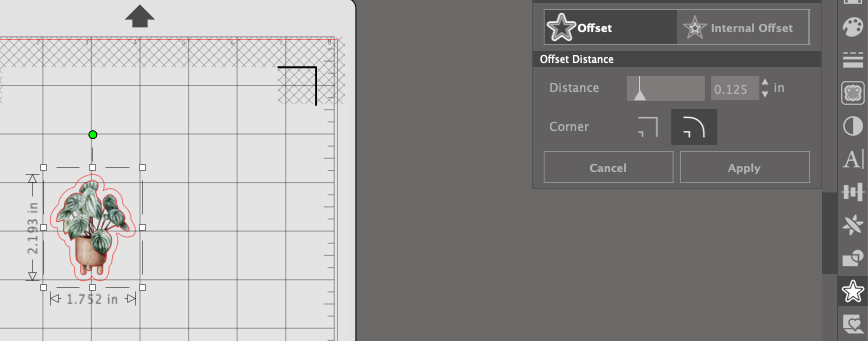
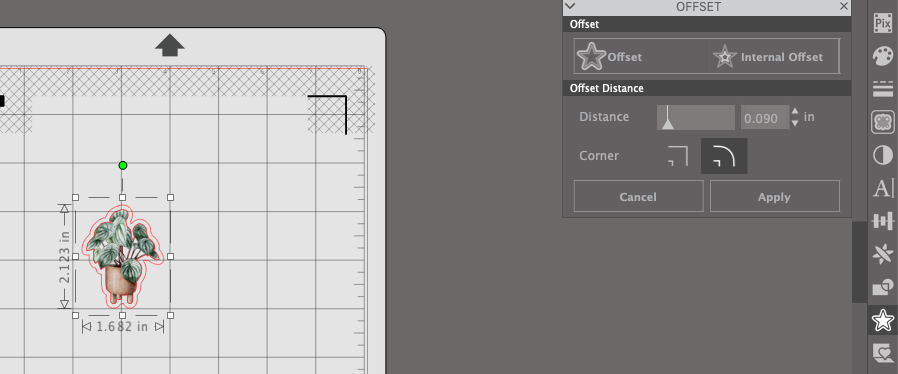
 Now, open the "offset panel" and click on the red border. Click the "offset button" and you'll see another border. I prefer to use a 0.09 offset for my stickers, but you can play around and find a thickness you like. Now, delete the inner red border and group the image. You can go to object>group or use command G for the shortcut. This is the cut line for your machine.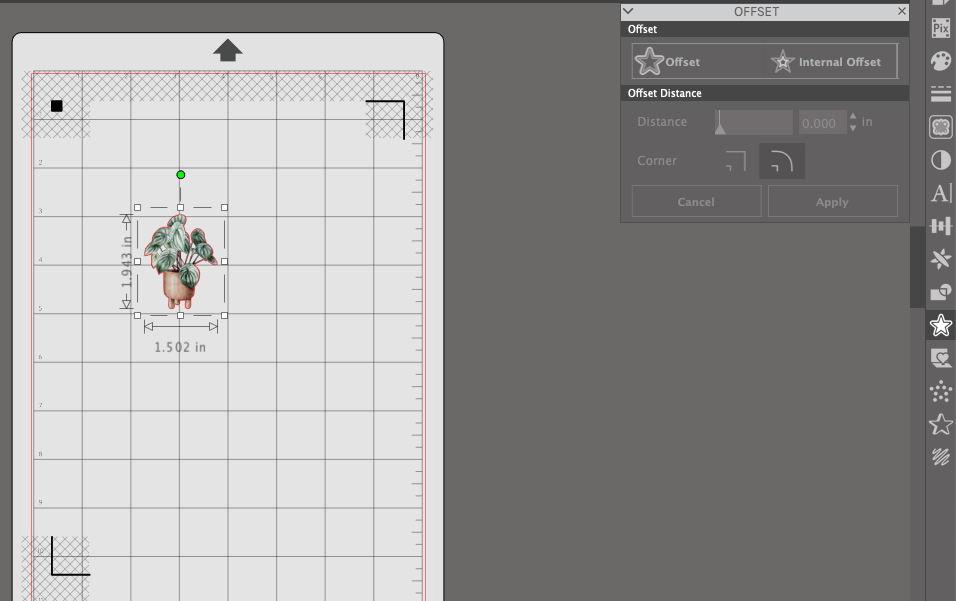
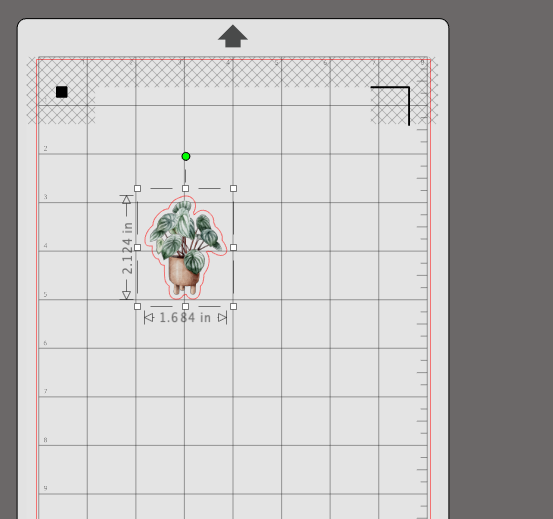 Next, simply duplicate or choose the layout for the stickers. This is my favourite step because it's like Tetris and I try to fit as many designs as I can. Avoid the mesh areas to ensure your machine can print and cut easily. When I have finished my layout, I will click on send and get ready to edit the cut settings.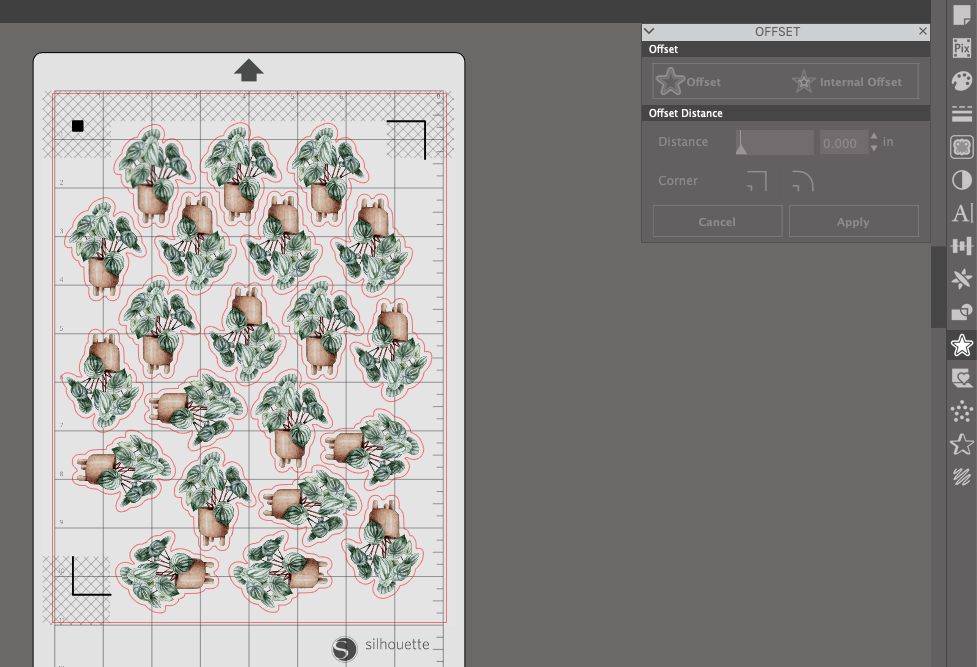
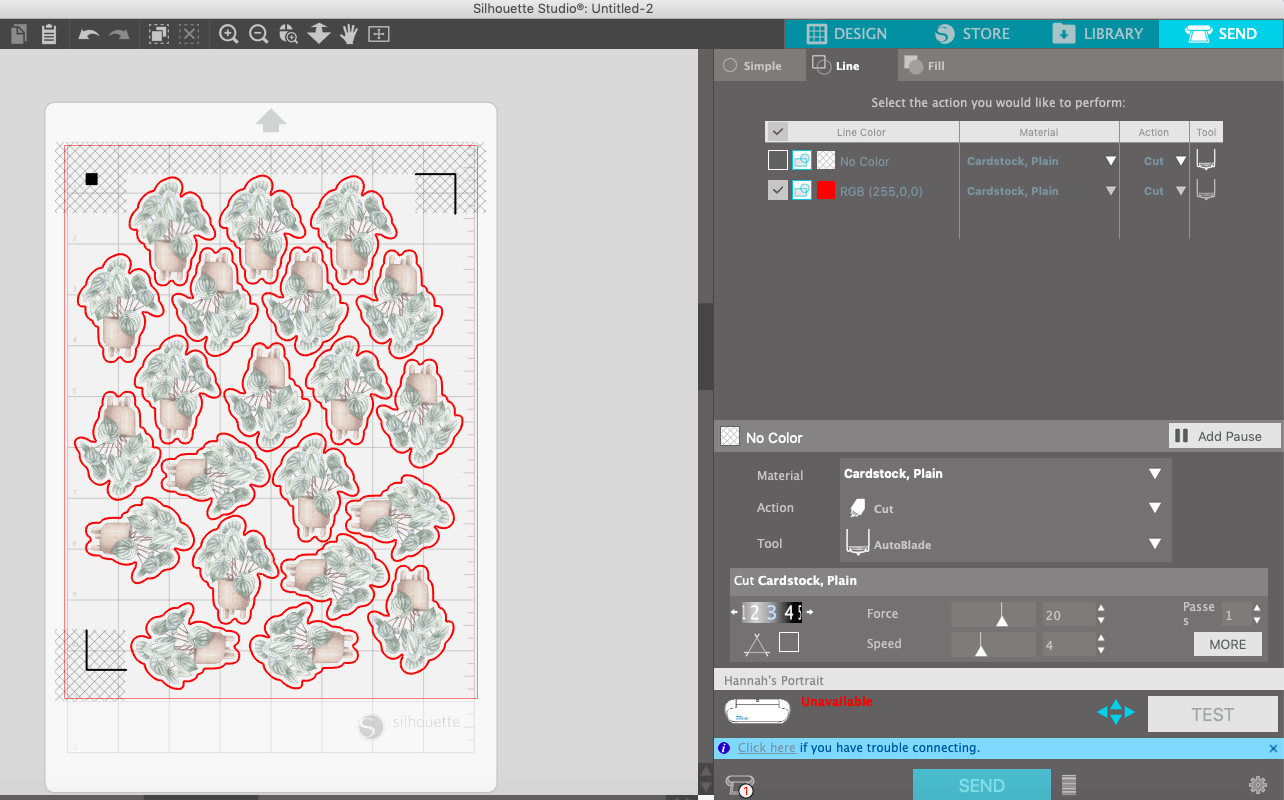 Click on "line" and choose the material you are using. I find "cardstock, plain" works very well for die-cut stickers, but you can also make a custom material too.
Next, I will go back to design and print my page. After I am done I will press it gently onto the cutting mat and feed it into my machine. Press "send" when it shows "ready" in green (my machine is not turned on, hence why it says unavailable).
And we're all done! Simply wait for the machine to finish cutting and you can admire all your lovely stickers. :)