

Voice drafting is one of the simplest ways to turn small moments into real progress. Instead of waiting until you are back at a desk, you can speak your ideas, shape them into a clear letter, and finish with a draft you can send later. JenAI Chat is designed for this kind of workflow because it combines voice chat with customizable Commands and, according to its official site, it can be used with Android Auto to create letters in your car and then transfer them to your email.
This guide shows a practical, official-feature-based way to use JenAI Chat with Android Auto for voice drafting. You will learn how to prepare the app before you drive, how to use voice chat efficiently, how to structure prompts with Commands and Questions, and how to move your draft to email when you are ready. JenAI Chat is also positioned as ad-free with no subscription, using pay-as-you-go credits, which matters if you draft regularly and want predictable costs.
Important safety note: Use hands-free features responsibly and keep your focus on driving. If you need to review or edit text, do it when parked.
What JenAI Chat supports for voice drafting
JenAI Chat is an Android app available in the Google Play Store. Its official site highlights that it has no distracting ads, no subscription, and in-app purchases that work on a pay-as-you-go credit model. That matters for drafting, because drafting often involves several iterations.
The same page also lists key capabilities that connect directly to voice drafting:
Voice Chat, where you can talk to the AI and have it talk back.
Commands, including categories like “Write Letters” and “Research and Documents,” with examples such as composing a letter and sharing it via email.
A control feature described as stopping verbose chat by tapping on the screen.
Android Auto use is described as creating letters in your car and transferring them to your email.
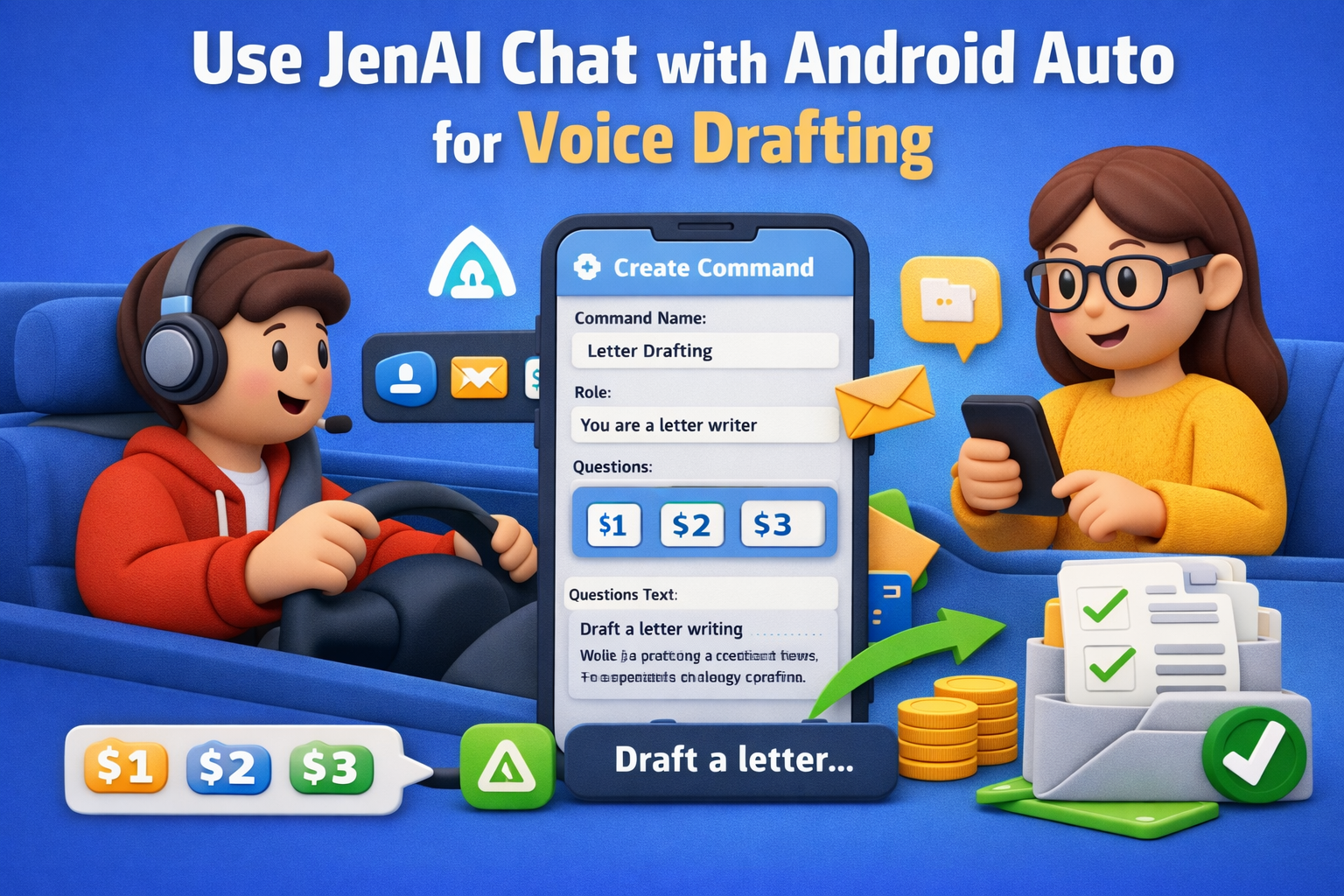
The Commands guide page adds another key piece: you can create your own Custom Commands, and you can use Questions with variables $1, $2, and $3 to insert your answers into the Command.
With those official features in mind, the best approach is to set up your drafting tools first, then use voice chat for quick drafting, and finally transfer the result to email when you are ready.
Step 1: Prepare a voice-drafting command before you drive
The biggest improvement you can make is to avoid improvising prompts every time. Instead, build one Command that produces the kind of draft you want. This is especially helpful when you are speaking, because a Command keeps you from repeating long instructions.
In the JenAI Chat guide, creating a Command follows a simple flow: open the app, select the Commands icon, choose a category (or Custom), then tap the plus icon to create a new Command. The guide also recommends giving ChatGPT a “Role” by starting the Command with a phrase such as “You are a Letter Writer.”
To align with voice drafting, create a Command with a predictable structure, a clear tone, and a short output length. Here is a template you can adapt inside a Custom Command:
You are a letter writer. Draft a clear letter based on the details I provide. Use a professional, polite tone. Keep it concise and well-structured. Include a subject line, greeting, body, and closing. Ask for any missing details as a short list at the end.
This is a good place to include a secondary keyword naturally, such as creating a letter-writing command in JenAI Chat.
Step 2: Add Questions ($1 variables) so voice input stays simple
JenAI Chat supports Questions that act like variables. The official guide explains that Questions 1, 2, and 3 are used in the Command line as $1, $2, and $3, letting you insert your answers into the prompt.
For voice drafting, Questions reduce friction because you only say what changes each time. For example, set up Questions like these:
Question 1: What is the purpose of the letter?
Question 2: Who is the recipient, and what is the context?
Question 3: What action or outcome do you want?
Then reference them inside your Command, using the variable format shown in the guide.
This is also a natural point to use a keyword like JenAI Chat Questions $1 $2 $3 for voice drafting, because it describes exactly how the feature works.
Step 3: Keep the Command optimized for speaking, not typing
Voice drafting works best when your instructions anticipate spoken input. In practice, that means:
Ask for short sections, not long paragraphs.
Request clear formatting so the draft is easy to scan later.
Include a step for missing details, so you can fill gaps on the next pass.
JenAI Chat also describes “Full Control” as the ability to stop verbose chat by tapping on the screen. For drafting, that suggests a useful habit: tell the AI to be concise first, then expand only if needed. You can describe that workflow using the keyword stop verbose chat in JenAI Chat in context, without changing what the feature is.
Step 4: Use JenAI Chat voice chat for drafting
JenAI Chat lists Voice Chat as a feature: you can talk to the AI and have it talk back. For voice drafting, that means you can speak your intent, share your key details, and ask for a structured letter.
A practical voice workflow looks like this:
Start your letter-writing Command.
Answer the Questions using short spoken phrases.
Let the AI generate a first draft.
Ask for a revision in one sentence, such as “Make it shorter,” “Make it more formal,” or “Add a clearer call to action.”
Because this post is focused on Android Auto, it is important to stay grounded in what the official site says. JenAI Chat states that you can use it with Android Auto to create letters in your car, then transfer them to your email. That statement supports the overall “draft by voice while in the car” use case, without requiring undocumented setup steps.
You can also naturally include JenAI Chat voice chat for writing letters here, since the official site explicitly supports both Voice Chat and Write Letters.
Step 5: Use Android Auto for in-car drafting, then transfer to email
The official JenAI Chat home page includes a “Power” section that says you can use it with Android Auto to create letters in your car and transfer them to your email.
Because the site does not provide a step-by-step Android Auto setup guide on that page, the most accurate way to follow this feature is to focus on the outcome it describes:
Draft the letter while you are in your car.
Transfer the finished draft to your email.
In other words, the best practice is to prepare your Commands and Questions first, then rely on voice chat for drafting, and finally share the result via email when you are ready. The home page also references “Research and Documents” tasks, like composing a letter and sharing it via email, which matches that transfer workflow.
A keyword that fits naturally here is transfer JenAI Chat draft to email, along with JenAI Chat Android Auto, and create letters in your car.
Step 6: Build a small library of voice-first drafting Commands
JenAI Chat emphasizes creating your own Commands and running tasks with one tap. Once you have one letter-writing Command, add two or three more that match how you actually communicate.
Here are voice-friendly Command ideas that stay within the official Command concept:
Thank-you note generator (short, polite, structured)
Follow-up email draft (subject line plus three short paragraphs)
Clarification request letter (bullet list of questions plus a concise closing)
Summary for email (three bullets and a closing line)
When you name these Commands clearly, you will reduce friction when you want to draft quickly. This is also a natural fit for JenAI Chat Commands for quick one-tap tasks, since the app describes one-tap task runs as a benefit of creating your own Commands.
Step 7: Manage credits and keep costs predictable
JenAI Chat positions its pricing around credits rather than a subscription. The site states that there is no subscription and that in-app purchases are pay-as-you-go. It also highlights transparency by saying your usage is shown with every dialog, and you can see which Commands cost more.
For drafting, that suggests a simple strategy:
Keep the first draft short to limit rework.
Use structured prompts so the AI does not wander.
Save Commands that repeatedly produce the right format.
This is a good place to include pay-as-you-go credits in JenAI Chat, since it directly reflects the official positioning.
Practical examples you can dictate by voice
Below are a few voice prompts that work well with a letter-writing Command. You can speak them as answers to Questions, or speak them as a single set of details.
Example 1: Simple follow-up
Purpose: Follow up after a meeting
Recipient: Project manager, recap next steps.
Outcome: Confirm timeline and responsibilities
Example 2: Customer support update
Purpose: Provide an update on a request
Recipient: Customer, polite and clear
Outcome: Confirm what is done and what is next
Example 3: Thank-you note
Purpose: Thank someone for their time
Recipient: Hiring manager
Outcome: Express appreciation and interest
Each example stays focused on purpose, recipient, and desired outcome, which makes voice drafting faster and improves results.
FAQ: Use JenAI Chat with Android Auto for Voice Drafting
Q1: Is JenAI Chat designed for Android users?
A: Yes. The official site describes JenAI Chat as an Android app available in the Play Store.
Q2: Does JenAI Chat support voice?
A: Yes. The site lists Voice Chat as a feature, describing that you can talk to the AI and have it talk back.
Q3: Can I create my own Commands for drafting letters?
A: Yes. The official guide says JenAI Chat allows you to create and experiment with your own Custom Commands.
Q4: How do Questions ($1) work in Commands?
A: The guide states that Questions 1, 2, and 3 are used in the Command line as $1, $2, and $3, allowing your answers to fill variables in the Command.
Q5: What does JenAI Chat say about Android Auto?
A: The official site states you can use it with Android Auto to create letters in your car and transfer them to your email.
Conclusion
If you want a practical way to draft by voice, JenAI Chat provides a clear set of official building blocks: voice chat, reusable Commands, variable-based Questions, and an Android Auto use case aimed at creating letters in your car and transferring them to email. The most reliable workflow is to prepare a letter-writing Command before you drive, keep your prompts structured for speech, draft using voice chat, and then transfer the finished draft to email when you are ready.
When you combine those features with the app’s no-subscription, pay-as-you-go credit model, voice drafting becomes easier to repeat without feeling locked into a monthly plan. Over time, a small library of voice-first Commands can turn quick moments into finished letters, clear follow-ups, and drafts that are ready to send.